Bikin FinFeatures
Transactions
Record every financial event with one Record button, check the results in Transactions, correct mistakes, and manage the chart of accounts and contacts.
Everything in Bikin Fin is recorded through one button, Record. You pick what happened; Bikin Fin writes the debits and credits. The result lands in Transactions, the company's bookkeeping history. This page also covers the Chart of accounts and Contacts, two lists used in every transaction.
The Record button
On computers and tablets, Record is the green button above the sidebar menu; when the sidebar is collapsed, it becomes a + square. On phones, Record sits above the menu in the sidebar drawer: tap the menu button or swipe right.
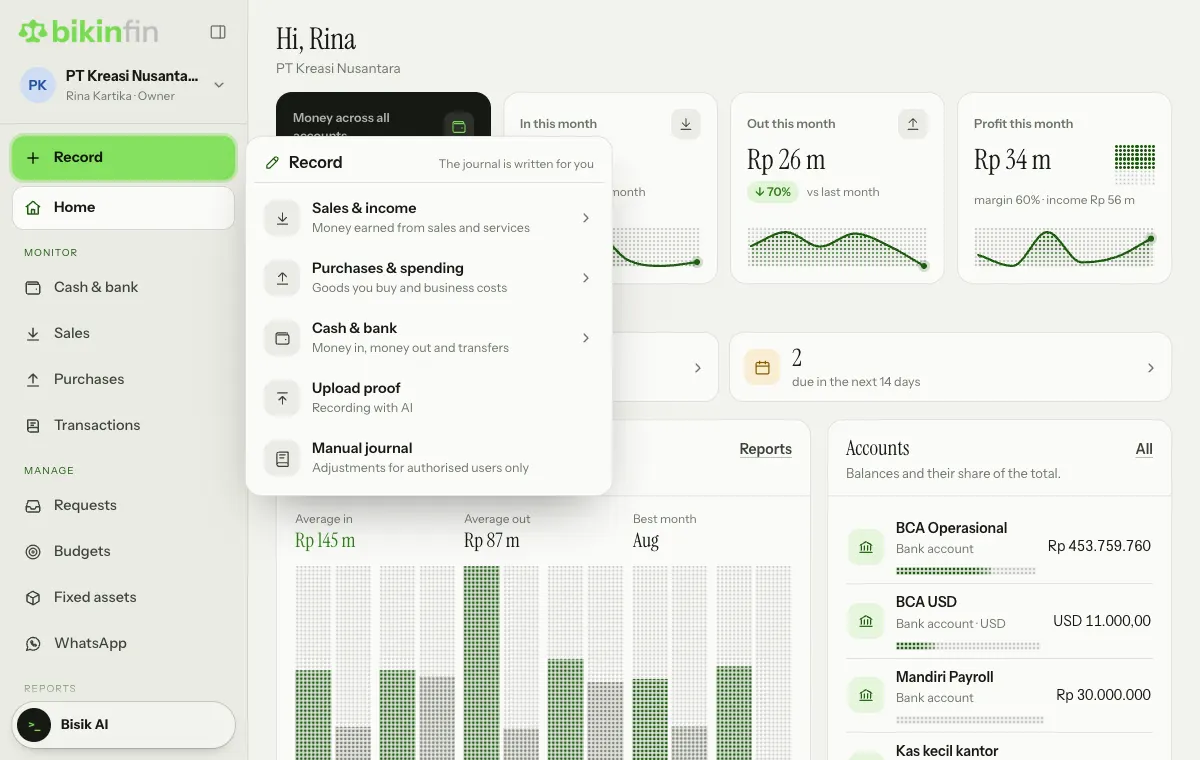
Record opens a two-level list. Pick a group, then what happened:
| Group | Choices |
|---|---|
| Sales & income | Sales invoice, Receive an invoice payment, Income without an invoice, Quote, Customer down payment, Recurring invoice |
| Purchases & spending | Vendor bill, Pay a vendor bill, Expense paid right away, Vendor down payment |
| Cash & bank | Money in, Money out, Transfer between accounts |
| Upload proof | Recording with AI from photos and PDFs. See Upload proof |
| Manual journal | Adjustments for authorised users only |
The form opens as a popup, so you stay on the page you had open; once you save, that page updates. Debits and credits are always written for you, except in a Manual journal. The list only shows the choices your role may use (see Roles & access). The number on the Record button is how many proofs in Upload proof are waiting to be checked.
A few choices are worth knowing:
- Receive an invoice payment and Pay a vendor bill: first pick the unpaid invoice or bill. Other invoices or bills from the same customer or vendor can be settled in the next step.
- Income without an invoice: cash sales, bank interest or other income. The account list shows only income accounts.
- Expense paid right away: fuel, parking, subscriptions and other costs without a bill. The account list shows only expense accounts.
The invoice, quote and customer down payment forms are covered in Sales; bills and vendor down payments in Purchases.
Money in and money out
- Choose Record › Cash & bank › Money in or Money out. Income without an invoice and Expense paid right away use the same form.
- Pick the account in Into or Out of.
- Pick the contact if there is one, in From (customer) or To (vendor).
- Under What was it for? (or What was it spent on?), pick the account and enter the amount. One transaction can have many lines with Add a line, e.g. one receipt with several kinds of cost.
- If your plan includes projects and divisions, tag each line with a project or division.
- Fill in the Date, Description and Reference no. if needed, then Save.
A Transfer between accounts moves money between your own accounts: pick From and To, enter the amount, and the Bank fee if any.
Foreign-currency accounts ask for the rate to the company currency on each transaction. For transfers between currencies, enter the amount sent and the amount received.
Invoice and bill payments are best recorded with Receive an invoice payment or Pay a vendor bill, not plain money in or out, so the open receivable or payable goes down too.
Manual journal
A Manual journal (formerly Journal entry) is for adjustments that don't touch cash, such as accruals or moving between accounts. Choose Record › Manual journal, fill in the account and its debit or credit on each line, then Save. Debits and credits must match before it can be saved. Only the owner, finance manager and accountant can make manual journals.
Viewing a transaction
Transactions (sidebar, Monitor group) is the result of recording, not the place to record. Every company transaction is here: what was recorded with Record, plus journals from requests, fixed assets and opening balances. Each row shows the description, date, number, and the contact or account. Money out carries a minus sign, while money in carries a plus sign in green.
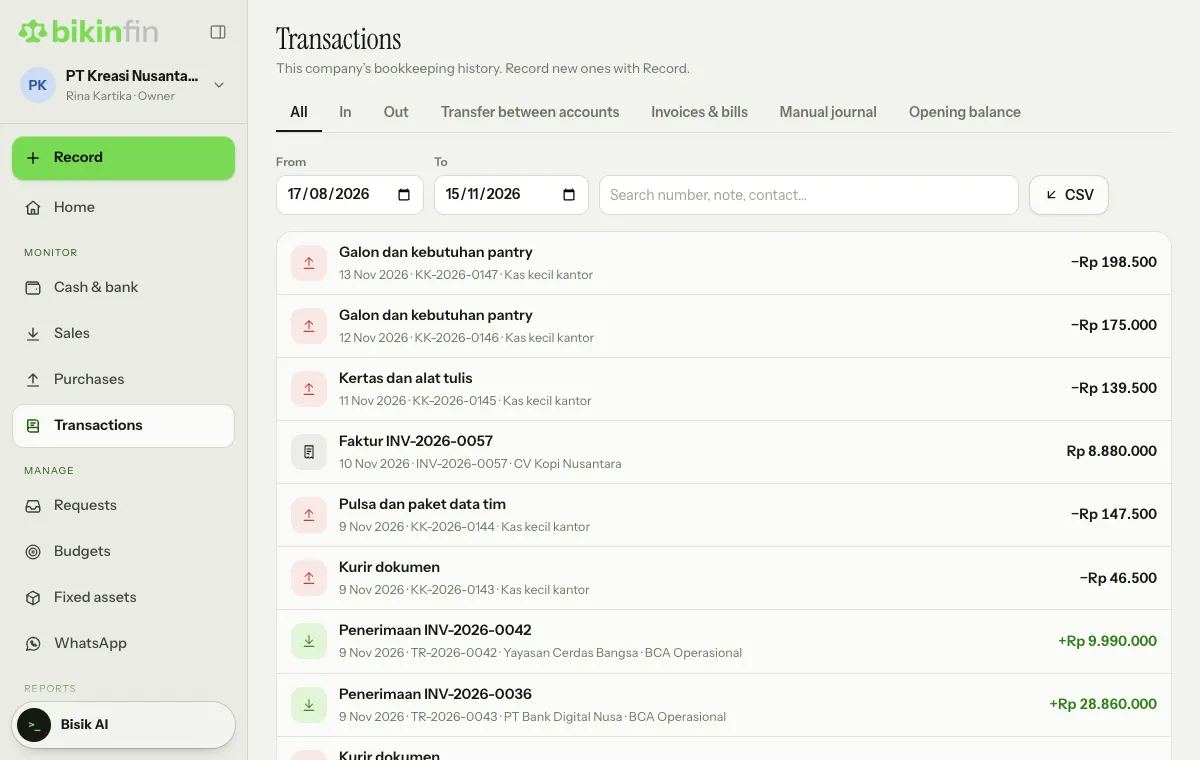
Tap a row to open its details:
- Status: Posted, Voided or Corrected.
- The Debit and credit lines per account.
- Document: the invoice or bill the journal came from, or the documents a payment settled. Choose its number to open it in Sales or Purchases.
- Reference and Proof, e.g. a file from Upload proof.
- Recorded: who recorded it and when, then its History, such as corrections and voids.
Correcting and voiding
A recorded transaction isn't edited in place. If something is wrong, correct it:
- Tap the transaction in the list, then choose Correct at the bottom of its details.
- Fill in Why it is corrected, e.g. wrong amount or wrong account.
- Fix the details, then Save.
The original is voided with that reason and marked Corrected. It stays visible with its amount struck through and a link to its replacement. The replacement is a new transaction with a new number, marked Replacement, and the two mention each other in their history. A bank line that was matched to the original moves to the replacement automatically.
Correcting works for money in, money out, transfers and manual journals, and can be done by the person who recorded it, a finance manager or the owner. Invoice, bill, payment, request and asset journals are corrected through their document; opening balances are changed in Company › Opening balances.
Void cancels a transaction without a replacement. Choose Void in the transaction's details, write the Reason, choose Void transaction, then enter the code from your email. Only the owner or finance manager can void. The transaction stays visible marked Void and no longer counts in balances and reports.
Transactions are never deleted. Transactions in a period locked in Month close can't be recorded, corrected or voided.
Searching and exporting
Filter the list with the All, In, Out, Transfer between accounts, Invoices & bills, Manual journal or Opening balance tabs, the From and To range, and the search box (number, note, contact). The list shows the latest 500 transactions; narrow the dates if needed.
The owner, manager and accountant can download journals as CSV with the CSV button next to the search box, if your plan includes export.
Chart of accounts
The Chart of accounts (sidebar, Data group) is the list of accounts every transaction lands in. A ready-made chart is created when the company is set up, for its type of business.
- Add account: fill in the Code, Account name, Type and Group, optionally under a parent account.
- Accounts marked System are used automatically (e.g. Cash, Retained earnings, Opening balance equity). You can rename and renumber them, not change their type or group, and they can't be deleted.
- Accounts that already have transactions can't be deleted; switch them off instead.
- The Trial balance tab shows every account's balance as of a date and checks that debits equal credits.
Adding and editing accounts is done by the owner or finance manager.
Contacts
Contacts (sidebar, Data group) holds this company's customers and vendors. Choose Add contact, then fill in:
- Whether it is a customer, a vendor or both, the Name and the legal name.
- NPWP, email, Phone, WhatsApp number and Address. The NPWP is used in the Coretax invoice export.
- Payment terms (days) and Credit limit. A new invoice that goes over the credit limit shows a warning.
- Payment bank account for vendors: bank, account number and account name.
Changing a vendor's saved bank account needs a code from your email and is written to the activity log. This stops "changed bank details" fraud. Always confirm bank changes directly with the vendor through a channel you know.
Contacts still used by invoices, bills or templates can't be deleted; switch them off instead.
Last updated: