Bikin FinFeatures
Sales
Make invoices, quotes, down payments and recurring invoices with Record, then follow collections, automatic reminders and receivables ageing in Bikin Fin.
Sales (sidebar, Monitor group) is where you follow everything to do with customers: invoices, quotes, down payments, recurring invoices and receivables. The page has the tabs Invoices, Quotes, Down payments, Recurring and Receivables ageing. In the Invoices tab, four numbers at the top sum up Unpaid receivables, Overdue, Drafts and Paid. You can filter the list with All, Draft, Unpaid, Overdue and Paid, or search it by number or name.
New documents are made with Record › Sales & income (see Transactions), so this page has no create buttons of its own. When a tab's list is still empty, the button there opens the same Record form. On this page you follow documents up: issue, send, receive payment or void them.
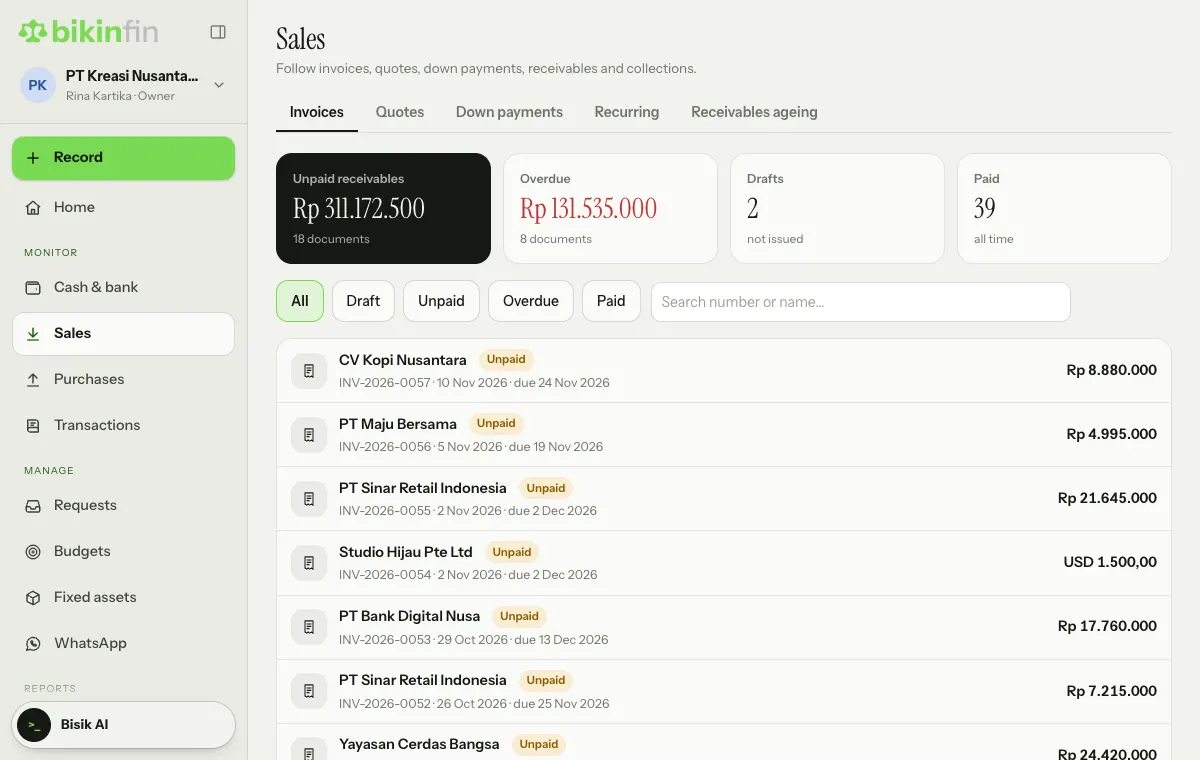
Making an invoice
- Choose Record above the menu, then Sales & income › Sales invoice.
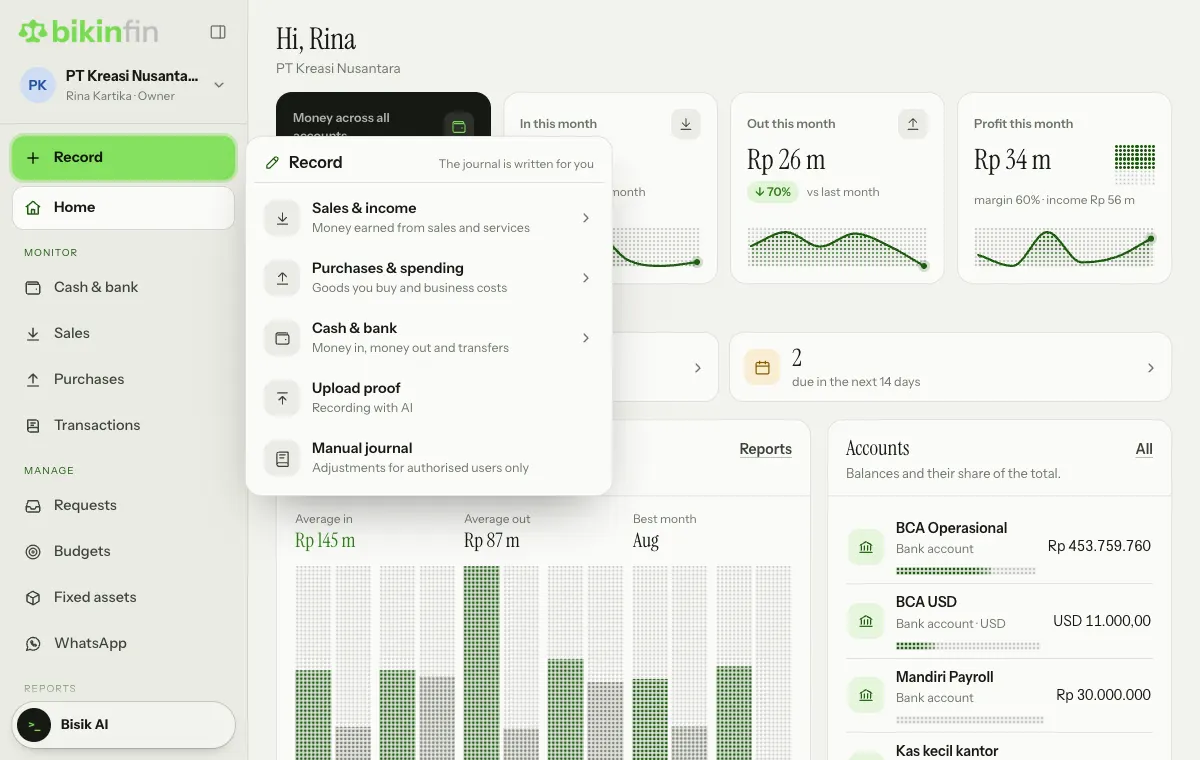
- Pick the Customer. Their payment terms fill in from the contact.
- Fill in the Date and Due date. The Customer PO no. is optional.
- Under Goods or services sold, enter the description, income account, Qty, Price and Disc. % if any. Add as many lines as you need, and tag a project if your plan includes projects.
- Choose the VAT: No VAT, VAT 12% × base 11/12 (general, 11% effective), or VAT 12% full (luxury goods). VAT is only available when the company is VAT-registered.
- If the customer withholds income tax (e.g. PPh 23), choose it under Tax the customer withholds.
- Fill in the Notes and Payment terms if needed.
- Choose Save draft or go straight to Issue.
An invoice gets an INV-year-sequence number when it is issued, and its journal is written automatically. It appears in the Invoices tab with the status Draft, Unpaid, Overdue or Paid. Invoices can be in a foreign currency with a rate to the company currency, if your plan includes foreign currency.
For the Coretax export, each invoice line can carry an e-Faktur kind (Goods or Service), goods/service code and unit. Empty ones use the defaults in Tax › Settings.
Sending an invoice and receiving payment
Tap an invoice in the list to open its details. From an issued invoice:
- Copy link: every invoice has its own link the customer can open without an account, and it doesn't show up in search engines. It shows the invoice and your company's own bank accounts in the same currency. The customer can print it or save it as a PDF from the browser.
- Send invoice: by Email, WhatsApp or Both. WhatsApp goes out from your own business number, which the owner connects in Company › Invoicing › Your business WhatsApp (scan a QR like WhatsApp Web); it depends on your plan and on the customer's WhatsApp number in Contacts. Messages are queued and sent slowly to keep the number safe.
- Receive payment: pick the account it went into, the amount (partial is fine), any tax the customer withheld and the bank fee. One payment can settle several invoices from the same customer. For foreign-currency invoices, enter today's rate and the amount that arrived in the company currency; the exchange difference is journalled automatically.
- Receipt: available once the invoice is paid.
You can also record a payment with Record › Sales & income › Receive an invoice payment. First pick the unpaid invoice; other invoices from the same customer can be settled in the next step.
Money never passes through BIKIN. The customer pays straight into your company's bank account, then you record the payment (or match it from your bank lines).
An invoice can be edited until a payment is recorded. Voiding an invoice needs a reason and an email code; the invoice and its journal stay visible marked Void.
bkin.in short link
Issued invoices, quotes and down-payment receipts show View / print and Copy link. Under it is the Short link: a short bkin.in address made for you right away, for example bkin.in/k7m2qa. The real link doesn't change; bkin.in just sends visitors there.
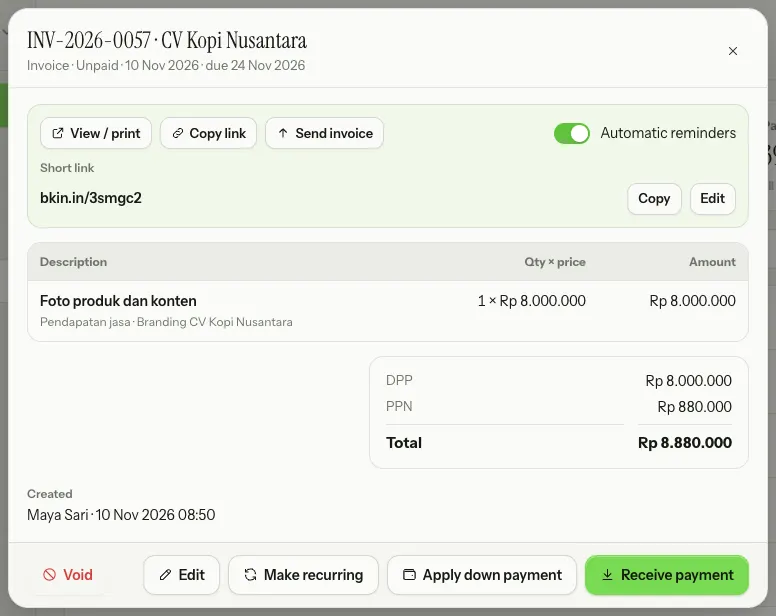
- Copy copies the short link.
- Edit picks your own code, for example
bkin.in/promo-coffee. Availability is checked as you type. Free plans need at least 6 characters, paid plans at least 3. The old code stops working once you save.
Automatic payment reminders
Bikin Fin sends customers reminders at 09:00 WIB: a few days before the due date, on the due date and after it. The tone is friendly before the due date and firmer after, and it stops as soon as the invoice is paid.
Set the schedule in Company › Invoicing: default VAT, default terms, default payment terms text, when reminders go out, and the Also send by WhatsApp switch (needs a connected business WhatsApp number in the Your business WhatsApp card on the same page). Reminders for one invoice can be turned off from its detail (Automatic reminders).
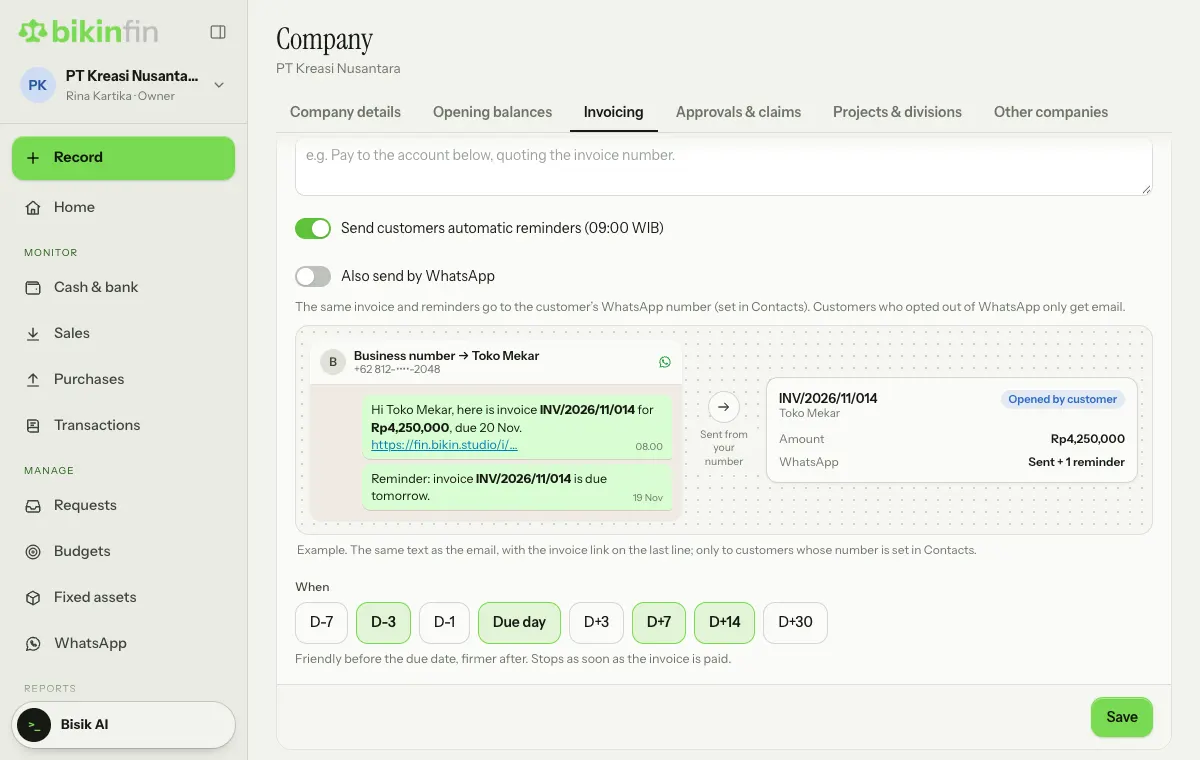
The WhatsApp menu
The WhatsApp menu (sidebar, Manage group) shows the state of the business WhatsApp number used for invoices and payment reminders. It's always there for the owner, finance manager, finance staff and accountants, even before your plan includes WhatsApp or the number is connected.
Until WhatsApp can be used, the page explains why, with a short example of the invoice message a customer receives:
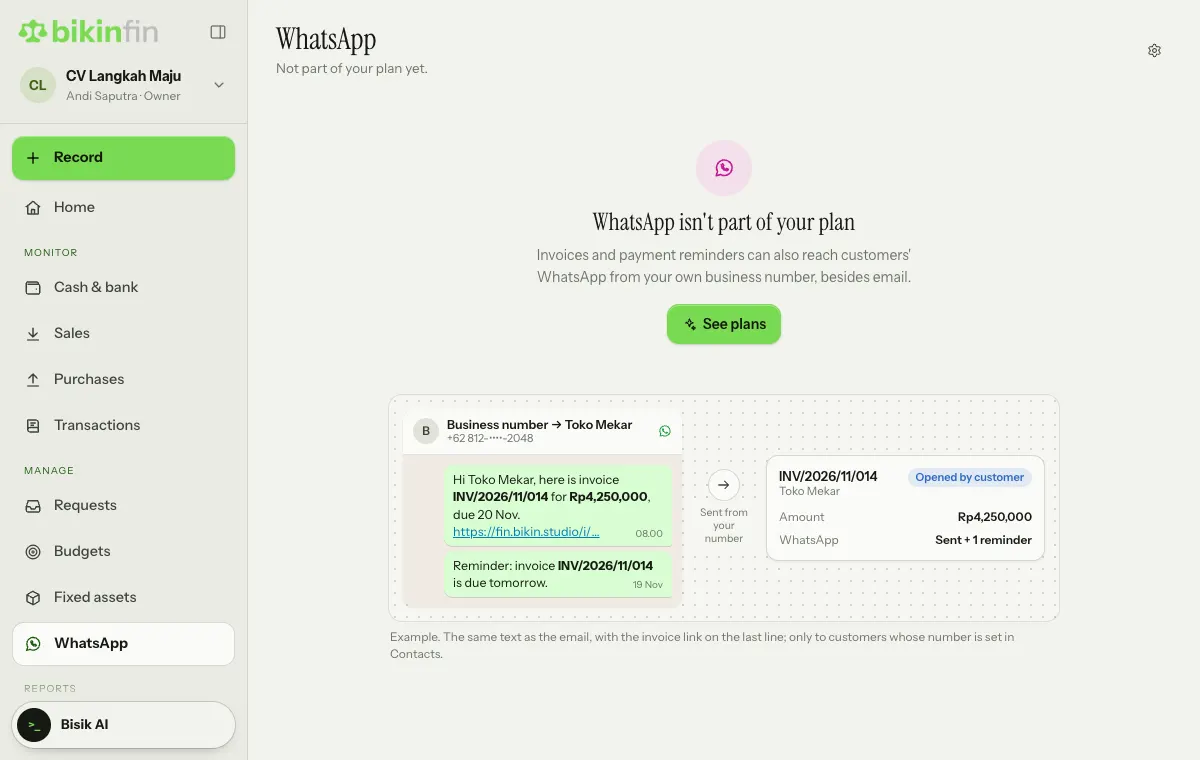
- WhatsApp isn't part of your plan: the owner sees a See plans button; other roles are told the company owner can upgrade.
- WhatsApp isn't connected yet: the owner sees a Connect WhatsApp button that opens Company › Invoicing; other roles are told the company owner can connect it.
- WhatsApp isn't available right now: BIKIN is setting up or maintaining the connection. Try again later.
Once the number is connected, the Your business WhatsApp card on that page shows the Business number (Connected), whether Invoices & reminders by WhatsApp is On or Off, and Today's allowance in words: Available, Almost used up or Used up, continues tomorrow. The Invoicing button on the card opens its settings.
Quotes
- Choose Record › Sales & income › Quote, then fill in the lines, VAT and Valid until. The quote appears in the Quotes tab.
- Issue it to give it a QT number. The quote can be emailed to the customer or shared with Copy link; its public link shows no bank accounts.
- Record the Customer's answer: Accepted or Declined. A quote past its valid-until date becomes Expired automatically.
- Choose Take a deposit if the customer pays a down payment.
- Choose Make invoice. Bikin Fin creates a draft invoice with the same content and the planned down payment. Check it, then issue it.
One quote becomes one invoice. A declined quote can't be invoiced.
Customer down payments
Choose Record › Sales & income › Customer down payment, then fill in the customer, account and amount in the company currency. The down payment gets a DP number and a receipt with its own link, and appears in the Down payments tab. It sits in the Customer deposits account until applied.
Apply it to the final invoice by choosing it on the invoice form, or after the invoice is issued with Apply down payment. Partial is fine. The invoice balance, reminders, receivables ageing and the public invoice page all use the amount after the down payment.
Down payments are recorded without separate VAT. The final invoice charges VAT on the full tax base; the down payment only reduces the amount due. Down payments and recurring invoices are in the company currency only.
Recurring invoices
For retainers, rent or subscriptions. Create one with Record › Sales & income › Recurring invoice, or from an existing invoice with Make recurring. Fill in the customer, lines, VAT, Schedule (Monthly, Quarterly or Yearly), Invoice day (1–31), Starts, Ends (empty means no end), and whether the invoice is emailed to the customer automatically. The template appears in the Recurring tab.
On the day, the invoice is made in the morning: issued straight away, numbered, with a journal. One invoice per period, never twice. A template can be Paused, Resumed, Edited, run with Make it now, or deleted; invoices already made stay.
Income without an invoice
Cash sales, bank interest or other income you don't invoice are recorded with Record › Sales & income › Income without an invoice. The account list shows only income accounts. The result appears in Transactions, not in the invoice list.
Receivables ageing and statements
The Receivables ageing tab groups open receivables per customer: not due, 1–30, 31–60, 61–90 and over 90 days. Open a customer for a Statement with invoices, payments and the closing balance, which you can print.
Who can do this
The owner, finance manager and finance staff make and send sales documents. Voiding is done by the owner or manager. Accountants can read everything.
Customer link photo and banner
Invoice, quotation and receipt links open with the company banner at the top and the company photo on its bottom edge, like a LinkedIn profile. Set it in Company › Company details, card Photo & banner: Upload photo (a square logo looks best), then Change banner. Every company in a group has its own photo and banner, and the photo also shows on the company card in the sidebar.
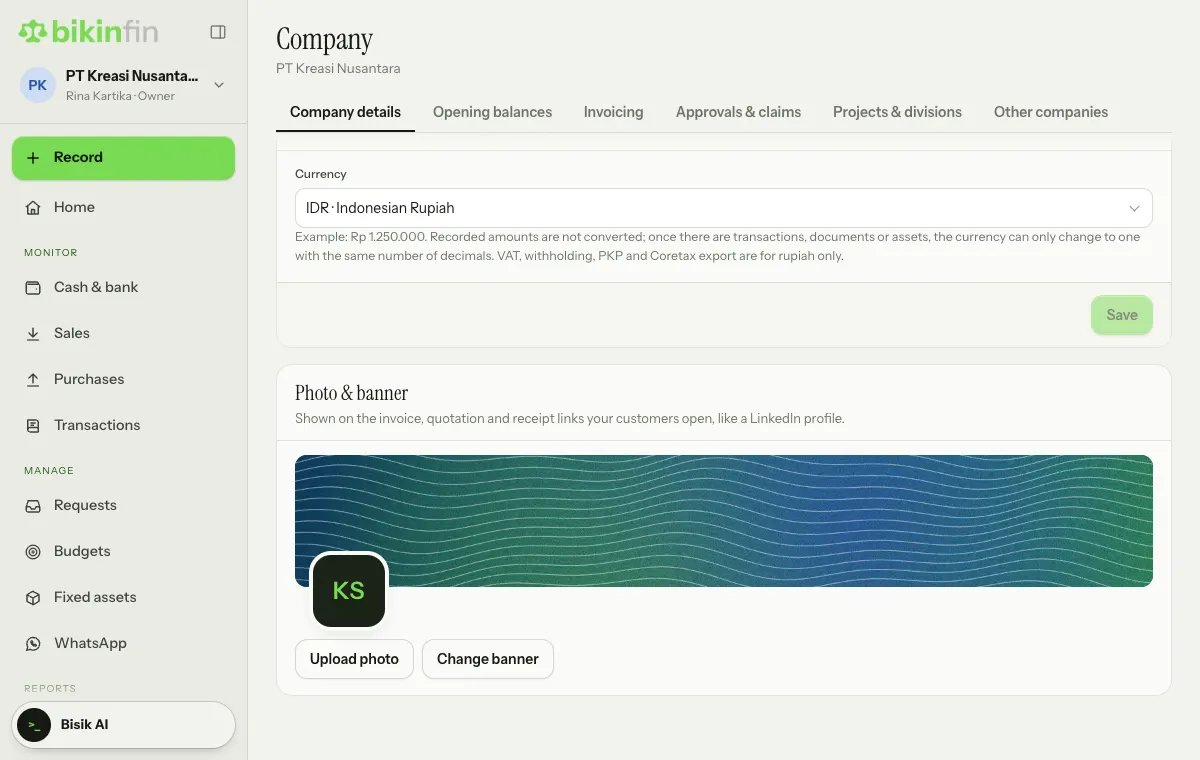
Choose Change banner: in the Pattern tab pick Grid, Waves, Rings or Silk and one of five colour sets (Shuffle gives a new variation); in the Upload tab choose a JPG, PNG or WebP image at least 600 px wide and drag the preview to choose the part that shows. Use default brings back the default pattern. The pattern moves gently on your customer's page and stays still when their device asks for reduced motion. Every plan can use the photo and banner.
Last updated: