Bikin FinFeatures
Upload proof
Upload many photos and PDFs of financial documents at once through the Record button; AI sorts them and drafts the entries, you check and save.
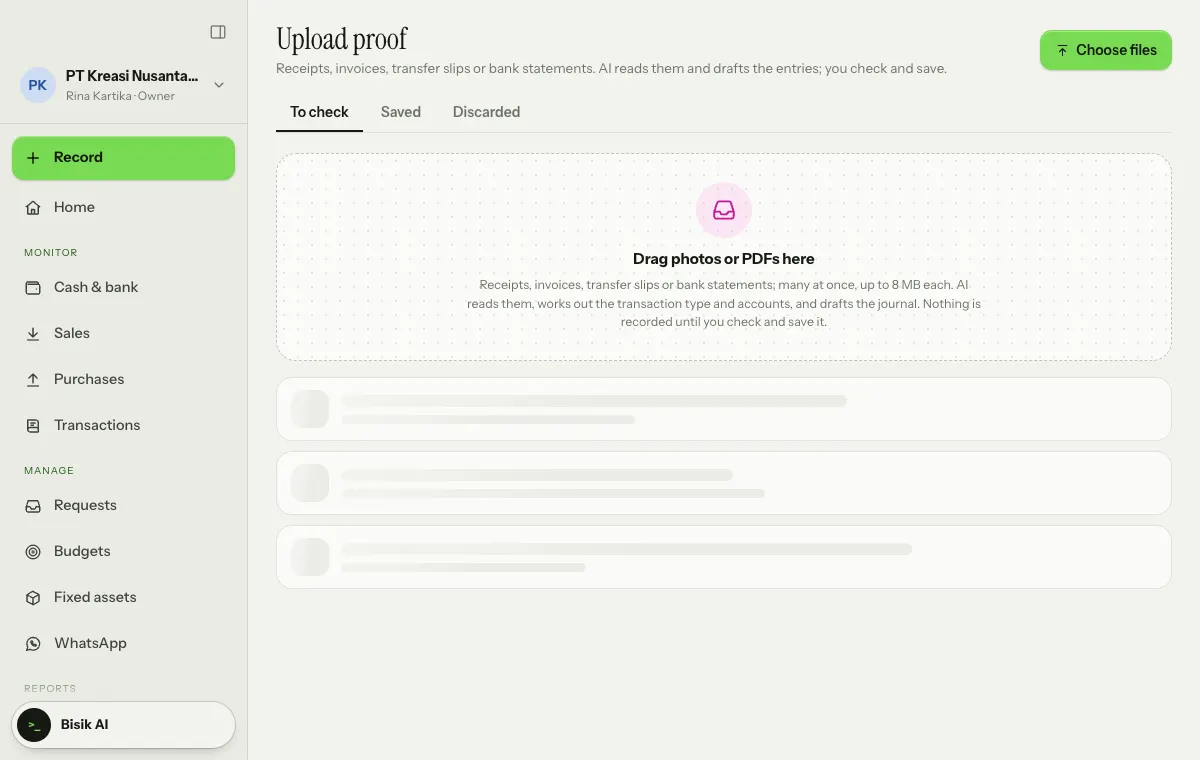
Upload proof is where you drop every financial document at once: vendor bills, receipts, transfer slips and bank statements. AI sorts each file and drafts its transaction. Nothing is recorded until you check and save it.
This page used to be called the Receipt inbox and had its own menu item. Now you open it with the Record button above the menu, choice Upload proof. The number of proofs waiting to be checked shows on the Record button, and on Home, Needs attention shows a proofs waiting to be checked tile that opens Upload proof directly.
Upload proof is available to the owner, finance manager and finance staff, if your plan includes it.
Uploading documents
- Choose Record › Upload proof.
- Drag photos or PDFs onto the dotted Drag photos or PDFs here box, or choose Choose files at the top right. Many files at once are fine, up to 8 MB each.
- Files land in the To check tab and are read by AI one by one.
What AI recognises
| Document | Draft prepared |
|---|---|
| Vendor bill | A draft bill with the vendor, number, date, due date and lines. The vendor is looked up by NPWP, then name; a new vendor is added when you save. |
| Receipt | A draft money-out entry with an expense account guessed from what was bought, paid from cash or the bank. |
| Transfer slip | A settlement of a matching open invoice or bill (number in the transfer note, amount, contact), or plain money in/out. |
| Bank statement | An import of bank lines into the account it guesses, to reconcile in Cash & bank. Lines already there are skipped. |
| Sales receipt | A receipt or invoice your own company issued becomes a draft money-in entry to the operating income account. If it has a due date and isn't paid yet, create it with Record › Sales & income › Sales invoice so it can be collected. |
Each draft says how sure the AI is: AI is confident, AI is fairly sure or AI is unsure, check carefully.
Checking and saving
- Choose Review on a file in the To check tab.
- See the file next to the form (View file or Open PDF).
- Change the Action if the guess is wrong (Vendor bill, Money out, Money in, Settlement or Import statement), then check the vendor, figures, accounts and bank account. The Draft journal below the form updates as you change it, so you see the debits and credits before saving.
- Choose Save (for bills: Save draft or Save and issue; for statements: Import lines), or Later to come back to it.
Doubtful proofs need one more tick before they can be saved. If the AI is unsure, tick I have checked the details. If there is a similar transaction, bill or file, Bikin Fin shows This may already be recorded with the list. Make sure it isn't a duplicate, then tick I checked: this is not a duplicate.
Saved files move to the Saved tab, with the number of the transaction they made. The file becomes the bill's attachment or the transaction's proof, and shows in the transaction detail in Transactions.
Not a finance document? Choose Discard. Discarded files move to the Discarded tab and nothing is recorded from them.
If reading fails, choose Read again with AI or fill it in by hand.
AI reading limit
AI reading has a daily allowance. The page tells you when today's allowance is nearly used up or used up. After that, you can still upload new files to Upload proof and fill them in by hand until tomorrow.
There is also a monthly AI reading allowance that follows your plan, shared by Upload proof, bill reading, request receipts and bank statement import across every company in your account. When this month's allowance is used up, you can still fill files in by hand, and the owner can upgrade the plan.
What still applies
Saving from Upload proof is the same as recording with the other Record forms. Role permissions, Month close period locks, email codes for important actions and plan features all still apply.
For now, one file makes one transaction, and one transfer slip settles one document. For a payment that settles several invoices or bills at once, use Record › Sales & income › Receive an invoice payment or Record › Purchases & spending › Pay a vendor bill.
Receipts in requests
Employees submitting a claim can also attach a receipt photo that AI reads, right in the request form. See Requests & approvals.
Last updated: