Bikin FinFeatures
Purchases
Record vendor bills and vendor down payments with Record, then follow payables ageing and payment runs with approval and a transfer CSV in Bikin Fin.
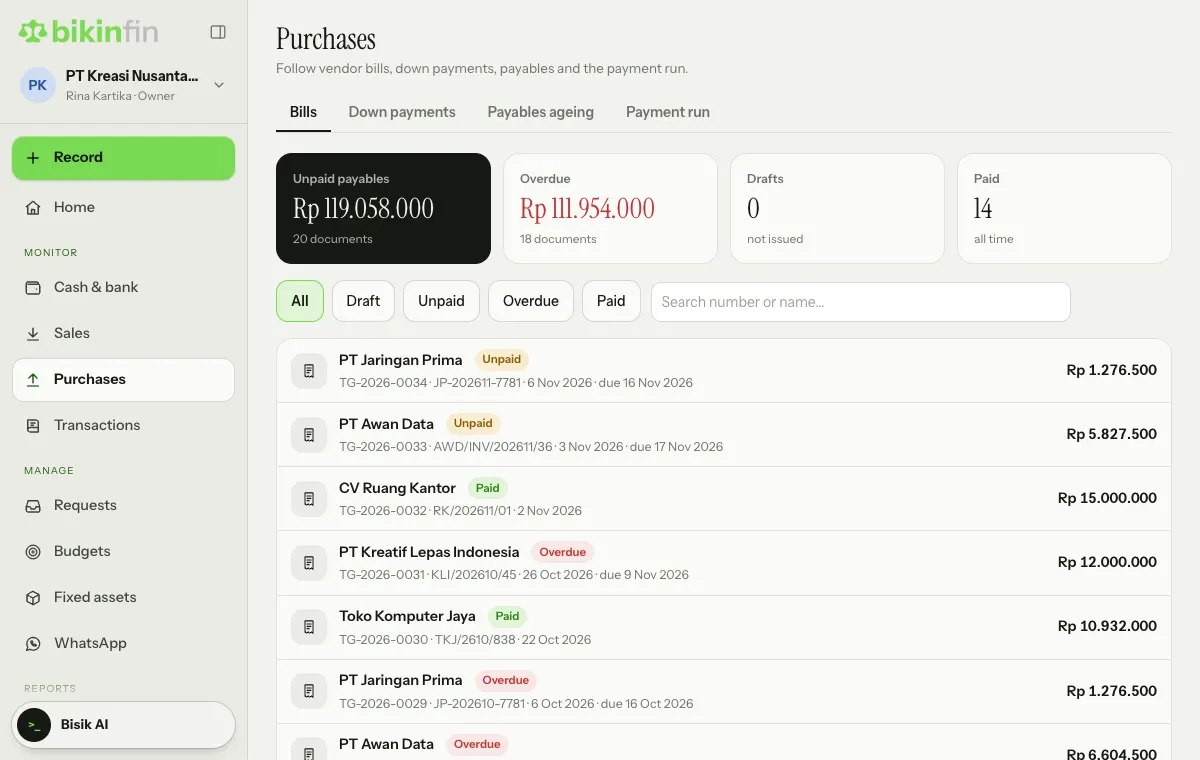
Purchases (sidebar, Monitor group) is where you follow everything to do with vendors. The page has the tabs Bills, Down payments, Payables ageing and Payment run. In the Bills tab, four numbers at the top sum up Unpaid payables, Overdue, Drafts and Paid, and you can filter the list by status or search it by number or name. Bikin Fin records and reminds; you still make the payments yourself from your bank.
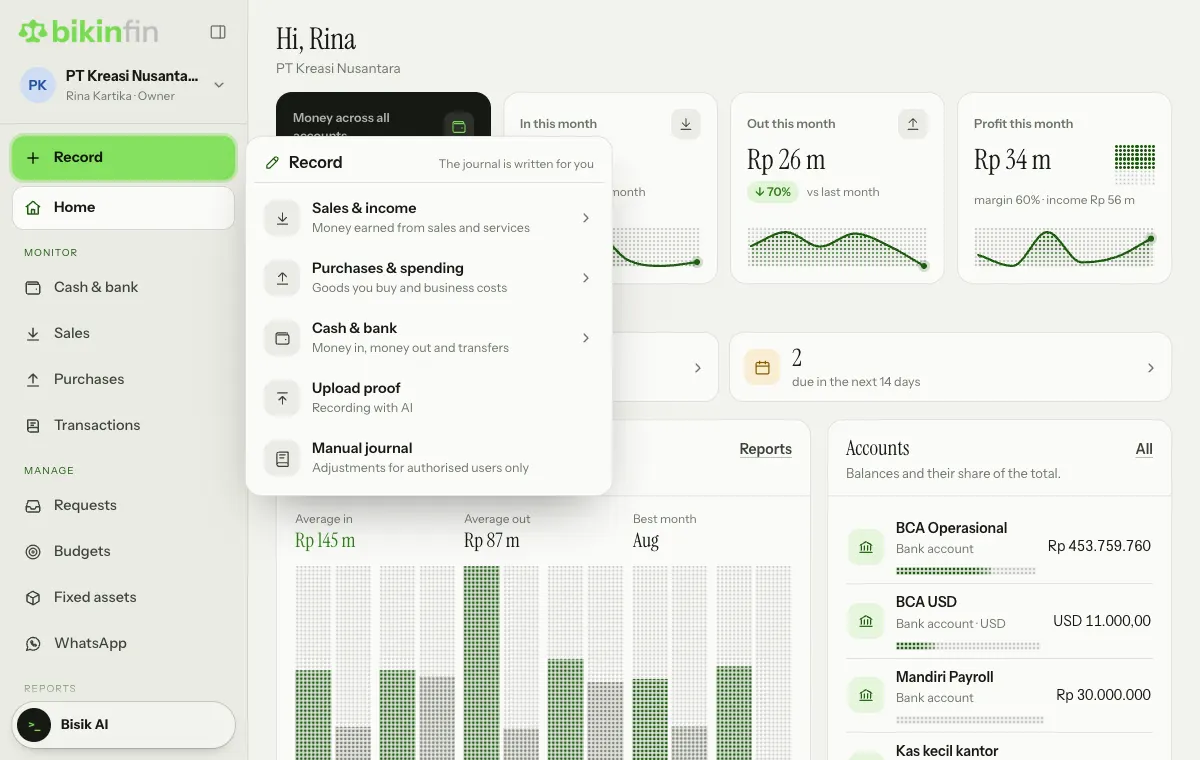
New bills, payments and down payments are recorded with Record › Purchases & spending (see Transactions), so this page has no record buttons of its own. When a tab's list is still empty, the button there opens the same Record form.
Recording a vendor bill
- Choose Record above the menu, then Purchases & spending › Vendor bill.
- Pick the Vendor and fill in the Vendor invoice no., Date and Due date.
- Under What was bought, enter the description, expense or asset account, quantity and price. You can tag a project per line.
- Choose the input VAT if any, and Tax we withhold if you must withhold income tax (e.g. PPh 23 on services, PPh 4(2) on rent, or PPh 21 for non-employees).
- Choose Save draft or Issue. An issued bill gets a TG number and its journal is written automatically. It appears in the Bills tab.
Bills from a photo or PDF
Got a photo or PDF of the bill? Use Record › Upload proof. AI reads the vendor, number, date, lines and VAT, then drafts the bill for you to check before saving. The file is kept as an attachment. You can upload many bills, receipts and transfer slips at once. See Upload proof.
Paying a bill
Tap the bill in the list, then choose Pay bill in its details. You can also use Record › Purchases & spending › Pay a vendor bill: first pick the unpaid bill, and other bills from the same vendor can be settled in the next step. Pick the account it is paid from, the amount (partial is fine) and the bank fee. Tax we withhold is recorded as tax payable; pay it and issue the withholding slip (see Tax & Coretax).
Make it an asset
If a bill line uses a fixed asset account, a Make it an asset button appears on that line. The asset form opens with the name, cost and date from the bill. No new journal is made because the bill already recorded the purchase. See Fixed assets.
Costs without a bill
Fuel, parking, subscriptions and other costs paid straight away without a bill are recorded with Record › Purchases & spending › Expense paid right away. The account list shows only expense accounts. The result appears in Transactions, not in the bill list.
Vendor down payments
Choose Record › Purchases & spending › Vendor down payment, then fill in the vendor, account and amount in the company currency. The down payment gets a DV number, appears in the Down payments tab, and sits in the Purchase advances account until it is applied to the final bill, on the bill form or with Apply down payment after the bill is issued.
Payables ageing
The Payables ageing tab groups open payables per vendor by due date, with a printable statement per vendor.
Payment run
A payment run helps you pay many bills at once, with approval.
- In the Payment run tab, set Due by to see the bills that need paying.
- Tick the bills. Partial amounts are fine.
- Choose Propose run, fill in the Payment date and a Note for approvers, then Propose.
- The proposal (JB number) goes to approvers by the levels in Company › Approvals & claims. Approvers decide on it from the Requests page, from their phone too.
- Once approved, download the bulk-transfer CSV and upload it yourself in internet banking.
- When the transfers are done, choose Mark paid. Bikin Fin records one payment per vendor.
Small runs are approved at once when their total, counted together with the last 7 days of runs, is under the first approval level. The person who proposes a run can't approve it, except the owner. Bills already in another proposal can't be proposed again. Amounts in the CSV are net of the tax we withhold.
Bikin Fin never transfers money. The CSV is just a file to upload in your internet banking. Check the vendor names and account numbers before sending transfers. Vendors without full bank details are marked Bank details missing.
From purchase requests
If your company uses purchase requests (PR) and POs, a bill can be made straight from a PO whose goods have been received, at PO prices. See Requests.
Who can do this
The owner, finance manager and finance staff record bills, pay them and propose payment runs. Voiding a bill is done by the owner or manager, with a reason and an email code. Changing a vendor's bank account in Contacts also needs an email code.
Last updated: