Bikin FinAccount & plan
Roles & access
The six roles in Bikin Fin, extra access, per-company access, inviting users, email codes for important actions, and the activity log.
Everyone signs in to Bikin Fin with their own email and gets one role. The role decides which menus appear and what the person can do. The server always checks permissions again, so hidden menus really can't be used. The list of people and their roles is in Users & roles (sidebar, Data group).
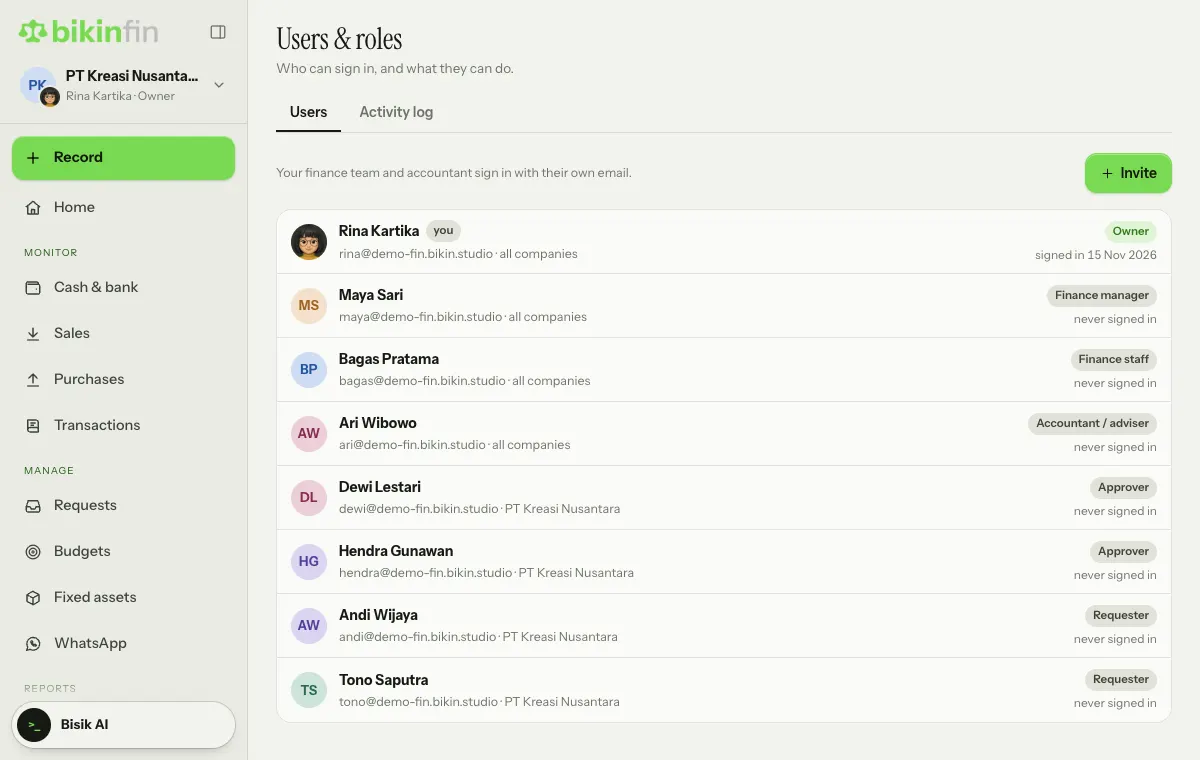
Six roles
| Role | Can |
|---|---|
| Owner | Everything, including companies, roles, the plan, unlocking month close and deleting data |
| Finance manager | All transactions, the chart of accounts, contacts, voiding, approvals up to their level, month close and inviting staff |
| Finance staff | Records money in/out, transfers, invoices, bills and contacts; imports statements; Upload proof. Profit reports only with the extra Reports access |
| Accountant / adviser | Reads everything, manual journals, opening balances, depreciation, tax and exports. Doesn't record payments or change master data |
| Approver | Approves their divisions' claims, advances and purchases; sees their divisions' budgets |
| Requester | Submits claims, advances and purchase requests, and follows their status |
Approvers and requesters don't read the books. They see Home, Requests and Settings; approvers also see Budgets for their divisions if your plan includes budgets.
The Record button only lists what your role may use: the owner and finance manager see everything, finance staff everything except Manual journal, and accountants only Manual journal. Approvers and requesters don't get the Record button.
Extra access
Extra access is stacked on top of a role, and picked in the Extra access part of the user form:
- Reports: opens Reports, Tax and Month close for viewing. Good for senior finance staff.
- Activity log: opens the activity log in Users & roles.
Per-company access
If your account has several companies, each user can be limited to certain companies in Companies they can open. If not limited, the user can open every company in the account; the user list shows all companies.
Inviting users
- Open Users & roles and choose Invite at the top right of the list.
- In the Invite a user form, fill in the Name, email and Role.
- For approvers, pick the Divisions they approve. Without a division, the approver gets no requests.
- Pick extra access and the companies they can open if needed.
- Leave Email an invitation on. Bikin Fin makes a temporary password and sends it.
- Choose Save.
The invited person signs in with the temporary password and an email code, then changes it in Settings. The owner and finance manager can invite; a manager can't manage users with the owner role. Only the owner can change roles, with an email code. To change someone's role or access, tap their row in the list.
A deleted user can't sign in any more, but the transactions they recorded stay. For a temporary change, switch them to inactive instead.
The number of users follows your plan. Requesters are counted separately from finance users, with a looser limit.
Email codes for important actions
Important actions ask for a 6-digit code sent by email, for example:
- voiding a transaction, invoice or bill,
- changing a role or deleting a user,
- changing a vendor's bank account,
- locking or unlocking month close,
- remeasuring or disposing of an asset,
- deleting a company or closing the account.
Once the code is right, other important actions won't ask again for 10 minutes. If the action needs the owner's approval, the code is sent to the owner's email. Don't give the code to anyone, including the BIKIN team.
Activity log
The Activity log tab (next to the Users tab) records important actions: who, what and when. Examples include correcting or voiding transactions, changing opening balances, changing roles, adding or deleting users, accounts, bank accounts or companies, changing a contact's bank account, exporting journals and linking a Google account. The log is open to the owner and to users with the extra Activity log access.
Transactions never disappear
Recorded transactions are never deleted or edited in place. A mistake is fixed with Correct by the person who recorded it, a finance manager or the owner: the original is marked Corrected and the replacement is recorded as a new transaction. Void without a replacement is only for the owner or finance manager, with a reason and an email code. The original stays visible, and every correction or void is kept in the transaction's history. See Transactions.
Last updated: