Bikin FinFeatures
Cash & bank
Add and monitor bank accounts, cash, e-wallets and credit cards, import bank statements, then reconcile them with your books in Bikin Fin.
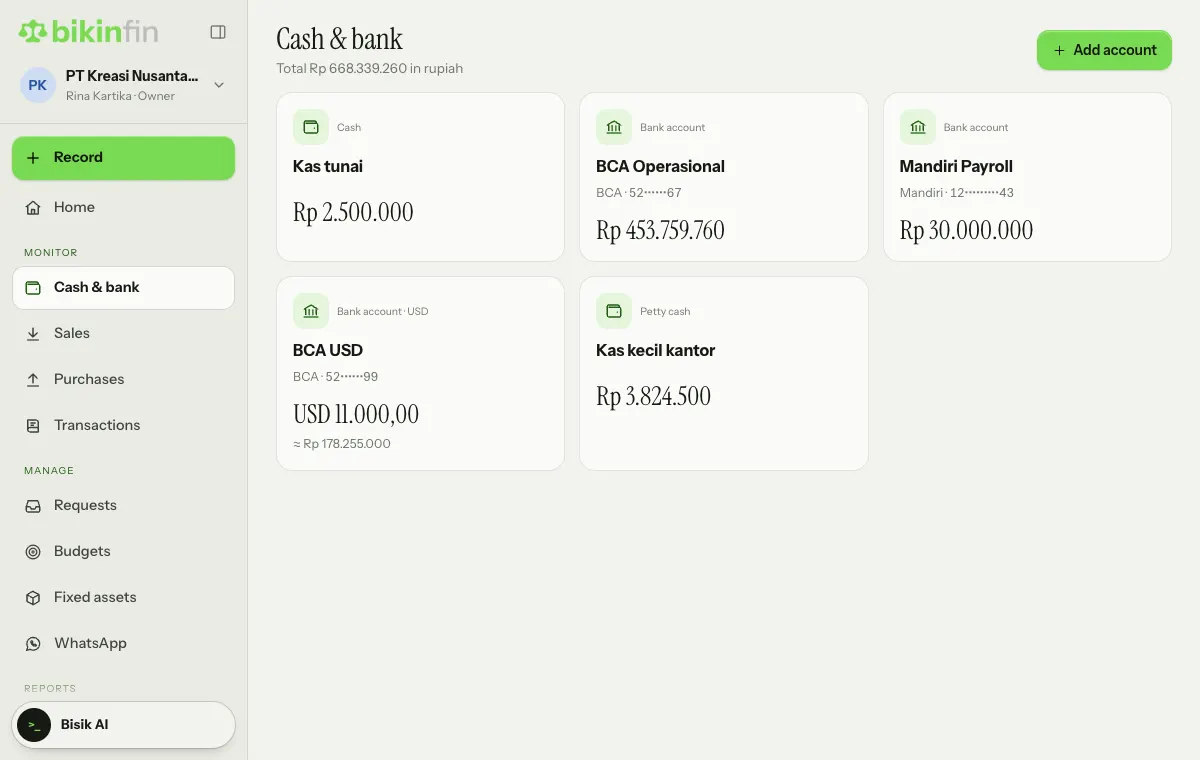
Cash & bank (sidebar, Monitor group) holds every place the company keeps money. Each account has its own balance, movements and ledger account in the Chart of accounts. This page is where you monitor balances, import bank statements and match them with your books. Money in, money out and transfers are recorded with Record › Cash & bank (see Transactions).
Adding an account
- Open Cash & bank and choose Add account at the top right.
- Pick the Kind: Bank account, Cash, Petty cash, E-wallet / QRIS, or Credit card.
- Fill in the Name (e.g. BCA Operations), then the bank or provider, Number and Account name if any.
- Choose the Currency. Foreign-currency accounts need the foreign currency feature in your plan.
- For petty cash, fill in the Petty cash float if you use one.
- Choose Save.
Its ledger account is created in the Chart of accounts automatically. An account you no longer use can be made inactive so it doesn't appear in new transactions.
Seeing balances and movements
The main Cash & bank page shows one card per account with its kind, the bank and account number (masked), and its balance. The total of all accounts in the company currency sits under the title, and foreign-currency accounts also show their estimated value in that currency. Tap a card to open that account, which has two tabs:
- Book entries: every transaction in that account with a running balance. Filter with From and To, and choose a transaction to see its details.
- Bank lines & reconciliation: the lines from bank statements you imported, and how they match your books.
For credit cards, the balance shown is the unpaid balance.
Importing a bank statement
- Open the account, choose the Bank lines & reconciliation tab, then Import statement.
- Choose a CSV file from internet banking (e.g. KlikBCA, Livin', BRImo, BNI, BSI, OCTO), or paste the CSV or a copied table.
- If your plan includes AI import, you can also choose a PDF or photo of the statement; AI reads it. Reading uses the monthly AI reading allowance that follows your plan (see Upload proof).
- Check the Preview, then choose Save (the button shows how many lines will be saved).
Lines imported before are skipped, so it is safe to import overlapping date ranges. Above the list of lines, four numbers sum up where you stand: Balance per bank, Balance per books (with any difference), To review and Matched.
Reconciliation
New lines land in the To review filter; the other filters are Matched, Ignored and All. Each line has suggestion buttons:
- Match + a transaction number: the line is already recorded as a transaction in the books (similar amount and date).
- Settle + an invoice or bill number: the line pays an open invoice or bill. (PPh) means the settlement takes withholding tax into account.
- Record to + an account name: based on a keyword rule you saved earlier.
- Record & match: opens the Record money in or Record money out form for that line, and the new transaction is matched straight away.
- Ignore: for lines that don't need recording. You can bring them back with Reopen.
These per-line actions are part of reconciliation, so you still do them here, not through the Record button.
When recording from a bank line, switch on Remember and fill in the Keyword. Next time, lines whose description contains that word (e.g. "BIAYA ADM") are suggested to the same account. You can see and delete these rules in Company › Invoicing › Bank line rules.
Finished lines move to Matched or Ignored, and matched lines have a View its transaction button. If a matched transaction is later corrected, its bank line moves to the replacement automatically.
Reconciliation history
The Reconciliation history section compares the statement balance with the book balance on the same date, month by month, with the difference and the number of lines still to review. Its status shows without opening it: All matched or Needs attention. Tap the section to see the table.
Tidy reconciliation makes the Month close checklist quick: one of its checks is that every bank line for the month is matched.
Transfers between accounts
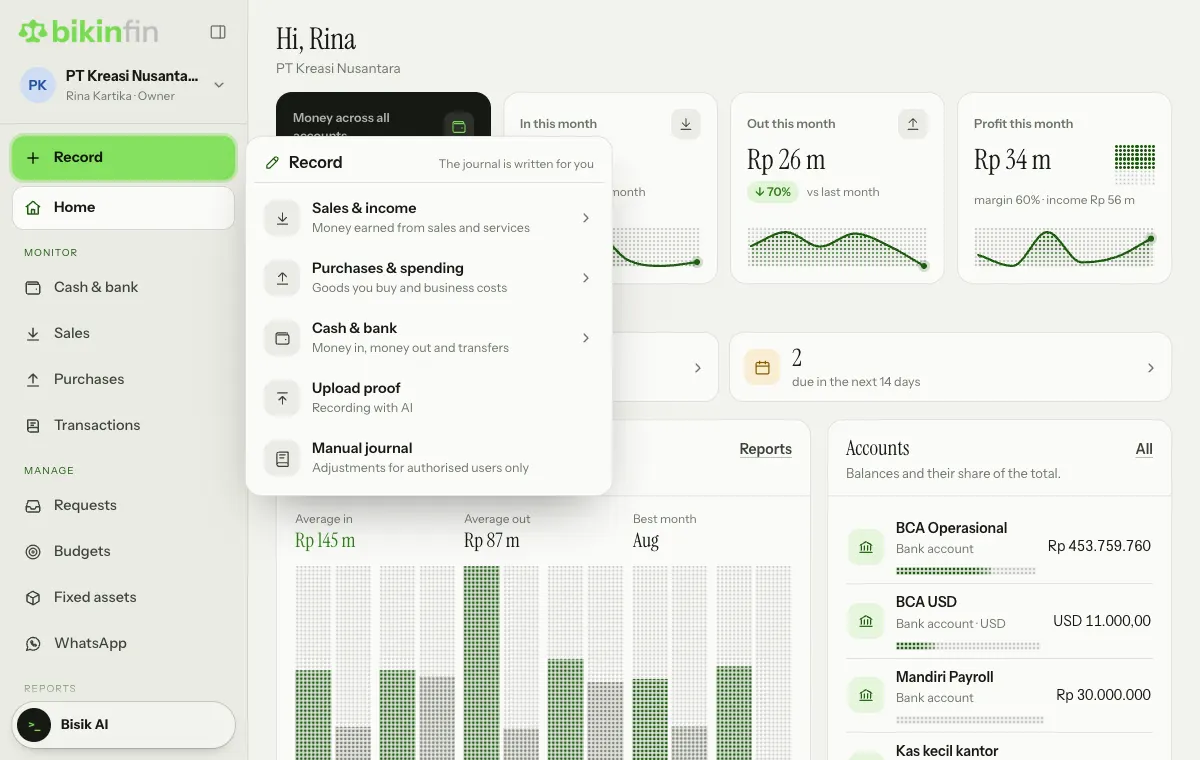
Moving money between your own accounts, e.g. from a bank account to petty cash, is recorded with Record › Cash & bank › Transfer between accounts: pick From and To, enter the amount, and the Bank fee if any. Transfers don't count as money in or out on Home.
Who can do this
The owner, finance manager and finance staff can record and import statements. Adding or deleting accounts is done by the owner or manager. Accountants can read everything.
Bikin Fin isn't connected directly to your bank and never moves money. Bank lines only come in through files you import.
Last updated: