Bikin FinFeatures
Requests & approvals
Submit claims, employee cash advances and purchase requests in Bikin Fin, approve them by level from your phone, then process the payments.
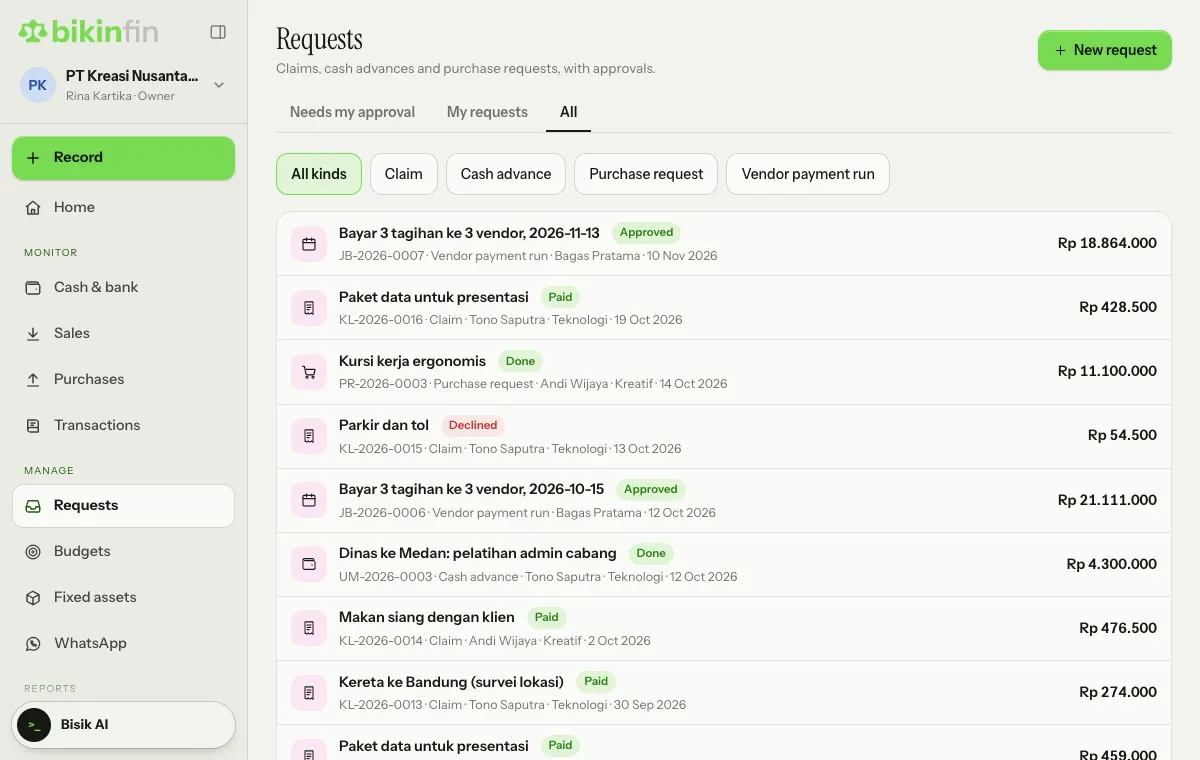
Requests (sidebar, Manage group) holds claims (reimbursements), employee cash advances, purchase requests and vendor payment run proposals, together with their approvals. The number on the Requests menu shows how many are waiting for your decision.
The page has three tabs: Needs my approval (for approvers, managers and the owner), My requests (your own) and All (for the finance team and accountants). The All kinds, Claim, Cash advance, Purchase request and Vendor payment run filters narrow the list down.
Who is involved
- Requester (employee): submits requests and follows their status. Employees can be invited as requesters without becoming finance users.
- Approver (division head): decides on their division's requests.
- Finance manager and Owner: decide on the higher levels.
- Finance team (owner, manager, staff): pays claims, pays out advances and processes purchases.
Requesters and approvers who can't read the books only see the Needs your approval and My open requests cards on Home.
Submitting a request
- Open Requests and choose New request at the top right.
- Pick the kind in the menu that opens: Claim, Cash advance, or Purchase request (with an Upgrade pill if your plan doesn't include procurement yet).
- Fill in the Title, Division and Project if any.
- Fill in the lines:
- Claim: under What you spent, enter each expense and its amount, then attach a Receipt photo (AI reads it). If your plan includes Upload proof, the receipt photo is read by AI and fills in the date, shop and amount.
- Cash advance: What the advance is for and the estimated amount.
- Purchase request: What needs buying and the Est. price. From a certain amount, two Comparison quotes from vendors are required.
- Choose Submit, or Save draft to finish later.
Claims follow the categories in Company › Approvals & claims: the expense account, the monthly limit per person, and from what amount a receipt is required.
Approving
Approvers get an email and see the request in the Needs my approval tab. Tap the card, look at the receipt or quotes on the same card, then choose Approve or Decline (with a reason). The requester gets an email about the decision.
Approval levels
Levels are set by the owner or manager in Company › Approvals & claims, by amount. By default: up to Rp5 million needs the division approver, up to Rp25 million adds the finance manager, and above that adds the owner. These rules always apply:
- Divisions without an approver go to the manager; without a manager, to the owner.
- A request that pushes this month's budget over always needs the owner. Its card is marked Over budget.
- An owner or manager approving a higher level also completes the levels below it.
- Requesters can't approve their own requests, except the owner.
After approval
Claim: the finance team chooses Pay, picks the account and date, and Bikin Fin records the expense.
Cash advance:
- The finance team chooses Pay out and records the payout.
- When the activity is over, the employee fills in Settle advance with what they spent and the receipts.
- The owner or manager chooses Close it. Any money left over is returned by the employee to the company account, or the company pays the shortfall; the journals are automatic.
Advances not yet settled stay visible in the list and in the month close checklist.
Purchase request:
- Create PO: pick the vendor and PO prices. PO prices may differ from the estimate, up to 10% above the approved total. The PO can be emailed to the vendor.
- Record receipt of the goods or services that arrived.
- Create bill: a vendor bill is made in Purchases from lines received but not billed yet, at PO prices. Add VAT or withholding in Purchases afterwards.
Vendor payment run: proposals from Purchases appear here for a decision. Once approved, finance downloads the transfer CSV and marks it paid in Purchases › Payment run.
Cancelling
A request that isn't finished can be cancelled with Cancel the request, optionally with a reason. It stays on record with the status Cancelled.
Bikin Fin doesn't pay employees or vendors. Payments still go through the company's bank; Bikin Fin records them.
Last updated: