Bikin FinFeatures
Budgets
Set expense budgets and income targets per account, division or project in Bikin Fin, then compare them with the actuals every month.
Budgets (sidebar, Manage group) compares the plan with what actually happened. You enter expense budgets and income targets per month, and Bikin Fin works out the actuals straight from the recorded transactions. This feature is available if your plan includes budgets.
Creating a budget
- Open Budgets and pick the year in the row of years under the title.
- Choose + Budget at the top right (or Create a budget if that year is still empty). The New budget form opens.
- Pick the Account: an expense account for a spending budget, or an income account for an income target.
- If needed, pick a Division or Project. Leave Whole company for a budget covering the whole company.
- Enter the figure for each month, or fill in Fill every month with and choose Apply.
- Choose Save.
One budget line = one account for one division or project, over 12 months. Repeat for every account you want to watch.
Copying last year
Choose Copy last year at the top right to build the chosen year's budget from:
- Its budget: last year's budget, or
- Its actuals: last year's real figures,
then raise or lower it with Up/down (%). Tick Overwrite the existing … budget if you want to replace lines that already exist, then choose Copy.
Reading the Budgets page
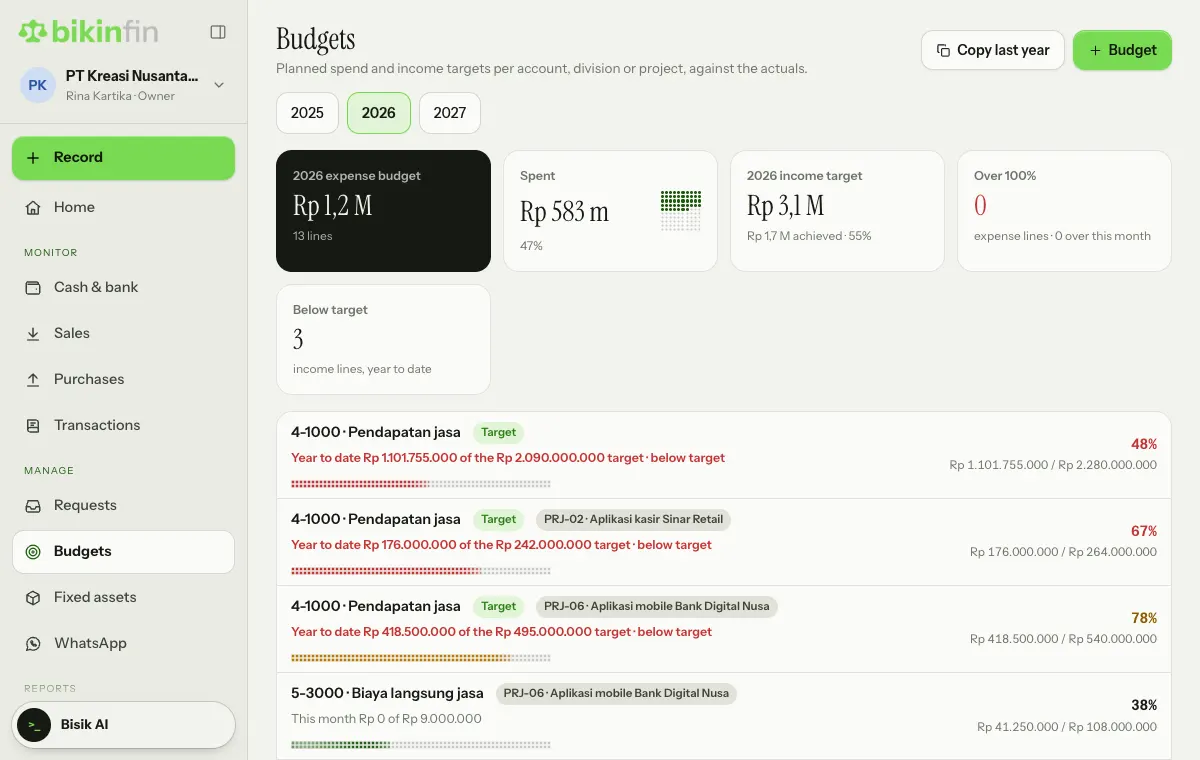
The key numbers at the top sum up the chosen year: the expense budget and how much is Spent, the income target and how much is achieved, Over 100% (expense lines whose use for the year has gone past the budget) and Below target (income lines behind target so far this year).
Below them, each line is one budget, with its project or division tag if any.
An expense budget line shows This month … of … and the year's use as a percentage on the right:
- The percentage and its bar turn yellow from 80% and red from 100%.
- The this-month text turns red when this month's actuals are over this month's budget.
- Requests still in progress (submitted but not paid) show as a pending amount, so you can see upcoming commitments.
An income target line carries the Target tag and shows Year to date … of the … target:
- green when actuals have reached the target,
- yellow when slightly below target,
- red when well below it.
Income lines behind target so far this year are labelled below target.
Tap a line to see a chart of the budget and actuals per month. Choose Edit there to change the figures or delete the line.
Budgets and requests
Expense budgets also guard spending. When a claim, cash advance or purchase request pushes this month's budget over, the request automatically needs the owner's approval and is marked Over budget. Requests tagged with a project are checked against the project budget first, then the division or company budget. See Requests & approvals.
Project budgets
A project budget only counts transaction lines tagged with that project. In Reports › By project, each project shows budgeted income, costs and profit next to the actuals. See Reports.
Who can do this
| Role | Budgets |
|---|---|
| Owner, Finance manager | View, create, edit, delete |
| Accountant / adviser | View |
| Approver | View their own divisions only |
Last updated: