Bikin POSFeatures
Sales & reports
How to view sales in Bikin POS, resend receipts, refund or void a sale, and read the sales reports and CSV exports.
Sales holds every sale, and Reports sums them up into numbers that are easy to read. Owners, managers and cashiers can open Sales; refunds, voids and reports are for owners and managers only.
The sales list
Choose a range at the top left: Today, Yesterday, 7 days, 30 days, or the calendar icon for a single date. Search by receipt number or customer name in the Receipt no. or customer box, and filter with All statuses (Paid, Partly refunded, Refund or Voided).
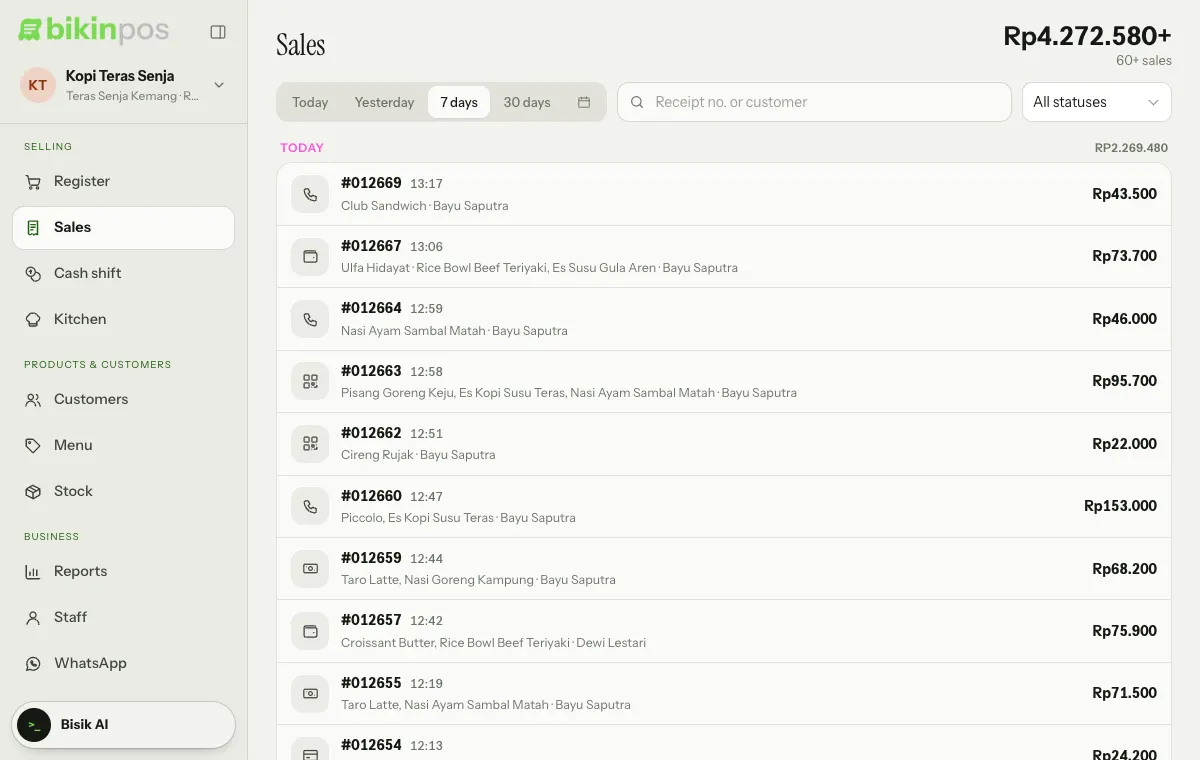
Sales are grouped by day, with the day's total next to the date. Each row shows the receipt number, time, customer, items, cashier name and total; the icon on the left marks how it was paid. Sales that aren't simply paid carry their status badge, and voided sales have their total struck through. Load more at the bottom of the list shows older sales.
Tap a sale to open its receipt, then Print, Send on WhatsApp or Copy link to the digital receipt.
Sales waiting to send
Sales made while offline show in the Waiting to send card above the list. They all send themselves once you're online, or press Send now. A sale that failed to send shows the reason; its bin icon (Remove from queue) throws that sale away, and it won't be recorded.
Refunds
- Open the sale and press Refund under its receipt.
- Pick the items and quantities, or Select all.
- Fill in the Reason (required), choose Refund paid by, and decide whether Put the items back in stock is ticked.
- Press the Refund button, which shows the amount being returned.
Refunds can be partial or full. Cash refunds reduce the cash of the open shift. The sale keeps a Refund history: when, by whom, the reason, how it was paid back and whether stock was restored.
Voiding a sale
Void (the red button next to Refund) is for a sale entered by mistake or cancelled in full. Fill in the Reason, then press Void sale. Its stock is put back and any cash payment is recorded as cash out of the open shift. A void can't be undone; in the list, the sale is marked Voided.
Refunds and voids are important actions, so Bikin POS asks for a 6-digit code from your email. See Privacy & security.
Reports
Open Reports (left sidebar, Business group) and choose Today, Yesterday, 7 days, 30 days, This month, or fill in start and end dates in the two date fields next to them. With several outlets, choose one outlet or All outlets. The chosen range is written under the Reports title.
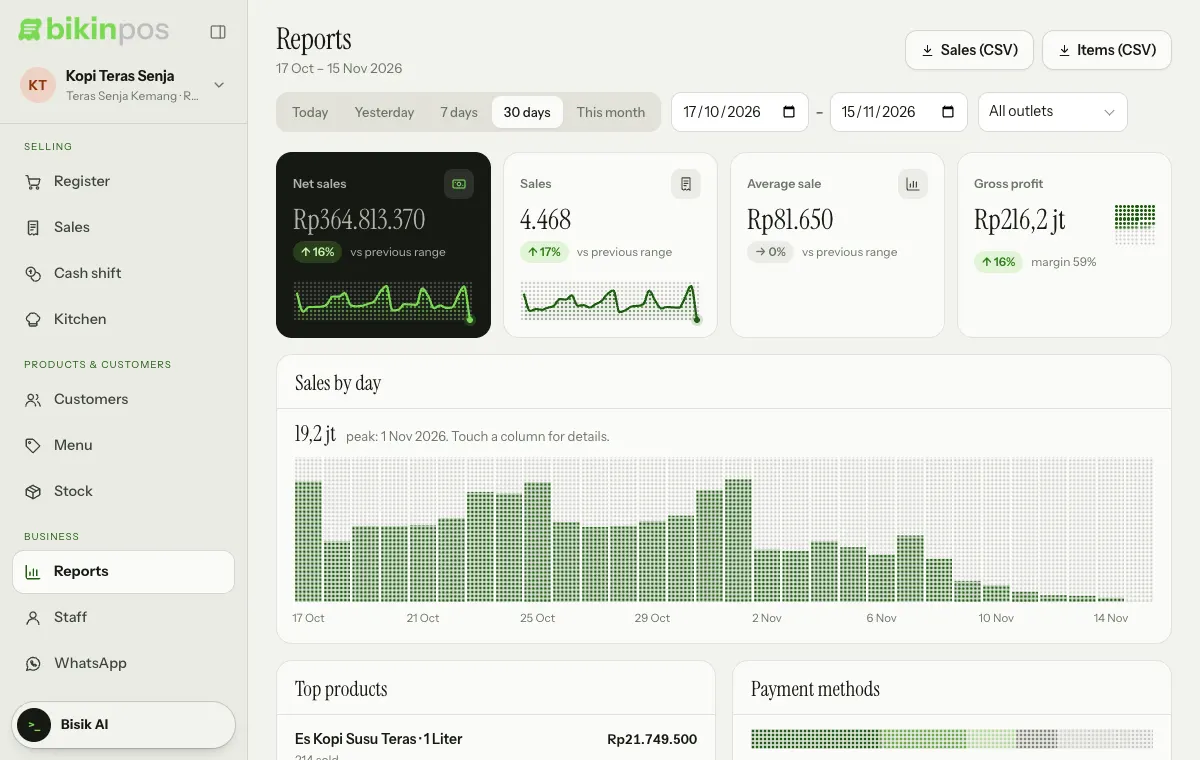
Reports show:
- Net sales, number of Sales, Average sale and Gross profit (with the margin), each with an up or down arrow compared with the previous range.
- A Sales by hour chart (for a one-day range) or Sales by day. Touch a column for details; the peak hour or day is written above the chart.
- Top products, Payment methods, Categories, Cashiers and Order types.
- Breakdown: gross sales, discounts, refunds, service charge, tax, net sales, cost of goods and gross profit.
Voided sales aren't counted, and their number is noted under the report. Gross profit uses the cost you entered on your products.
CSV export
The Sales (CSV) and Items (CSV) buttons at the top right of Reports download the selected range to open in a spreadsheet. On a phone there is one button: CSV (per sale). Export is a plan feature and asks for an email code; if it isn't in your plan, the buttons still show with a small lock and show an upgrade note when pressed.
Want to ask directly, such as "what sold best last month?" Ask Bisik.
Last updated: