Bikin POSFeatures
Delivery-app orders
How to record GoFood, GrabFood and ShopeeFood orders in Bikin POS, including filling the order automatically from a screenshot with AI.
Food businesses (restaurants, cafés, bakeries) can record GoFood, GrabFood and ShopeeFood orders as their own order types. That keeps delivery-app sales separate in reports, at the same prices shown in the app.
Turning the delivery-app types on
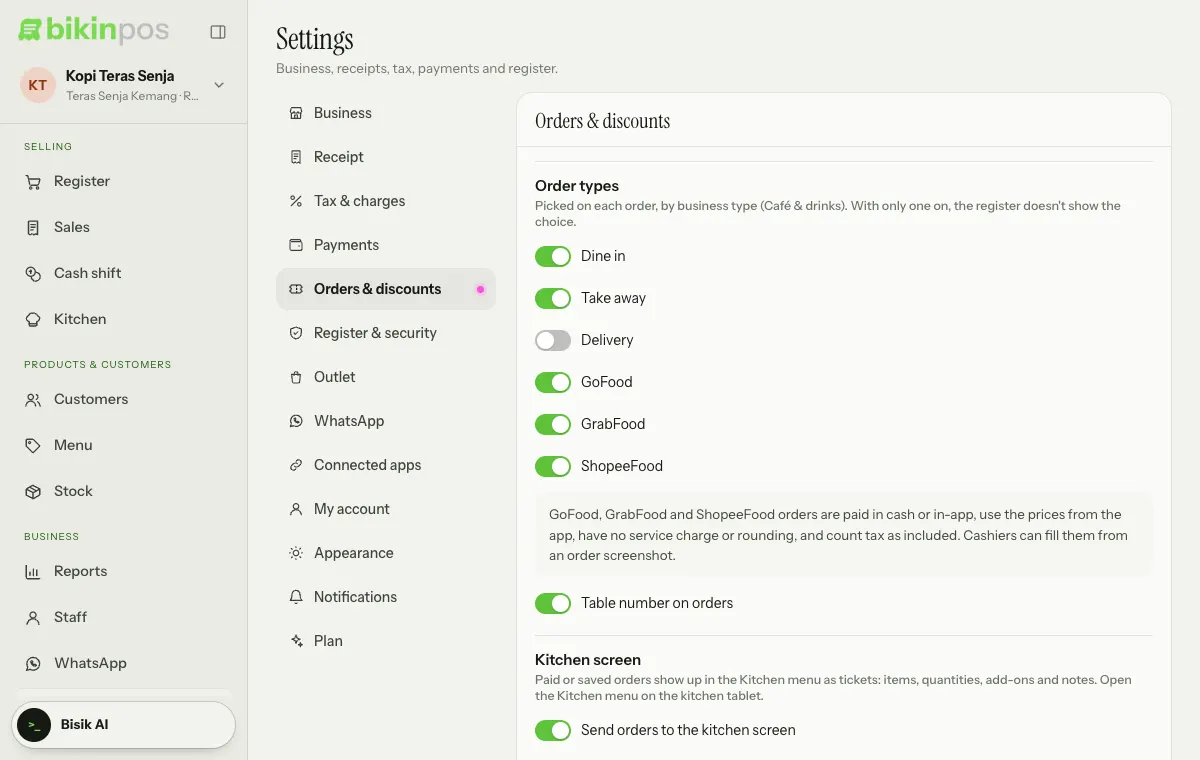
For food types, GoFood, GrabFood and ShopeeFood are on from the start. Adjust them in Settings › Orders & discounts, under Order types, then press Save. See Business types.
Recording a delivery-app order
- In the Order panel of the Register, tap GoFood, GrabFood or ShopeeFood in the row of order types. Swipe the row sideways if the type isn't visible yet.
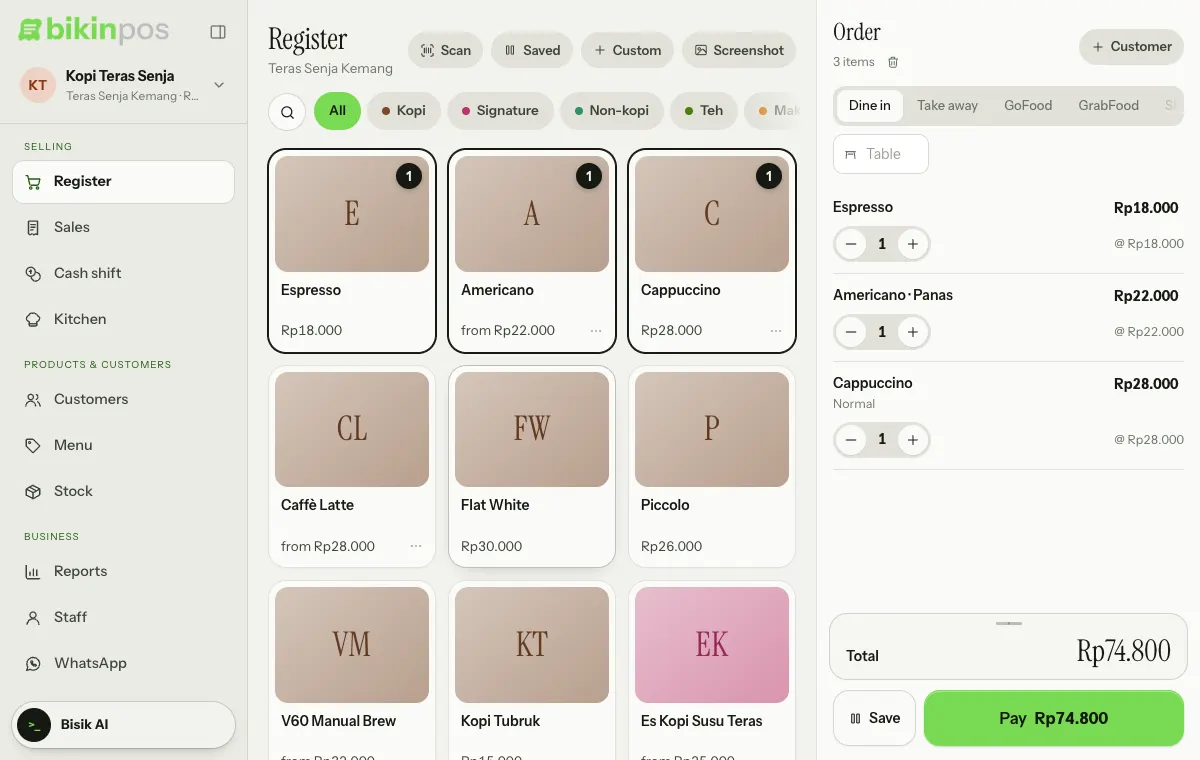
- Fill in the Order no. · name field that appears below it with the order number and the customer's name from the app. It shows on the kitchen ticket and the receipt.
- Add the items, by tapping products or from a screenshot (see below).
- Press Pay.
Rules for delivery-app orders:
- The price follows the app. Prices in delivery apps are often different from in-store prices, so the unit price can be changed on the order line: tap the item name, then change the Unit price.
- No service charge or rounding, and tax is treated as included in the price.
- Payment: in-app through that app, such as GoFood (in-app), which is offered first, or Cash when the driver pays at the counter. For in-app, make sure the app doesn't show this order as cash.
Filling the order from a screenshot
Instead of typing each item, upload a screenshot of the order and let AI fill it in.
- Press Screenshot at the top of the Register, or tap Fill from a GoFood (GrabFood, ShopeeFood) screenshot on an empty delivery-app order.
- Press Choose a screenshot: up to 3 images for long orders. A photo of the app screen works too. On a computer you can paste an image with Ctrl + V or Cmd + V.
- While it says Reading the order…, AI reads the app, order number, customer name, items, quantities, choices, notes and prices, then fills the order.
- Check the result before taking payment.
Good to know:
- Items that match your products go in as those products. Items that aren't in your products go in as custom items.
- A note appears under the order type, such as Total matches the GoFood screenshot, or the total shown in the screenshot when it differs.
- If the order already has items, you're asked to confirm before they're replaced.
- The images aren't stored.
- Screenshot reading has a monthly allowance that follows your plan, plus a daily limit per business and per person. When it's used up, fill in the order yourself.
Filling orders from screenshots is a plan feature. If your plan doesn't include it yet, the Screenshot button shows a mini lock and an upgrade note when pressed; check your plan in Settings › Plan. The button also needs one of the delivery-app types turned on.
Direct integration
Bikin POS doesn't receive orders automatically from GoFood, GrabFood or ShopeeFood yet. Orders are recorded in the register, by hand or from a screenshot.
Last updated: