Bikin POSFeatures
Cash shifts
How to open and close a cash shift in Bikin POS, record cash in and cash out, and see any difference in the drawer.
Cash shifts keep the drawer honest. Open a shift when you start with the float in the drawer, and close it when you finish. Bikin POS works out how much cash should be there, so any difference shows straight away. Owners, managers and cashiers can use Cash shift (left sidebar, Selling group). Shifts are kept per outlet.
Opening a shift
- Open Cash shift.
- In the No shift open card, type the Float in the drawer: the cash in the drawer before you start selling (e.g. small change).
- Press Open shift. The page shows Shift open, the start time, who opened it and the float.
The owner can turn on Require an open cash shift to sell in Settings › Register & security, so no sale happens outside a shift.
During the shift
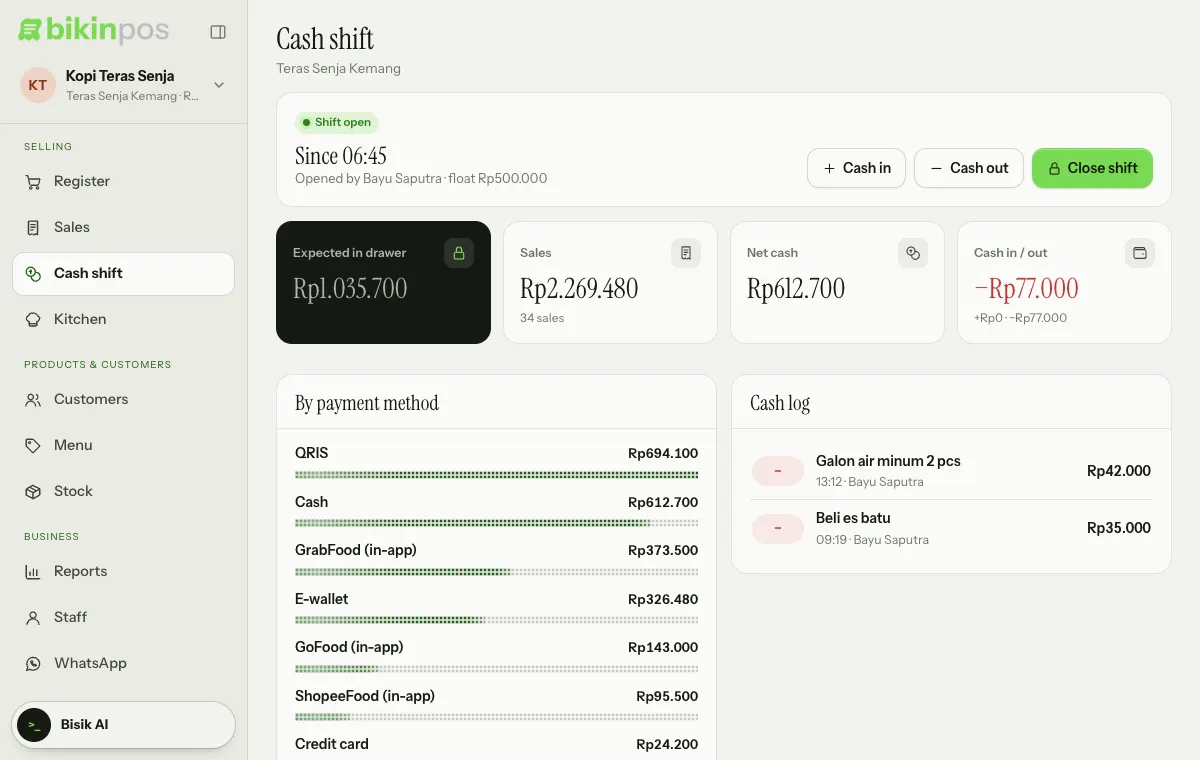
The shift page shows:
- Expected in drawer (the dark card): the float, plus net cash from sales and cash in, minus cash out and cash refunds.
- Sales: this shift's sales total and the number of sales.
- Net cash: cash received from sales, minus the change given.
- Cash in / out: cash in minus cash out, with the breakdown under the number.
- By payment method: how much came in through each method, including delivery-app in-app payments.
- Cash log: every cash in and cash out.
Cash in and cash out
- Cash in: money put into the drawer outside of sales, e.g. more small change.
- Cash out: money taken from the drawer, e.g. to buy ice.
Press Cash in or Cash out at the top right, fill in the Amount and Note (both required), then press Save. The entry shows in the Cash log card.
Cash refunds and voided cash sales are recorded as cash out of the open shift automatically.
Closing the shift
- Press Close shift. The window shows the Expected cash in the drawer.
- Count the cash in the drawer and type it in Cash counted in the drawer.
- Bikin POS shows straight away whether it's Exact, no difference, or Short by or Over by an amount. Add a Note (optional) if needed, such as the reason for a difference.
- Press Close shift. You're asked Print the shift summary?: choose Print or Not now.
Shift history
Shift history at the bottom of the page lists closed shifts at this outlet: the date and times, who opened and closed it, the number of sales, the sales total, and a difference badge when there is one. Tap a shift to see its details: Float, Net cash, Cash in, Cash out, Cash refunds, Expected, Counted and Difference. Each summary can be printed again with Print summary, on the same thermal paper as receipts.
Shifts and other apps
If you connect Bikin POS to BIKIN AI or BIKIN SIGHT, the open shift can be read there, such as how much cash should be in the drawer right now. See Bisik & connected apps.
Last updated: