Bikin POSFeatures
Customers
How to keep customer records in Bikin POS, pick a customer in the register, see their purchase history and use customer points.
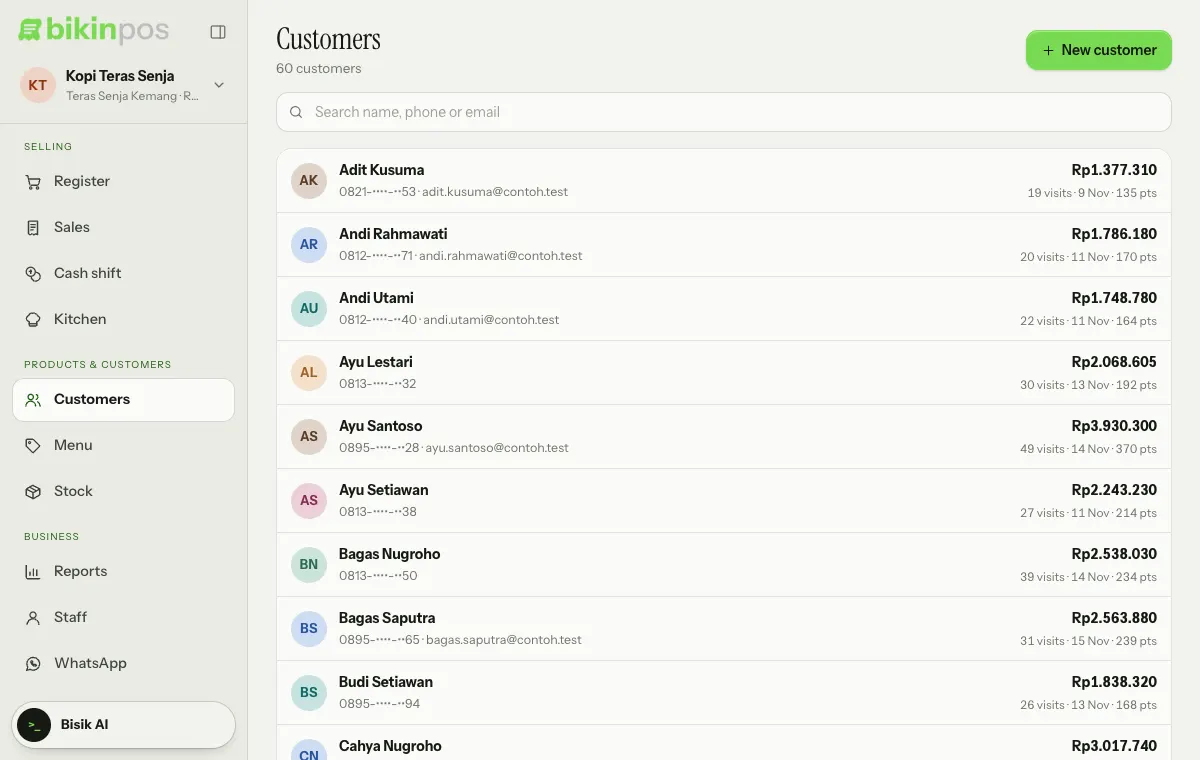
Customers (left sidebar, Products & customers group) keeps your customers' names, phone numbers and purchase history. Picking a customer in the Register records the receipt and history under their name. Owners, managers and cashiers can open this menu.
Adding a customer
There are two ways:
- In Customers, press New customer at the top right. Fill in the Name, Phone (WhatsApp), Email and Notes (e.g. likes it less sweet, nut allergy), then press Save.
- In the Register, press Customer at the top right of the Order panel, then search for a name or phone number. If they aren't there yet, press New customer: the name or number you already typed is filled in. Complete the Name and Phone (WhatsApp), then press Save and use.
Finding and viewing customers
Type in the Search name, phone or email box above the list. Tap a customer to open their details: Total spent, Visits, Points (when they have any), Last visit, Points history and Recent sales.
For customers with a phone number, the WhatsApp button in the details opens a chat with a greeting and their first name, ready for you to finish.
Editing and deleting
In a customer's details, press Edit to change them, then Save. Owners and managers also see a Delete button; a deleted customer's sales stay recorded, without a link to that customer.
Customer points
Customer points let customers collect points from what they spend, then use them as a discount. The owner turns them on in Settings › Orders & discounts, under Customer points, with the Use customer points switch, then fills in:
- Spend for 1 point: how many rupiah a customer spends to earn one point.
- Value of 1 point when used: the rupiah discount per point.
- Minimum points to use: the fewest points that can be used at once.
A worked example appears below (spending so much earns so many points, worth so much when used), so you can check it before pressing Save.
How it works:
- Pick a customer on the order with the Customer button in the Order panel.
- At payment, once they have at least the minimum points, the Payment window shows that customer's points balance and a Use points button. Press it if the customer wants to use their points.
- After payment, the receipt shows the points earned and the points balance.
A customer's details include a Points history: points Earned, Used, Returned (e.g. after a refund) and Adjusted.
Customer points are a plan feature. If the setting isn't available, check Settings › Plan.
Sample customers
The sample data from Quick start adds two sample customers marked Sample. Sample customers have no phone number, so they're never sent receipts.
Last updated: