Bikin POSFeatures
Products & stock
How to add products, categories, variants and add-ons in Bikin POS, then track stock per outlet with stock in, stock out and counts.
Products fill the Register screen. The Products and Stock menus (left sidebar, Products & customers group) are for owners and managers. Group products with categories, and turn on stock tracking for items you want counted.
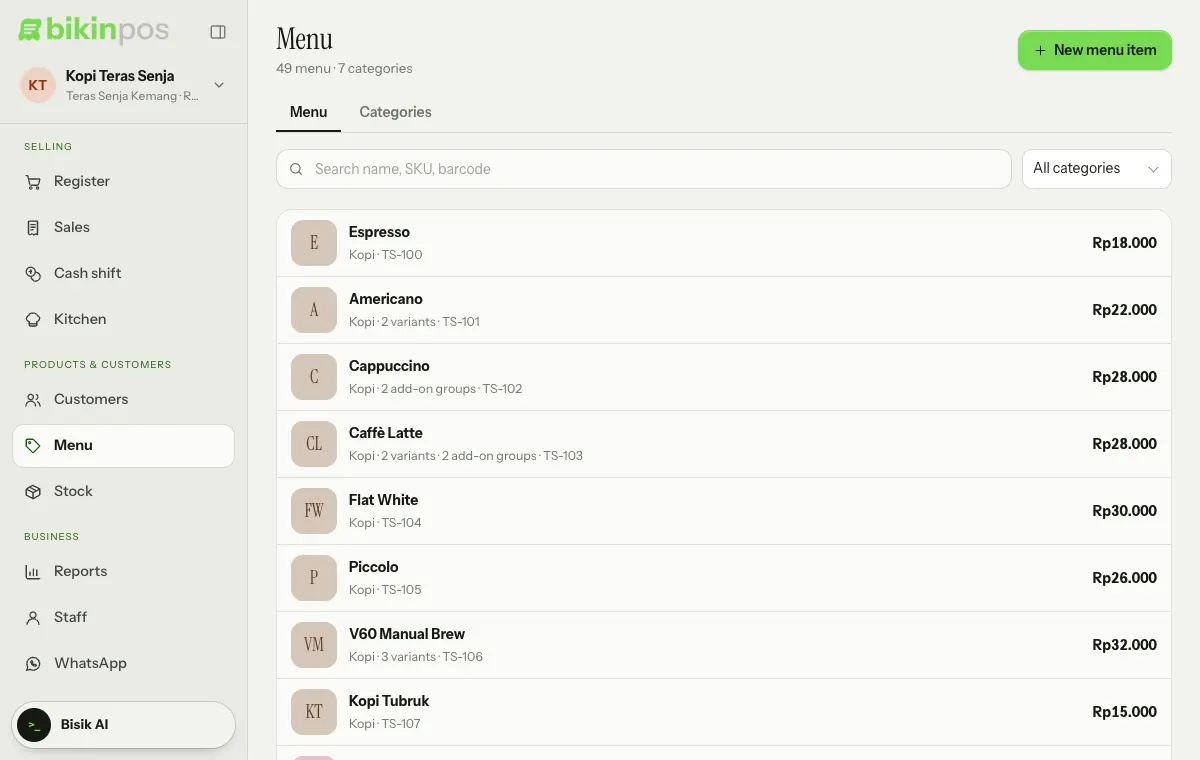
Adding a product
- Open Products and press New product at the top right.
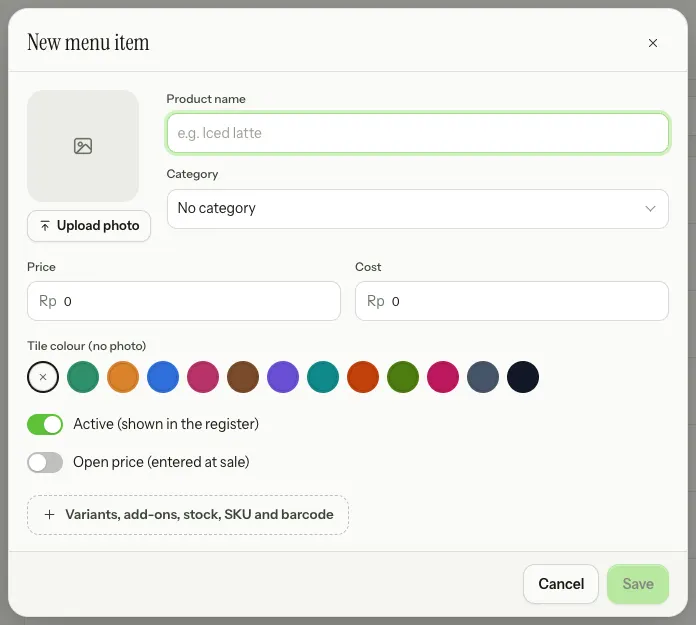
- Fill in the Product name, then choose a Category, or + New category… in that list to create one on the spot.
- Fill in the Price and, if you like, the Cost. The margin shows by itself next to the Cost label.
- Add a photo with Upload photo, or pick a Tile colour (no photo). The circle marked × means the colour follows the category.
- Press Save.
Other product settings:
- Active (shown in the register): turn it off to hide a product for now without deleting it.
- Open price (entered at sale): the cashier types the price each time it's sold.
- Variants, add-ons, stock, SKU and barcode: opens the advanced settings below.
Variants
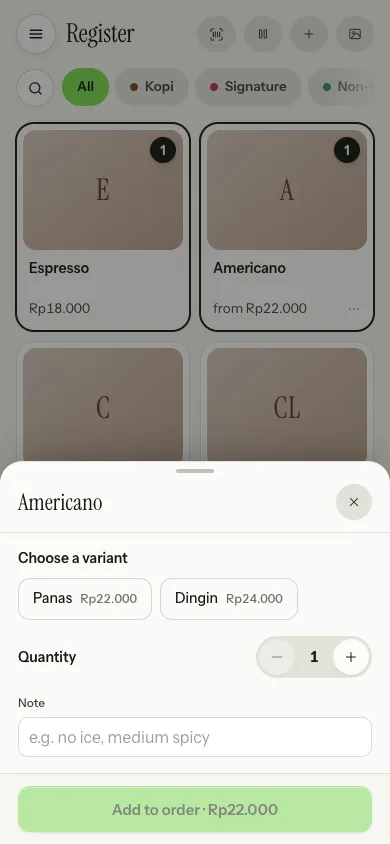
Variants are sizes, flavours or colours with their own price, such as Regular and Large, or Panas (hot) and Dingin (iced). Add them with Add variant in the advanced settings. Each variant has its own name, price, cost, barcode and stock.
In the Register, a product with variants opens a Choose a variant choice, and its tile shows the "from" price of the cheapest variant.
Add-ons
Choice groups such as Sugar level (pick 1, required) or Toppings (optional, up to 3). Press Add an add-on group, give it a Group name, set the min and max (a min of 0 means optional), then add the choices and their prices with Add choice. The cashier picks them when adding the product to an order.
SKU, barcode, unit
The SKU and barcode are used by search and scanners in the Register. A barcode can be scanned or typed. Products without variants have their own SKU and Barcode fields; products with variants use the barcode on each variant. The Unit (in the stock part) describes how the item is counted, such as pcs, kg or portion.
Categories
The Categories tab in Products adds new categories, orders them with the Up and Down arrow buttons, and shows how many products each one has. Tap a category to rename it, change its colour or delete it. Categories become the row of pills above the products in the Register. Deleting a category leaves its products without a category.
Deleting a product
Open the product, then press Delete at the bottom left of the window. A deleted product disappears from the Register and catalogue, but its past sales stay recorded. To hide it for now, just turn off Active.
Tracking stock
- In the product, press Variants, add-ons, stock, SKU and barcode, then turn on Track stock for this product.
- Fill in the Opening stock (per variant when there are variants), Warn when at or below as the minimum, and the Unit.
- Press Save.
After that, stock goes down by itself with every sale and comes back when a refund puts the items back in stock. Stock is kept per outlet. The Opening stock is only filled in when the product is created; after that, stock changes in Stock.
The Stock menu
Stock shows the stock of every tracked product at the selected outlet (its name is under the title), with All, Low and Out filters.
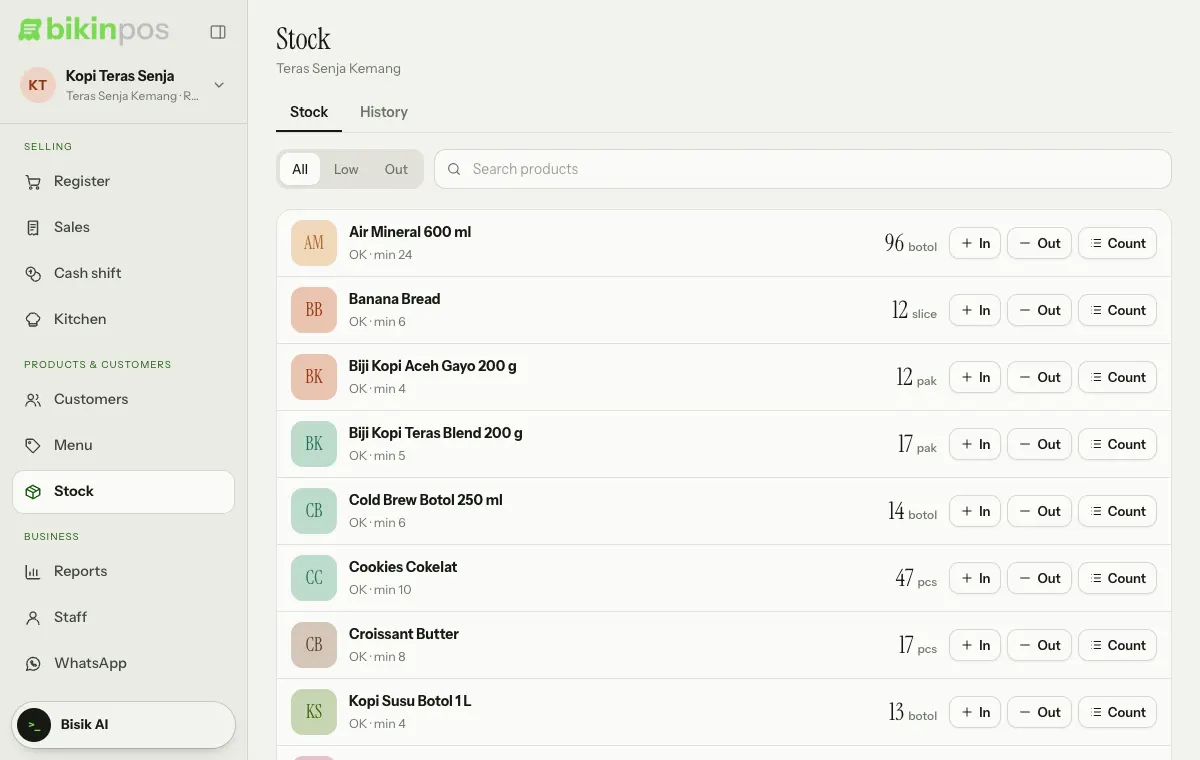
To change stock, use the buttons on the product's row:
- In (stock in): goods arrive, e.g. bought from a supplier.
- Out (stock out): goods damaged, lost, expired or used.
- Count: a recount. Type the Counted quantity and stock becomes that number.
The window shows the current stock, and its save button shows the result (Save · becomes …). Every change can have a Note. Tap a product name to see its stock history at this outlet. The History tab records every movement at this outlet: sales, refunds and manual changes.
Selling when out of stock
In Settings › Register & security, Allow selling when out of stock (stock goes negative) decides whether cashiers can sell items with zero stock. When it's off, the register refuses items that are out.
If your plan ends and you have more active products than the free plan allows, some products are marked paused and can't be sold until the plan is renewed. Deactivating products you don't use frees up others. See Plans & billing.
Last updated: