Bikin POSAccount & plan
Settings
A guide to Bikin POS Settings: business, currency, receipts and Bluetooth printers, tax, payments, orders, security, account and appearance.
Settings is the last menu in the sidebar. The page is split into sections: the list of sections on the left (on a phone, a row of pills at the top) and their content on the right. The owner sees every section. Everyone else sees My account and Appearance, and managers also see Connected apps. In most cards, changes are saved with the Save button at the bottom right of that card.
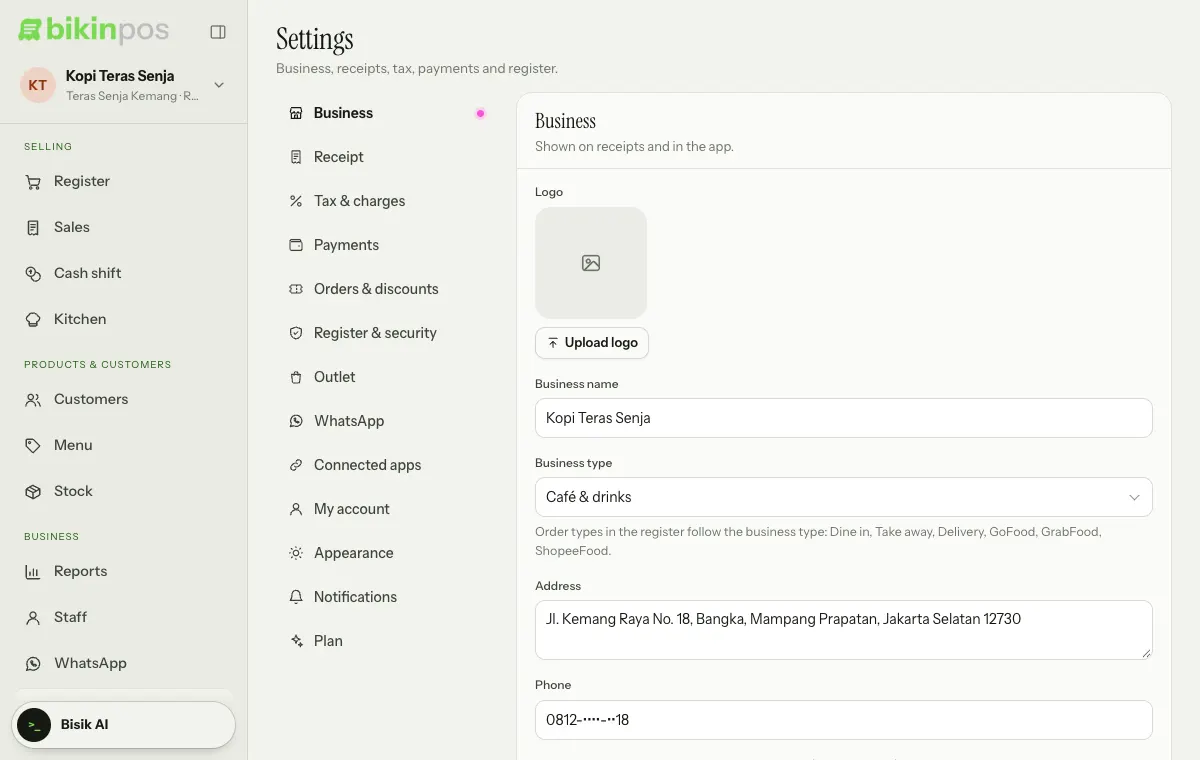
Business
Logo (Upload logo), Business name, Business type, Address and Phone. The logo shows on receipts and in the app. The note under Business type lists the order types that come with that type; see Business types. Each outlet can have its own address and phone in the Outlet section; receipts use those when set.
Currency
The Currency card below the Business card sets the currency for every price, sale, receipt and report in this business. Thousand and decimal separators follow that currency, such as Rp 1.250.000 for Indonesian rupiah and RM 1,250.50 for Malaysian ringgit, and amount fields add the thousand separators as you type. A new business gets the currency of the country it signs up from.
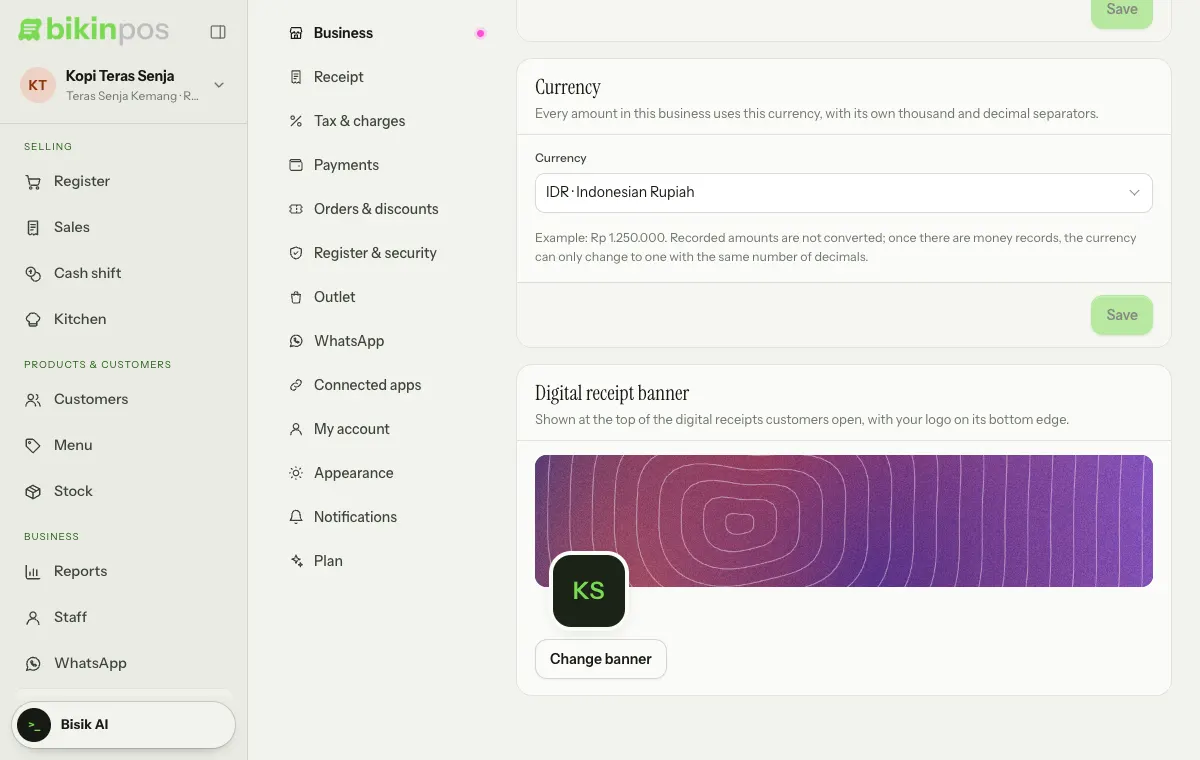
- Pick a currency in the list (type in the search box to find it), then Save and Change in the confirmation. Because it concerns money, Bikin POS asks for a code from your email first, and the change is logged.
- Until the business has money records, you can change the currency freely. After that it can only change to a currency with the same number of decimals, because recorded amounts are never converted.
- Automatic QRIS and rounding to Rp100, Rp500 or Rp1.000 are only for businesses that use Indonesian rupiah (IDR). With another currency they stay visible but locked, marked Only for businesses that use Indonesian rupiah (IDR), and moving away from rupiah switches QRIS back to manual and turns rounding off. A new business in another currency also doesn't get the PB1 or PPN tax preset; set your own tax name and percent in Tax & charges.
- In the Payment window, the 000 key on the keypad becomes 00 for other currencies, and the quick notes next to Exact use plain round numbers instead of rupiah notes.
- Bikin POS plan prices, bills, your Balance and withdrawals stay in rupiah.
Receipt
- Paper width: 58 or 80 mm.
- Header text and Footer text, such as opening hours or your Instagram account.
- Show the business logo.
The sample receipt next to them (below them on a phone) changes as you edit. Receipts print through the device's print dialog, or are sent on WhatsApp as a digital receipt.
Bluetooth printer
With a Bluetooth thermal printer, receipts print straight away without the print dialog:
- Turn the printer on.
- Press Connect a printer, then pick it in the Bluetooth list.
- Press Test print to try it.
- Turn on Print automatically after payment if you like.
The printer is remembered on that device and reconnects by itself. Change picks another printer, and the × forgets that printer. This setting is per device. Bluetooth printing needs Chrome on Android or a computer; iPhone and iPad don't support it yet, so receipts print through the print dialog there. The Bluetooth printer is a plan feature.
Tax & charges
- Charge tax with a Tax name (such as PPN or PB1) and Percent, then choose whether Product prices Exclude tax or Include tax.
- Service charge as a percent.
- Round the total: None, Rp100, Rp500 or Rp1.000, then the direction, Down or Nearest.
Order of calculation: discounts, service charge, tax, rounding.
Payments
The switches for the methods shown at checkout, the Transfer account (shown when Transfer is on), and the QRIS card to choose Manual QRIS or Automatic QRIS. See Payments & receipts.
Orders & discounts
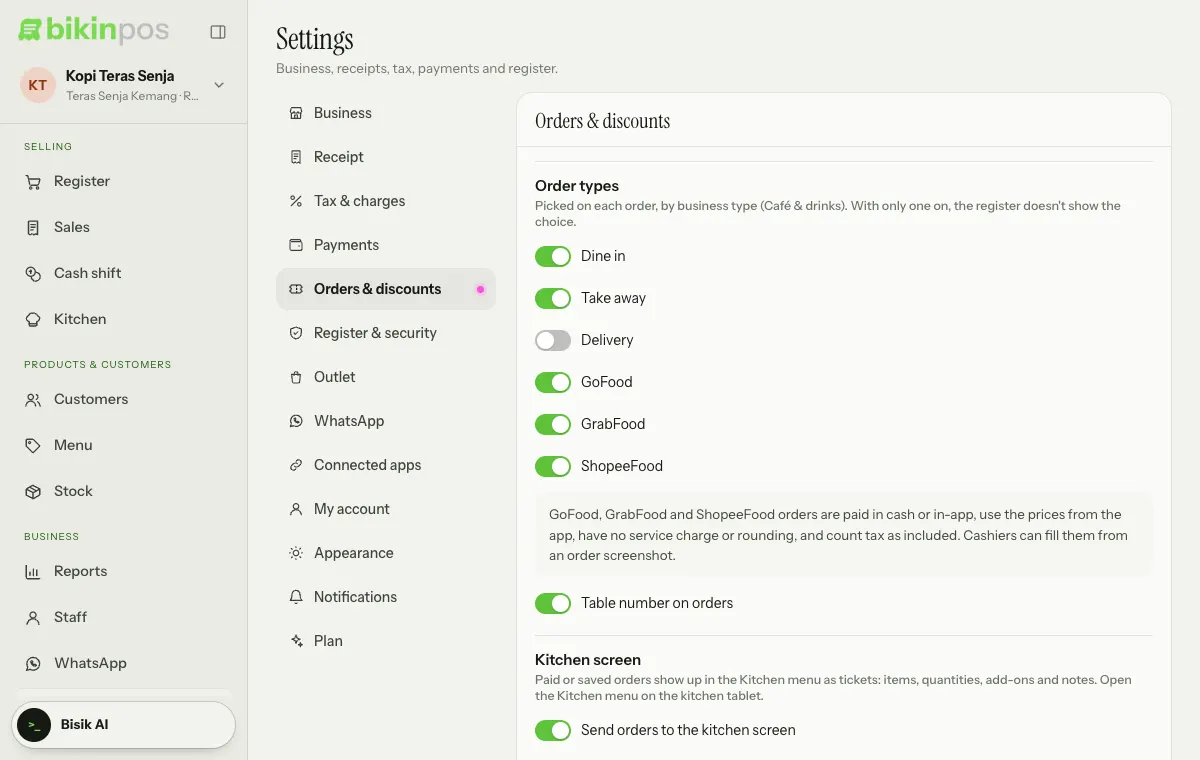
- Order types and Table number on orders. See Business types.
- Kitchen screen (Send orders to the kitchen screen): see Kitchen screen.
- Saved discounts: type a name (e.g. Member), pick % or Rp, fill in the value, then press Add. These discounts show up as choices when giving a discount in the Register, such as Member 10% or Promo Rp5,000.
- Customer points: see Customers.
Register & security
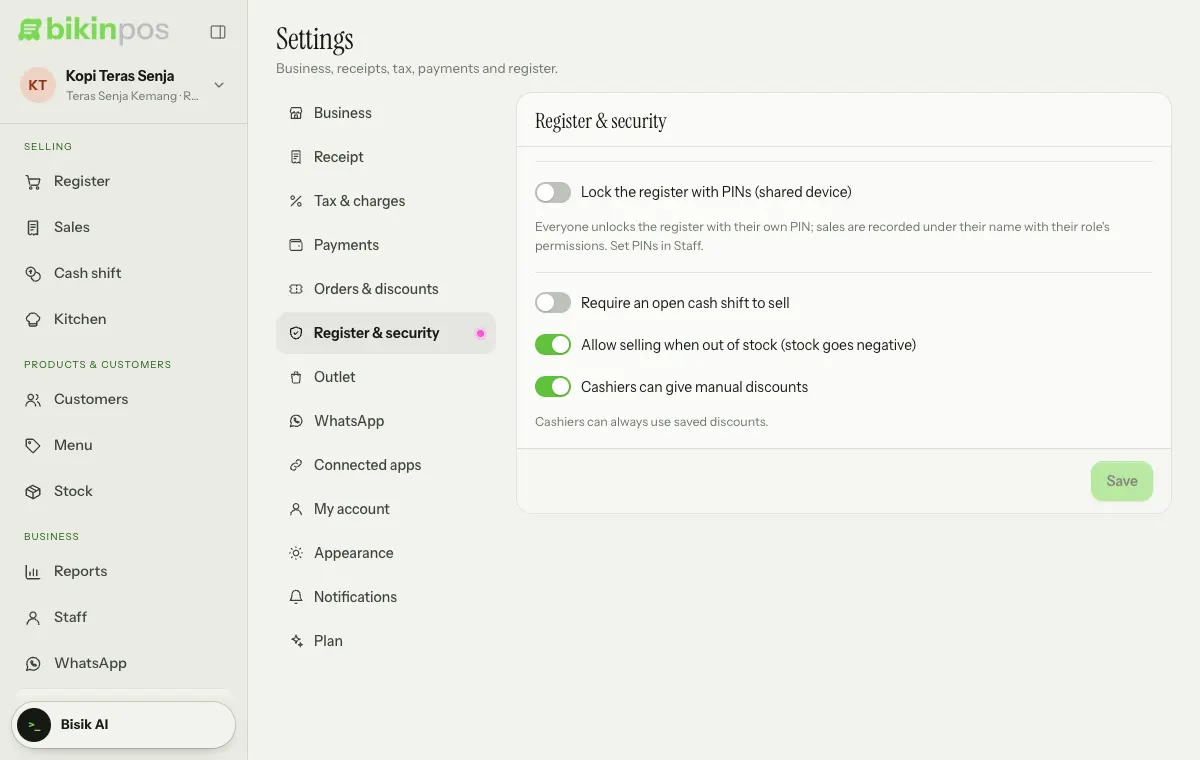
- Lock the register with PINs (shared device), then Auto-lock when idle: Never, 2, 5, 15 or 30 minutes. See Outlets & staff.
- Require an open cash shift to sell.
- Allow selling when out of stock (stock goes negative).
- Cashiers can give manual discounts. Cashiers can always use saved discounts.
Balance and Referrals
Balance appears when automatic QRIS is used or BIKIN opens the referral program. In Referrals, the owner shares an invite link; commissions go to the Balance. The program details are shown in that section.
In Settings › WhatsApp, the owner connects the business WhatsApp number so receipts go straight out from it (see Payments & receipts).
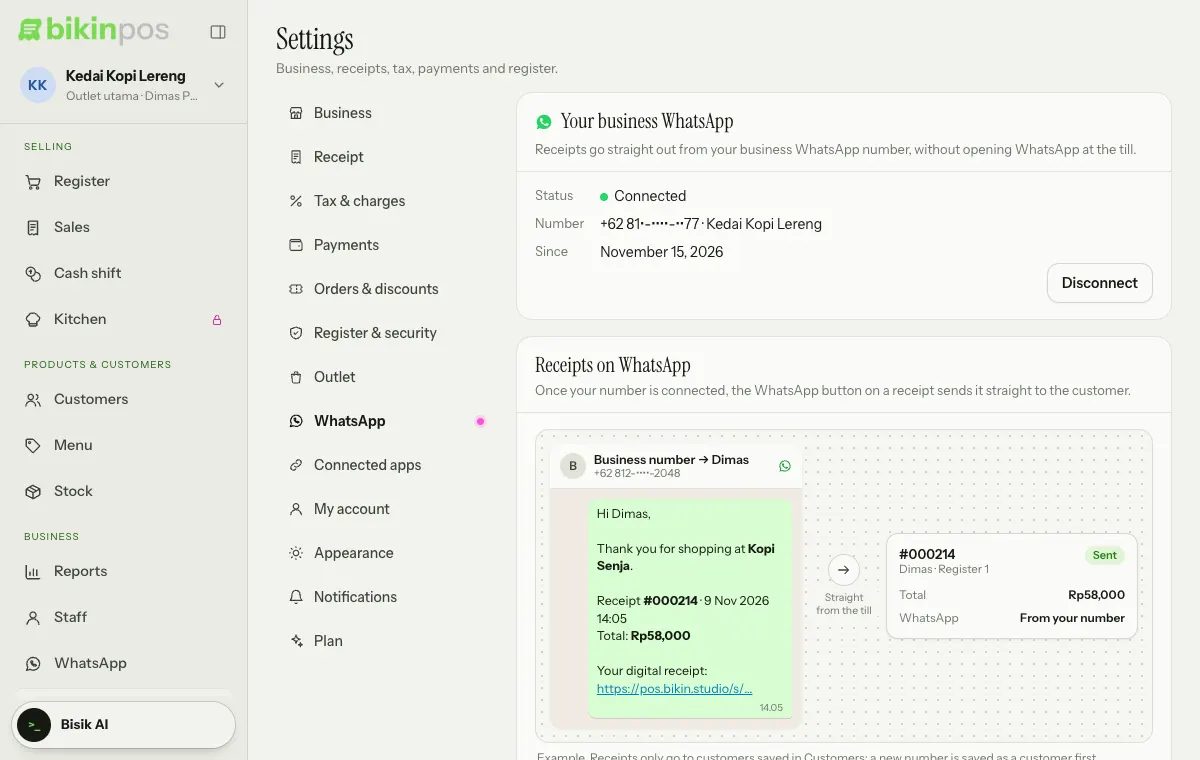
- Press Connect a number, read the notes, then press Show the QR (or Use a code).
- On the phone with the business number: WhatsApp → Linked devices → Link a device, then scan the QR.
- The card changes to Connected. That phone must stay on and online, like WhatsApp Web.
Connecting and disconnecting the number needs the code from your email. A number already connected in another BIKIN app (Fin, CRM, SPRINT, SALES, BOOKING) can be connected here too, and in Bikin POS one number is for one business. Customers' replies aren't stored in Bikin POS; answer them from WhatsApp on your phone.
The WhatsApp menu
Besides Settings, the WhatsApp menu (sidebar, Business group) is always there for the owner, managers and cashiers, even before the business number is connected. Until the number is connected, the page reads WhatsApp isn't connected yet and explains that the WhatsApp button on a receipt still opens WhatsApp on the till device, with a short example of a receipt arriving on the customer's WhatsApp. The owner sees a Connect WhatsApp button that opens Settings › WhatsApp; managers and cashiers are told the business owner can connect it.
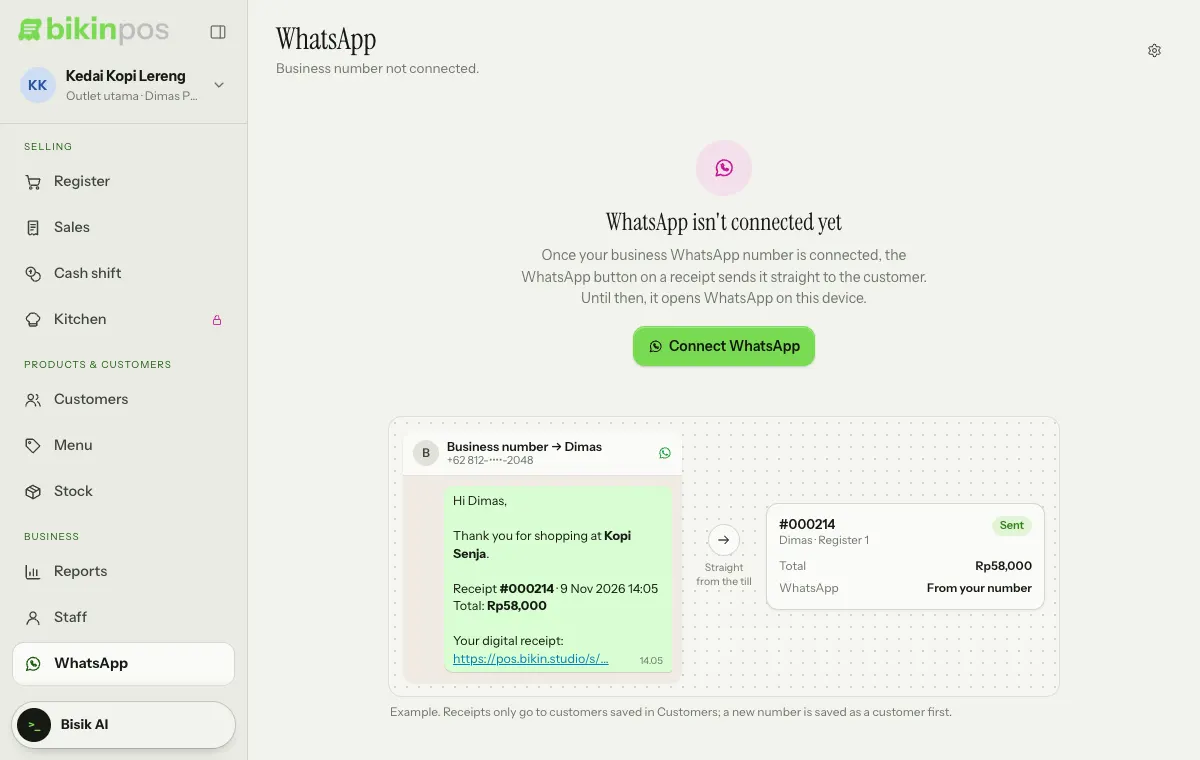
Once connected, the Your business WhatsApp card on that page shows Business number (Connected) and Receipts on WhatsApp (Sent straight away), and the Receipts on WhatsApp card explains how it works: only to saved customers, receipts are queued, and customers' replies aren't stored. The owner opens the settings with WhatsApp settings.
Outlet, Connected apps, Plan
See Outlets & staff, Bisik & connected apps and Plans & billing.
My account
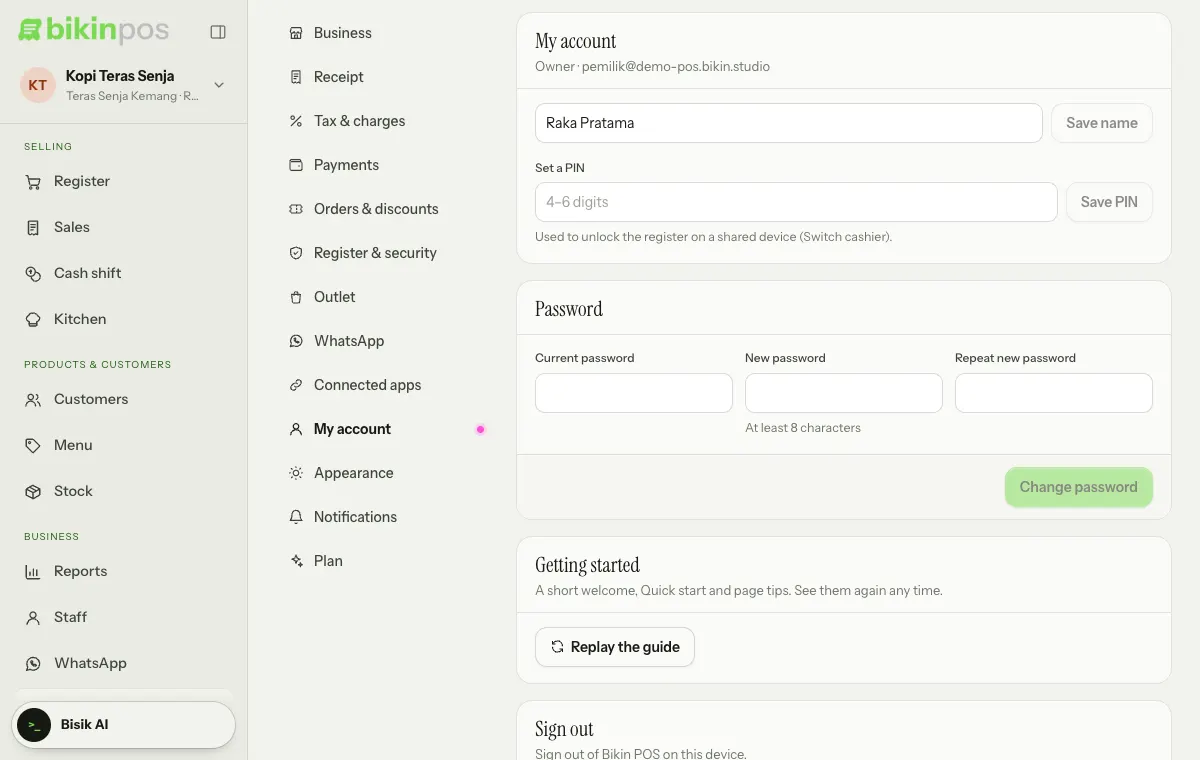
- Change your name, then press Save name.
- Set a PIN (or Change PIN) of 4–6 digits, then press Save PIN. The PIN unlocks the register on a shared device.
- The Password card: fill in Current password, New password (at least 8 characters) and Repeat new password, then press Change password. Afterwards you sign in again with the new password.
- The Getting started card: Replay the guide shows the welcome and Quick start again.
- The Sign out card signs you out of this device. Sales waiting to send stay on the device when you sign out.
Profile photo
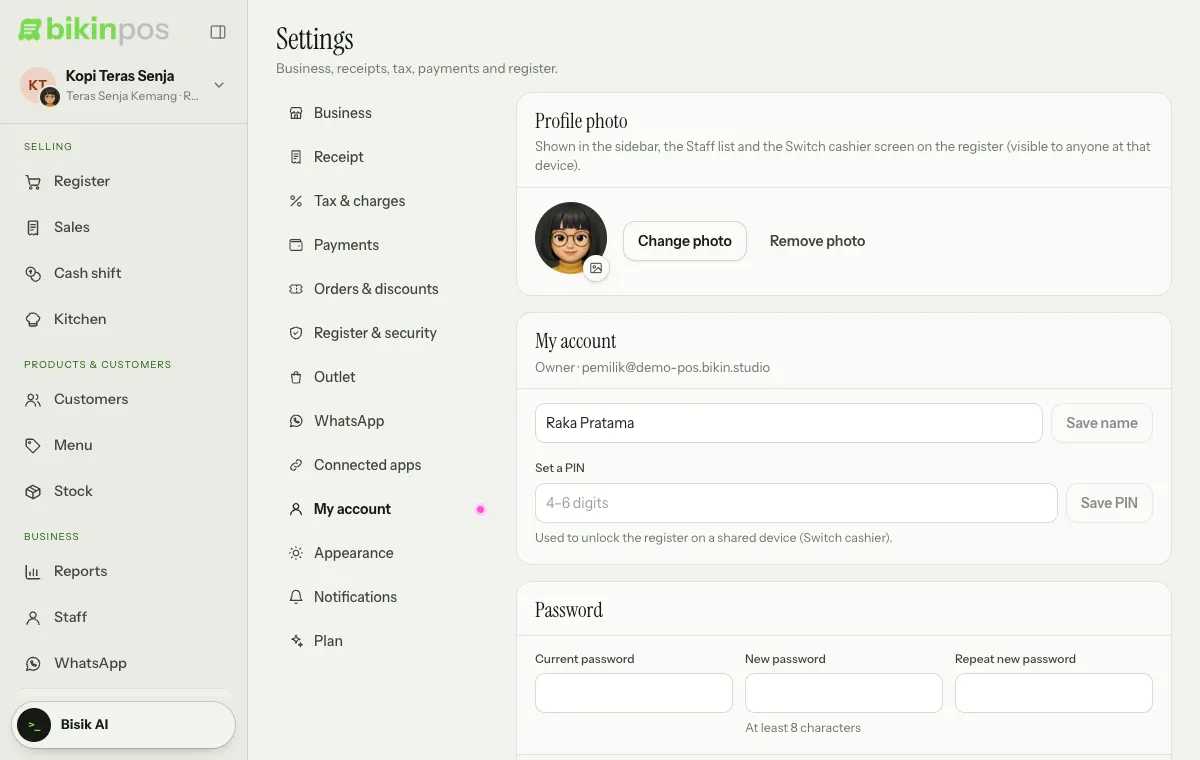
The Profile photo card in Settings › My account shows your photo as a small badge on the business avatar at the top of the sidebar, in the Staff list, and on the lock screen (Switch cashier / lock) on the register, where anyone at that device can see it. Choose Upload photo (or drag an image onto the card), then a JPG, PNG or WebP image; in Adjust your photo, drag the photo and use the slider to zoom, then choose Save photo. It's cropped square and shrunk on your device before upload. Change photo uses another image, and Remove photo goes back to your initials. Everyone sets their own photo, including staff who unlock the register with their PIN. Only people in this business see your photo, it never appears on digital receipts or public links, and it's deleted when you're switched off or your account is deleted. The business logo is set separately in Settings › Business.
WhatsApp number
The WhatsApp number card keeps a verified number for Sign in with WhatsApp:
- Enter your number (for example 0812 3456 7890), then choose Send code. Because this changes how you sign in, Bikin POS asks for an email code first.
- Enter the 6-digit code that arrives by WhatsApp. The number is saved as Verified.
Choose Change to use another number, or Remove to stop signing in with WhatsApp. One number can only belong to one person in Bikin POS. The card only shows for the account signed in on that device (not staff who unlocked the register with their PIN), and doesn't show when WhatsApp isn't available for Bikin POS yet.
Notifications
Owners and managers choose how they hear about things in Settings › Notifications: by email, by push to their devices, or not at all, per event. Cashiers get no notifications.
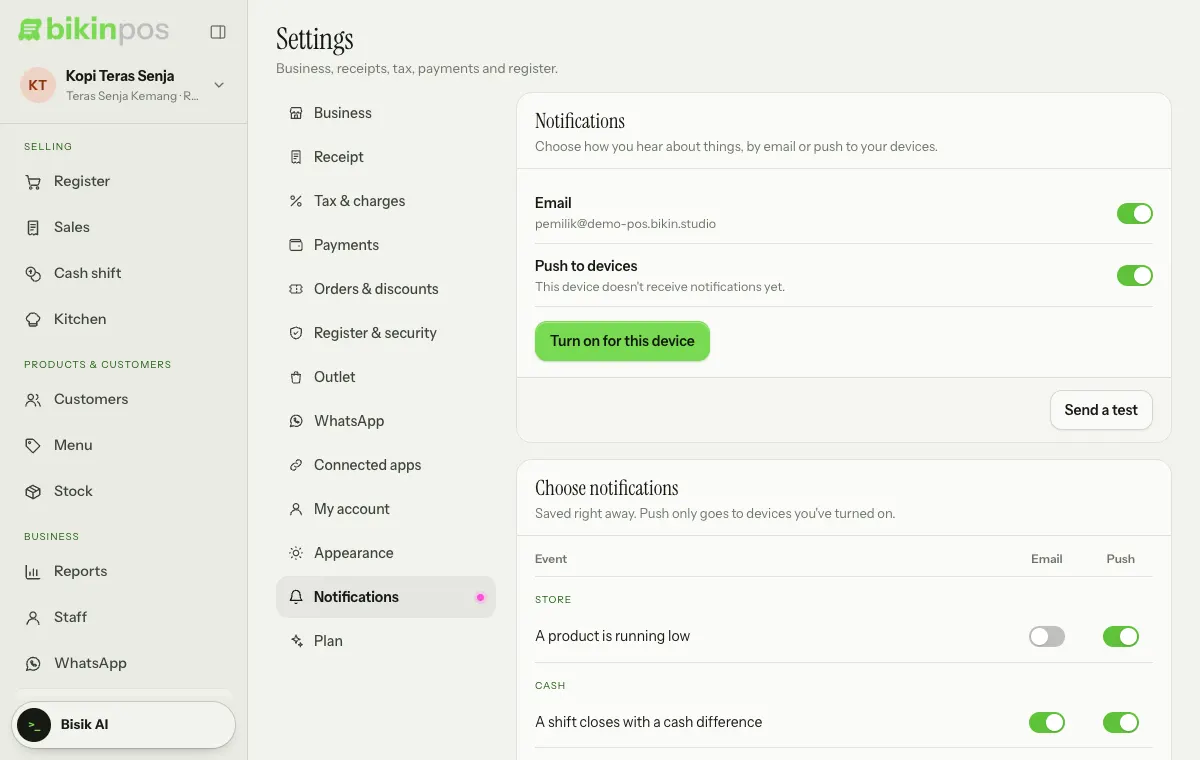
- Email goes to your account address. By default it is on for shifts that close with a cash difference and sales that are refunded or voided; low stock and today's sales summary (every day at 9 pm WIB, when there were sales) default to push only. Whoever did it is not notified.
- Push to devices: tap Turn on for this device and allow it in your browser. Do it on every phone or computer that should get notifications; Turn off on this device stops it. On iPhone, push only works once the app is on your home screen (Share › Add to Home Screen).
- Send a test sends one test notification to your active devices and your email, so you know everything arrives.
- Low stock is sent when a sale brings a product's stock down to the minimum you set on the product.
- Demo accounts don't send emails or push notifications.
Appearance
- Theme: Light or Dark. Until you choose, it follows your device.
- Language: Bahasa Indonesia or English. The page reloads in the chosen language.
- Sounds: short sounds when a payment completes, an item goes into the cart, a code is scanned and a PIN is entered. On from the start and set per device. On iPhone they follow the silent switch.
Digital receipt banner
Digital receipts your customers open start with a short banner and your business logo on its edge. Set it in Settings › Business, card Digital receipt banner, under the Business card. Change the logo in the Business card.
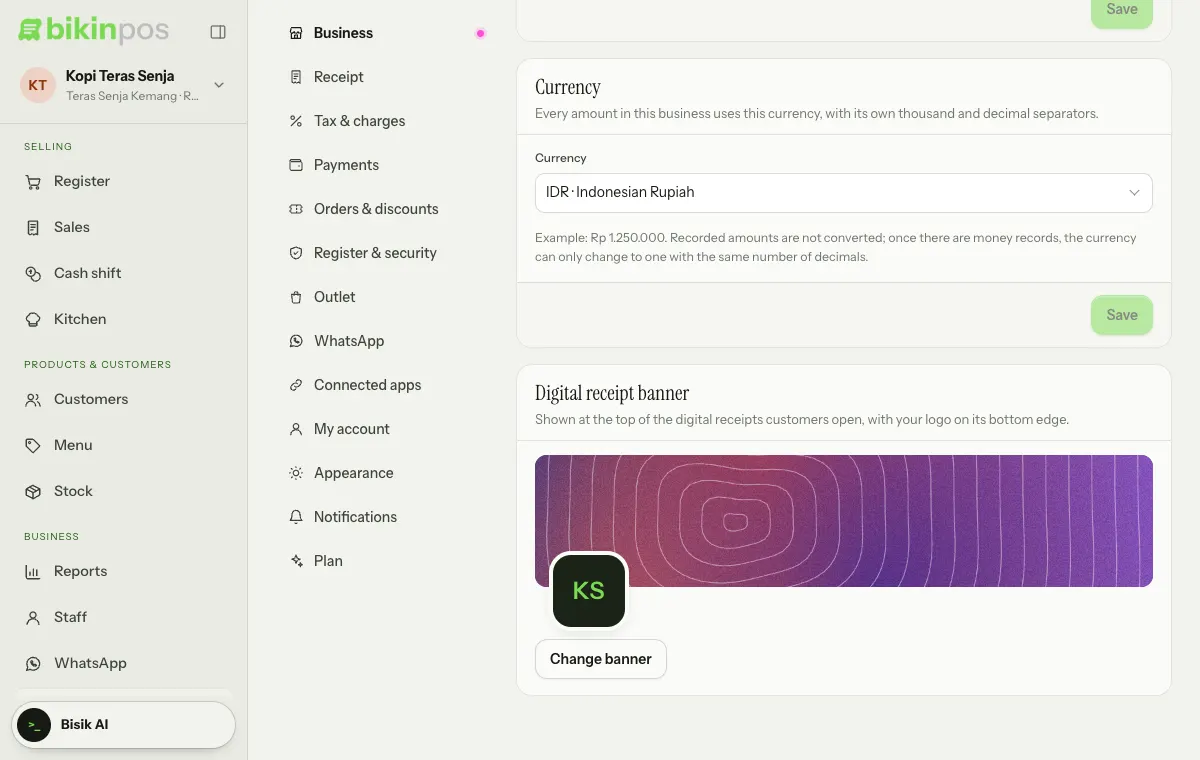
Choose Change banner: in the Pattern tab pick Grid, Waves, Rings or Silk and one of five colour sets (Shuffle gives a new variation); in the Upload tab choose a JPG, PNG or WebP image at least 600 px wide and drag the preview to choose the part that shows. Use default brings back the default pattern. The pattern moves gently on your customer's page and stays still when their device asks for reduced motion. Every plan can use the photo and banner.
Last updated: