Bikin POSHelp
Privacy & security
How Bikin POS protects your account and business data: email-code sign-in, codes for important actions, shared-device PINs, roles and read-only connections.
Bikin POS holds your business's sales, products, stock, customers and drawer cash. This page explains how the app protects that data and what you can control yourself.
Signing in
- You sign in with your email and password, then a 6-digit code from your email. The device stays signed in for 30 days.
- Sign in with Google (when available) uses a Google account whose email Google has verified.
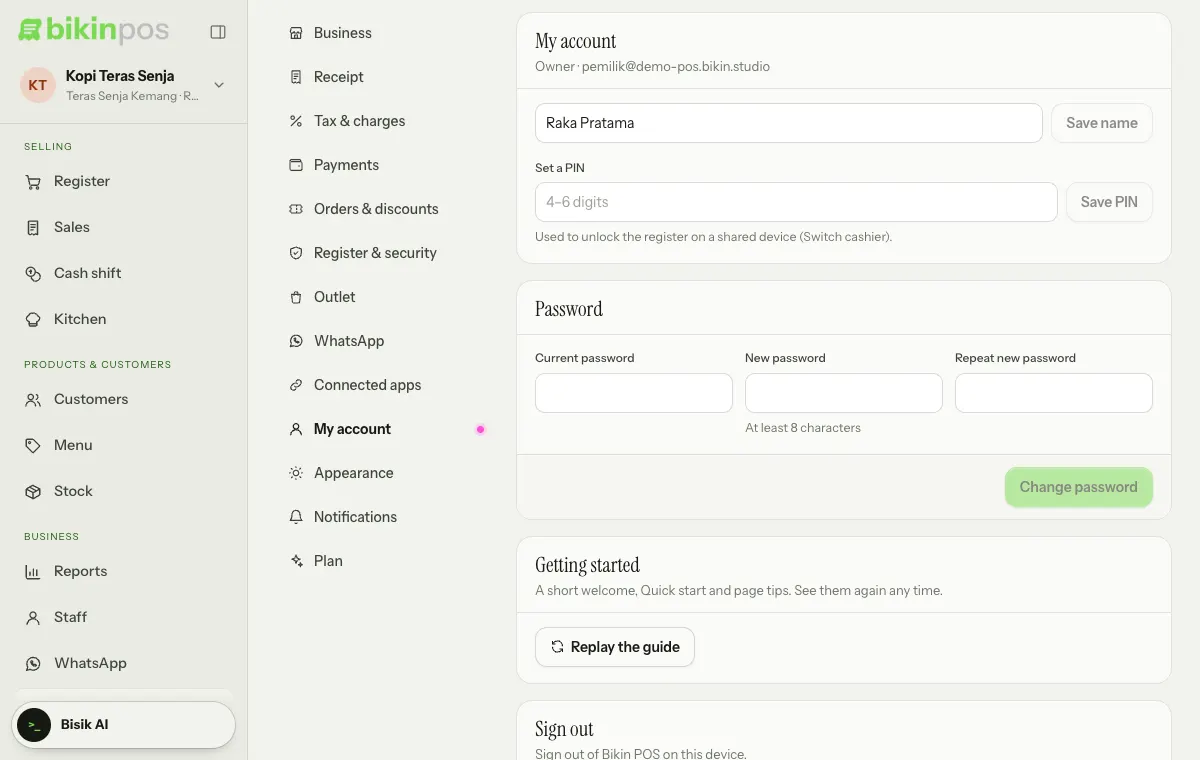
- Sign in with WhatsApp (when available) only sends a code to a number you verified in Settings › My account. Adding or removing a number asks for an email code first.
- Codes work for 10 minutes. Don't share a code with anyone, including the BIKIN team.
- Change your password in Settings › My account, in the Password card. Afterwards every other device is signed out, and you sign in again with the new password.
If you get a sign-in code when you aren't signing in, change your password in My account right away.
Codes for important actions
Important actions ask for an email code even when you're signed in: changing staff and outlets, settings that involve money and security, refunds and voids, exports, and passwords and PINs. Once the code is right, other important actions don't ask again for 10 minutes. For staff without an email, the code goes to the owner's email, so the owner approves too.
Roles and PINs
- Everyone only sees the menus that fit their role. See Outlets & staff.
- On shared devices, turn on the PIN lock and auto-lock in Settings › Register & security so an unattended register locks itself and every sale is recorded under the right person.
- Deactivate staff who leave. Deleted or deactivated staff can't sign in again.
Data on the device
Sales made while offline are kept on the device until they send. Signing out doesn't remove waiting sales. Avoid clearing the browser's data before everything has sent; check the Waiting to send card in Sales.
Digital receipts
Anyone who receives a digital receipt link can open it without signing in, so only send it to the customer it belongs to.
Delivery-app screenshots
Images uploaded to fill an order from a screenshot are read by AI and then discarded. The images aren't stored.
Bisik
Bisik only answers questions about your business and uses the permissions of whoever is using the register. Conversations aren't kept after the page closes or the register switches person.
Connected BIKIN apps
Connected BIKIN apps can only read data, following the role and outlets of the person who allowed it. Only owners and managers can allow a connection. Disconnect any time in Settings › Connected apps. See Bisik & connected apps.
Your business's money
Cash, card, transfer and manual QRIS payments come straight to you; Bikin POS only records them. Only if you choose automatic QRIS are QRIS payments received by BIKIN's system and recorded as your business Balance until you withdraw them to your account.
Full policies
Read the Privacy Policy and the Terms for the full rules on data, accounts and account deletion.
Last updated: