Bikin POSAccount & plan
Outlets & staff
How to add outlets and staff in Bikin POS, what the owner, manager, cashier and kitchen staff roles can do, and how PINs work on shared devices.
One business in Bikin POS can have several outlets and several people. Each person has a role that decides what they can do.
Outlets
An outlet is a branch or point of sale. Stock, shifts and saved orders are kept per outlet. The owner manages them in Settings › Outlet.
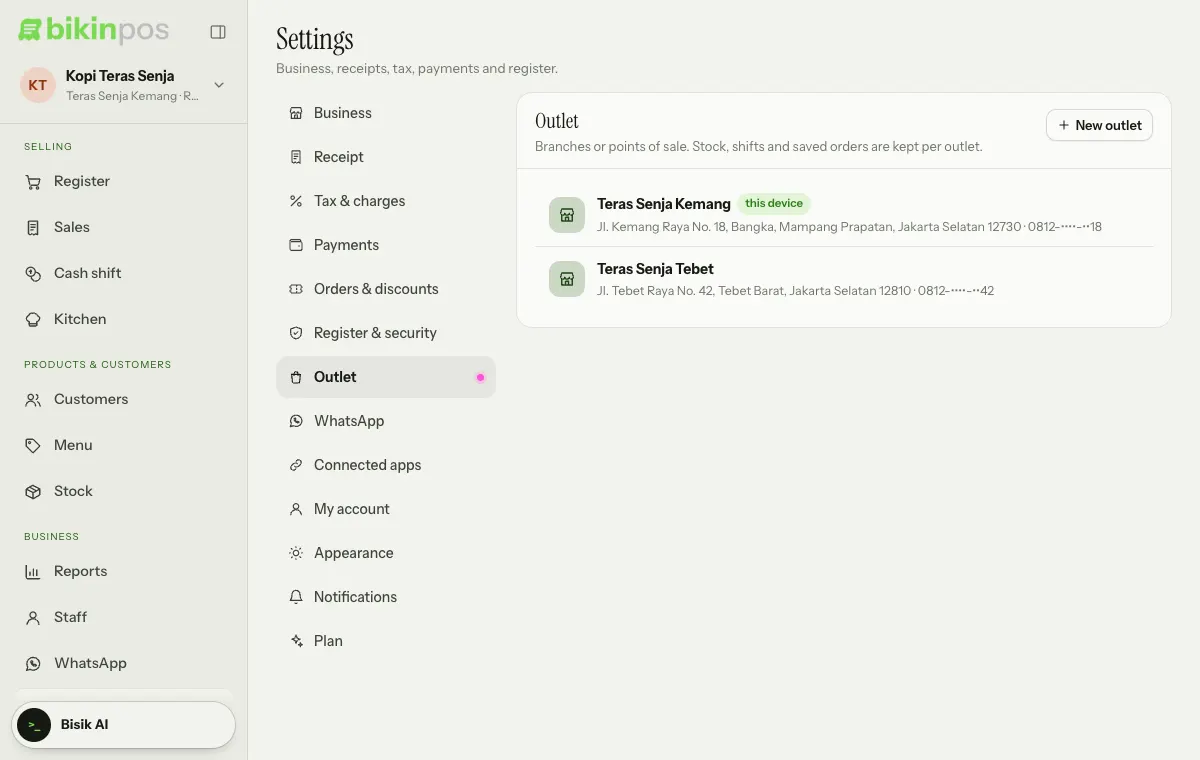
- Press New outlet at the top right of the Outlet card.
- Fill in the Name, Address and Phone. Receipts use the outlet's address and phone when they're filled in, and the business's otherwise.
- Press Save. The new outlet is active straight away.
To change an outlet, tap it in the list. That's also where the Active switch is, to deactivate an outlet you no longer use.
Each device uses one outlet. Choose this device's outlet from the business profile at the top of the sidebar, under Outlet on this device.
Roles
| Role | What they can do |
|---|---|
| Owner | Everything, including staff, outlets and business settings. |
| Manager | Register, products, stock, customers, refunds, shifts and reports. Can view the staff list. |
| Cashier | Register, sales, customers and cash shifts. |
| Kitchen staff | The kitchen screen only. Doesn't sell. |
Adding staff
Only the owner can add or change staff; managers can view the list.
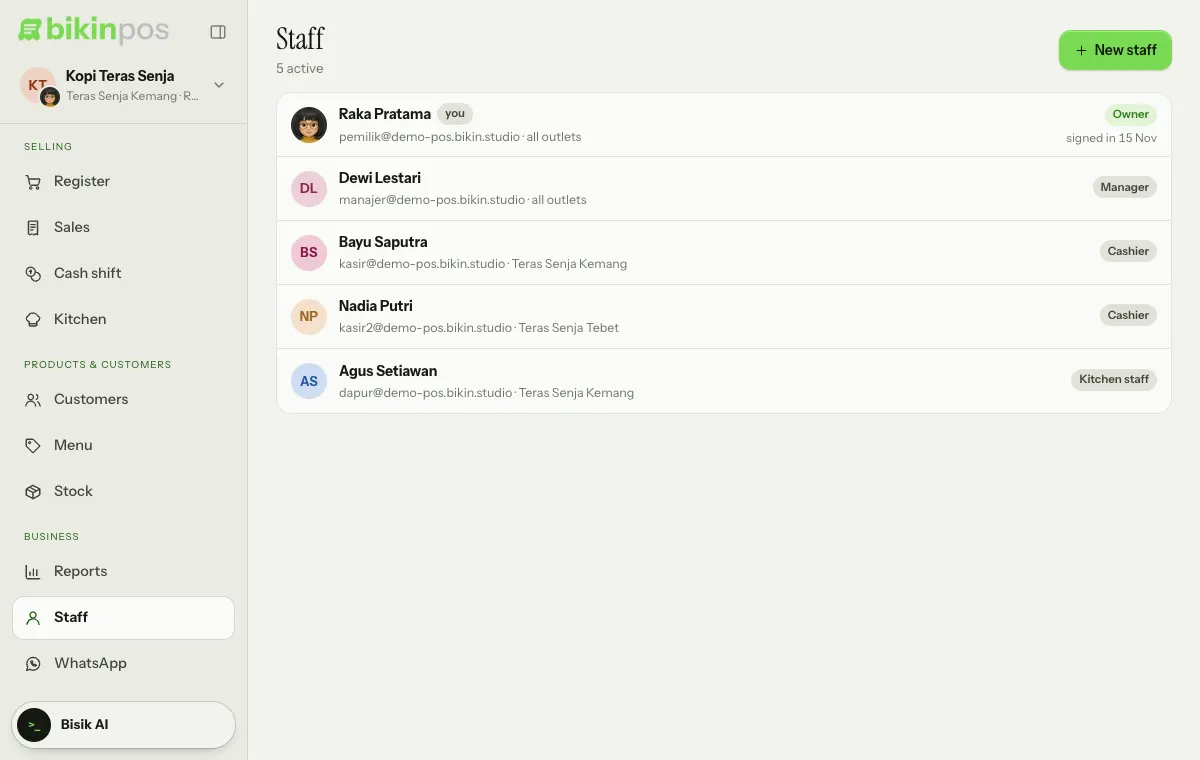
- Open Staff and press New staff at the top right.
- Fill in the Name and choose a Role. The note below it explains what that role can do.
- Fill in Email (to sign in) and a Password if the person will sign in on their own with email, and/or turn on PIN to unlock the register on a shared device and type a 4–6 digit PIN. Staff need an email or a PIN.
- With more than one outlet, choose the Outlets they may use. None selected means all outlets.
- Press Save.
To change someone, tap their name in the Staff list. Turn off Active there to stop them for now. Delete means they can't sign in again, but the sales they recorded stay.
Adding or changing staff is an important action, so Bikin POS asks for an email code.
Shared devices and PINs
On a tablet shared by several people, each person unlocks the register with their own PIN, so every sale is recorded under the right cashier and their permissions follow their role.
- Give everyone a PIN in Staff, including yourself (or in Settings › My account, in the Set a PIN field).
- In Settings › Register & security, turn on Lock the register with PINs (shared device), then press Save.
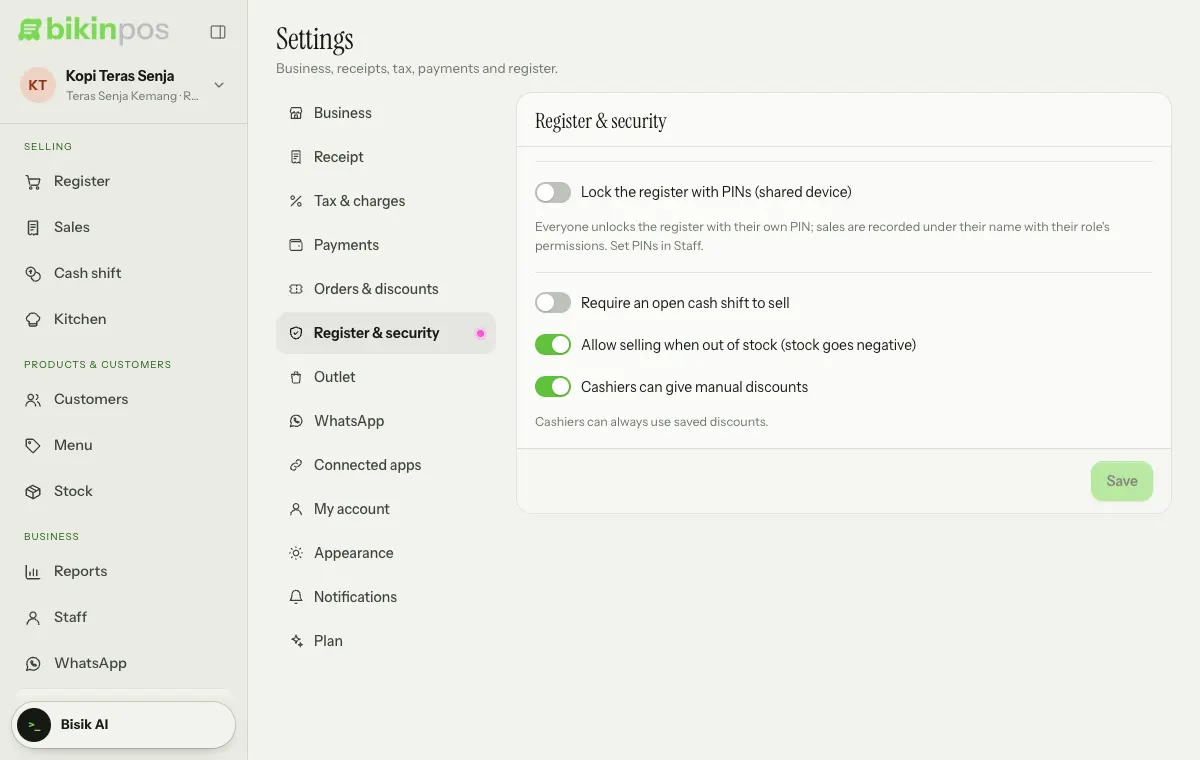
- If you like, choose Auto-lock when idle: Never, 2, 5, 15 or 30 minutes.
To switch person, tap the business profile at the top of the sidebar, then Switch cashier / lock. The lock screen asks Who's using the register?: pick a name, type the PIN, then Unlock. People who have added a profile photo show with their photo on this screen, which anyone at the device can see. With auto-lock, the register locks again after a few idle minutes.
Plan limits
The number of outlets and active staff follows your plan. If your plan ends and you're over the free plan, the owner chooses which outlets stay open and which staff can still sign in. The rest are paused until the plan is renewed; their data stays safe. The owner can always sign in. See Plans & billing.
Last updated: