Bikin POSFeatures
Payments & receipts
How to take payments in Bikin POS: cash, manual or automatic QRIS, cards, transfer, e-wallet, split payments, points and receipts.
Press Pay in the Register (the green button at the bottom right of the Order panel) to open the Payment window. The left side shows the Amount due; the right side has the row of payment methods, the amount field and the keypad. The methods shown are the ones the owner turned on in Settings › Payments: Cash, QRIS, Debit card, Credit card, Transfer, E-wallet and Other. When the row doesn't fit, swipe it sideways.
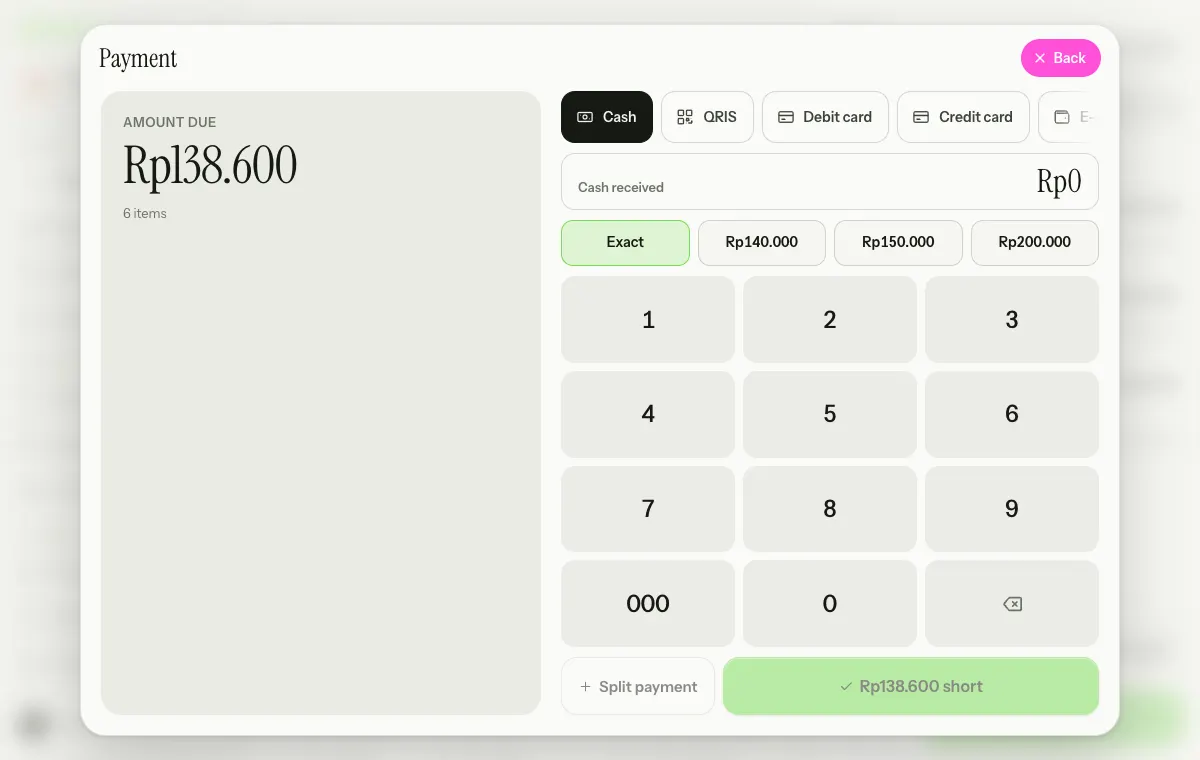
Opened it by mistake? Press Back at the top right; the order stays in the Register.
Cash
- Choose Cash.
- Type the Cash received on the keypad, or tap Exact or one of the quick notes next to it. On a computer you can also type the amount on the keyboard.
- While the cash is too low, the green button reads the amount short. Once it's enough, the Change is worked out for you and the button reads Complete payment. Press it (or Enter on a computer).
QRIS
The owner picks how QRIS works in the QRIS card, below the list of methods in Settings › Payments. This card shows when the QRIS method is turned on.
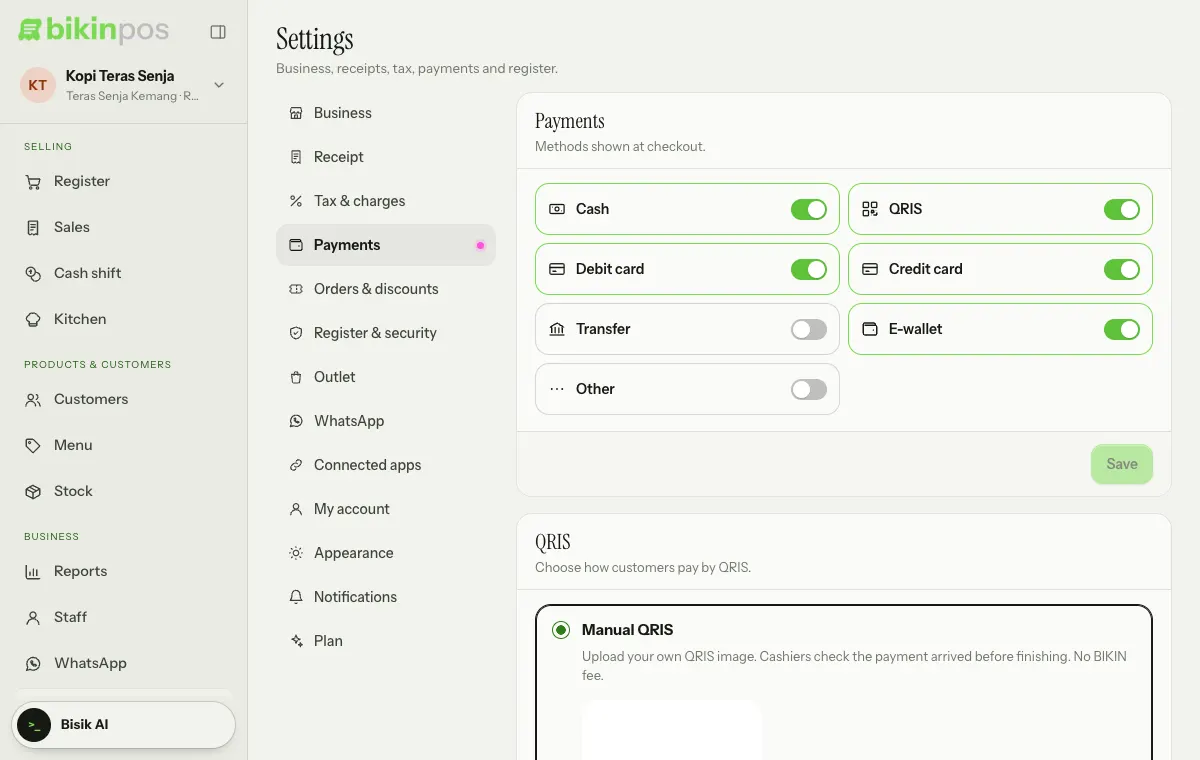
- Manual QRIS: upload the static QRIS image from your own bank or payment provider with Upload QRIS image. When the cashier picks QRIS, the image shows in the Payment window for the customer to scan; the cashier makes sure the payment arrived before finishing. The money goes straight to your account, with no fee from BIKIN.
- Automatic QRIS: BIKIN's system makes a new QR for every sale, with the exact amount to pay. While it waits, the pay button reads Waiting for payment · checked automatically, and the sale completes itself once the customer pays. The QR is valid for a short time (the time left shows under the QR); if it expires, press New QRIS.
Automatic QRIS has to be opened by BIKIN for your business and be part of your plan, and it's only for businesses that use Indonesian rupiah (IDR); see Currency. Before turning it on, the owner reads the Automatic QRIS terms and presses Agree & turn on. Automatic QRIS payments go to your business Balance in Bikin POS after the per-payment fee stated in the terms. The owner withdraws the balance to a bank account or e-wallet with Settings › Balance › Withdraw; BIKIN processes it on working days. If an outlet or the business is deleted while a customer is still paying an automatic QRIS that hasn't expired, that payment is still recorded: it goes to the Balance if the business still exists, or BIKIN settles it (refunds the customer or transfers it to the owner) if the business was deleted.
A refund in the app doesn't send money back through QRIS and doesn't reduce your Balance. Refund the customer another way, such as cash.
You can switch back to manual QRIS any time; any existing balance can still be withdrawn.
Cards, transfer, e-wallet, other
For these methods the amount is automatically what's left to pay (the Pay exact button). The cashier can fill in a Ref no. (optional) in the amount field, such as the last 4 digits of the card or the approval code. For transfers, the account from Settings › Payments is shown so you can show it to the customer. Make sure the payment went through (e.g. the card terminal slip or a notification) before finishing.
Split payments and several methods
One order can be paid with several methods, such as part cash and the rest QRIS:
- Choose the first method and type its amount, less than the bill. On a phone, for non-cash methods tap Type another amount first so the keypad shows.
- Press Split payment (on a phone: Split). That part is recorded, and Amount due changes to Left to pay.
- Choose the next method for the rest, then finish.
A wrong part can be removed with the × next to it before the payment is completed.
Customer points
When customer points are on and the order has a customer with at least the minimum points, the Payment window shows the customer's name, their points balance and a Use points button. Tap it to take points off the bill, before using a split payment. See Customers.
After payment: the receipt
The Payment complete screen shows the receipt number, the total, the Change and a receipt preview. From there:
- Print: through the Bluetooth printer saved on this device, or through the device's print dialog (58 or 80 mm thermal printers, USB or AirPrint).
- Send: opens the device's share menu or WhatsApp with the receipt text and the digital receipt link. When the order has a customer with a phone number, the button reads WhatsApp and opens a chat with that number straight away. Once your business WhatsApp number is connected, WhatsApp sends the receipt straight away (see Receipts from your business WhatsApp below).
- Copy link: copies the digital receipt link.
Press Close to go back to the Register with a new, empty order. With a Bluetooth printer and Print automatically after payment on, the receipt prints without pressing Print.
The receipt content (logo, header and footer text, paper width) is set in Settings › Receipt. See Settings.
bkin.in short link
The digital receipt on the screen after payment and on the Sales page has Print, Send and Copy link buttons. Under it is the Short link: a short bkin.in address made for you right away, for example bkin.in/k7m2qa. The real link doesn't change; bkin.in just sends visitors there.
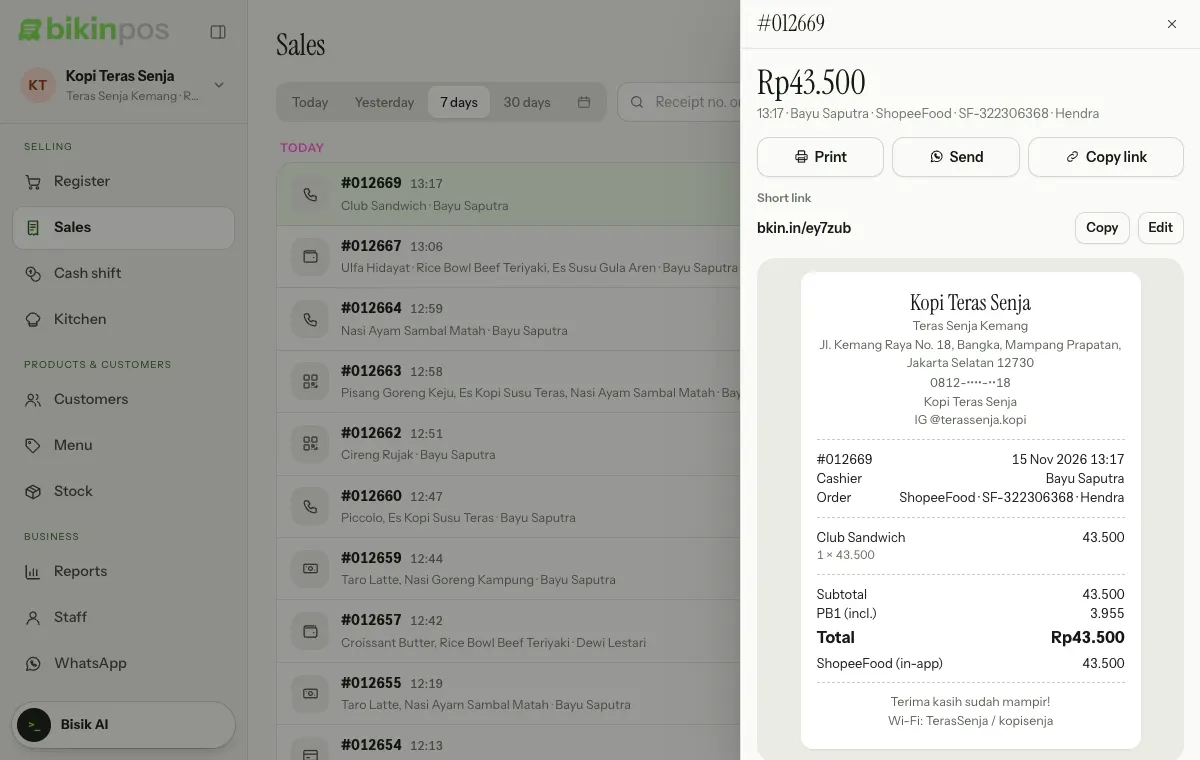
- Copy copies the short link.
- Edit picks your own code, for example
bkin.in/promo-coffee. Availability is checked as you type. Free plans need at least 6 characters, paid plans at least 3. The old code stops working once you save. - The receipt WhatsApp message and Copy link use the short link automatically. Only owners and managers can change its code.
Receipts from your business WhatsApp
When the owner has connected the business WhatsApp number in Settings › WhatsApp, the WhatsApp button on a receipt sends it straight from that number. The cashier doesn't need to open WhatsApp on their device.
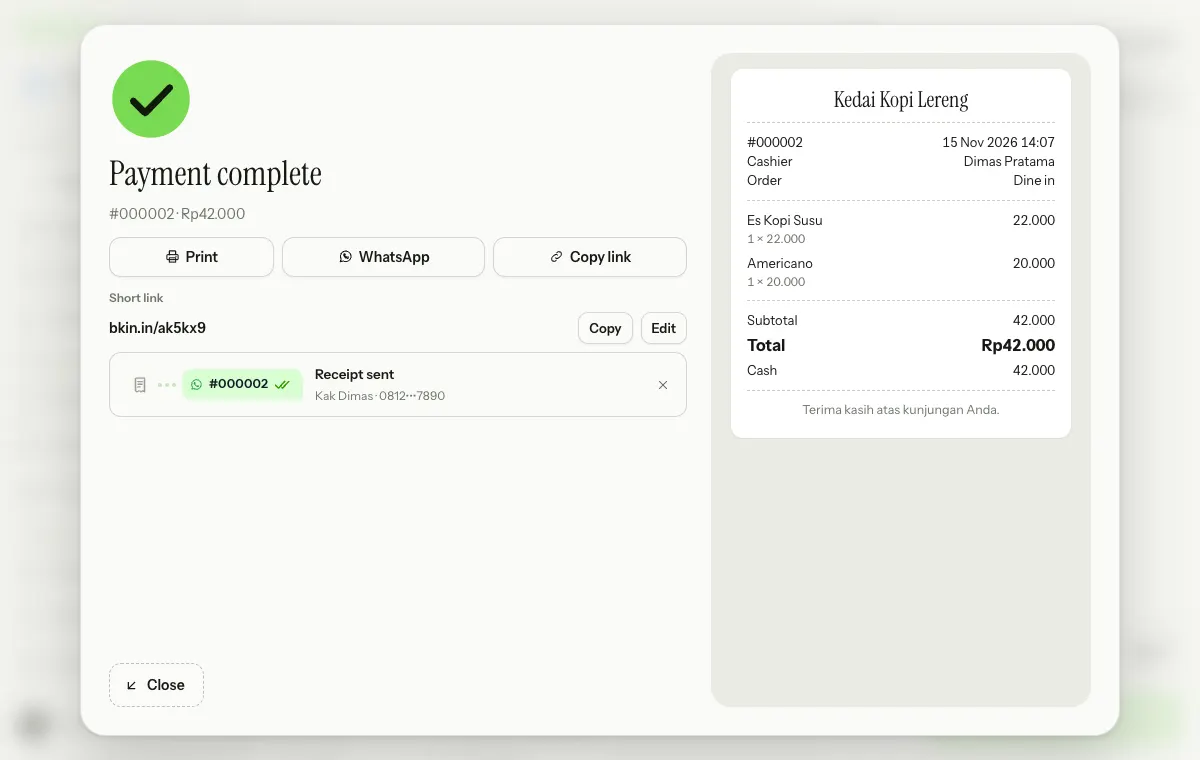
- The receipt goes to the order's customer when their number is saved. Without a customer, enter the WhatsApp number (and the Customer name if you like), then press Save & send: the number is saved as a customer and attached to that sale. Receipts never go to a number that isn't saved as a customer.
- Under the receipt you see the send's progress: Receipt queued, then Receipt sent with two ticks. It usually takes less than a minute, and the cashier can serve the next customer right away.
- If the send fails, press Try again, or Open WhatsApp to send it the old way from this device.
- Sales not yet saved to the server (while offline) are sent the old way.
When offline
Without internet, the payment still completes and the screen shows Saved on this device. The receipt can still be printed, and its number follows once the sale is sent. The digital receipt link is available only after the sale is sent. Automatic QRIS needs the internet.
Last updated: