Bikin POSFeatures
Bisik & connected apps
How to ask Bisik about your business in Bikin POS, and how to connect Bikin POS to BIKIN AI and BIKIN SIGHT.
Bisik is the AI assistant inside Bikin POS. Connected apps lets other BIKIN apps, such as BIKIN AI and BIKIN SIGHT, read your business data from Bikin POS.
Bisik
The Bisik AI button sits at the foot of the left sidebar, below the menus. Tap it to open the Bisik panel on the right of the screen (full screen on a phone), next to the page you have open.
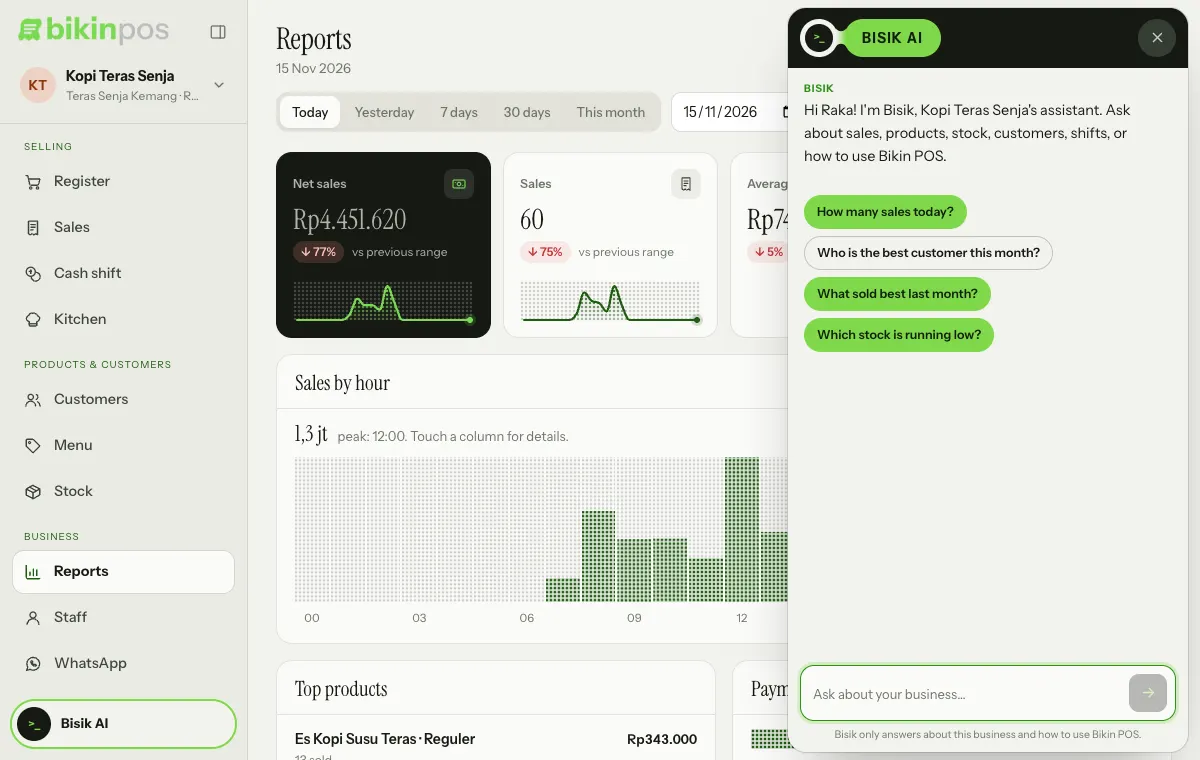
Tap a suggestion, or type your question in the Ask about your business… box and send it. The suggestions you see depend on your role. Example questions:
- "How many sales today?"
- "Who is the best customer this month?"
- "What stock is running low?"
- "How do I open a cash shift?"
- "How do I save an order to pay later?"
Bisik only answers questions about this business and how to use Bikin POS. Its numbers come from your business data, within the permissions of whoever is using the register: a cashier doesn't see numbers only owners or managers may see.
The conversation only lives in the open page. It's gone when the page reloads or when the register switches person with a PIN. The eraser icon (New chat) in the panel header, which appears once there's a conversation, starts over; the × button closes the panel.
Bisik is available on every plan, including Free. How many questions you can ask each month depends on your plan: Free is enough to try it, paid plans give more. When this month's allowance is used up, Bisik tells you, and the owner can upgrade the plan in Settings › Plan.
Connected BIKIN apps
Once connected, the AI in other BIKIN apps understands your business from your Bikin POS data: sales and comparisons, top products, best customers, low stock, sales records, products, customers and the open cash shift.
Connections are read-only. A connected app can't sell, change prices or delete anything in Bikin POS.
Connecting
You always start from the other app:
- BIKIN AI: open Settings › Connected BIKIN apps, choose Bikin POS, then press Connect.
- BIKIN SIGHT: open Connections, then press Connect.
You're taken to Bikin POS. Sign in if you aren't already, check what can be read, then press Allow. If your last email code was a while ago, you're asked for a new one. Then you return to the other app.
Only owners and managers can allow a connection. The data shared follows the role and outlets of the person who allowed it: a manager limited to one outlet only shares that outlet.
Viewing and disconnecting
Settings › Connected apps shows the connected apps, who connected them and when, and when they were last used. The How it works card below sums up what connections do.
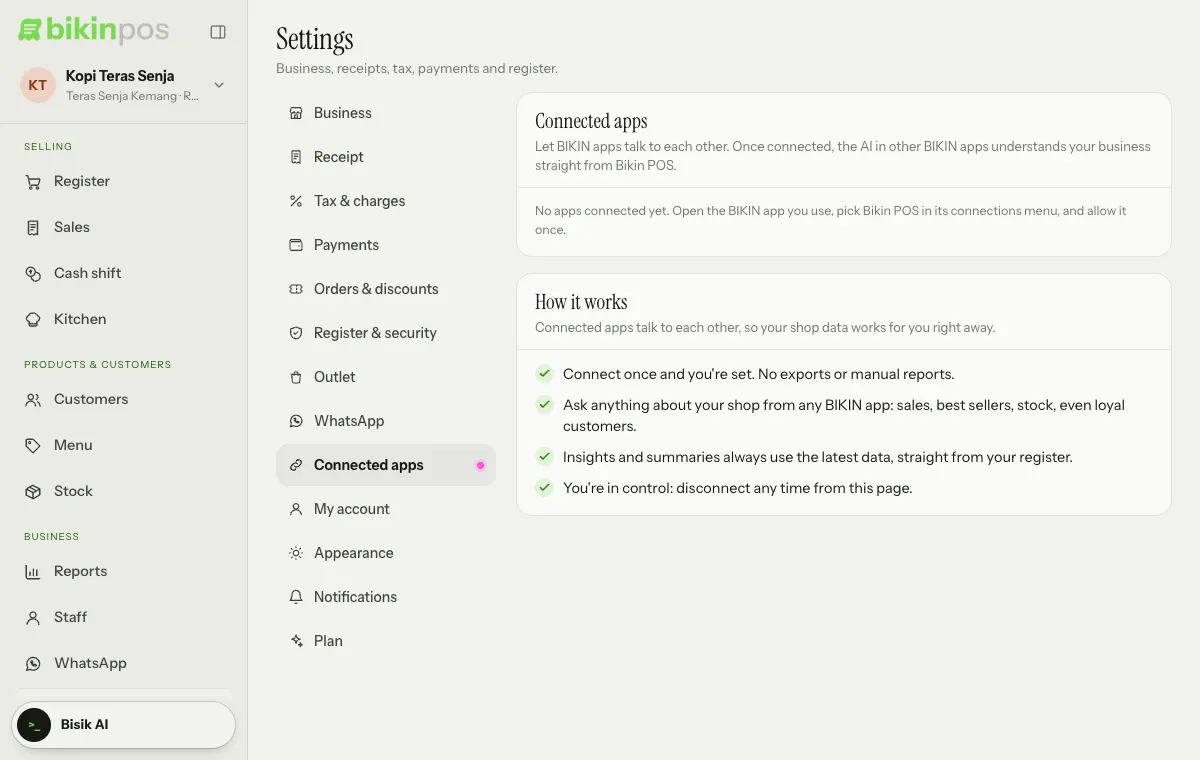
Owners see every connection; managers see their own. Press Disconnect on an app's row to end it. You can connect it again any time from the app.
A connection also stops by itself when the person is deactivated, their role changes to cashier, or their password changes. Connect again from the app.
Connected BIKIN apps is a plan feature.
Last updated: