Bikin POSGet started
Getting started with Bikin POS
How to sign up and sign in to Bikin POS, set up your business and outlet, then work through the Quick start list to your first sale.
This page takes you from creating an account to your first sale. The one thing that really matters is products: without them, the Register is empty. Everything else can come later.
Create an account
- Open pos.bikin.studio and choose Sign up.
- Fill in Your name, Business name, Business type, Email and a Password (at least 8 characters), then press Create account.
- Enter the 6-digit code sent to your email to verify it. Not in your inbox? Check the Spam or Promotions folder.
When the Sign up with Google button shows above the form, you can also sign up with a Google account. Google has already verified your email, so you only fill in your name, the business name and its type.
The business type sets the order types in the Register and the default tax name. You can change it later in Settings › Business. See Business types.
If you see a message that sign-up isn't open yet, contact BIKIN to get an account.
Sign in
Sign in with your email and password, then enter the 6-digit code from your email. After that, the device stays signed in for 30 days. With Sign in with Google (the top button on the sign-in page), you sign in without an email code.
Sign in with WhatsApp
When the sign-in page shows Sign in with WhatsApp, you can sign in with a code sent by WhatsApp, without a password:
- Add and verify your WhatsApp number once in Settings › My account › WhatsApp number (see Settings).
- On the sign-in page, choose Sign in with WhatsApp and enter that number.
- Enter the 6-digit code from WhatsApp. The code works for 10 minutes. The Copy code button in the WhatsApp message copies it for you.
A WhatsApp code sent to your verified number replaces the password and the email code, so you're signed in straight away and the device stays signed in for 30 days. Numbers that aren't verified never get a code. This is for signing in to your account on a device; switching cashier on a shared device still uses a PIN.
Forgot your password? Choose Forgot your password, enter your account email, then create a new password with the code we send. Every other device gets signed out.
Welcome and Quick start
When you first sign in, you see a few welcome cards for your role; press Next to read them or Skip to start straight away.
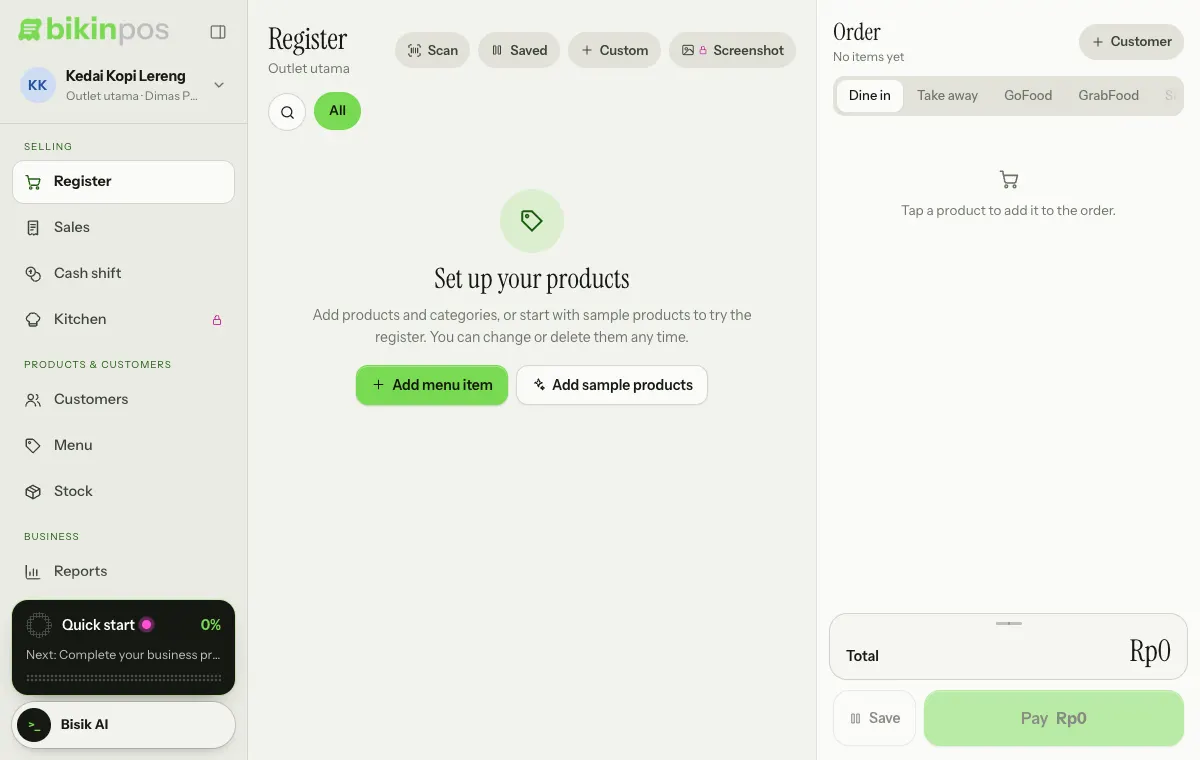
Owners and managers then get a Quick start card showing the progress percentage and the next step. On a tablet or computer the card sits at the foot of the sidebar, right above the Bisik AI button; on a phone it sits in the same place in the sidebar drawer (tap the menu button or swipe right). Tap the card to open the list of steps. Each step ticks itself off once the data is there, and the button under each step takes you to its page:
- Complete your business profile: address, phone and logo in Settings › Business. They all appear on receipts.
- Add your first product in Products with the New product button. You can also press Use sample data: a few categories, about 8 products with prices and 2 sample customers.
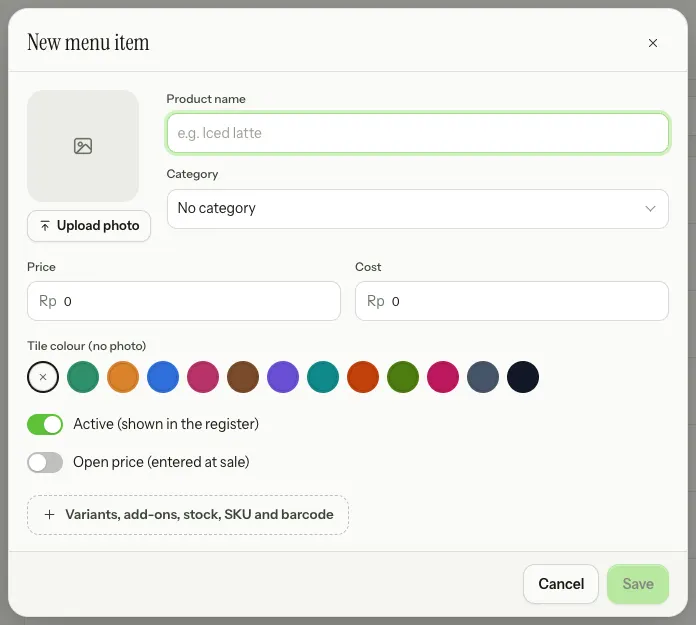
- Choose payment methods in Settings › Payments.
- Tidy up the receipt in Settings › Receipt (can wait).
- Add staff and PINs in Staff (can wait).
- Open a shift and make the first sale: open a shift in Cash shift, then sell one item in the Register.
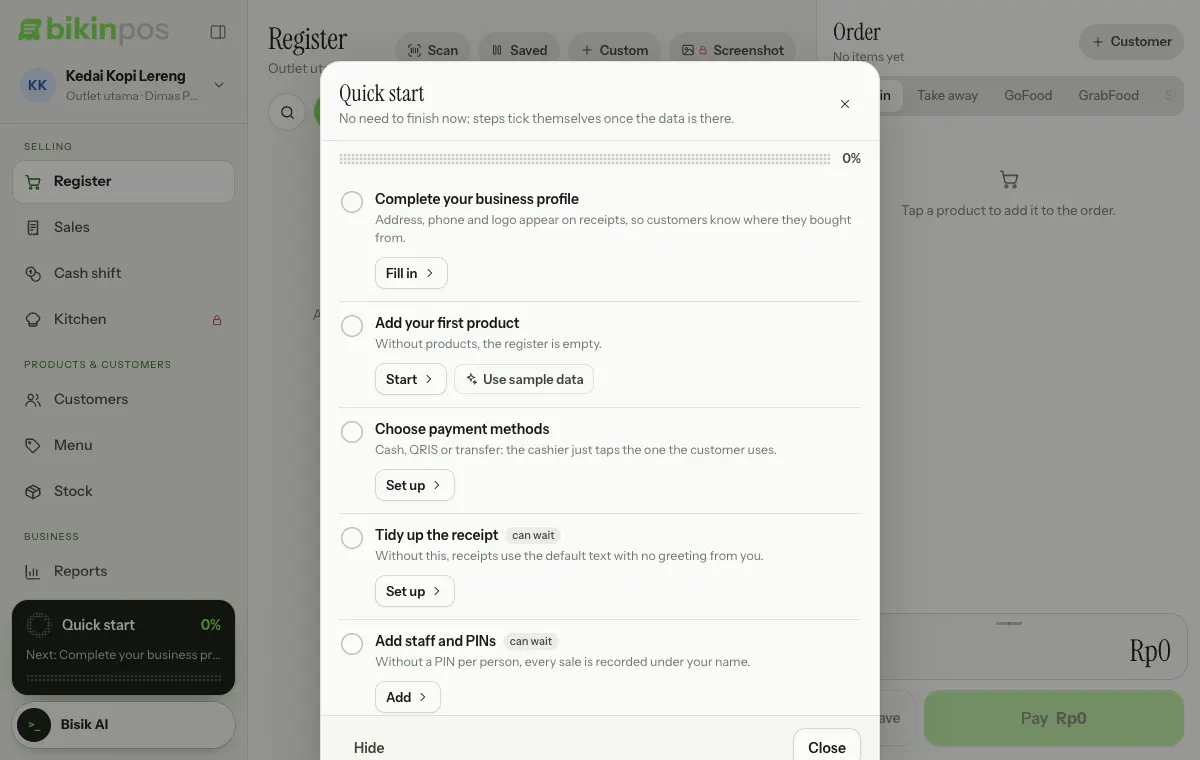
Steps marked can wait are optional. Once the required steps are done, press Finish under the list. Don't want to see the card for now? Press Hide.
Sample data is marked Sample and can be removed in one tap with Remove sample data in Quick start or in Settings › My account › Getting started. Sample data counts like normal data toward your plan limits.
Outlets
A new business has one outlet. An outlet is a branch or point of sale; stock, shifts and saved orders are kept per outlet. The owner adds outlets in Settings › Outlet with the New outlet button.
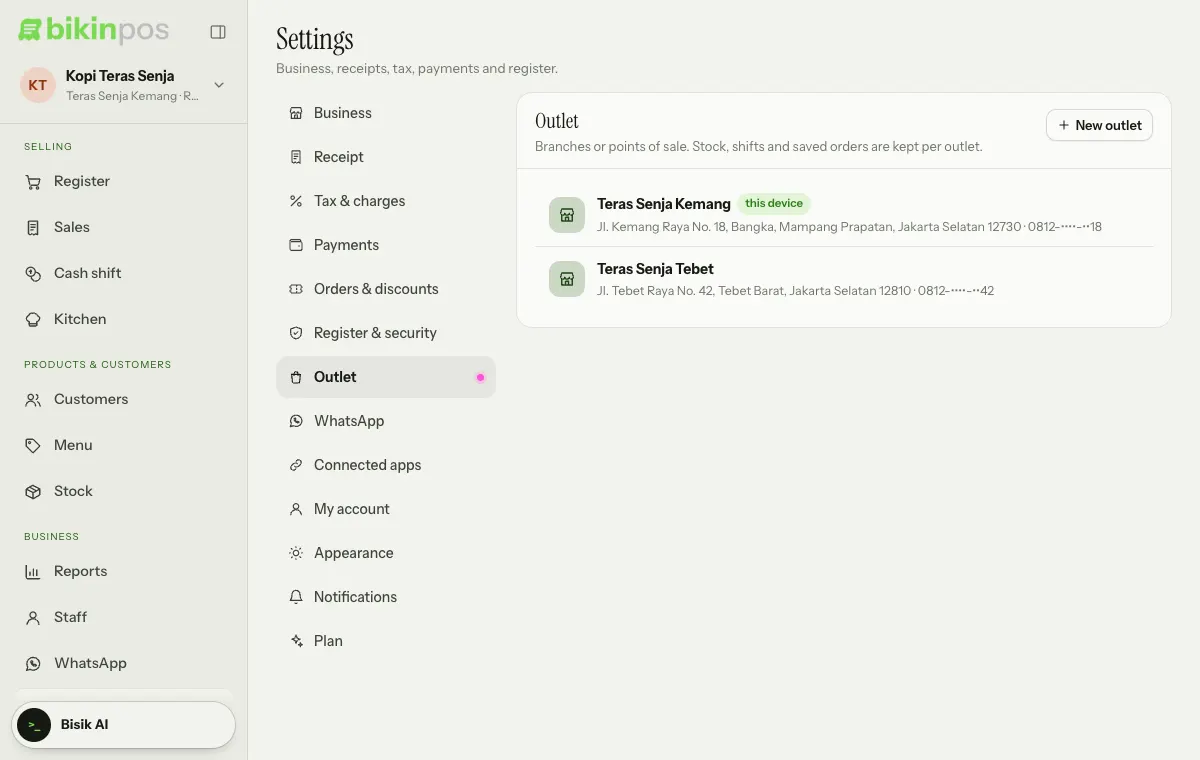
With more than one outlet, choose this device's outlet from the business profile at the top of the sidebar, under Outlet on this device. See Outlets & staff.
Add it to your home screen
Bikin POS runs in the browser and can be added to the home screen of a tablet or phone from the browser menu, so it opens like an app.
Replay the guide
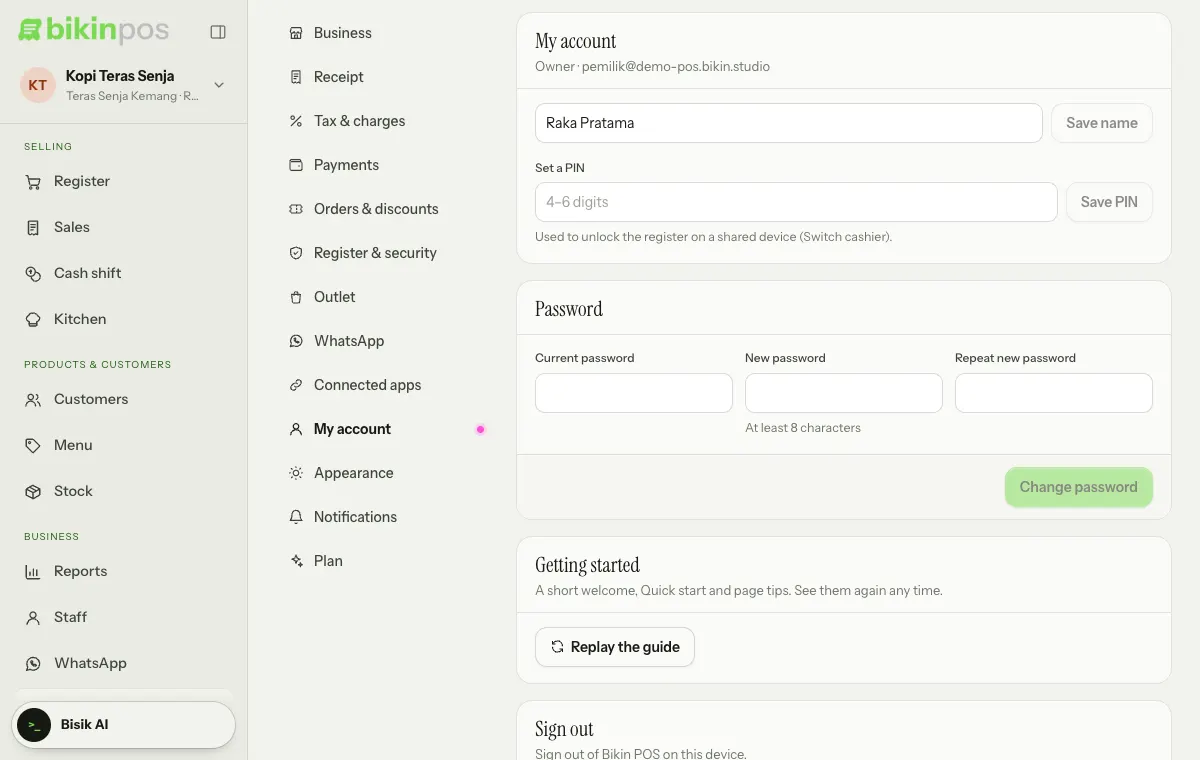
The welcome, Quick start and page tips can be replayed from Settings › My account: press Replay the guide in the Getting started card.
Last updated: