Bikin POSFeatures
Business types & order types
The twenty-six business types in Bikin POS in three groups, their order types and wording, how to turn order types on, and what changes when you switch business type.
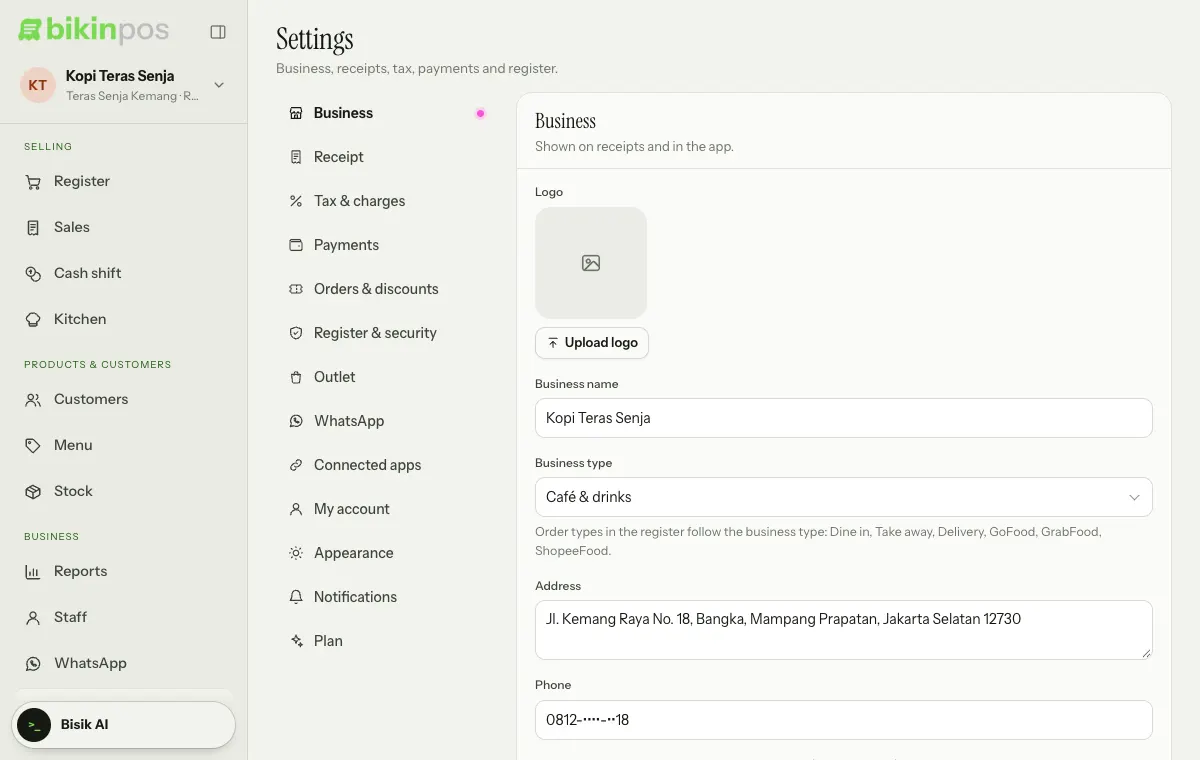
When you sign up you choose a Business type. It sets the order types available in the Register and the default tax name. The owner can change it in Settings › Business, in the Business type field, then press Save at the bottom right of the card.
Business types
The business types are grouped into Food & drinks, Shops & retail and Services, with Other at the bottom. Types in bold are on from the start; the others are available to turn on.
| Business type | Order types |
|---|---|
| Food & drinks | |
| Restaurant & eatery | Dine in, Take away, Delivery, GoFood, GrabFood, ShopeeFood |
| Café & drinks | Dine in, Take away, Delivery, GoFood, GrabFood, ShopeeFood |
| Bakery & cakes | Take away, Pre-order, Dine in, Delivery, GoFood, GrabFood, ShopeeFood |
| Catering & meal delivery | Pre-order, Delivery, Take away, Dine in, GoFood, GrabFood, ShopeeFood |
| Street food, carts & booths | Take away, Dine in, GoFood, GrabFood, ShopeeFood |
| Shops & retail | |
| Shop & minimarket | In store, Shipping, Pre-order, Marketplace |
| Grocery & staples | In store, Shipping, Pre-order |
| Fashion & accessories | In store, Shipping, Marketplace, Pre-order |
| Cosmetics & skincare | In store, Shipping, Marketplace, Pre-order |
| Pharmacy & health store | In store, Shipping, Marketplace |
| Phone & electronics store | In store, Repair, Shipping, Marketplace, Pre-order |
| Building materials | In store, Shipping, Pre-order |
| Frozen food & souvenirs | In store, Shipping, Pre-order, Marketplace |
| Stationery, copy & print | In store, Pre-order, Shipping |
| Pet shop & supplies | In store, Shipping, Marketplace |
| Farm supplies & feed | In store, Shipping, Pre-order |
| Services | |
| Salon, barbershop & spa | Walk-in, Booking, Home service |
| Laundry | Walk-in, Pickup & delivery |
| Workshop & car wash | Walk-in, Booking, Home service |
| Electronics & AC repair | Repair, Walk-in, Home service |
| Clinic & practice | Walk-in, Booking |
| Gym, studio & classes | Walk-in, Booking |
| Tailor & alterations | Walk-in, Pre-order, Pickup & delivery |
| Rentals | Walk-in, Booking, Pickup & delivery |
| Other services | Walk-in, Booking, Home service |
| Other | In store, Take away, Delivery, Booking |
Wording in the app
The catalog name follows your business group: Menu for food & drinks, Products for shops and Services for services. It shows in the sidebar menu, the catalog page, the add buttons and the Register search. Plan limits still say products.
Turning order types on
- Open Settings › Orders & discounts.
- Under Order types, turn the switches for the types you use on or off.
- Press Save at the bottom right of the card.
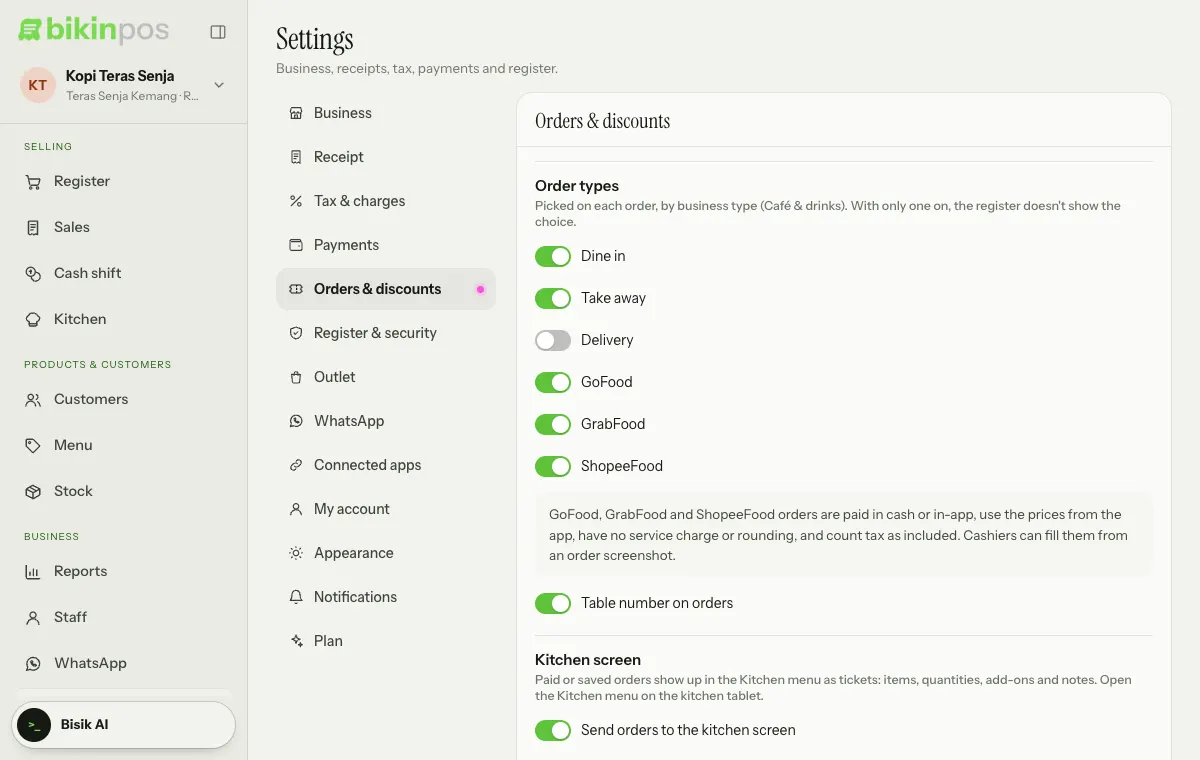
The cashier picks a type on every order, in the row of buttons at the top of the Order panel. When only one type is on, the Register doesn't show the choice. The order type is also recorded on receipts, kitchen tickets and reports (the Order types card).
Orders through other apps
Two groups of types are paid through another app:
- GoFood, GrabFood, ShopeeFood (food types): paid in cash at the counter or in-app. See Delivery-app orders.
- Marketplace (shops, fashion, cosmetics, pharmacy, phone stores, frozen food, pet shops): for orders from Shopee, Tokopedia or TikTok Shop, paid in-app only.
For both groups the price follows the app, with no service charge or rounding, and tax is treated as included in the price. These orders can also carry the order number and the customer's name in the Order no. · name field.
Default tax
New businesses in the food & drinks group (restaurants, cafés, bakeries, catering, street food) use the tax name PB1; other types use PPN. Tax is off until you turn on Charge tax in Settings › Tax & charges, where you also set the percent, whether prices include tax, the service charge and rounding.
Switching business type
When you switch business type, order types that the old type also used stay as you set them. Types that are new for your business take the defaults of the new type. For example, from restaurant to salon, Walk-in and Booking turn on. Past sales don't change.
The sample products from Add sample products in the Register also match your business type.
Last updated: