Bikin POSAccount & plan
Plans & billing
How Bikin POS plans work: the free plan, paid plans, paying and renewing, coupons, and what happens when a plan ends.
You can use Bikin POS free to start. Paid plans give more outlets, staff and products, and unlock extra features. Only the owner sees Settings › Plan.
Your plan
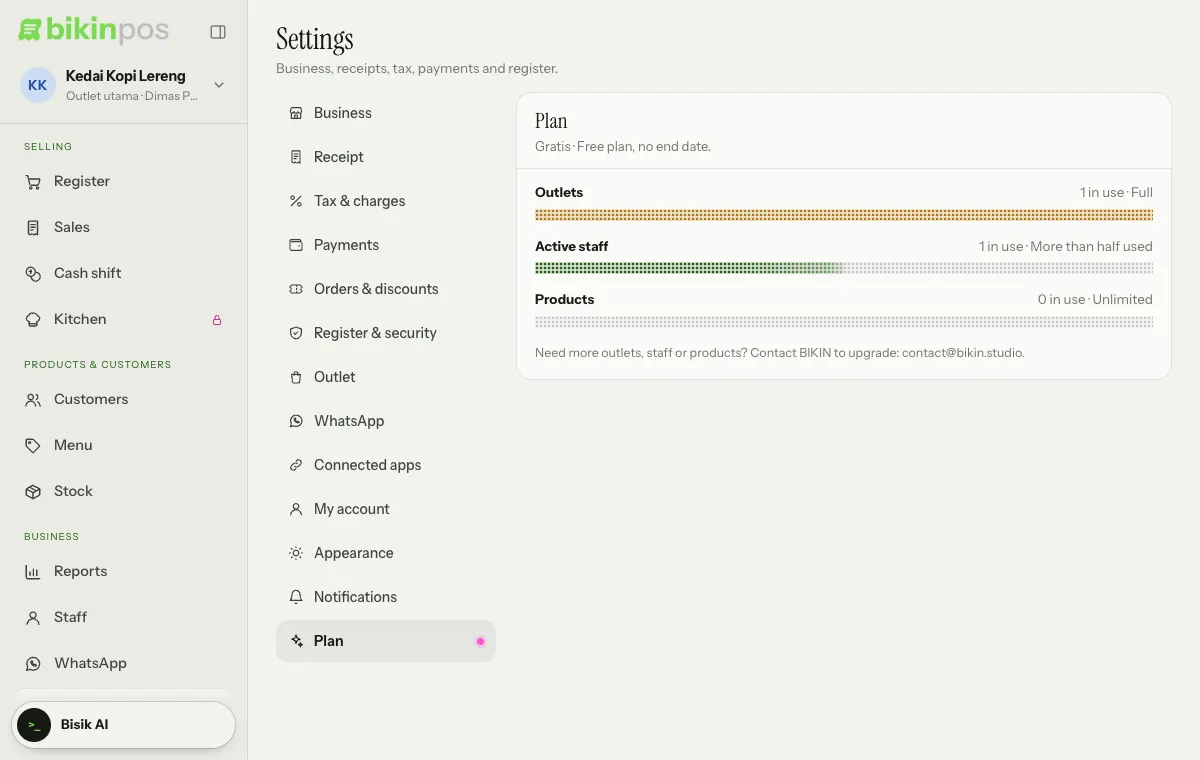
Settings › Plan shows your plan's name and how long it's active, then your usage of Outlets, Active staff and Products, each with a label like Plenty left, More than half used, Almost full, Full or Unlimited.
How plans differ
Plans are compared in words, such as Standard, More, The most or Unlimited, for:
- the number of outlets;
- the number of active staff (the owner counts too), and possibly per role;
- the number of active products.
Features that can differ per plan: the kitchen screen, customer points, automatic QRIS, Bluetooth printer, connected BIKIN apps, CSV export and filling orders from screenshots. If a feature isn't in your plan, Bikin POS tells you where that feature lives.
Features your plan doesn't include yet aren't hidden; they show locked. The Kitchen menu stays in the sidebar with a small magenta lock; opening it shows Kitchen is on paid plans with what it does. The Screenshot button on the Register for delivery-app orders also stays, with a mini lock, and pressing it shows an upgrade note. The owner sees See plans (or a note to contact BIKIN when plan choices aren't open yet); managers and cashiers are asked to contact the owner.
Upgrading and renewing
- In Settings › Plan, in the Choose a plan card, choose a period: Monthly, 3 months or Yearly.
- Press Choose on the plan you want, or Renew on your plan (marked Your plan).
- Check the summary: plan, active dates and total. If you have a coupon, type it in Coupon code and press Apply.
- Press the Pay button showing the total. You're taken to the online payment page, then back to Bikin POS after paying.
Pay by virtual account, QRIS, e-wallet or retail outlet. The plan turns on as soon as it's paid. If you switch plans while a paid plan is still running, the days left become extra days on the new plan, worth the same money. Days left on a free referral trial don't become extra days; after your first payment, the days left count as usual. If you renew the same plan, the new period continues after the last day of your plan.
The Bills list shows bills waiting to be paid, with a Pay button; a bill you created yourself and no longer need can be cancelled with Cancel.
If plan choices don't show for your business, the Plan section shows a note to contact BIKIN. Contact BIKIN to upgrade.
Automatic renewal
Turn on Send a renewal bill before the plan ends (below the usage, for paid plans) so a renewal bill is emailed to you before your plan runs out. You still pay that bill yourself. Turning it off cancels a renewal bill that's still waiting for payment.
When a plan ends
Your business goes back to the free plan's limits. Anything over those limits is paused until the plan is active again:
- Paused outlets can't be chosen, used for selling or have their data viewed.
- Paused staff can't sign in or unlock the register with a PIN.
- Paused products can't be sold.
The owner chooses which outlets and staff keep working; the rest follow the oldest created. The owner can always sign in to renew. Your data doesn't change, and everything opens again as soon as the plan is renewed or upgraded. Offline sales made before the pause started are still accepted.
Referrals
When BIKIN opens the referral program, the owner can invite other businesses from Settings › Referrals. What the invited business gets and your commission are shown there. Commissions go to the Balance and are withdrawn with Withdraw.
Last updated: