Bikin POSFeatures
Kitchen screen
How to use the Bikin POS kitchen screen: turning it on, the New, Cooking, Ready, Done ticket flow, the new-order sound and the kitchen staff role.
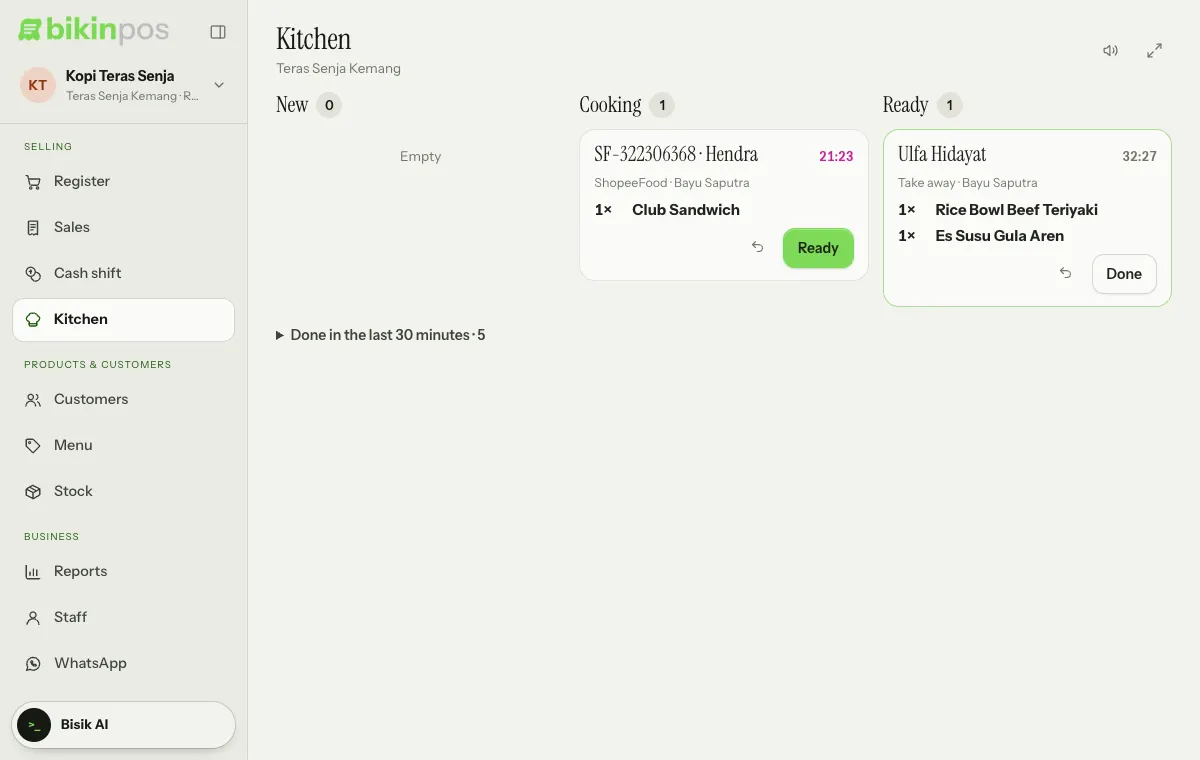
The kitchen screen shows orders as tickets on the kitchen tablet, with items, quantities, choices and notes, without prices. The cashier no longer needs to shout orders or write them on paper.
Turning on the kitchen screen
- The owner opens Settings › Orders & discounts.
- Under Kitchen screen, turn on Send orders to the kitchen screen, then press Save.
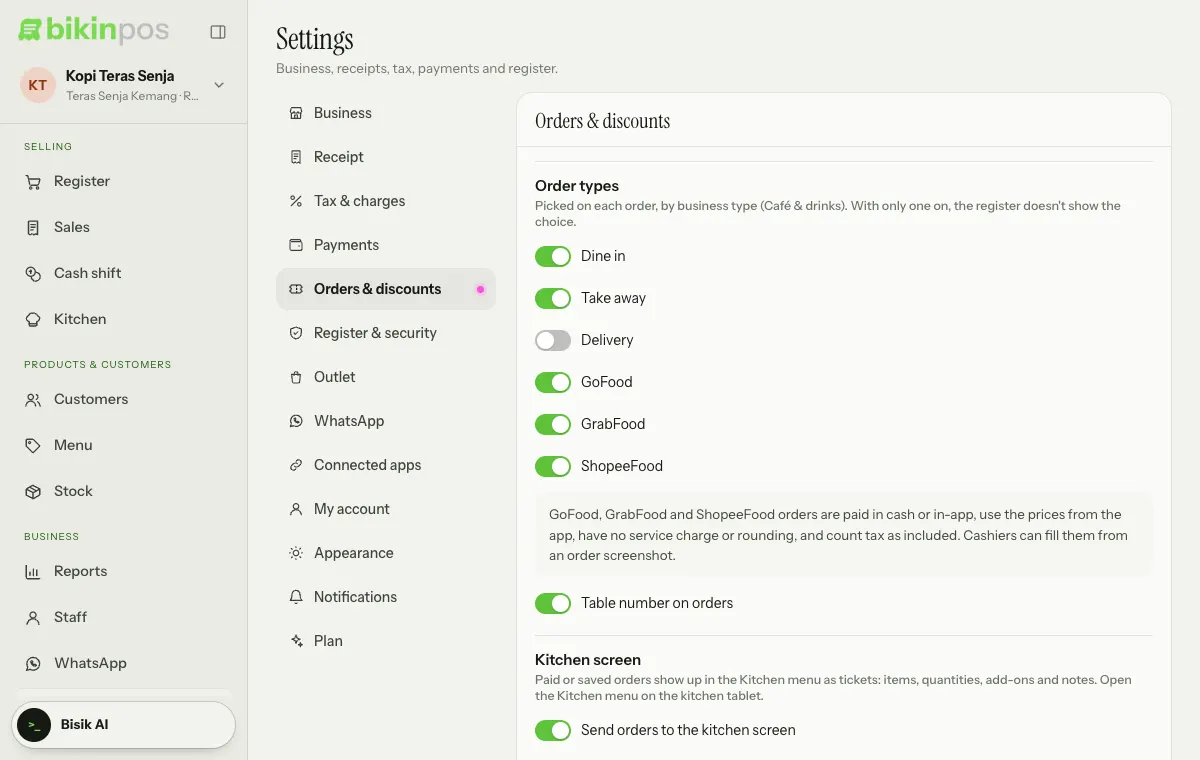
- The Kitchen menu appears in the sidebar, below Cash shift. Open it on the kitchen tablet.
The kitchen screen is a plan feature. If it isn't in your plan, the Kitchen page explains this.
When orders reach the kitchen
- When an order is paid in the Register.
- When an order is saved (e.g. a table order paid later).
If items are added to a saved order, the kitchen only gets a ticket for the additions. When that order is paid, items already sent to the kitchen aren't sent again. Voiding a sale marks its ticket Order voided.
Ticket flow
This outlet's tickets show in three columns (tabs on a phone), with the ticket count next to each column title:
- New (with a magenta line on the left): press Start cooking when you pick up a ticket.
- Cooking: press Ready once it's done.
- Ready: press Done when the order has been collected or served.
A ticket's title is the table number, the order name (for delivery-app orders: the order number and customer name), the customer's name or the receipt number. Below it are the order type and the cashier's name, then the items with their quantity, variant, choices and notes. The number at the top right of a ticket shows how long the order has waited; it turns magenta once it's over 15 minutes and the order isn't ready yet.
Pressed the wrong one? The back-arrow icon (Move back) next to the ticket button returns the ticket to its previous status. Tickets done in the last 30 minutes are under Done in the last 30 minutes below the columns, and can be brought back from there.
The screen refreshes itself every few seconds, so cashiers and servers see ready tickets straight away.
Sound and full screen
Two icons at the top right of the Kitchen screen:
- The speaker icon (Turn on new-order sound) makes the tablet chime for every new ticket; once it's on, the icon becomes a bell. Browsers only allow sound after one tap on the screen. This sound is separate from the Sounds setting in Settings › Appearance.
- The expand icon (Full screen) hides the rest of the browser on the kitchen tablet, when the browser supports it.
The kitchen staff role
The Kitchen staff role can only open the kitchen screen: seeing incoming orders and marking them cooking, ready and done. Kitchen staff don't sell, and they go straight to the kitchen screen when they sign in. Add kitchen staff in Staff. See Outlets & staff.
On a kitchen tablet shared by several people, give each person a PIN and turn on the PIN lock, so everyone opens the screen as themselves.
Last updated: