BIKIN FILEFeatures
Files from WhatsApp
Link your space's WhatsApp number, and photos, videos and documents from incoming messages, from the chats, groups or channels you choose, are saved straight to BIKIN FILE. Message text and senders' numbers are never saved.
Many business files arrive on WhatsApp: progress photos from a project group, invoices from suppliers or documents from clients. With file capture, files from messages that reach your space's WhatsApp number are saved straight to BIKIN FILE, from the sources and kinds you choose, without downloading and uploading them one by one.
- Only the space's owner links the number and turns capture on. Admins see how it stands.
- It's on paid plans (Starter and Premium).
- Only files from messages that reach the number are saved. Message text, messages sent from the number and senders' numbers are never saved, and BIKIN FILE never sends messages from that number.
The WhatsApp menu
The WhatsApp menu is always in the sidebar for owners and admins, in the Space group, also before the number is linked and on plans that don't include this feature. The WhatsApp settings gear icon at the top of its page opens Settings › WhatsApp.
Until it's set up, the page shows how it works with a moving example: a WhatsApp message with a photo and a PDF from a group flows into a BIKIN FILE file card. The owner sees WhatsApp isn't connected yet with the Connect WhatsApp button; admins see that only the space owner can set up WhatsApp.
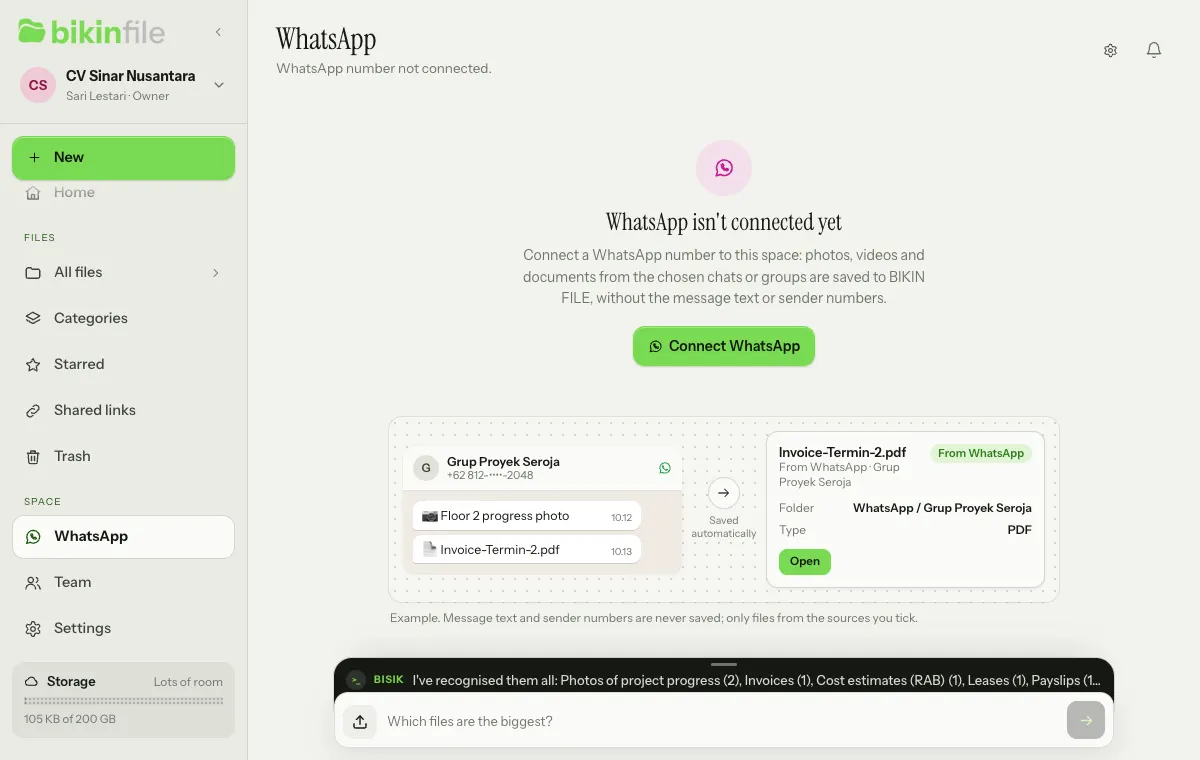
The page's title follows how things stand:
- WhatsApp isn't part of your plan: your plan doesn't include this feature. The owner sees See plans when plans can be bought in the app, or an invitation to contact BIKIN; other roles are asked to contact the space owner.
- WhatsApp is disconnected: the number was linked, then got disconnected. The owner sees Reconnect.
- This WhatsApp number can't be used any more: WhatsApp restricted the number repeatedly. The owner sees Connect another number.
- WhatsApp isn't available right now: BIKIN is setting up or maintaining the connection. Try again later.
- File capture isn't on yet: the number is linked, but capture isn't on. The owner sees Turn on in Settings.
- No files from WhatsApp yet: capture is on, but no files have arrived yet. The top of the page shows how it stands, such as "On · Specific groups · All media".
As soon as files arrive, this page becomes an ordinary file list; see Files that arrive. Demo accounts never link a WhatsApp number; their page only shows the example.
Connecting the number
This works like WhatsApp Web: the number is linked as another device, so the phone with that number must stay on and online. It's a link from your own number, not the official WhatsApp Business API.
- Open Settings › WhatsApp, or choose Connect WhatsApp on the WhatsApp page.
- On the WhatsApp number card, choose Connect a number.
- Read the Before you connect sheet, then choose Show the QR, or Use a code if you can't scan. Enter the code from your email when asked.
- On the phone, open WhatsApp, then ⋮ or Settings › Linked devices › Link a device, and scan the QR. With Use a code, fill in Business WhatsApp number, choose Get a code, then type the code into the phone under Link with phone number.
- The card changes to Connected, with the number and the date since when. In WhatsApp's list of linked devices, this link is called BIKIN FILE.
A space uses one number. The same number may also be linked to other BIKIN apps, each as its own linked device. To unlink it, choose Disconnect, then enter a code from your email; files already saved stay in your space.
Turning on file capture
On the Save files from WhatsApp card in Settings › WhatsApp:
- Under From, tick one or more sources:
- All private chats: every private chat of that number.
- All groups: every group of that number.
- Specific contacts: fill in Label and Number, then Add. Only private chats with that contact are captured, not their messages in groups. The number is typed once and stored as a fingerprint, not as the number; only its label shows ("number stored as a fingerprint"). Labels can't contain a phone number.
- Specific groups: choose Choose groups, then Add on the groups you want. The list comes straight from that number's WhatsApp.
- Specific channels: choose Choose channels, then Add on the channels you want. Files from channels are only saved through this choice.
- Under Type, choose All media (images, videos and documents), Images or Documents (PDFs, documents, spreadsheets and presentations).
- Check Save to (see Where files are saved).
- Turn on the Save files switch, then enter the code from your email.
A broad tick covers the specific one: with All groups, Specific groups doesn't need ticking, and with All private chats, neither does Specific contacts. With All private chats or All groups, photos and documents from family and friends are saved too, so pick specific contacts, groups or channels if unsure.
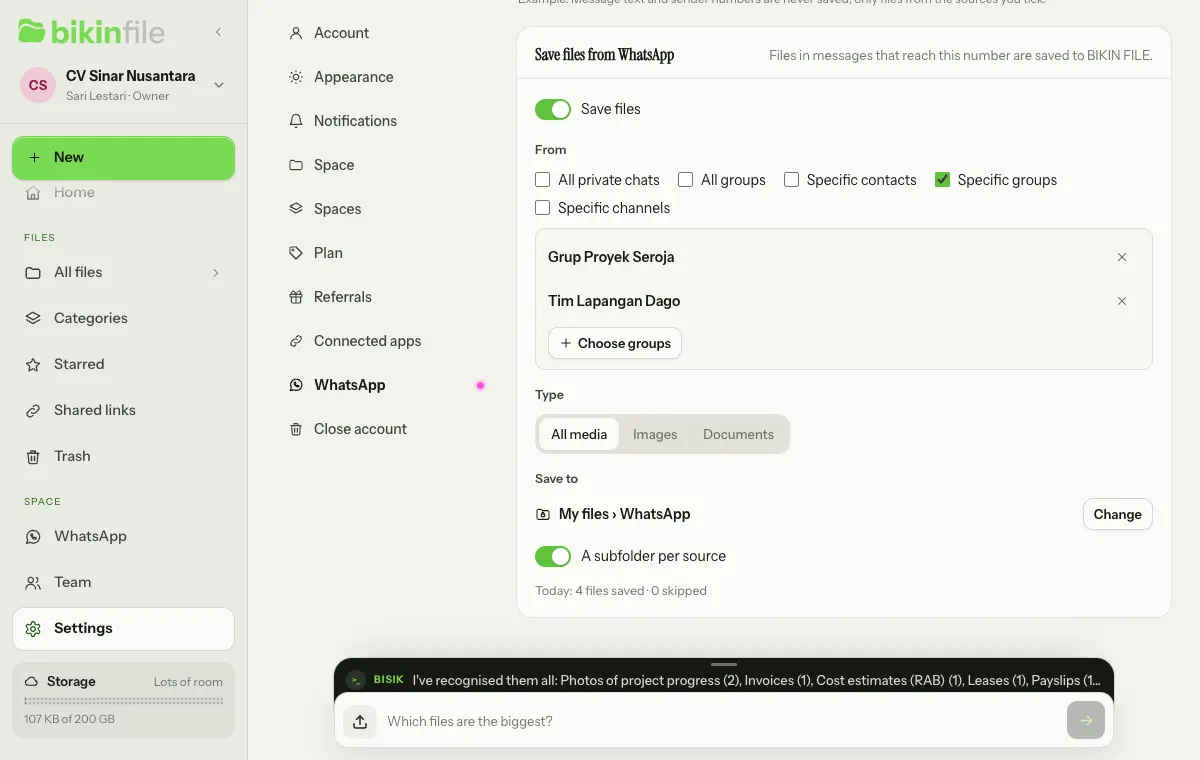
Capture starts when you turn the switch on; files from earlier messages aren't included. Never captured: status updates, messages sent from the number, audio, voice messages, stickers, video notes and view-once messages. The bottom of the card shows today's count, such as "Today: 12 files saved · 3 skipped", and when files were skipped, the reasons in words, such as "Skipped because: the same as a file already saved (2), bigger than the one-file limit (1)."
Tell the people and groups who send files to that number that their files are saved in BIKIN FILE.
Where files are saved
- By default, a WhatsApp folder in your own My files, as the person who turned capture on, so files from private chats aren't seen by other members straight away.
- With A subfolder per source, which is on from the start, each source gets its own subfolder: the contact's label, the group's or channel's name, or Private chats for All private chats, without the sender's name.
- Choose Change to pick another folder in Save WhatsApp files to, or Use default to go back to the WhatsApp folder. A folder in My files can only be chosen by the person who turned capture on.
- A Shared folder is only used after a second confirmation: "Every member of the space will see files from WhatsApp in this shared folder, including files from private chats. Continue?", then Yes, save there.
- A folder shared by link or in a collection, or one inside it, can't be chosen. If the target folder is shared later, new files go to the WhatsApp folder in My files, and you get the bell WhatsApp files went to My files. The Share window for that folder also warns that it receives files from WhatsApp.
With the default target, admins don't see these files; their WhatsApp page says WhatsApp files go to the space owner's My files.
Files that arrive
As soon as files arrive, the WhatsApp page lists them like an ordinary file list, with the Filter here… field, sorting, and the list or grid view. The top of the page still shows how capture stands, and while capture is paused, a line above the list says why.
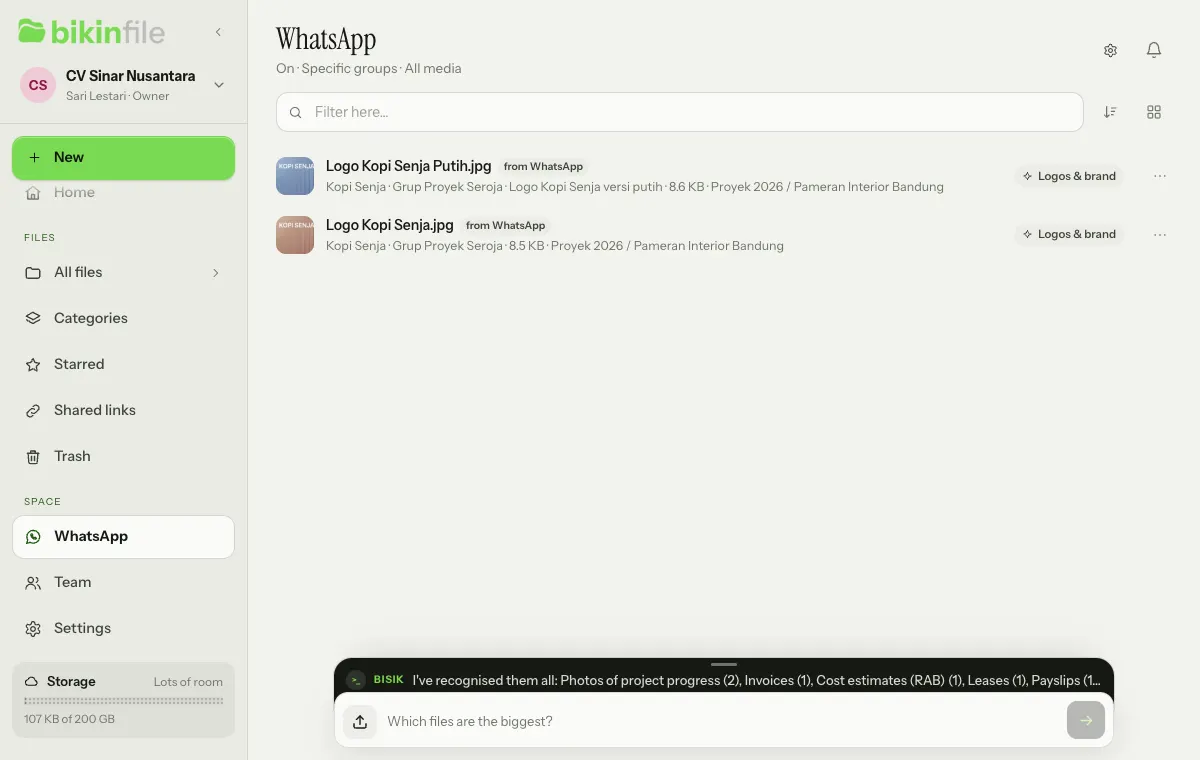
- How they're marked: in lists, each file has a from WhatsApp badge and its source label: the contact's label, the group's or channel's name, or Private chat. The sender's number and name never show. In the preview, the Received row holds the date, "from WhatsApp" and the source label.
- Only files from WhatsApp: the From WhatsApp chip above a folder's list shows only files from WhatsApp.
- File names: the document's name from WhatsApp, without phone numbers, web addresses or emails, or a name such as "WhatsApp image 2026-11-14 10.12.jpg" for photos and videos.
- Recognised by Bisik: files from specific contacts, groups or channels are read by Bisik under the same rules as files sent in through a link, within daily limits. Files from All private chats or All groups are never read by AI automatically; they're recognised from their name and type until you press Recognise in the Bisik message or choose Read again on the file.
- The same file within 30 days isn't saved twice.
- Deleted messages: files from a message the sender deleted for everyone are moved to the Trash, as long as nobody has renamed or moved them yet.
The person who turned capture on gets one Bisik message at most once an hour, saying how many new files came from WhatsApp and what kinds they are, with their file cards and a Recognise card (or Leave it) for files whose contents haven't been read, plus the bell New files from WhatsApp, without the sender's name or file names. If that person is no longer active, the news goes to the space owner. See Notifications.
You can also ask Bisik, for example "files from WhatsApp this week". If you write "connect WhatsApp", Bisik explains how and, for owners and admins, prepares a Manage files saved from WhatsApp card with an Open WhatsApp settings button. Bisik never links a number or turns capture on.
Limits and pauses
- There are daily limits per space, per sender and per group, and a size limit per file; files over a limit aren't saved. When the space's daily limit is reached, capture pauses until tomorrow, then resumes by itself, and you get the bell WhatsApp capture paused until tomorrow.
- When your space's storage is full, new files from WhatsApp are skipped, with the bell Storage full: WhatsApp files not saved.
- When your plan ends or no longer includes this feature, capture pauses, and the number stays linked.
- When the person who turned capture on is no longer active or no longer an owner, capture pauses. Another space owner can choose Turn on again on the card, with a code from their own email.
- When the number disconnects, capture stops until it's linked again, and the space's owners get a bell about it.
A pause shows on the Save files from WhatsApp card (such as "Paused: daily limit reached, continues tomorrow.") and on the WhatsApp page (Capture paused). BIKIN can also stop capture when needed to protect the service.
Responsibility and privacy
- Your space is responsible for the files it saves this way: tell the senders, make sure there's a lawful basis for keeping the personal data in them and the right to keep the content of the channels you save, and only link a number your space owns or manages.
- What's kept: the files, when they were received, the kind of source and its label. The contacts, groups and channels you choose are stored as keyed fingerprints with their labels, without numbers. Group names seen while you choose groups are remembered for about two hours at most to name files; the list of channels isn't kept.
- Never kept: senders' numbers and display names, message text and captions, messages sent from the number, and the phone's chat or contact list.
- Media from chats you didn't choose may briefly sit on BIKIN's WhatsApp server without being opened, then is deleted within about 30 minutes.
- WhatsApp can still restrict or block a number, and BIKIN can't prevent or lift that.
The details are in the Privacy Policy and the Terms and Conditions.
Last updated: