BIKIN FILEFeatures
Uploading & organising files
Drop files or folders anywhere, organise folders in Shared and My files, search, sort, move, rename with Bisik's name suggestions, and preview files with the details Bisik recognised, full screen on phones.
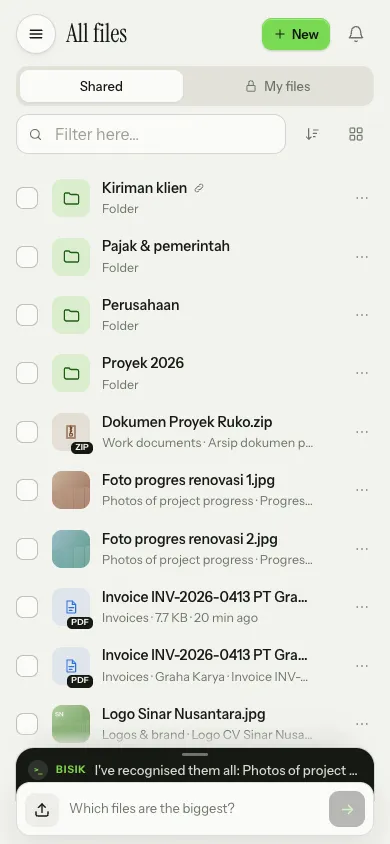
All files holds your space's folders and files in two places, Shared and My files. Folders always come first, then files with the kind Bisik recognised on the right, such as Invoices or Photos of project progress (or the category when the kind isn't known yet).
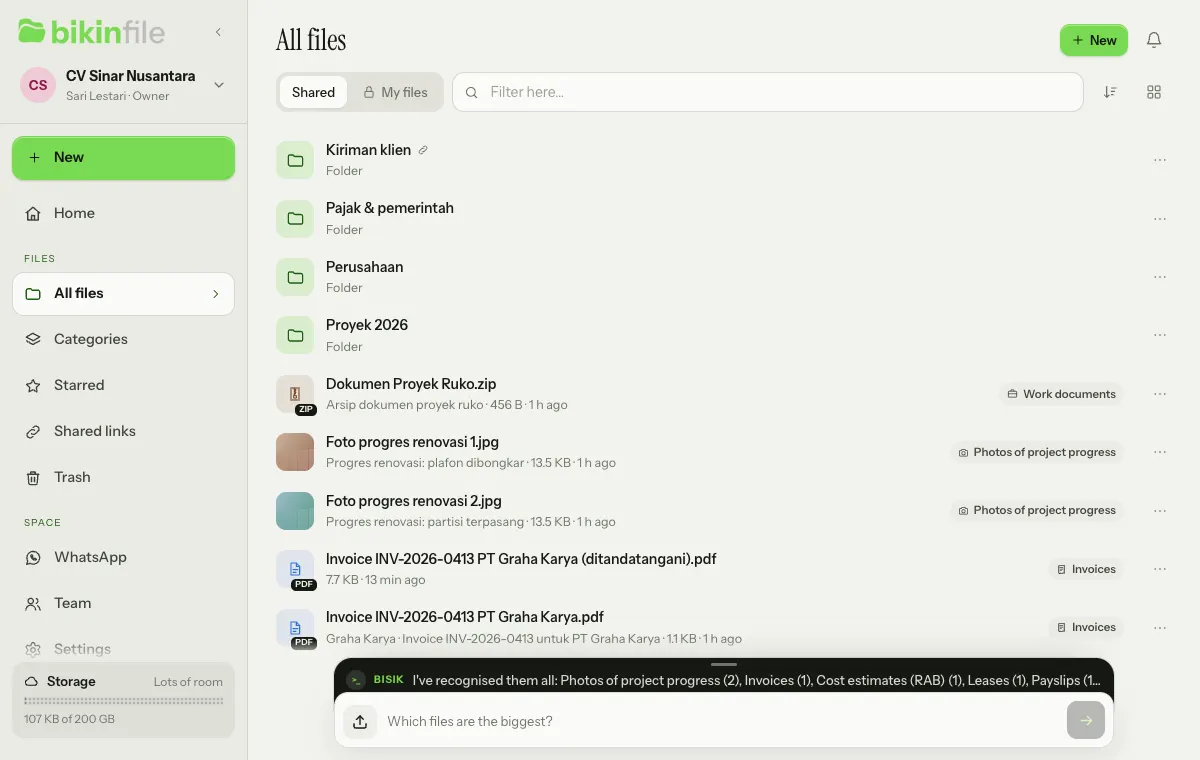
Uploading
Drag files or folders from your computer onto any page of BIKIN FILE. A thin green layer reading Drop to save shows where they'll go, for example to Shared › Proyek 2026: the folder you have open, or Shared when you're on another page. Viewers always save to My files.
Or choose + New above the sidebar menu or in the header of All files:
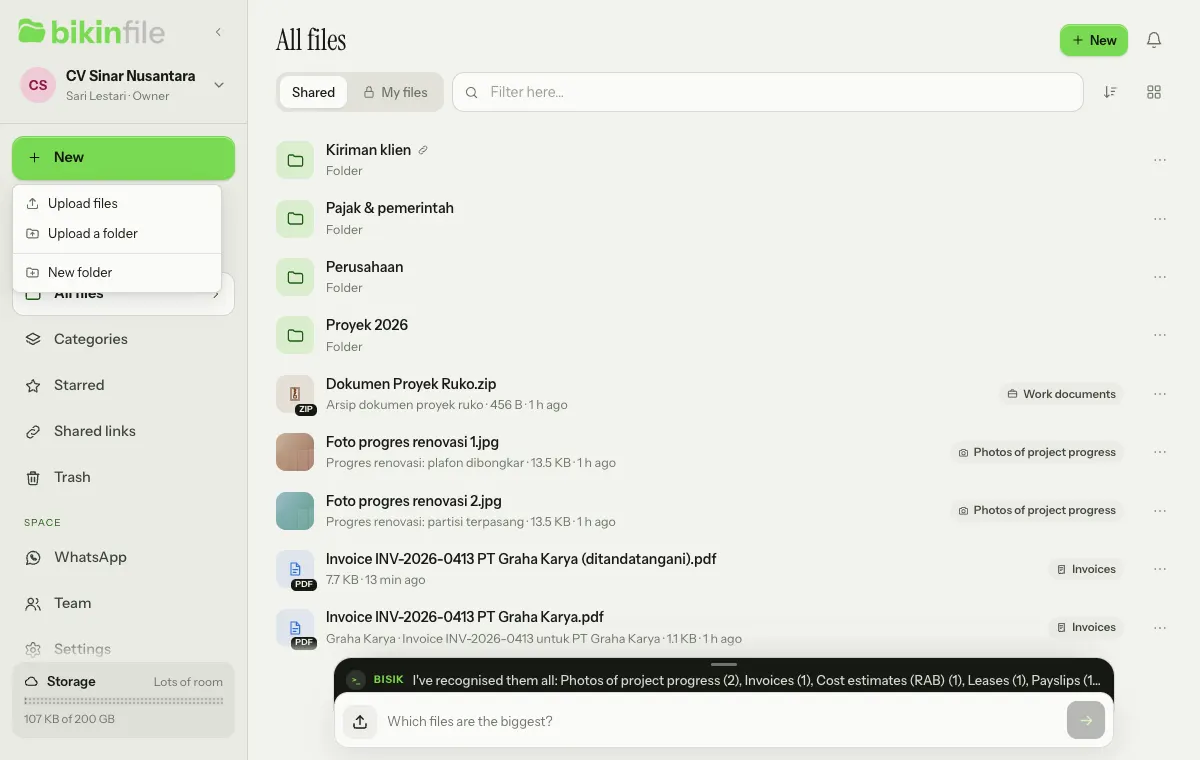
- Upload files picks one or more files.
- Upload a folder uploads a whole folder, subfolders included.
- New folder makes an empty folder in the place you have open.
The upload icon (the arrow on the left of the Bisik chat box, at the bottom of every page) opens the file picker too. Its name says where the files go, such as Upload files to Shared › Proyek 2026. On a computer you can also drop files straight onto a folder in the sidebar's folder tree, see Folder tree (desktop) below.
The uploads tray at the bottom right, above the chat box, shows each file's progress; choose × on a file's row to cancel it. Once everything is done, Bisik writes "Hang on, I'm recognising…" in the conversation with one row per file, and the tray closes by itself. The tray stays when a file failed.
- Any kind of file can be uploaded, up to your plan's size for one file. Big files are sent in parts; if the connection drops for a moment, the parts that failed are retried automatically.
- If the same name already exists in the target folder, the new file gets a number, such as "Invoice (2).pdf". Nothing is overwritten.
- While Bisik reads a file, it shows Reading… in the list. The result, its category and subcategory (kind of document or photo subject, then a brand, the other party or a photo detail where there is one), then shows on the file and in Bisik's message, with a folder suggestion, see Bisik in BIKIN FILE.
- If your space's storage is full, the upload is refused with a message that gives your plan's capacity, such as "Your space's storage (20 GB) is full." Empty the Trash, delete files you don't need, or choose a roomier plan, see Plan & account.
Shared and My files
Pick Shared or My files above the list. Shared is seen by every member of the space according to their role. My files is just for you: other members, including the space's owner, can't see it, and Bisik only shows it to you.
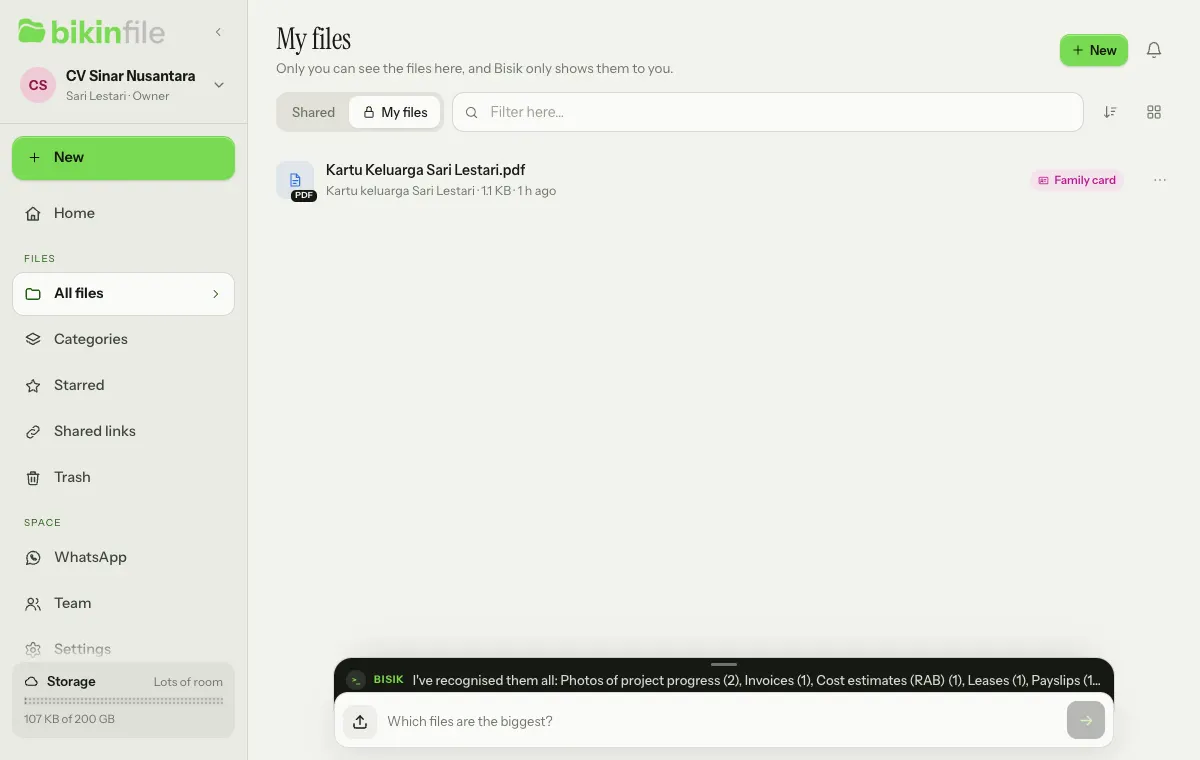
An ID document that ended up in Shared can be moved with the Move to My files button in its preview, or through Bisik's suggestion after an upload.
Moving to My files is for your own things only. Members can move files they uploaded themselves, and folders whose files they all uploaded themselves (including any in the Trash inside them). The space's owner and admins can move any file or folder from Shared, always after confirming first. When a move isn't possible, the reason is shown, for example that the file was uploaded by someone else; ask the space's owner or an admin if it really needs moving. Moving to Shared isn't limited by this rule.
Searching and sorting
- Filter here… filters names in this folder. Press Enter to search all files, including the titles, summaries, topics and subcategories Bisik recognised, also brand, party and photo detail names such as "Sumrize" or "Hotel Seroja". If nothing turns up, try asking Bisik in the chat box at the bottom.
- The sort button picks Name, Newest or Largest. Folders stay on top.
- The button on the far right switches between list and grid view.
- The folder path above the list takes you back to the folders above. On a computer, files dragged onto that path move into that folder.
A star and a link icon next to a name mark starred files and files with a share link.
Folder tree
Whenever the sidebar shows in full, All files in the sidebar becomes the head of a folder tree: on computers and tablets with the sidebar fully open, and in the sidebar drawer on phones. The tree stays closed until you open it with the arrow at the right end of All files; tapping the name still opens the All files page.
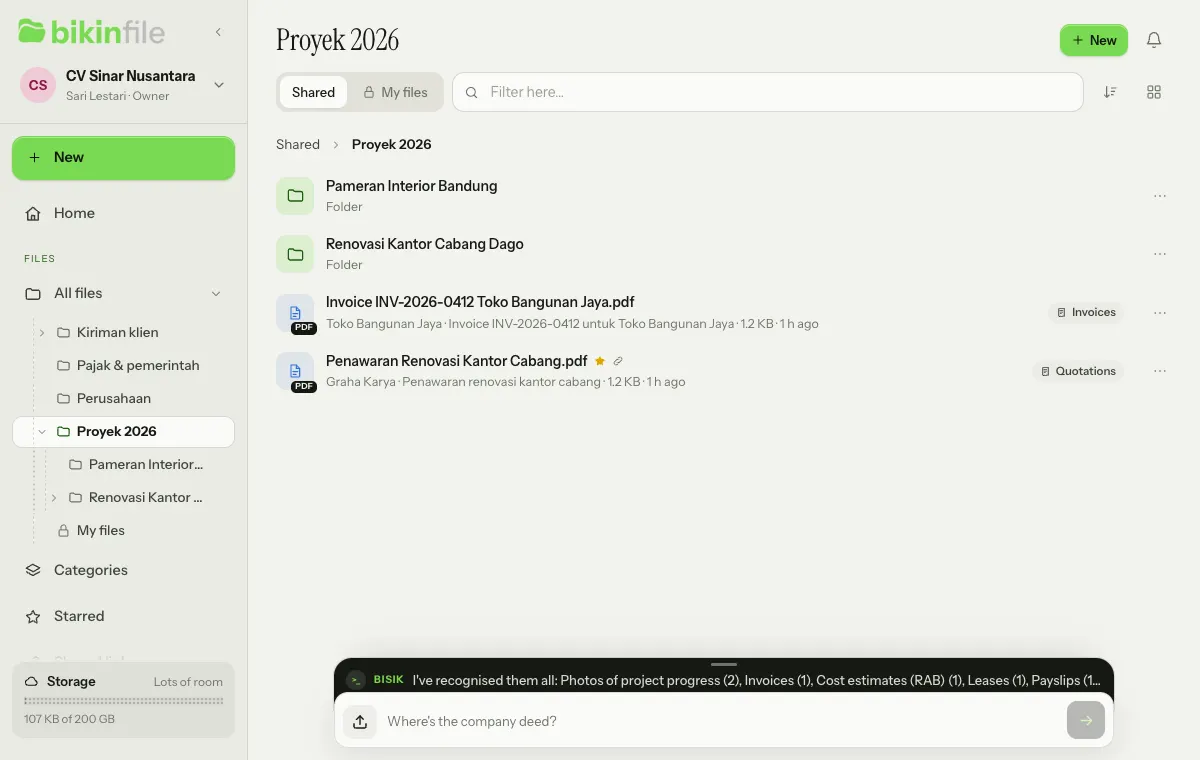
- It holds the top Shared folders, then My files (lock icon) with your own folders. The arrow in front of a folder opens its subfolders. Folders you open or close yourself are remembered on this device.
- When you open a folder, its parents in the tree open too and that folder's row looks selected. Long names are cut short; point at the row to see its full path.
- Drop files from your computer onto a folder in the tree to upload them straight there. While you hover, the green layer names the destination, for example to Shared › Proyek 2026, or the reason when your role can't add files there.
- Drag files or folders from the list onto a folder in the tree, a folder in the list, or the path above the list to move them. When the row is selected, everything selected comes along. Only files and folders you may move can be dragged. Moving between Shared and My files always asks first; if the destination has just changed, for example because someone else moved the folder, the lists reload and you're asked again.
- A destination that can't take them, such as the folder itself, one of its subfolders, the folder it's already in, My files for someone else's file, or Trash in the sidebar, shows the reason while you drag over it, for example Can't drop here with "Already in this folder." Removing things still goes through Move to Trash.
- After a move, a notice offers Undo, which puts the items back where they were, with their old names. Anything that can't go back, for example because its original folder is now in the Trash, is named with the reason. A folder that has received other people's files since it was moved to Shared is asked about before it goes back to My files; choose Skip this folder to leave it in Shared.
- Right-click a folder in the tree, or choose ⋯ at the end of its row, for the same file menu plus New folder here.
- With the keyboard: the up and down arrows move between rows, the right and left arrows open and close folders, Enter opens the folder, F2 renames it, and typing a letter jumps to the folder whose name starts with it. Shift+F10 or the menu key opens that row's menu; Tab or Esc closes it, and a window opened from the menu, such as New folder here, is ready for typing straight away.
On phones, open the sidebar drawer with the menu button. Tap a folder's name in the tree to open it (the drawer closes), or tap its arrow to open or close its subfolders without closing the drawer. The ⋯ menu stays on every row. Dragging files to move them and dropping files from your computer only work with a mouse or trackpad; on touch screens use Move in the file menu.
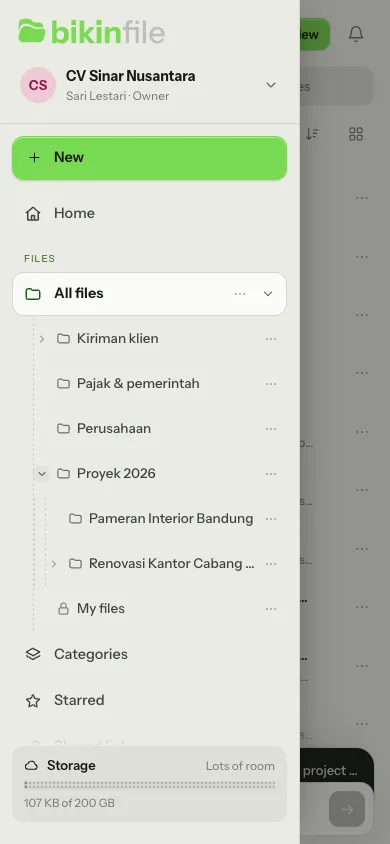
A sidebar collapsed to an icon rail doesn't show the folder tree. The folder tree also appears on the link page of a shared folder; see Sharing files.
The file menu
Choose ⋯ at the end of a row, or right-click a file, to open its menu.
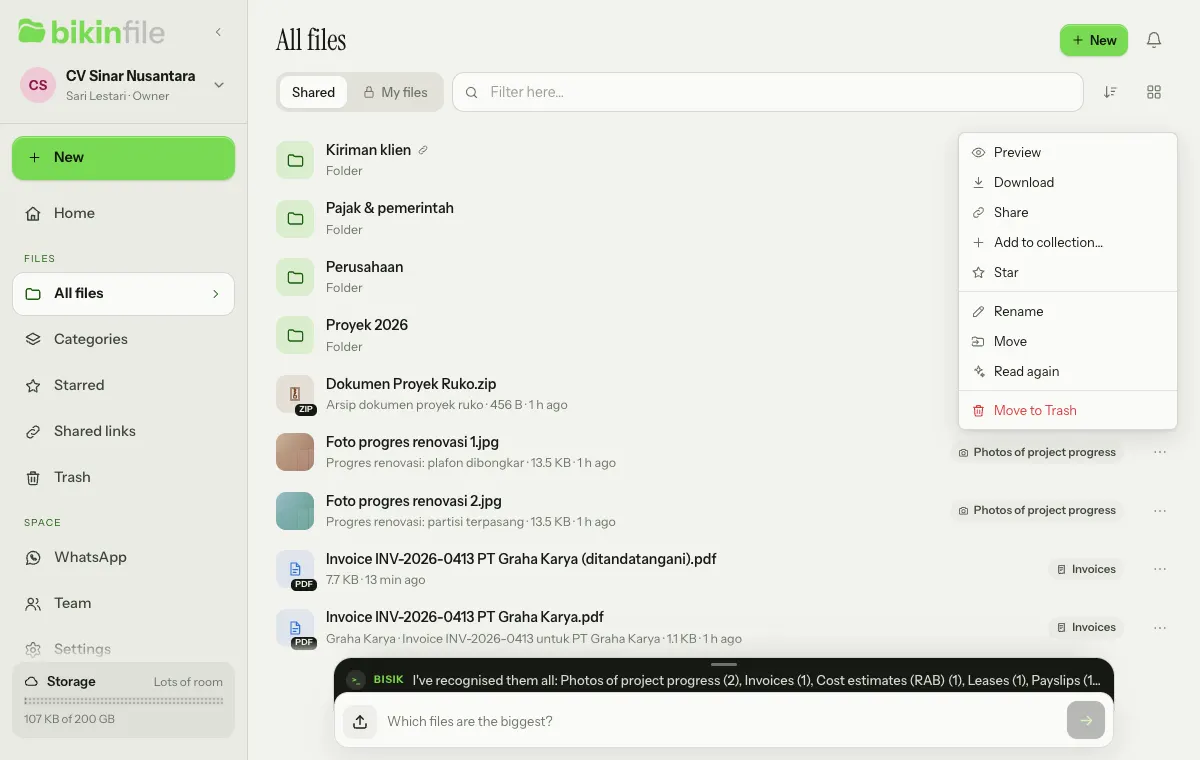
| Option | What it does |
|---|---|
| Preview | Opens the file in a wide popup (full screen on phones). For folders: Open |
| Download | Downloads the original file |
| Share | Creates or manages the share link, see Sharing files |
| Star | Puts it in Starred; Unstar takes it out |
| Rename | The new name can't already be used in the same folder. When Bisik has a name suggestion for the file, a suggestion chip shows under the name field; tap it to fill the field in, and saving that exact suggestion can be undone. When the recognition wasn't specific yet, Bisik fills it in from the new name, without reading the contents again |
| Move | Picks a target folder in Shared or My files; a folder moves with everything inside it. Only your own things can go to My files, see Shared and My files. Its notice offers Undo. On a computer you can also drag, see Folder tree (desktop) |
| Read again | Asks Bisik to read the file again, with the result in the conversation just like after an upload; counts towards the files read by AI |
| Edit image… | Images only: opens the editor, see Image editing |
| Sign… | PDFs only: opens the signature page to sign it yourself or ask members of the space to sign, see Signatures |
| Move to Trash | Moves it to the Trash, with an Undo button in the notice |
A folder's menu also has Read in more detail for owners and admins: Bisik reads the older files in that folder and its subfolders again so their subcategories and name suggestions get more specific, see Read in more detail.
In the Move window, pick Shared or My files, open the target folder or choose New folder here, then the Move to … button. Moving to My files makes the file visible only to you; moving to Shared makes it visible to the space's members according to their role. If your selection includes files uploaded by someone else, Move to My files can't be chosen and the reason is shown below it (except for the owner and admins).
Selecting several
Tick the box in front of a row (or on a card in grid view) to select several items. A dark bar under the list, which stays in view above the chat box while you scroll, shows how many are selected with Move, Star and Trash, plus Download and Share when only one item is selected. On category and subcategory pages the bar also has Subcategory… and Take out, see Managing subcategories. Choose × to clear the selection.
Preview
Tap a file to open its preview in a wide popup. Images, PDFs, videos, audio and text show right away; other kinds can be downloaded.
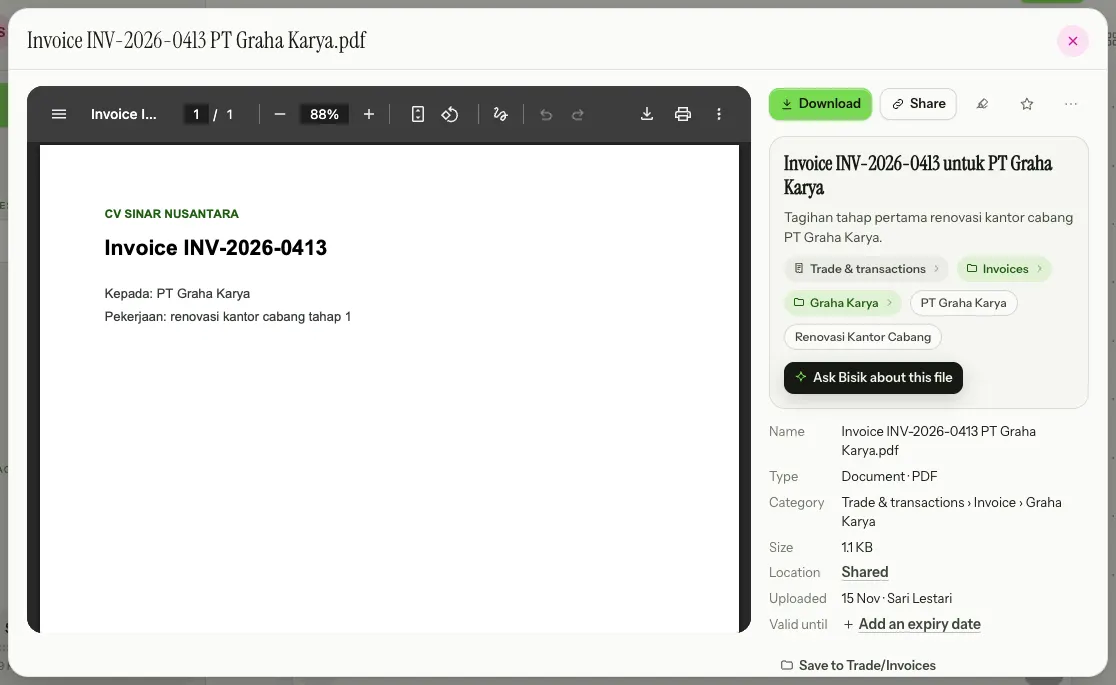
Next to the file you find:
- Download, Share, the star, and ⋯ for Rename, Move, Read again and Move to Trash. Moving the file to the Trash from here closes the preview.
- Ask Bisik about this file at the bottom of the Bisik card, to ask about that file in the chat box (see Bisik in BIKIN FILE).
- For PDFs, the Sign button (see Signatures); for images, the Edit image icon that opens the editor (see Image editing).
- What Bisik recognised: a clear title, a one-line summary, a category pill and then one pill for each level of its subcategory (the kind of document or photo subject, then a brand, the other party or a photo detail where there is one), then the topics. Tap a pill to open that category or subcategory like a folder, see Categories, type & size; tap a topic to see every file about it. While Bisik is still reading, it says "Bisik is reading it…".
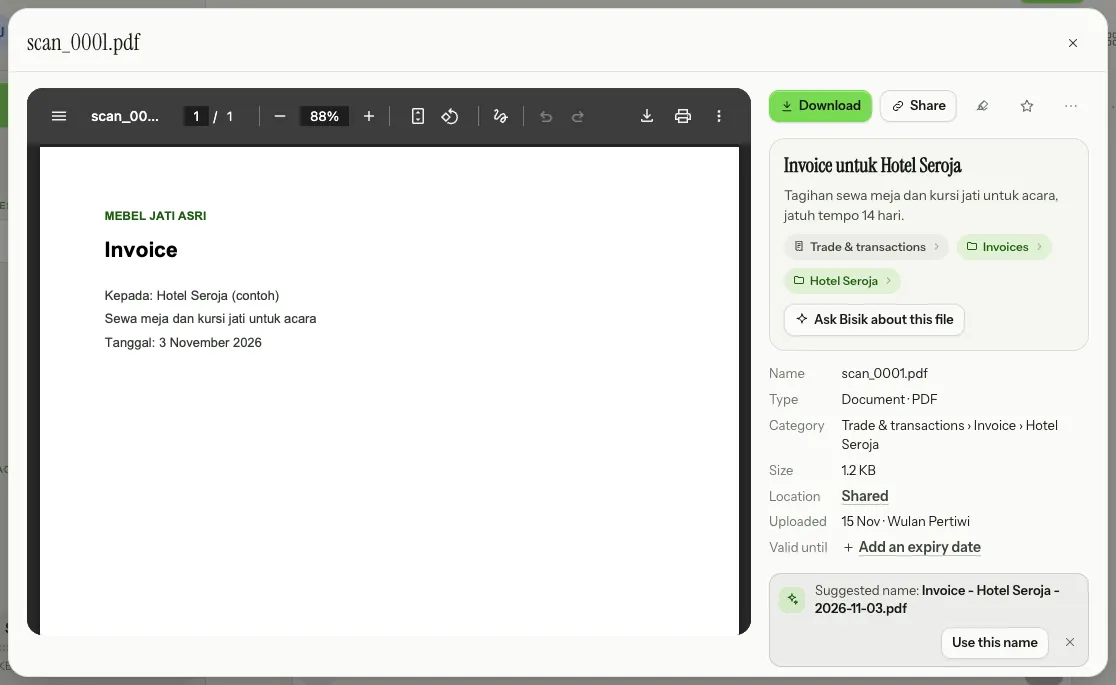
- Name, Type (the file type and extension, such as Document · PDF), Category (the category › subcategory Bisik recognised, down to the deepest level, such as Trade & transactions › Invoice › Hotel Seroja), Size, Location (tap to open its folder), Uploaded (date and who uploaded it), and Shared when the file has a link.
- Save to … with Bisik's folder suggestion, such as Save to Trade/Invoices, for recognised files that aren't in a folder yet. It goes where Bisik's card would: a folder that already holds files of that kind, or a category folder you already have, is used; folders that don't exist yet are made along the way.
A file with an unclear name, such as one from a camera or scanner, has a Suggested name row in its details showing the full name, on phones too, such as Invoice - Hotel Seroja - 2026-11-03.pdf for scan_0001.pdf. Use this name renames it, with Undo on its notice; × keeps the current name and hides the suggestion. The row only shows for people who may change that file, while Bisik suggestions is on.
Files with personal data carry the note "Contains personal data. Take care when sharing." ID documents in Shared get a Move to My files button instead of a folder suggestion, for the person who uploaded them and for the space's owner and admins. ZIP and RAR archives list what's inside, and a ZIP can be unpacked straight away with Unpack.
Preview on your phone
On phones, the preview fills the screen and counts as a page: swiping back or going to another page closes it. Its contents always fit the width of the screen, whatever the kind of file, with no sideways scrolling, and the details sit below the file.
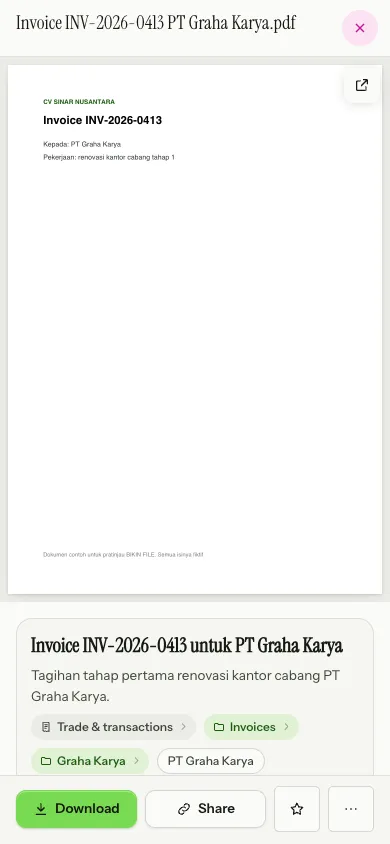
- Download, Share, the star and ⋯ always sit at the bottom of the screen, also on tablets and in narrow browser windows.
- PDFs are drawn page by page at the width of the screen, with a page counter such as 3 / 8 for PDFs with more than one page. A PDF that can't be shown, such as a password-protected one, offers an Open PDF button for your device's PDF viewer.
- To zoom into an image or a PDF, tap the open-in-a-new-tab button in its corner.
For safety, only images (except SVG), PDFs, plain text, audio and video open in the browser; every other kind of file is always downloaded.
On your phone
On phones, the tick boxes always show in front of each row, + New sits in the page header and in the sidebar drawer, and each file's menu opens from its ⋯ button. The Bisik chat box stays at the bottom of the screen.
Last updated: