BIKIN FILEGet started
Get started with BIKIN FILE
Sign up or sign in to BIKIN FILE, name your space, drop your first files, finish the Quick start list, and use BIKIN FILE on your phone.
This page takes you from signing up to your first files recognised by Bisik. Most steps only need doing once, by the owner.
Sign up
- Open file.bikin.studio/register, or choose Create one free on the sign-in page.
- Fill in Your name, Space name, Email and Password (at least 8 characters), then choose Create account.
- Enter the 6-digit code sent to your email.
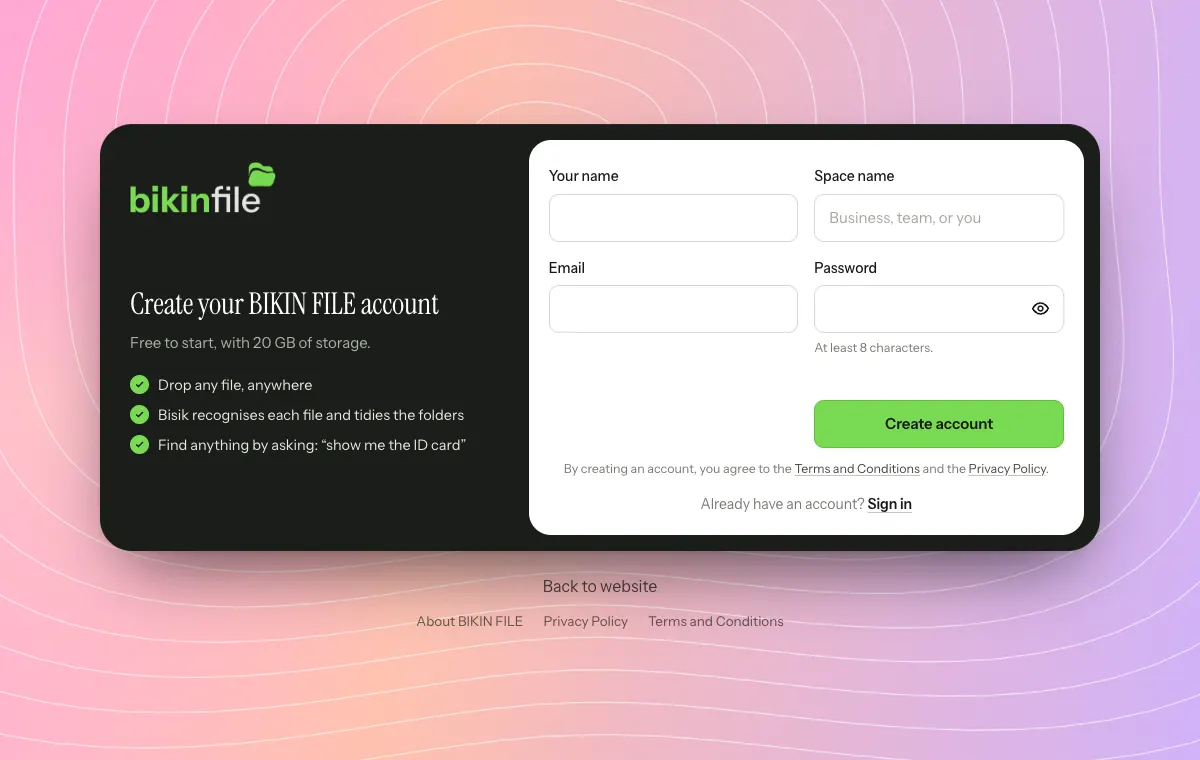
Space name is the name of the place your files live in, such as your business, your team or your own name. It shows in the sidebar and on share pages, and can be changed any time in Settings › Space. A new space starts empty: folders are made when you need them, or suggested by Bisik after you upload.
When the button is shown, you can also choose Sign up with Google, then just fill in your name and the space name. The person who signs up becomes the Owner of that space, and new spaces start on the free plan. The sign-up page says how much storage it comes with, such as "Free to start, with 20 GB of storage."
If the sign-up link isn't shown, sign-up is closed for now. Contact BIKIN at contact@bikin.studio to get an account.
Sign in
- Enter your email and password, then choose Sign in.
- Enter the code from your email. It works for 10 minutes.
You then stay signed in on that device for 30 days. Choose Sign in with Google if your Google account uses the same email or is linked in Settings › Account. Forgot your password? Choose Forgot password? on the sign-in page.
Invited by a teammate? The invitation email holds a temporary password. Sign in with that email and the temporary password, enter the code from your email, then change the password in Settings › Account.
Important actions, such as deleting a file for good or changing a role, also ask for a code from your email. The details are in Team & roles.
Welcome and Quick start
The first time you sign in, BIKIN FILE shows a short welcome for your role; choose Skip to get straight to work. Owners and admins also get the dark Quick start card at the bottom of the sidebar, right below the Storage card (on phones, in the sidebar drawer). Tap the card to open the list of steps.
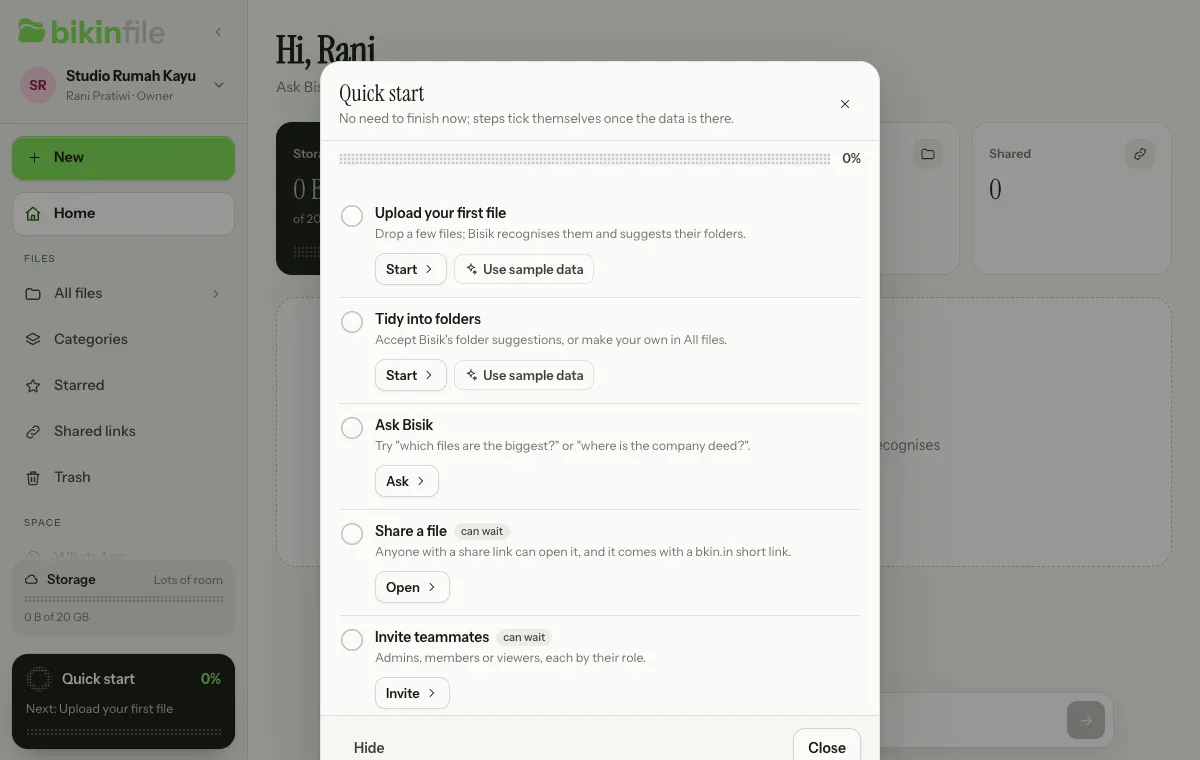
Each step says why it matters and has a button that takes you straight to its page:
- Upload your first file. Drop a few files; Bisik recognises them and suggests their folders.
- Tidy into folders. Accept Bisik's folder suggestions, or make your own in All files.
- Ask Bisik. Try "which files are the biggest?" or "where is the company deed?" in the chat box at the bottom of the screen.
- Share a file and Invite teammates, marked "can wait".
Once the required steps are done, press Finish. If you'd rather not see it yet, choose Hide. The welcome, Quick start and tips can be opened again from Settings › Account › Getting started.
Sample data
Want to see BIKIN FILE filled in first? On Upload your first file or Tidy into folders, choose Use sample data. BIKIN FILE adds a BIKIN FILE samples folder in Shared with five fictitious files Bisik has already recognised: a deed of establishment, an invoice, a tax invoice, meeting minutes and a product photo. Home, Categories and Bisik's answers fill up right away.
Remove them any time with Remove sample data in Quick start or in Settings › Account › Getting started. The sample files and their folder are deleted for good, except the ones you moved out of the sample folder or shared; those are kept as regular files. Sample data counts towards your plan like regular files.
On your phone
BIKIN FILE works just as well on a phone. The Bisik chat box stays at the bottom of the screen on every page, with the conversation panel above it.
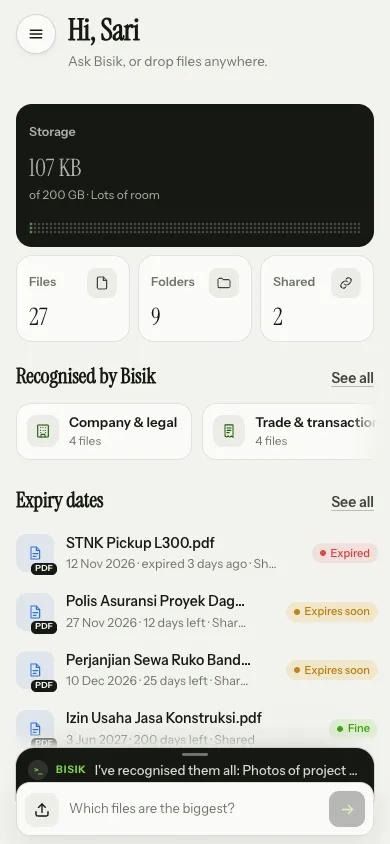
- Tap the round menu button at the top left, or swipe the screen to the right, to open the sidebar drawer. Swipe left to close it. The + New button, every menu, storage and Quick start are in there.
- Tap the upload icon (the arrow on the left of the chat box) to upload. Your phone offers the gallery, the camera or files.
- While you type in the chat box, it moves up above the keyboard. The raised conversation covers most of the screen; pull it down to lower it, see Bisik in BIKIN FILE.
- There are no floating buttons covering the screen; every shortcut lives in the sidebar drawer.
- Want to open BIKIN FILE like a regular app? Choose Install app in Settings › Appearance.
Next steps
- Uploading & organising files to start filling your space.
- Bisik in BIKIN FILE to learn what you can ask.
- Team & roles to invite your teammates.
Last updated: