BIKIN FILEFeatures
Sharing files
Make a share link for a file or folder with its bkin.in short link, share several files and folders at once through one collection link, choose download or view only, add a password and an expiry date, let people with a BIKIN FILE account upload to a folder, and keep track of every link in Shared links.
Every file or folder can have one share link at file.bikin.studio/s/…, with a bkin.in short link. Anyone holding the link can open it without signing in, and the page never shows up in search engines. The link of a folder in Shared can also accept uploads from people who sign in with a BIKIN FILE account; see Allow uploads.
Making a link
- Choose ⋯ on a file or folder, then Share. You can also use the Share button in the preview, or in the selection bar when only one item is selected.
- Choose Create link. A folder in Shared without a link also has a Request files button, which opens the Allow uploads form straight away.
- Copy the link with Copy, or use its short link.
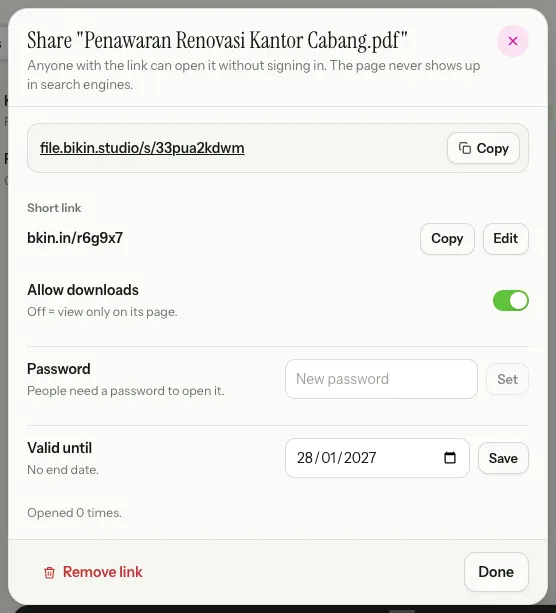
Link options
- Short link: a short bkin.in address made for you right away, for example
bkin.in/k7m2qa. The real link doesn't change; bkin.in just sends visitors there. Copy copies it, and Edit picks your own code, for examplebkin.in/promo-coffee. Availability is checked as you type. Free plans need at least 6 characters, paid plans at least 3. Use lowercase letters, numbers and dashes. The old code stops working once you save. - Allow downloads: on = visitors can download. Off = view only on its page. For a folder, it applies to every file inside, including files uploaded through the link.
- Password: enter a New password, then Set. Visitors have to enter it to open the link. Remove takes it off.
- Valid until: pick a date, then Save. After that date the link stops working.
- Opened … times counts visits by people, not automatic link previews, for example when the link is pasted into a chat.
Password and Valid until are part of the paid plans. On the free plan both carry an Upgrade badge.
Who can share
- The owner, admins and members can share files and folders in Shared.
- Everyone, viewers included, can share the contents of their own My files.
- Viewers can't create or change links for Shared files, but they can still copy existing links from Shared links.
- While a folder's link accepts files, only owners and admins can change or remove that link and its short link. Members see "This link accepts uploads. Only the space's owners and admins can change it."
Documents marked sensitive, such as ID cards, carry a warning in their preview. Think twice before sharing them, and use a password and an expiry date when your plan includes them.
The share page
A file link opens a preview page for that file. The page header holds the file name, your space's name and the date it was shared, with the theme and language switches and the BIKIN FILE logo. The file shows at full height, and beside it sit the Download and Open buttons and the Name, Type, Size, Uploaded and Shared by details. On phones the preview is full screen with the buttons at the bottom.
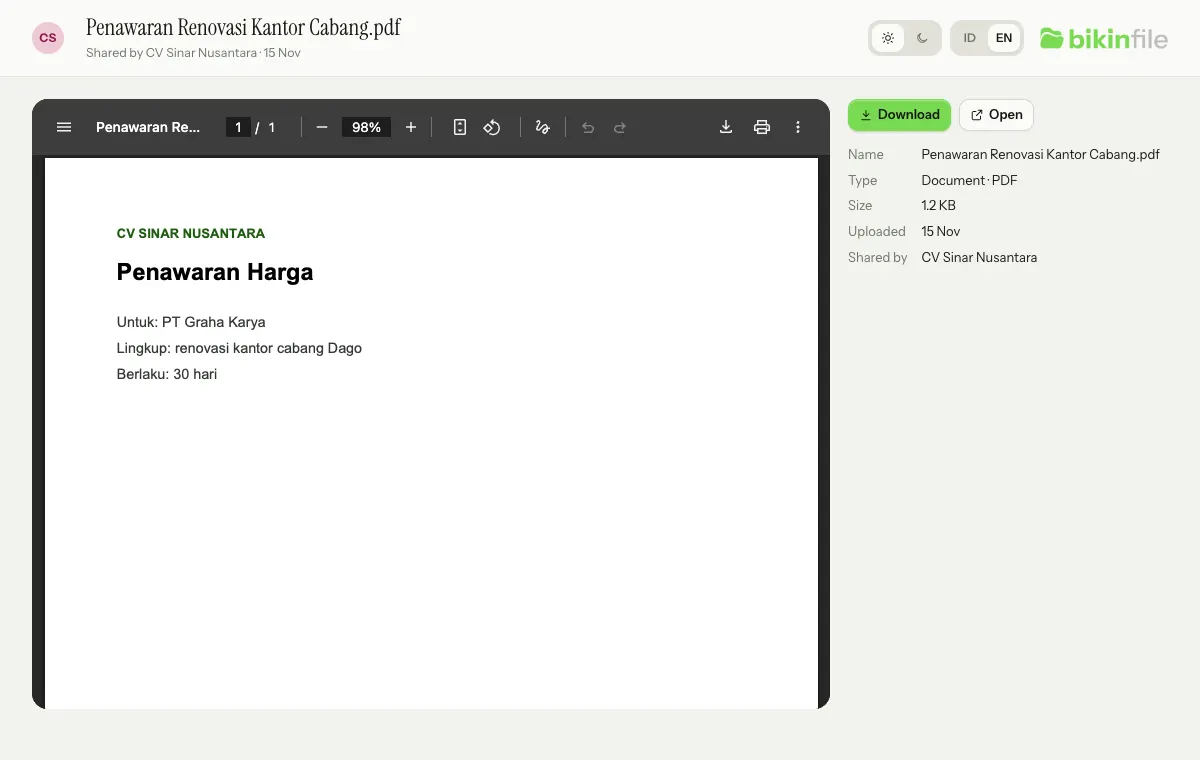
- Files: images, PDFs, videos, audio and plain text show right away, with a Download button when downloads are allowed. Other kinds of files can be downloaded, unless the link is view only.
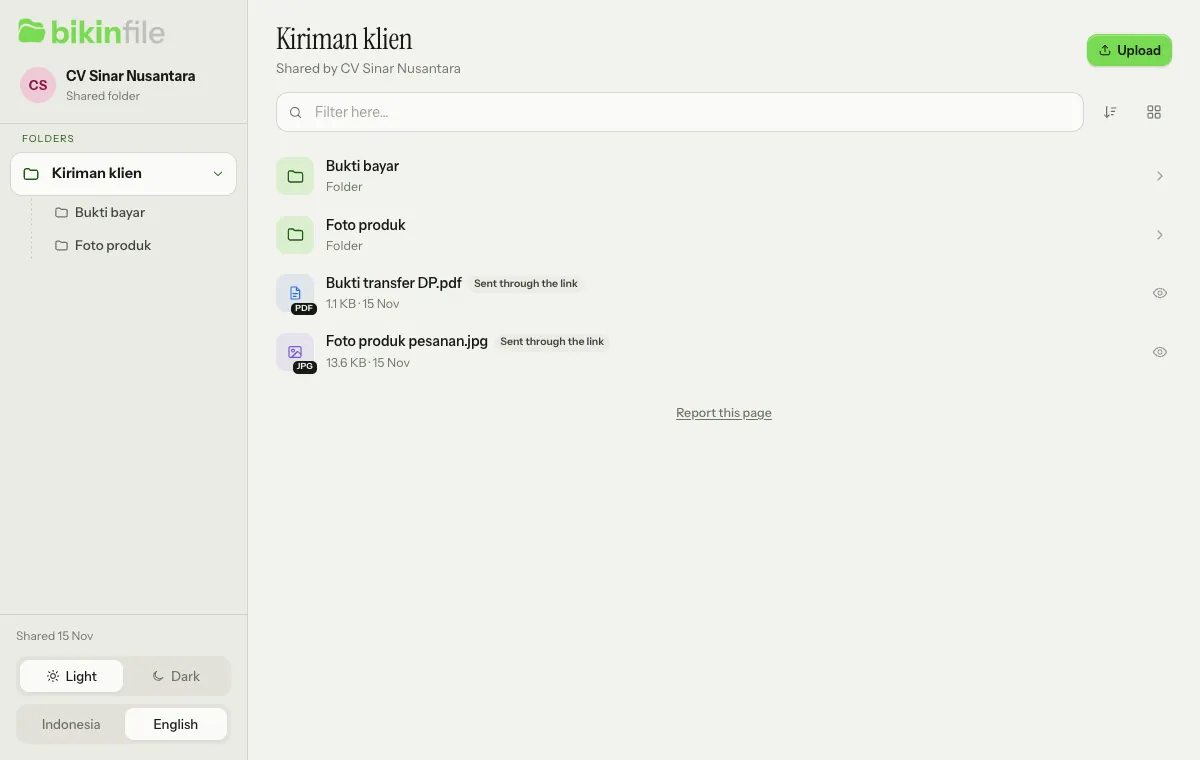
- Folders: the page looks like BIKIN FILE itself. The sidebar holds your space's name and the link's folder tree, the page header holds Filter here…, the sort order and the list or grid view, and the contents sit below. Subfolders open from the list or from the tree. Each file opens in the same preview popup as the app, view only, or downloadable when Allow downloads is on. On phones the folder tree sits in a drawer opened with the menu button.
- Theme and language: the foot of a folder page's sidebar has Light/Dark and Indonesia/English switches; on a single-file link, a small version (sun and moon icons, ID and EN) sits in the page header.
- A link with a password asks for it first (This link is protected, then Open).
- A link that was removed, has expired, or whose file is in the Trash shows This link isn't valid.
- A small Shared with BIKIN FILE mark and the BIKIN FILE logo show on the page. Plans with Share pages without the BIKIN FILE mark hide them.
Link previews, for example when the link is pasted into a chat, show the file or folder name and your space's name.
Allow uploads
A folder in Shared can accept files through its link, such as product photos and transfer receipts from customers, or job applications. Anyone holding the link still sees what's in the folder. To upload, a person signs in with a BIKIN FILE account from any space; someone without one can create one for free and come back to the link. Their account name and email are recorded on every file they send.
- Who: only the space's owner and admins can turn it on and manage it. Members and viewers only see its state.
- Which folders: folders in Shared that aren't in the Trash. Files and folders in My files can't accept uploads.
- Plan: it's part of paid plans that include Folder links that accept uploads (see Plan & account). On other plans the switch is locked with an Upgrade badge, and while no paid plan sells it yet, the section doesn't show at all.
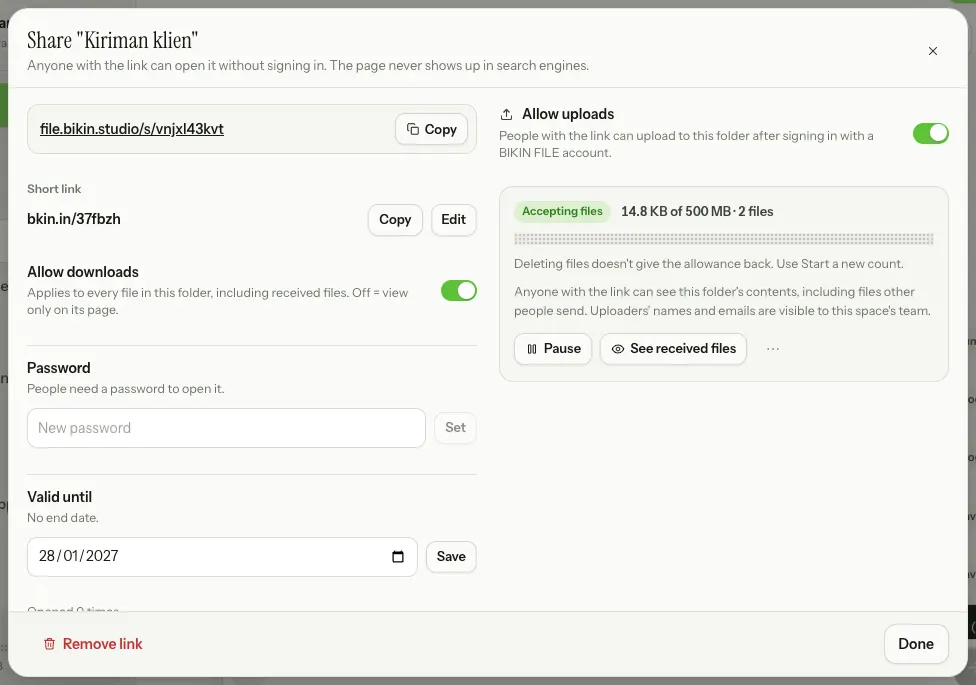
- Choose ⋯ on the folder, then Share. For a folder in Shared, the Share window is wider: the link options on the left and Allow uploads on the right. On narrow screens, such as phones, the two columns stack.
- A folder that already has a link: turn on the Allow uploads switch ("People with the link can upload to this folder after signing in with a BIKIN FILE account."). A folder without a link: choose Request files; the form opens in the right column, and the link is only created when you save the form.
- Fill in the form (see below), then choose Start accepting files.
- Copy the link or its short link and send it to the people you'd like files from.
Above Start accepting files, the form reminds you: "Anyone with the link can see this folder's contents, including files other people send. Uploaders' names and emails are visible to this space's team.", with how many files the folder already holds. If some were recognised as sensitive, such as ID cards or payslips, BIKIN FILE asks first (This folder has sensitive files, then Start anyway); move those files first if they should stay hidden. Its short link code is at least 6 characters, on paid plans too; a shorter code of your own is replaced by a new random one when uploads are turned on.
The form
- Kinds of files: turn on one or more of the groups in the table below. Point at a group to see its extensions. You can pick at most seven groups, since accepting every kind at once isn't possible: "Accepting every kind of file isn't possible. Pick at most seven groups."
- Upload limit: how much this link may receive in total, 100 MB, 1 GB, 5 GB or Other (enter a number, then choose MB or GB). A limit is required, from 1 MB to 1 TB, and is never unlimited.
- Instructions for uploaders: optional, up to 300 characters, for example what the files are for. They show in the Upload popup of the link page.
- More › Largest file: 100 MB by default, or less when the size of one file on your plan or this link's upload limit is smaller. The value shows next to More while it's closed. It stays as you set it when you lower the upload limit: while the upload limit or your plan's size for one file is smaller, that smaller size applies.
| Group | Extensions |
|---|---|
| Images | jpg, jpeg, png, gif, webp, heic, heif, avif, tif, tiff, bmp |
| Video | mp4, m4v, mov, 3gp, webm, mkv, avi |
| Audio | mp3, m4a, aac, wav, ogg, oga, opus, flac, amr |
| Documents | docx, odt, txt |
| Spreadsheets | xlsx, ods, csv |
| Presentations | pptx, odp |
| Designs | psd, ai, eps; always downloaded, never shown in the browser |
Programs, scripts, web pages, SVG and ZIP/RAR archives are never accepted, and neither are older Office documents (.doc, .xls, .ppt), RTF or files with macros.
All upload links together. The limits of all upload links that haven't been stopped, across every space in your group (active or not), add up to at most half of the group's storage left. Plans with unlimited storage use 1 TB as the reference, so the total is at most 512 GB. Under the limit choices you see how much is still available, for example "At most 3.8 GB: half of the space left (9.6 GB), minus the other upload links' limits (1 GB)." This is checked when uploads are first turned on, when the limit is raised, when uploads are turned on again after being stopped, and on Start a new count. Lowering the limit and pausing always work.
Names that look official. If the space name, folder name or instructions look like a bank, payment service, government office or BIKIN, or ask for passwords, OTPs, PINs or card details, uploads can't be turned on: "This name or these instructions look like a bank, payment service, government office or BIKIN. Contact BIKIN if this really is your business." The same check runs when the folder or the space is renamed while the link accepts files: uploads pause with a note saying why, and Resume works again once the name is changed.
While it accepts files
Once turned on, the Allow uploads section shows the link's state (Accepting files, Paused, Limit reached or Stopped: plan ended), a dotted progress bar with what has arrived so far, such as "1.2 GB of 5 GB · 14 files", the note "Deleting files doesn't give the allowance back. Use Start a new count.", the Pause or Resume and See received files buttons, and a ⋯ menu with Change settings, Start a new count and Stop uploads. The line "Anyone with the link can see this folder's contents, including files other people send. Uploaders' names and emails are visible to this space's team." stays under the state. Members and viewers see the state without the buttons, and the short link without Edit.
If the space left in your storage is smaller than what the link may still receive, a warning appears, such as "Only 1.1 GB of space is left, so this link may stop before its limit."
Uploading through the link
People who open the link of a folder that accepts files see the usual folder page at file.bikin.studio/s/… or its short link, with its contents, without signing in. While the link accepts files, the Upload button in the page header is green; that button, or dragging files onto the page, opens the Upload to … popup.
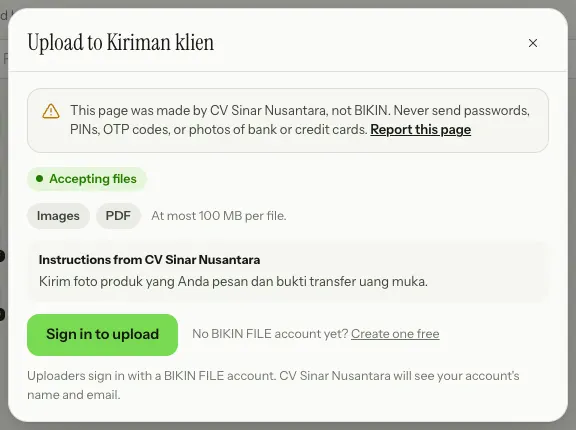
- Fixed warning: for example "This page was made by CV Sinar Nusantara, not BIKIN. Never send passwords, PINs, OTP codes, or photos of bank or credit cards.", with a Report this page button. The warning shows on every plan, also when the BIKIN FILE mark is hidden. Report this page also sits at the foot of the page; a report reaches BIKIN with only the link code and the reason, nothing about the person reporting.
- What you can send: the state (Accepting files, Limit reached or Not accepting files), the groups of files accepted, the largest size per file (such as "At most 100 MB per file."), the room left when that is smaller, and your instructions, if any.
- Not signed in: Sign in to upload, or "No BIKIN FILE account yet? Create one free". After signing in or signing up, the person comes back to the link page with the popup open again. A BIKIN FILE account from any space works.
- Signed in: the popup shows the account in use with a way to sign out, a drop area with Choose files, and the queue. Files wait in the queue until Send is pressed; each row has a dotted progress bar, Cancel and Try again. Once sent, the files show up in the folder's list right away, marked new.
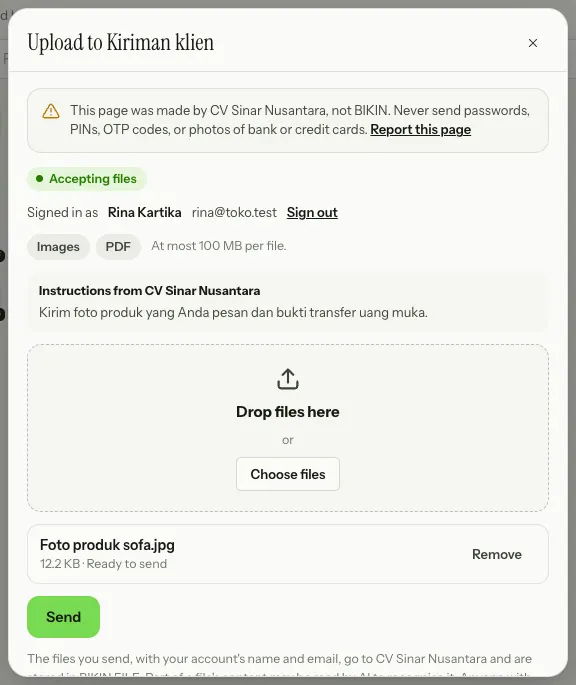
- Where files go: into the folder open on the link page, the link's own folder or one of its subfolders, and the popup title names it.
- Uploads keep going when the popup closes: the Upload button then shows how many files are waiting or being sent, or a ! when one failed, and leaving the page warns you while anything hasn't been sent yet.
- Notice: files sent, with the uploader's account name and email, go to your space and are stored in BIKIN FILE; part of a file's content may be read by AI to recognise it; anyone with the link can see the files sent; and only your space can delete files once they're sent, with a link to the Privacy Policy.
A link with a password asks for it first, and an expired link shows This link isn't valid, telling the visitor to let the person who gave them the link know.
Every file's content is checked before it's stored, then again once it's complete. Its kind is decided by its content, not by the file name or what the browser says: a PNG named .jpg is still accepted as an image, but a program named .jpg is refused. Office documents are checked for macros, embedded objects and anything that loads outside files or content when opened (linked pictures or templates, fields such as INCLUDEPICTURE or DDE, data connections); their links may only go to web addresses, email, phone numbers or another part of the same document, so links to files on a computer, network folders or programs are refused. PDFs are checked in full for JavaScript, automatic actions (including links that open by themselves when the document opens), commands that open programs or other files, forms that send data, and embedded files; documents and PDFs that can't be checked in full are refused, for example a password-locked PDF. Beyond these checks BIKIN FILE doesn't scan for viruses, so still take care when opening files from people you don't know.
Uploaders only see neutral messages that never mention your plan or storage:
| Situation | What the uploader sees |
|---|---|
| Uploads paused or stopped, or the plan ended | "This folder isn't accepting files right now." |
| The upload limit is reached | "This folder has received as much as its owner allows." |
| Your space's storage is full | "This folder can't take files right now. Let the person who gave you this link know." |
| A file bigger than Largest file | For example "At most 100 MB per file." |
| A file bigger than what the link can still receive | For example "This file is bigger than what this folder can still take (40 MB)." The page checks this before sending. |
| Many uploads at once | "Lots of uploads to this folder right now. Trying again…" The page tries again by itself. |
| A file whose content can't be checked in full | "This file's content couldn't be checked in full, so it wasn't accepted. …" |
| A kind of file that isn't accepted | For example "This kind of file isn't accepted in this folder. Accepted: Images, PDF." |
| Too many uploads in a short time | "Too many uploads. Try again shortly." |
| A sample folder in a demo account | "This is a sample folder in a demo account, so files aren't saved." |
Files whose names contain a web address, an email address or an account handle (@…), words such as password, OTP, CVV or ATM PIN, or a claim to be from BIKIN aren't accepted. To prevent abuse, every link, group of spaces, account, address and upload session has hourly or daily upload limits.
Files that arrive
Files sent in land in the folder the uploader had open on the link page and are recognised like any other upload.
- How they're marked: in lists, they carry a via link badge and the uploader's account name. In the preview, the Uploaded line holds the date, through a link, and the uploader's account name and email. The mark stays even if the link is removed. On the link page, files sent in only carry a Sent through the link badge, without the uploader's name.
- Uploader's name and email are copied when the file is sent, so they stay the same even if the uploader changes their name or deletes their account. Uploaders can't delete files they've sent; only your space can.
- Only files sent in: the From link chip above the folder's list shows only files sent in. See received files in the Share window opens the folder with only the files from that link.
- Preview: files sent in preview like any other file. Kinds without a preview download as an attachment ("File from someone outside: it downloads as an attachment."). Senders never send small preview images; the one for an image sent in is made when a member who may change the file opens its preview on a computer.
- News: the person who turned uploads on, or the space's owner and admins when that person is no longer active, gets a bell and one Bisik message at most once per link per hour, listing the new files with a card to read the files Bisik hasn't read yet. The bell, email and push only name the folder, never the uploader or the files. See Notifications.
- Read by Bisik: when Bisik reads file contents is on in Settings › Space, Bisik reads part of each file sent in to recognise it, but only some files a day for the whole group, never large PDFs, and no longer once most of this month's file-reading allowance is used, so the rest stays for members' files. Files it hasn't read are recognised by their name until a member has Bisik read them from the card in the Bisik message or chooses Read again on the file.
- Outsiders' data: file names, uploader names and file contents from a link are outsiders' data. Bisik never follows instructions written in them.
Pausing and stopping
Owners and admins use these in the Allow uploads section of the Share window.
- Pause stops uploads for a while; uploaders see "This folder isn't accepting files right now." Resume opens them again.
- Start a new count (in the ⋯ menu, or right in the section once the limit is reached) makes the link's allowance full again; files already received stay in the folder. Deleting files sent in doesn't give the allowance back. Start a new count is also checked against all upload links together.
- Change settings (in the ⋯ menu) opens the form again; save with Save. Raising the limit is checked against all upload links together, lowering it isn't.
- Stop uploads (in the ⋯ menu), or turning off the Allow uploads switch, stops uploads after you confirm ("People with the link can't upload anymore, but can still see this folder's contents."). The link stays, and files already received stay in the folder. Turn the switch on again to accept files again.
Uploads can also change by themselves:
- Folder moved to My files: uploads stop, with a note saying the folder moved to My files.
- Folder moved to the Trash: uploads pause, with a note saying so. After the folder is restored, uploads stay paused until you press Resume.
- Limit reached: uploaders see that the folder has received as much as allowed, and the people who get news about the link receive a bell saying the upload link reached its limit (see Notifications). Raise the limit or choose Start a new count.
- Plan ended: the pill reads Stopped: plan ended, and uploaders see "This folder isn't accepting files right now." The settings are kept.
- Name that looks official: renaming the folder or the space to a name that looks like a bank, payment service, government office or BIKIN pauses uploads, with a note saying why.
- Stopped by BIKIN: BIKIN can stop uploads to a folder, or remove its link, when the link is misused or looks like phishing, for example after a report. Both are recorded in the space's log. A folder stopped by BIKIN reads "BIKIN stopped uploads to this folder. Contact BIKIN if this is a mistake." and can't take uploads again through any link, a new one from Request files included, until BIKIN lifts the stop.
Shared collections
A shared collection shares several files and folders from one place through one link at file.bikin.studio/k/…, with a bkin.in short link. It suits sending a client one set of documents, such as a cost estimate, an invoice and project progress photos, without moving the files into one folder.
- In All files, tick two or more items, then choose Share in the selection bar. You can also do this from the Categories page or search results.
- The Share 5 items in one link sheet opens. Change the Collection name if needed; it becomes the title of the collection page.
- Check the list of items. Choose × to take an item out, or Add items to search for other files and folders from the same place.
- Set Allow downloads and, on paid plans, Password and Valid until, just like a link for one file (see Link options).
- Choose Create link. The collection link and its short link appear with a Copy button.
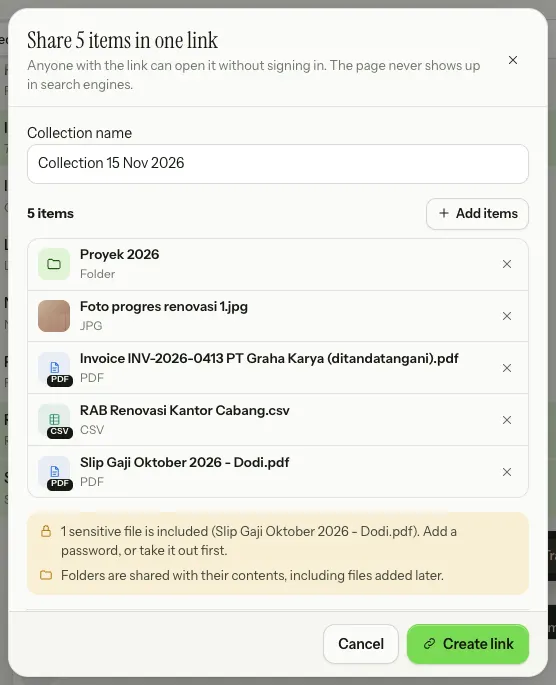
Before the link is made, the sheet tells you when something needs attention:
- Sensitive files are included, such as ID, health or payslip documents. Add a password, or take those files out first.
- Files sent in by other people are included, meaning files that arrived through an upload link.
- Folders are shared with their contents, including files added to them later.
A collection holds either Shared files or My files only. When your selection mixes the two, the sheet says "One link holds either Shared files or My files only." and the link can't be made.
Adding to an existing collection
Choose ⋯ on a file or folder, then Add to collection…, and pick the collection. Only collections from the same place are offered. To rename a collection or change its items or options, open Shared links, choose Collections, then tap its row.
You can also ask Bisik, for example "share all of Hotel Seroja's invoices this month in one link". Bisik prepares a Create link card with a clear collection name; sensitive files are left out, and the link is only made when you press the card.
The collection page
The collection page looks like a folder link page: the collection name as its title, "Shared by" your space's name, a folder tree at the side, a filter box, sorting, and list or grid view. Folders in the collection open on the same page with their subfolders, and files open in the same preview as in the app. The collection page never accepts uploads, even for folders that have an upload link.
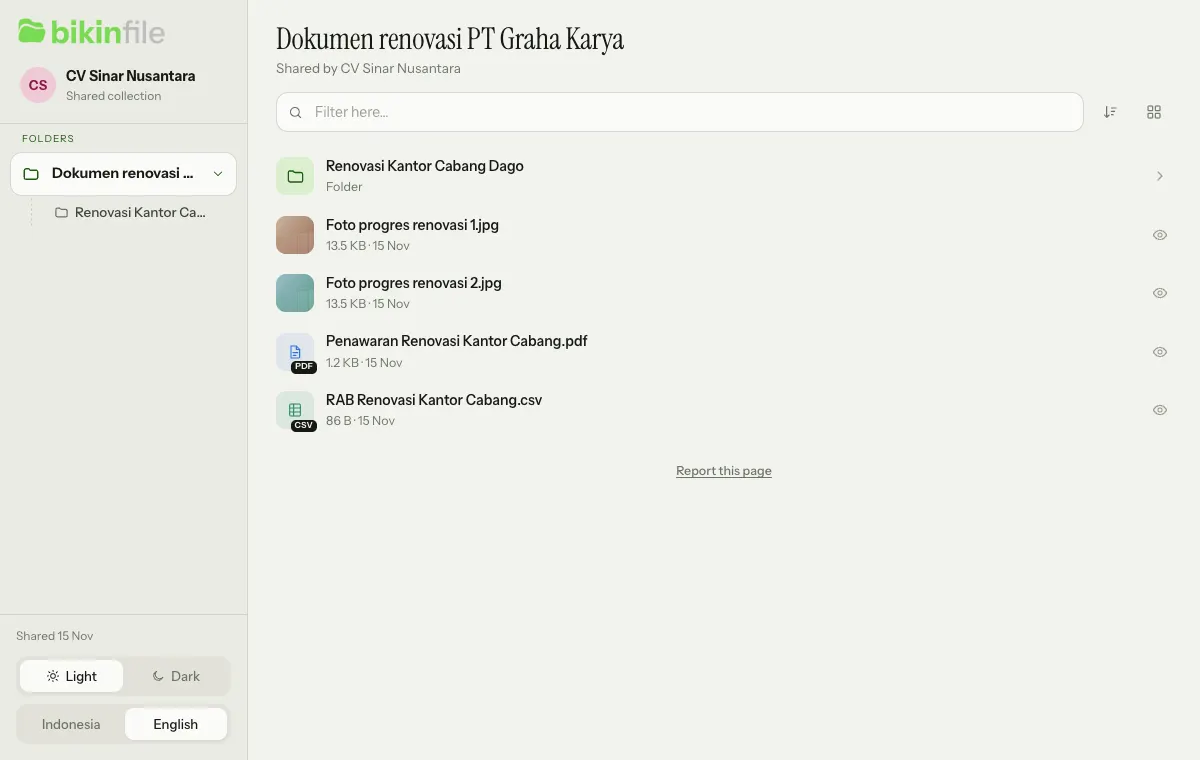
Items moved to the Trash, moved out of the collection's place (for example from Shared to My files), or deleted for good stop showing on the collection page. Files sent in through an upload link show the neutral badge Sent through the link, without the sender's name. Its link preview, for example in WhatsApp, only shows the collection's name and your space's name, never file names.
Who can make collections
- Shared collections: owners, admins and members can make, change and remove them. Everyone in the space sees Shared collections in Shared links, so owners and admins can always take them down. Viewers can only look.
- My files collections: each person can share their own My files; only the person who made such a collection sees and manages it.
- Folders that accept uploads can only be added by an owner or admin, because the files sent in to them show on the collection page too.
Shared links
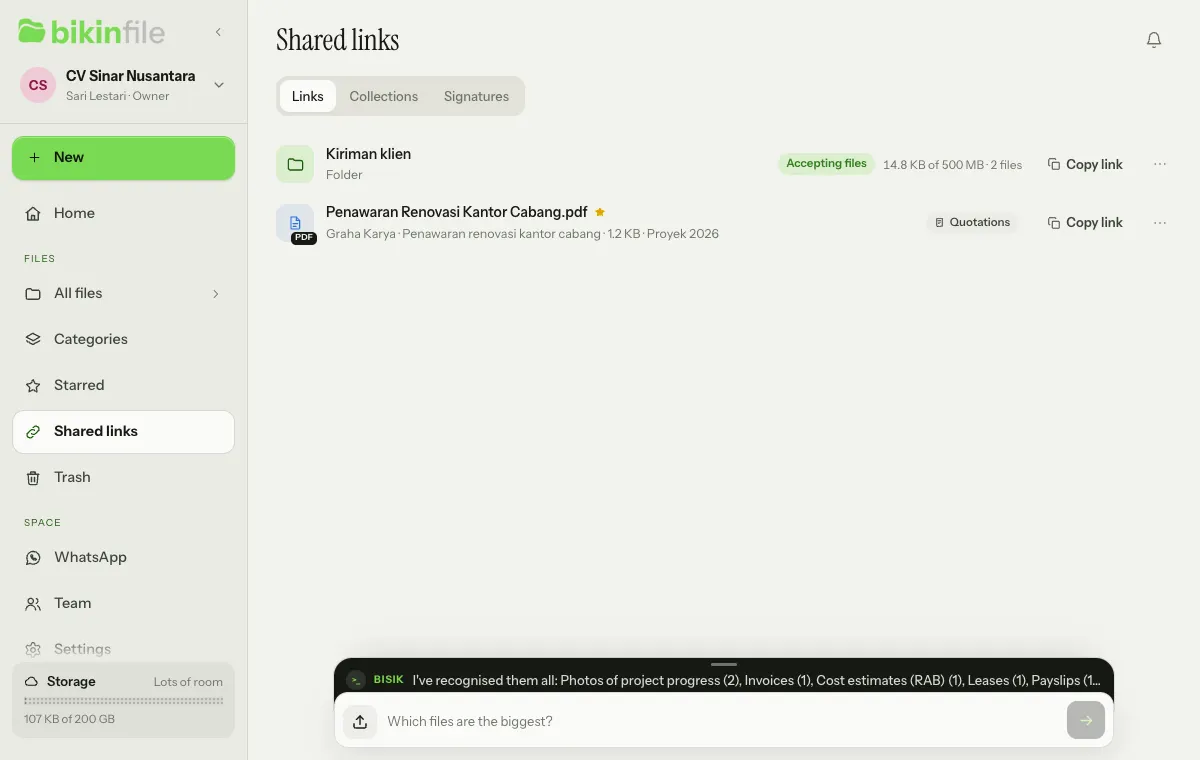
Shared links lists every file and folder in your space that has a share link and that you may see, with a Copy link button on each row. Links of folders that accept files also show their state and what has arrived, such as Accepting files and "1.2 GB of 5 GB · 14 files". Choose ⋯, then Share, to change the options or remove the link. Above the list you can switch between Links, Collections and Signatures.
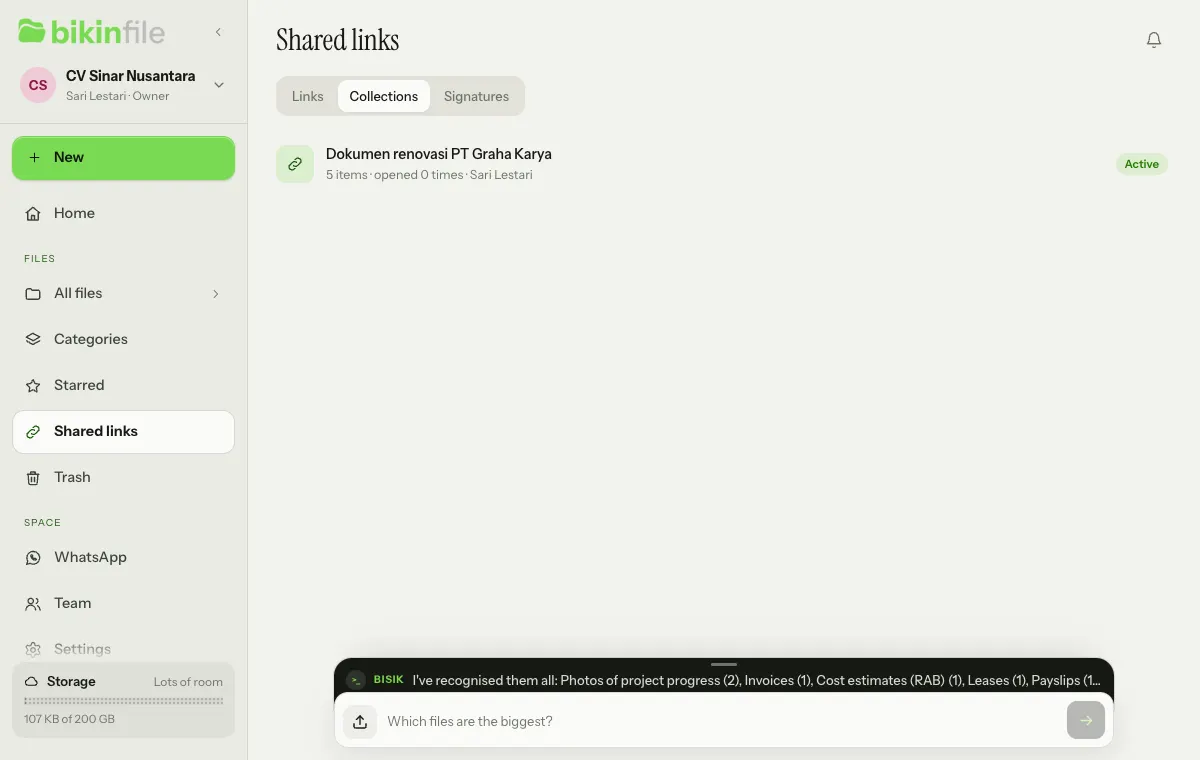
Choose Collections to see every shared collection you may see. Each row shows how many items it has, how often its page was opened, who made it (or My files) and its state: Active, Ended or Password. Tap a row to change or remove that collection.
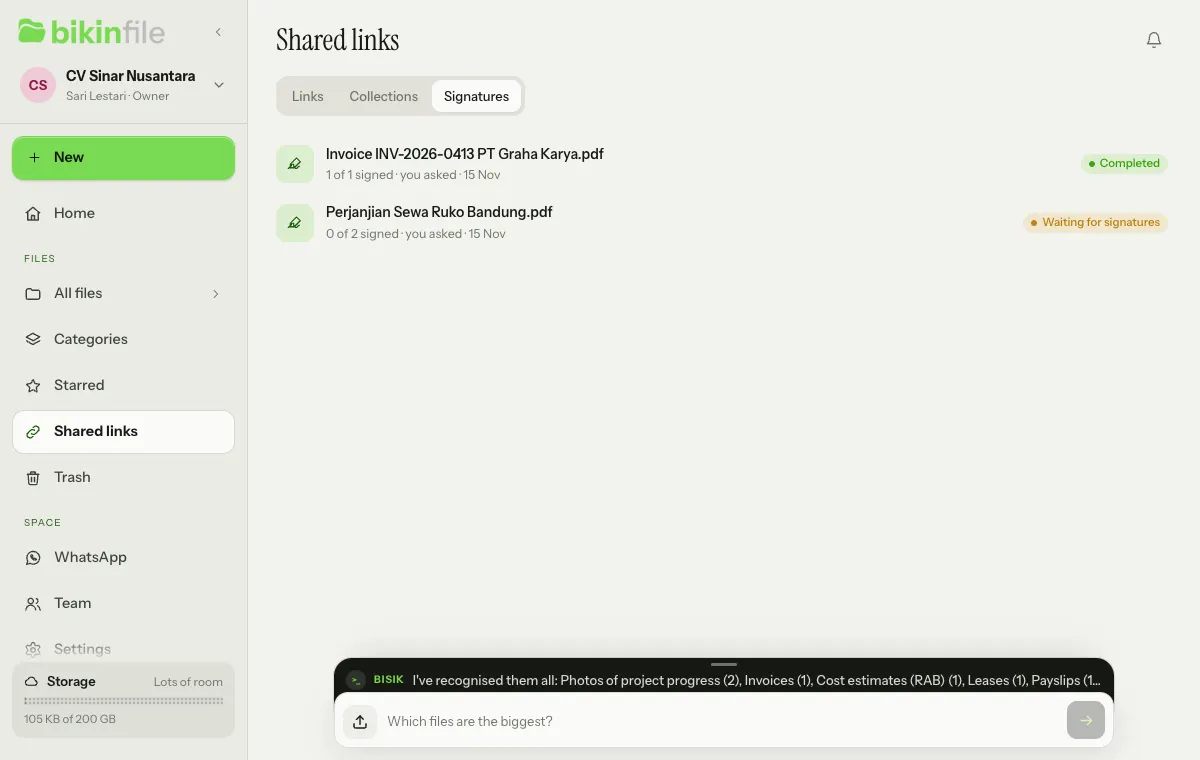
Choose Signatures to see signature requests: the ones you made, the ones waiting for your signature and, for owners and admins, every request from a Shared file. Each row shows the document's name, its progress, such as "0 of 2 signed", and its status pill, such as Waiting for signatures or Completed. Tap a row to open that request's page; see Signatures.
Removing a link
In the Share window, or in a collection's sheet, choose Remove link, then confirm. People holding the link can't open it any more, and its short link stops too. A link also can't be opened while its file or folder is in the Trash, and it's deleted along with a file that's deleted for good.
Removing the link of a folder that accepts files also deletes its upload settings and upload records; files already received stay in the folder.
Last updated: