BIKIN FILEFeatures
Image editing
Crop, rotate and adjust the light, size and format of an image right in the browser, or ask Bisik to remove the background, make it white, remove an object or enhance a photo. The result is always a new file, and the original never changes.
BIKIN FILE can tidy up product photos, photos of places and designs without another app, in two ways:
- Quick edit: crop, rotate, light, size and format, right in your browser without AI. It's on every plan.
- Edit with Bisik: remove or change the background, remove an object and enhance a photo with AI, through a card you press yourself. It's on paid plans.
Both save the result as a new file. The original is never overwritten or changed, so the first photo is always still there.
Opening the editor
Open an image's preview, then choose the Edit image icon (the magic wand) next to Download and Share. On phones, and from the file list, choose ⋯ › Edit image…. The editor opens as a full page: the file name and the note "The original stays. The result is a new file." at the top, the image in the middle, and the editing tools on the right (on narrow screens, under the image). The back button at the top left closes the editor without saving anything.
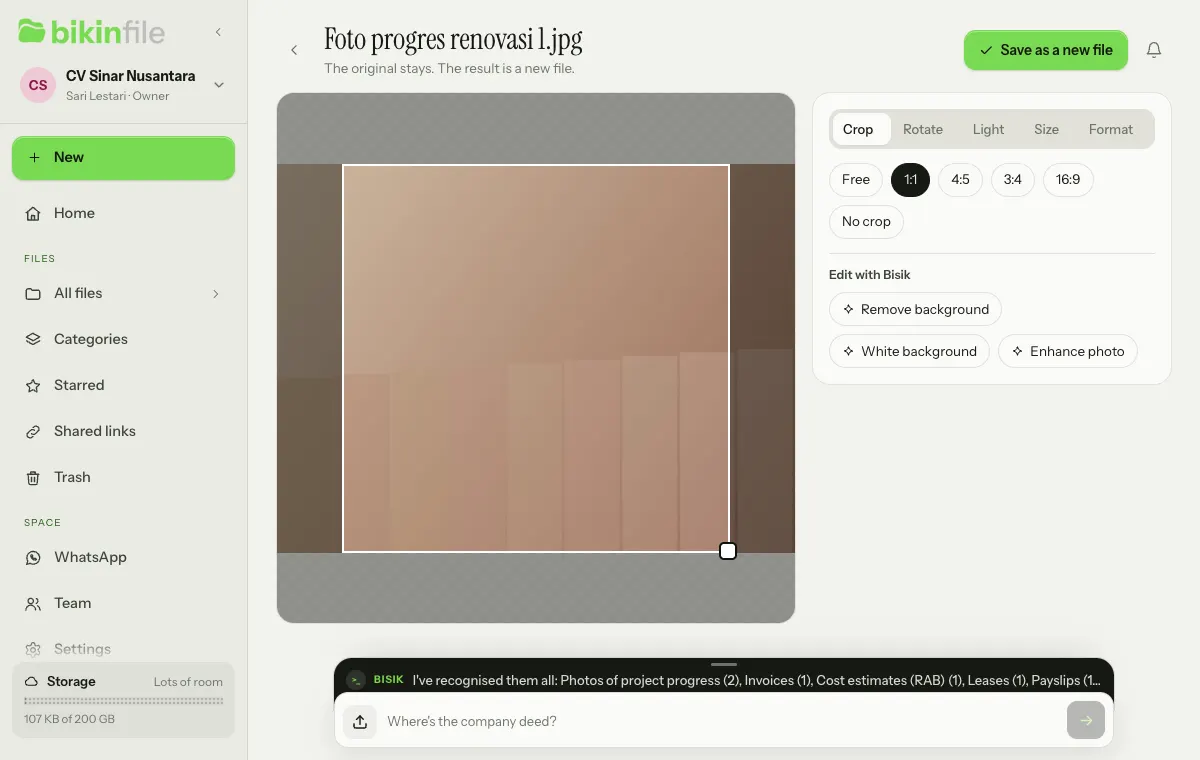
The editor works for every image except SVG. In a browser that can't open HEIC photos, the editor asks you to save the photo as a JPG first.
Quick edit
Pick a tool from the tabs at the top of the panel:
- Crop: choose Free, 1:1, 4:5, 3:4 or 16:9. Drag the crop frame to move it, and pull its bottom-right corner to resize it; the ratio you chose is kept. No crop removes the crop.
- Rotate: Left 90°, Right 90° or Flip to mirror the image. Rotating clears a crop you made.
- Light: slide Brightness, Contrast and Saturation from 50% to 150%.
- Size: fill in Width (px). The height follows, and the image can only be made smaller.
- Format: JPG, PNG or WebP. By default it follows the original file's format.
Then choose Save as a new file (on phones, Save). The result gets "(edited)" added to its name, such as Foto progres renovasi 1 (edited).jpg, and is saved in the same folder. That folder then opens with the new file's preview ("Saved as …"). If you may not upload to that folder, for example as a viewer in Shared, the result goes to My files. If nothing has changed, the editor says "Nothing has changed yet."
Quick edit runs in your browser without AI. Images bigger than 4096 pixels on their longest side are scaled down to that size. Bisik recognises the new file like any other upload.
Edit with Bisik
Bisik can make four kinds of edit:
- remove background: the background is removed, and the result is a transparent PNG;
- change background: the background becomes a colour or a simple backdrop, such as white;
- remove an object: the object you name is removed, such as "the glass on the left";
- enhance photo: the light, colour balance and sharpness are improved without changing what's in it.
There are two ways to ask:
- In the editor, choose one of the chips under Edit with Bisik: Remove background, White background or Enhance photo. An edit card shows up in the Bisik conversation straight away ("The edit card is in Bisik. Press Edit to start."). These chips don't use your Bisik question allowance.
- Write in the Bisik chat box, for example "remove the background of the chair product photo", "change the background of Foto produk kursi.jpg to light grey" or "enhance Foto progres renovasi 1". Bisik finds the photo, then prepares the same card. For cropping, rotating, light, size or format, Bisik points you to the editor.
The card names the file and the edit, such as Edit Foto progres renovasi 1.jpg: enhance photo, and Bisik writes "Edit Foto progres renovasi 1.jpg: enhance photo. The result is a new file in the same folder; the original stays." Nothing changes until you press Edit.
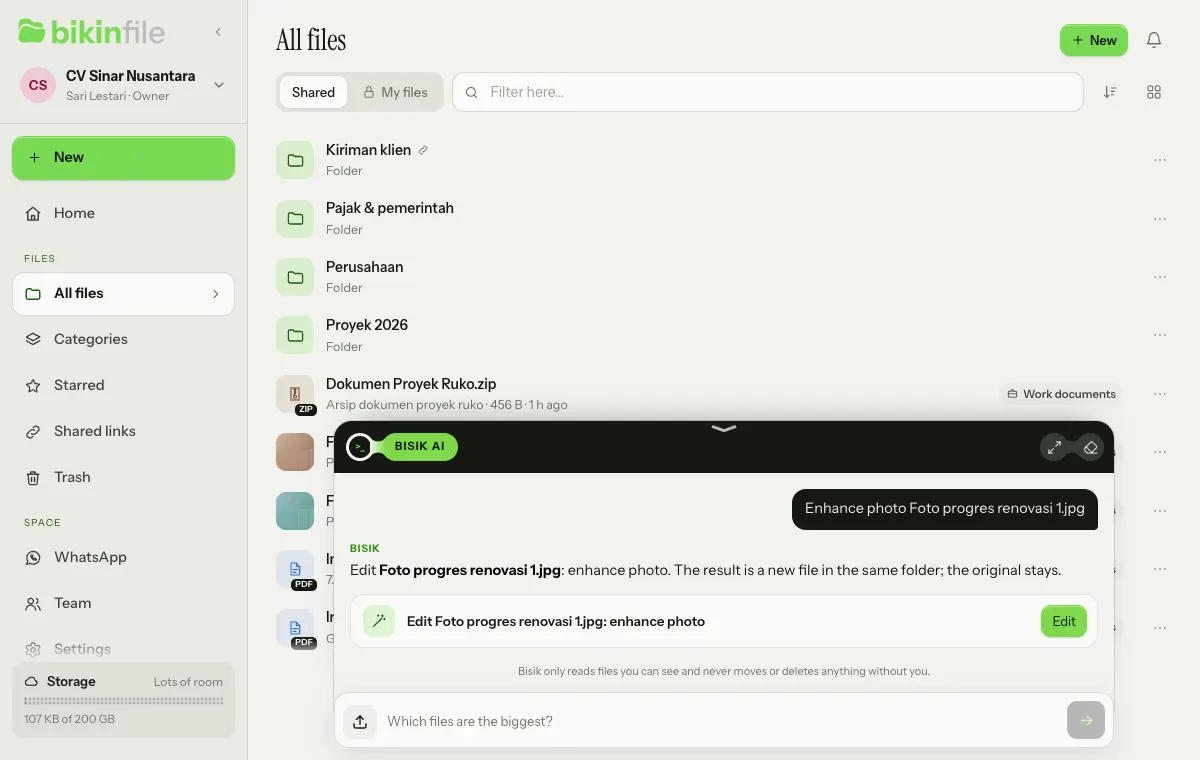
Once you press Edit, the card says "Editing…". An edit can take a little while; you can open other pages, and the card updates by itself. When it's done, the card shows the result, such as "Enhance photo: saved as Foto progres renovasi 1 (enhanced).jpg.", with small before and after images:
- Open opens the result's preview.
- Discard result moves the result to the Trash ("The edited file is in the Trash. The original stays."). The original isn't touched.
The result's name gets the edit added: (no background), (white background), (new background), (object removed) or (enhanced). It's saved in the same folder when you may upload there; otherwise in an Edited images folder in My files.
If an edit fails, the card says why, such as "The edit couldn't be made right now. Your allowance is back; try again shortly." A failed edit doesn't use your monthly allowance. If an edit fails after more than two minutes, you also get the bell An image edit didn't finish.
What Bisik won't edit
Before every edit, Bisik checks the original image, not its small preview. Images like these are never edited with AI, and the card answers "Bisik doesn't edit documents, screenshots, IDs or photos centred on a person.":
- documents and scans, such as invoices, receipts, payment proofs, tax invoices, contracts, deeds, certificates and letters;
- screenshots;
- ID documents, passport photos, selfies, photos of people and photos where a person is the main subject;
- images that hold a signature, initials, a stamp, a duty stamp (meterai) or a seal, however small;
- files marked as holding personal data.
Also:
- Removing an object doesn't work for watermarks, logos, text, numbers, number plates, signatures, stamps, faces or people. Name an ordinary object, such as "the glass on the left".
- Bisik never changes a person's face, body or identity, never adds or removes people, and never adds or changes text, numbers, logos, signatures or stamps.
- Edit with Bisik takes JPG, PNG and WebP up to 5 MB. For HEIC, GIF or a bigger image, first save a smaller JPG with quick edit (Format JPG and a smaller Size), then edit the new file with Bisik.
- A file you just saved with quick edit is recognised first before it can be edited with Bisik ("This file is still being recognised. Try again shortly.").
- If the check can't run, the image isn't edited ("This image can't be checked right now, so it wasn't edited. Try again shortly.").
Where an edit came from
An edited file's preview has an Edited from row: the original's name (tap it to open the original), the kind of edit, "with Bisik" or "quick edit", the date, and who made it. The original's preview has an Edited versions row with links to its edited versions.
An edited file is an ordinary file: you can rename, move, share or delete it without affecting the original.
Who can edit
Everyone who can see an image can open the editor and ask Bisik to edit it, viewers included. The result only goes into the same folder when you may upload there; a viewer who edits a Shared image gets the result in My files. When the card is pressed, the server checks your rights to that image again.
Plans and allowance
- Quick edit is on every plan.
- Edit with Bisik is on paid plans, with a monthly allowance: more on Starter, the most on Premium. The allowance is shared by every space in your group. On plans without it, the Edit with Bisik part of the editor still shows, with an Upgrade pill and a small lock on each chip; pressing one shows an upgrade note with See plans for the owner. Bisik doesn't prepare edit cards on those plans.
- When this month's allowance is used up, the card says "This month's AI image edits are used up. Upgrade for more.", followed by an upgrade prompt that fits your role. There's also a daily safety limit per person and per space ("Today's image edit limit is reached. Try again tomorrow.").
- Edited files count towards your space's storage, like any other file.
Privacy
- When you ask Bisik to edit, the original image is checked first, then that image and the edit instruction written by BIKIN's server are sent to an AI image model. Text inside the image is never used as an instruction.
- The result is saved as a new file with a record of where it came from: the original file, the kind of edit and who asked for it.
- Quick edit runs in your browser, without AI.
The details are in the Privacy Policy.
Last updated: