BIKIN FILEAccount & plan
Team & roles
The four BIKIN FILE roles (owner, admin, member, viewer), everyone's own My files, how to invite and manage members, and the log of important actions.
Every member of a space has one role. Roles and My files are checked on the server for every request, so what someone may not see can't be opened through a direct address, through Bisik or through a connected app either.
Four roles
| Role | Can |
|---|---|
| Owner | Everything, including the plan and bills, referrals, adding spaces, changing roles, the log and Close account |
| Admin | Everything except the plan, referrals, adding spaces, changing roles, the log and Close account. Admins invite members and viewers, manage the space, delete Shared files for good, move anyone's Shared files to their own My files (after confirming) and connect apps |
| Member | Uploads, makes folders, renames, moves, moves to the Trash and restores, shares links and runs Bisik's suggestions for Shared files. Moves to My files only files they uploaded themselves (and folders whose files they all uploaded). Deletes for good only in their own My files |
| Viewer | Views, searches, downloads, stars and asks Bisik, without changing Shared files or creating links for them |
Everyone, whatever their role, has My files with full rights: uploading, making folders, sharing and deleting for good. Only they can see it, not even the space's owner. When a viewer drops files, they're saved to My files automatically.
Inviting your team
The Team menu only shows for the owner and admins.
- On the Members tab, choose Invite.
- Fill in the Name and Email, then pick the Role. Each role option says what it can do.
- Leave Email an invitation (temporary password made for you) on. Your teammate gets an email with the BIKIN FILE address and a temporary password. If you turn it off, fill in a Temporary password (at least 8 characters) and share it yourself.
- Choose Invite.
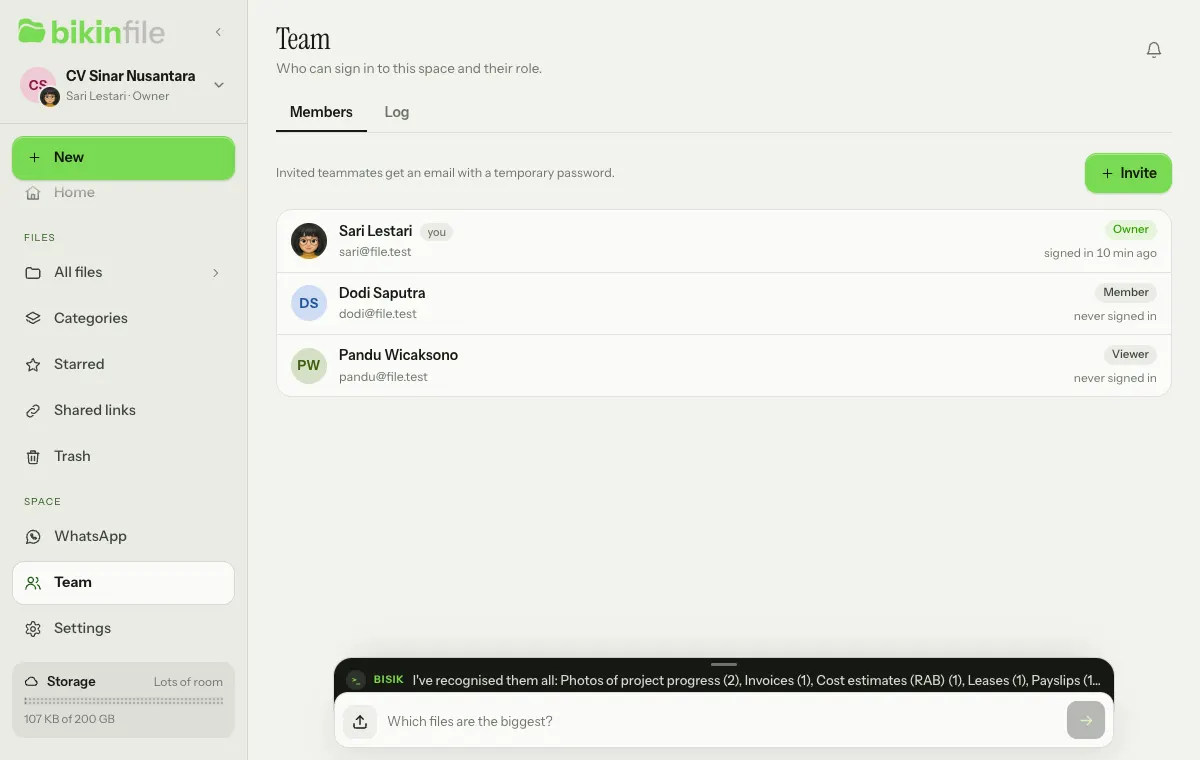
Admins can invite members and viewers. Only the owner gives the owner or admin role and changes roles, both with a code from their email. One email can only be used by one BIKIN FILE account. The number of team members per space follows your plan.
When an invited member signs in for the first time, the owner and admins get a notification in the bell.
Managing members
Tap a member to change their name or role, or turn off the Active switch so they can't sign in any more (Inactive (can't sign in)). You can't change your own role or switch off your own account, and every space always keeps at least one owner. Only the owner edits owner and admin accounts.
Each added space has its own team. Members only open the space they were invited to; the owner of the main space can open every space in the group.
Log
The Log tab (owner only) records members added, role changes, files deleted for good, the Trash being emptied, share links created or removed, spaces added or removed, and Google accounts linked or unlinked, with who and when.
Email codes for important actions
Important actions ask for the 6-digit code from your email in the Enter the code from your email window: deleting for good, emptying the Trash, giving the owner or admin role, changing roles, adding or removing spaces, linking a Google account and closing the account. Once you've entered a code, the next important actions don't ask again for 10 minutes. Connecting an app also asks for a code from your email on its approval page, see Connected apps.
Last updated: