BIKIN FILEFeatures
Signatures
Sign a PDF yourself or ask space members to sign it, right in BIKIN FILE. Everyone signs the same checked copy, the result is a new PDF with a signature record, and that PDF can be matched on the Check a document page.
BIKIN FILE can put signatures on a PDF in your space: sign it yourself, or ask space members to sign it too. Everyone signs the same copy of the document, and the result is a new PDF with a signature record on its last page. The original file never changes.
These are uncertified electronic signatures. Read Limits of electronic signatures before you use them for important documents.
Preparing the document
- Open a PDF's preview, then choose the Sign icon next to Download and Share. You can also use ⋯ › Sign…, which is the way on phones.
- BIKIN FILE prepares a copy of the document ("Preparing the document…"). The PDF is checked, any form fields in it are flattened into the page, and this copy is what everyone sees and signs. The request keeps going even if the original file is later moved or thrown away.
- The signing page opens with the document on the left and the Signers panel on the right. On phones, the document fills the width of the screen, and the panel opens from the bar at the bottom.
Some PDFs can't be signed, and the page says why:
- PDFs protected by their creator, for example with a password: "This PDF is protected by its creator, so it can't be signed here."
- PDFs that already carry another digital signature, such as an e-Meterai, because signing them here would break that signature.
- PDFs with active content, hidden layers, comments, stamps or markup on top of the pages, and forms that can't be flattened. Save it again as a plain PDF (Print → Save as PDF), then try again.
- PDFs larger than 20 MB or longer than 300 pages.
Placing signature boxes
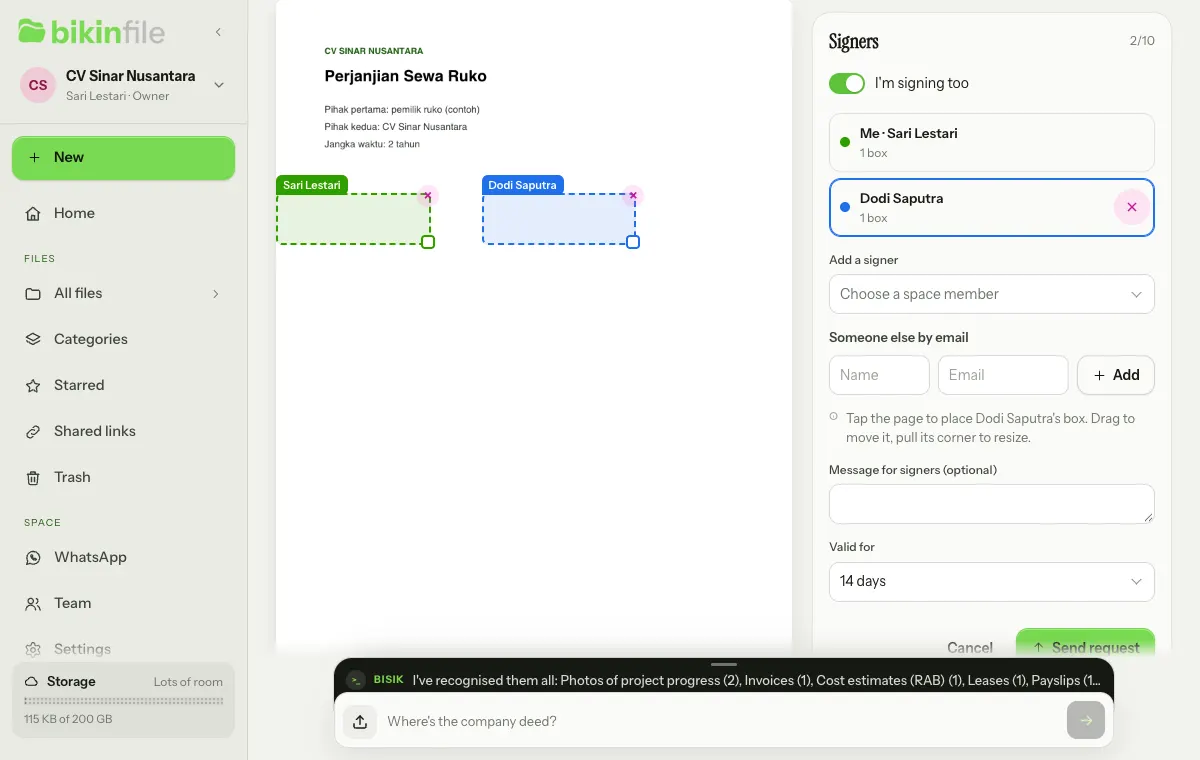
The Signers panel lists the signers, each in their own colour. The I'm signing too switch is on from the start, so you're already on the list as Me with your name.
- Pick a signer in the list.
- Tap the page where their signature goes. A coloured box appears there.
- Drag the box to move it, pull its corner to resize it, or choose × on the box to remove it. On a computer, the selected box can also be moved with the arrow keys.
Each signer needs at least one box and at most eight, and a document can have at most ten signers.
Signing it yourself
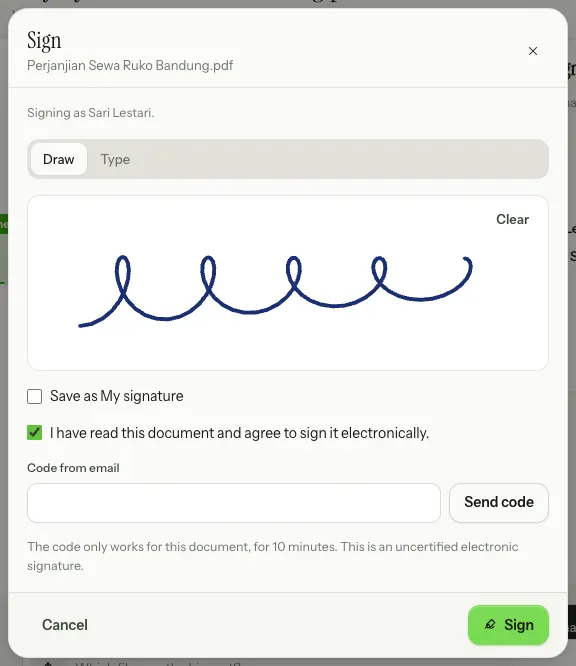
When you're the only signer, the panel's main button is Sign. Choose it, and the Sign sheet opens:
- The sheet says "Signing as …" with your account name.
- Make your signature: Draw it with a finger, pen or mouse (Clear to start again), or Type your name. Typing works for Latin letters only; for names in other scripts, use Draw. If you've saved one, there's also My signature.
- Tick Save as My signature if you'd like to use it again next time.
- Tick "I have read this document and agree to sign it electronically."
- Choose Send code. A 6-digit code goes to your account email; enter it in Code from email. The code only works for this document, for 10 minutes.
- Choose Sign.
Afterwards, the signed PDF is put together and saved straight away, for example "Perjanjian Sewa Ruko Bandung (signed).pdf is saved." When that takes longer, it says "Your signature is saved. The signed document is being prepared." See The signed file.
Asking members to sign
You can ask space members to sign a document in Shared. Owners, admins and members can do this; viewers can only sign themselves. Documents in My files can only be signed by you, because other members can't see them.
- In the panel, pick a member under Add a signer (Choose a space member). A signer's name always follows their account name.
- Place a box for each signer. Turn off I'm signing too if you aren't signing.
- If you like, fill in Message for signers (optional). Links, email addresses and long numbers are removed from it.
- Pick Valid for: 7, 14, 30 or 60 days. The default is 14 days.
- Choose Send request. If you're signing too, the Sign sheet opens for you straight away.
The members you asked get a bell, such as "Sari Lestari asked for your signature", and a push when their device is turned on. The bell opens the signing page with Your signature is requested, the requester's message, the pages their boxes are on, and their boxes highlighted with Sign here. They choose Sign, then use the same sheet with a code from their own account email.
Bisik also writes a message for that member, such as "Sari Lestari asked for your signature on Perjanjian Sewa Ruko Bandung.pdf.", with a Sign card that opens the same signing page.
You can also ask Bisik, for example "ask Dodi to sign Perjanjian Sewa Ruko Bandung". Bisik prepares a Sign Perjanjian Sewa Ruko Bandung.pdf card with an Open button, which opens the signing page with Dodi already on the list of signers. You place the boxes and send it yourself; Bisik never signs or sends a request.
Asking people outside the space to sign
On paid plans you can also ask people outside the space to sign by email, such as a client or a landlord. They don't need a BIKIN FILE account.
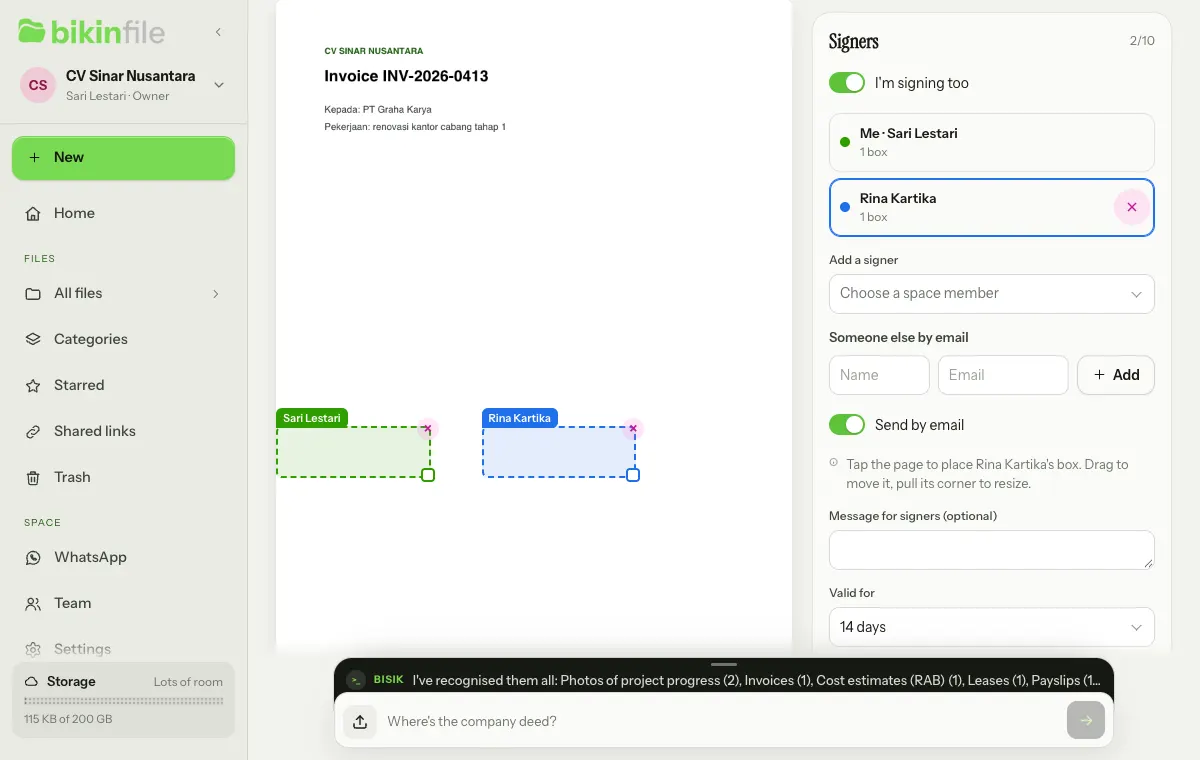
- In the panel, fill in Name and Email under Someone else by email, then choose Add.
- Place their signature box on the page, the same way as a member's box.
- Leave Send by email on so BIKIN FILE emails them. If you turn it off, copy their link yourself with Copy link in the request status.
- Choose Send request.
The email is sent in the name of "{space name} via BIKIN FILE" with the subject "{space name} asks for your signature", without the file name, and replies go to your account email. Each outside person has their own link. These emails count towards your plan's daily email limit, and demo accounts never send email.
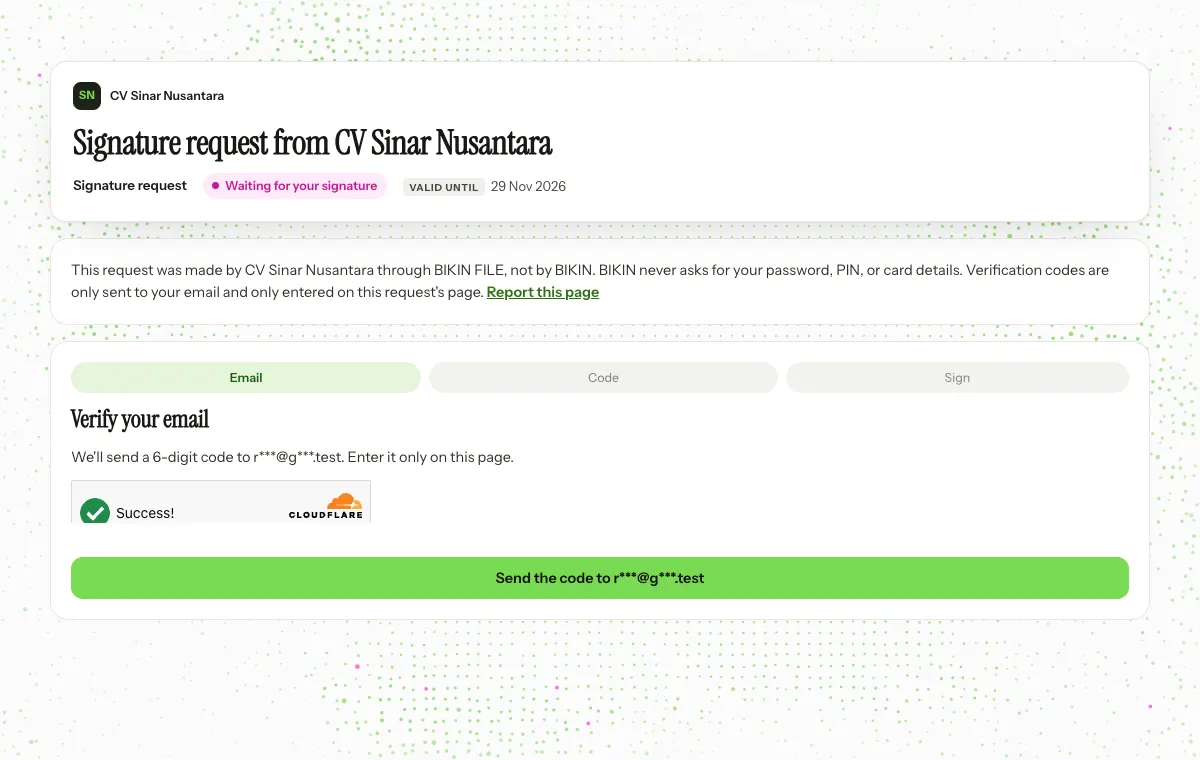
The link opens a BIKIN FILE signing page:
- Verify your email: the person chooses Send the code to …, then enters the 6-digit code from the email. The code is valid for 10 minutes.
- The document opens with their box highlighted with Sign here. The file name only shows once the code is right.
- They check Your name (Latin letters), choose Draw or Type, tick the agreement, then choose Sign. They can also choose Decline with a reason; you're told and the request stops.
Once everyone has signed, outside people get the email "Fully signed: a document from {space name}" with the same link. On that page, after entering a new code, they can choose Download the signed document for 30 days.
Pages for outside people don't show up in search engines and have no bkin.in short link. They always say that BIKIN never asks for passwords, and have a Report this page button. The link stops working when the request is cancelled or expires. Space names or people's names that look like official services, such as banks, are refused.
The signed file
Once every signer is done, BIKIN FILE puts the signed PDF together:
- Its name gets "(signed)" added, such as Perjanjian Sewa Ruko Bandung (signed).pdf.
- It goes into the original file's folder, when that file is still there and the requester may upload to it. Otherwise, the result of a request from Shared goes into a Signed folder in Shared, and the result from My files goes into a Signed folder in the requester's My files.
- Under every box there's a small note: "Signed electronically", the name, the time in WIB and the check code.
- Its last page is the Signature record: the document's name, the number of pages, who asked, the fingerprints (SHA-256) of the signed copy and of the original file, every signer with their email masked, how they were verified and when, the request's history, then the address and QR code of the Check a document page.
- The requester gets the bell Fully signed: … and the Bisik message "Perjanjian Sewa Ruko Bandung (signed).pdf is fully signed and saved." with its file card. Members who signed get a bell too.
The signature record and the Check a document page use the requester's language when the request was made. The signed PDF is an ordinary file in your space, but its signature record only matches a signed PDF whose content hasn't been changed.
Request status
Every request is in Shared links › Signatures: the ones you made, the ones waiting for your signature and, for owners and admins, every request from a Shared file. Each row shows the document's name, its progress, such as "1 of 2 signed" (other signers see "waiting for your signature" or "you signed"), "you asked" when you're the requester, the date, and its status pill: Waiting for signatures, Preparing the document, Completed, Cancelled or Expired.
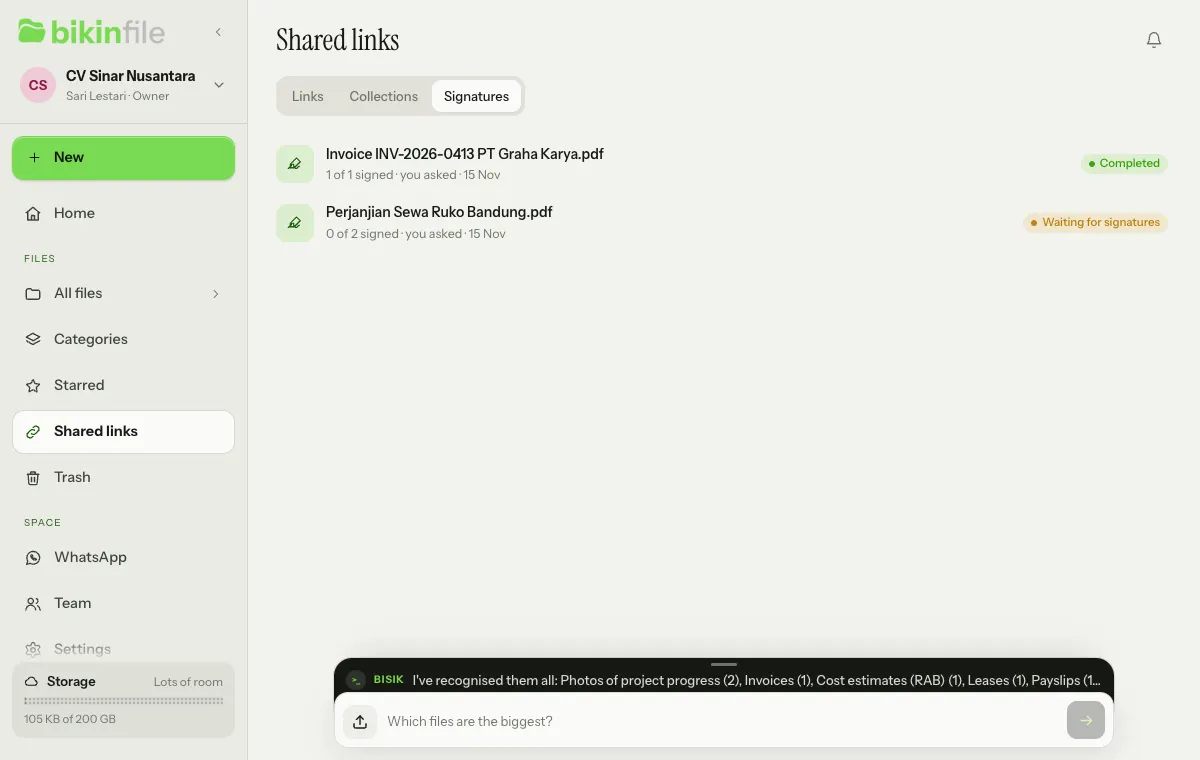
Tap a row to open the request's page:
- every signer with a Waiting or Signed pill;
- Remind sends the bell again to a signer who hasn't signed, at most once a day per person, such as "Reminder: Sari Lestari is waiting for your signature";
- Cancel request: signers who haven't signed can't sign any more, and signatures already given won't be used;
- Record: the request's history with times;
- Open the signed file, once it's done. If the signed PDF is somewhere you can't open, ask the requester for a copy;
- Delete record, for a request that has ended (see below).
The requester, and the owners and admins for Shared files, see every signer and can use Remind and Cancel request. Other signers only see their own row.
If not everyone has signed by the Valid for date, the request becomes Expired, and the requester gets the bell A signature request expired: …. A draft request that isn't sent within 24 hours is removed.
Bisik can answer too, for example "who hasn't signed the shop lease yet?", only for requests you may see.
Deleting a record
Once a request is completed, cancelled or expired, choose Delete record, confirm, then enter a code from your email. For Shared files, the owner or an admin does this; for files in My files, the requester. The record and the Check a document page for that document stop working, but the signed PDF in your space stays. A request that's still open is cancelled first.
Check a document
The address of the Check a document page (file.bikin.studio/v/…) and its QR code are printed on the signature record, and a completed request has a Check this document button that opens it in a new tab. Anyone holding the signed PDF can open it without signing in, and the page never shows up in search engines.
- Check your file: choose or drop a PDF. Its fingerprint is worked out in the browser, and the file is never uploaded. The result is "Match: this file is exactly the document that was fully signed in BIKIN FILE." or "No match: this file differs from the signed document (it may have been changed, or it's another version)."
- Signers: names, masked emails, how they were verified (BIKIN FILE account + email code) and when they signed, in WIB.
- Document fingerprints: the SHA-256 fingerprints of the signed PDF and of the copy that was signed.
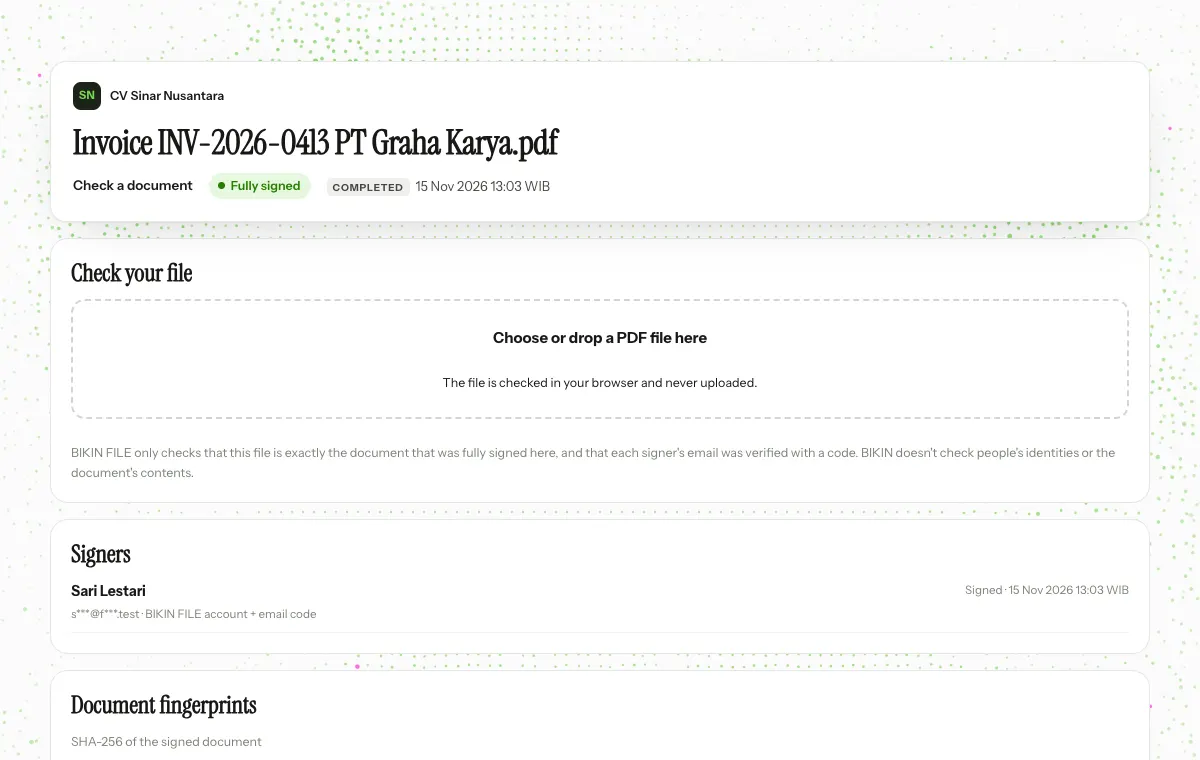
This page never shows the document's content and offers no download. A sentence on the page explains its limits: BIKIN FILE only checks that a file is exactly the document that was fully signed there, and that each signer's email was verified with a code; BIKIN doesn't check people's identities or the document's contents. Once the record is deleted or the space is closed, the page says "This document's record is no longer available."
My signature
My signature is a signature you save in this space so you don't have to draw it again. Save it by ticking Save as My signature on the Sign sheet; next time, My signature shows up there as a choice. Saving a new signature replaces the old one.
Only you can use it, and each use still needs a code from your email for that document. My signature is deleted when you're switched off or the space is closed.
Plans
Signing yourself and asking space members to sign are on every plan. Asking people outside the space to sign by email is on paid plans with the Ask outside people to sign by link feature; on other plans the panel says it's on paid plans. The copy being signed and the signed PDF count towards your space's storage; when there isn't enough left, a new request can't be made.
Limits of electronic signatures
- Signatures in BIKIN FILE are uncertified electronic signatures: they're made without an electronic certificate from a certification authority.
- BIKIN FILE records who signed with their BIKIN FILE account and a code from their email, when, and the document's fingerprint, so a change made after signing can be spotted on the Check a document page.
- BIKIN doesn't check signers' identities or the document's contents, doesn't guarantee that your document is valid, and isn't a party to it.
- Make sure every signer has the authority to sign, and that the document may be signed electronically under the law that applies to it.
- Don't use it for notarial or official deeds (such as a deed of sale for land), documents the law requires to be written on paper, or documents that must carry a duty stamp (meterai). BIKIN FILE doesn't provide electronic duty stamps.
The details are in the Terms and Conditions and the Privacy Policy.
Last updated: