BIKIN FILEFeatures
Bisik in BIKIN FILE
Bisik is the way into BIKIN FILE, with a chat box at the bottom of every page. Ask about your files in plain words, watch Bisik recognise the files you just uploaded, get suggestions for folders, clearer names, groups and merges, unpack archives, discover new groupings, and prepare photo edits or signatures, all through cards you press yourself.
Bisik is the AI assistant in BIKIN FILE and its main way in, on every plan. Its chat box stays at the bottom of every page, on desktop and on phones, so you can ask while you have a folder, Categories or Settings open. The box holds the upload icon (the arrow on the left of the box) to pick files, with the destination in its name (such as Upload files to Shared › Proyek 2026), example questions that type themselves in turn in the field, and the send button, which turns into a stop button while Bisik answers. The conversation is the same on every page and on your other devices.
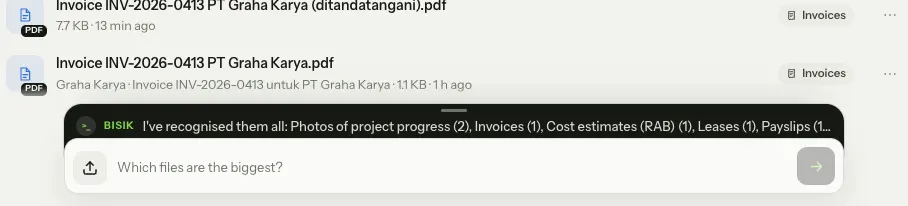
The conversation panel
The conversation shows in a dark panel above the chat box, in one of these states:
- No messages yet: just the chat box, no panel. Example questions type themselves in turn in the chat box; tap the field and write your question.
- Lowered: a single line with the last message, cut with "…" when it's long. While Bisik is searching, it says Bisik is looking through your files. A green dot means there's a reply you haven't seen.
- Raised: the panel rises as tall as its messages, at most 80% of the screen together with the chat box; anything beyond that scrolls inside the panel. Its head shows Bisik AI, the Full screen button and the eraser Clear conversation button.
- Full screen: the conversation covers the whole window, sidebar included. Choose Exit full screen or press Esc to go back.
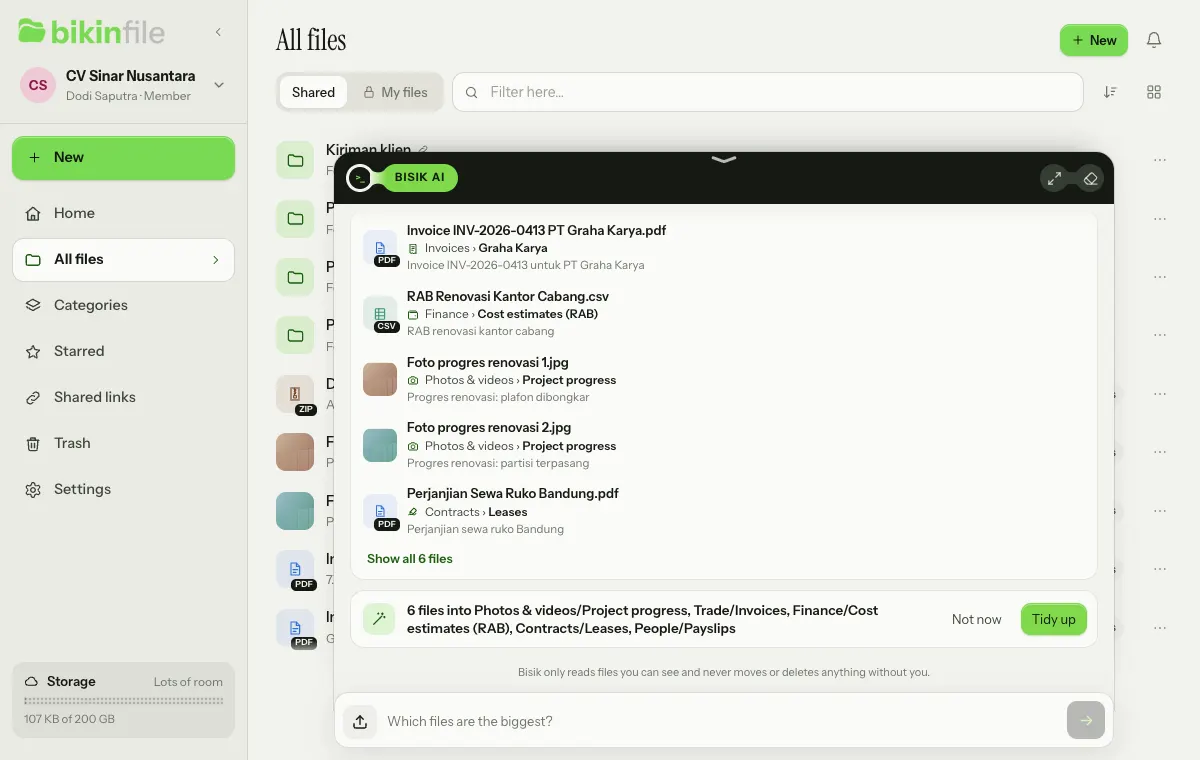
To raise or lower the panel, tap its bar, drag its handle up or down, or press Enter or Space while the bar is selected. Tap outside the panel, press Esc or go to another page to lower it.
Your questions and the messages Bisik sends without being asked, such as the message after an upload and new groupings, always raise the panel. Bisik's replies raise it too, unless you lowered it yourself after asking; then just the green dot shows.
On phones, the chat box moves up above the keyboard while you type in it, and the raised panel covers most of the screen.
What you can ask
- Ask for a file: "show me the ID card photo", "where's the company deed?", "last month's invoices", "all quotations this month". Bisik answers briefly, such as "Here it is!", with the file cards under its answer. Tap a card to open its preview, then Download or Share from there.
- Summaries: "which files are the biggest?", "how much storage is left?", "how many files are in Government & tax?", "what's in the Company folder?".
- Tidying: "tidy the loose files", "any duplicate files?", "make the file names in this folder clearer", "merge Sumrise into Sumrize". Bisik prepares suggestion cards, such as moving several files into one folder, moving duplicates to the Trash, clarifying file names with the name suggestions already put together from their contents, or merging two subcategories, for you to press yourself. Bisik never makes up a file name; a name you give yourself is for one file only. At most two suggestion cards per answer.
- Expiry dates: "which documents expire soon?". Bisik answers with cards for documents that expire soon or have expired. After an upload, Bisik also mentions the expiry date of documents such as vehicle registrations, insurance policies, contracts or permits and offers a Remind me card; see Document expiry dates.
- Sharing several files: "share all of Hotel Seroja's invoices this month in one link". Bisik prepares a Create link card for a shared collection with a clear name; sensitive files are left out, and the link is only made when you press the card. See Shared collections.
- Photo edits: "remove the background of the chair product photo", "change the background of Foto produk kursi.jpg to white", "remove the glass on the left" or "enhance Foto progres renovasi 1". Bisik prepares a card, such as Edit Foto progres renovasi 1.jpg: enhance photo, and the edit only runs when you press Edit. The result is always a new file, and the original stays. Documents, screenshots, IDs and photos centred on a person are never edited. See Image editing.
- Signatures: "ask Dodi to sign Perjanjian Sewa Ruko Bandung" or "who hasn't signed yet?". Bisik prepares a card, such as Sign Perjanjian Sewa Ruko Bandung.pdf, with an Open button that opens the signing page with the signers you named, and answers how the requests you may see stand. See Signatures.
- Files from WhatsApp: "files from WhatsApp this week". If you want to connect WhatsApp, Bisik explains how and, for owners and admins, prepares a Manage files saved from WhatsApp card with an Open WhatsApp settings button. See Files from WhatsApp.
- How to use BIKIN FILE, such as sharing a link with a password or unpacking an archive.
File names Bisik mentions in an answer show a small thumbnail or file-type icon and can be tapped to open the file's preview, just like in the file list; when several files share the name, tapping it lets you pick one by its location.
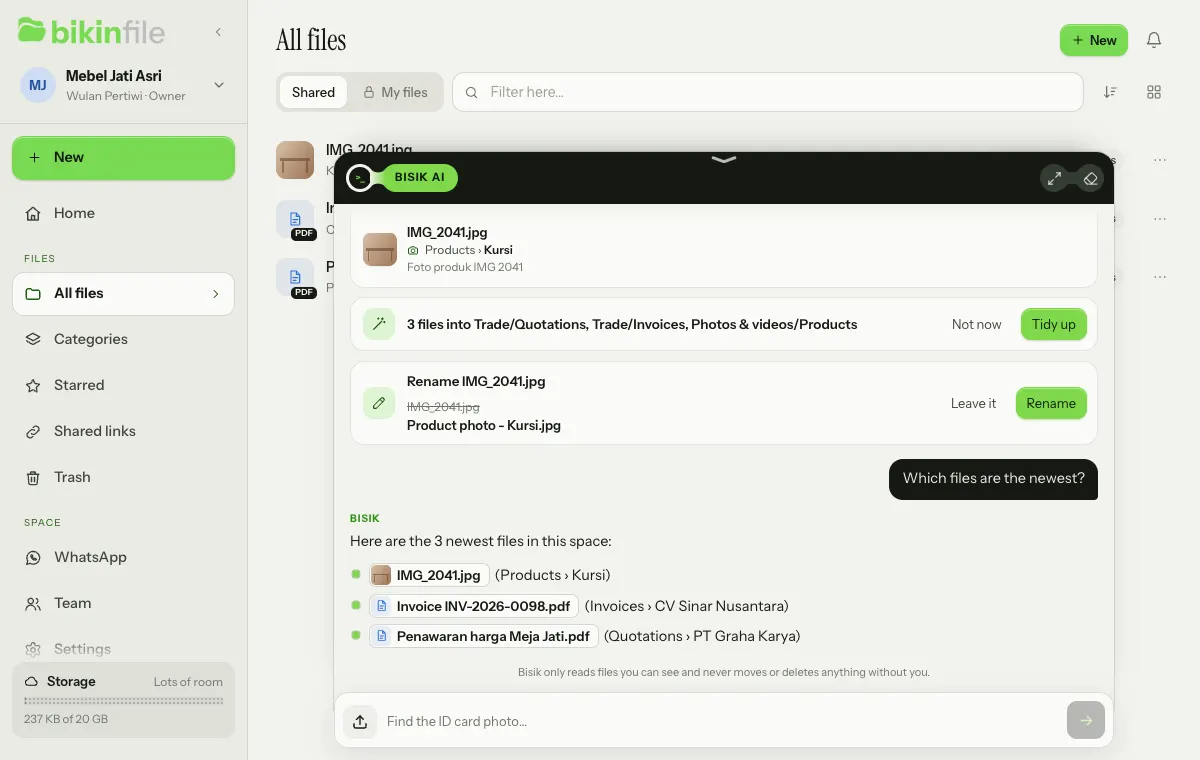
Bisik searches file names, folders and what it recognised in them (category, subcategory such as the kind of document or photo subject, more specific subcategories such as a brand, the other party or a photo detail, title, summary and topics), as well as file type, extension, size and upload date. So "Sumrize logo" or "Hotel Seroja invoices" finds what's in that subcategory straight away.
Bisik only reads files you may see: Shared as your role allows and your own My files, never anyone else's My files. Bisik also never writes out identity numbers such as ID card, tax ID or bank account numbers, even when asked.
Ask about one file
Every file's preview has an Ask Bisik about this file button at the bottom of the card with what Bisik recognised. Press it to ask about the file you have open: the preview closes, and the chat box carries an About chip with that file's name, such as "About Invoice INV-2026-0413 PT Graha Karya.pdf". Your next questions, like "when is this invoice due?" or "which folder should it go in?", are answered with that file at the centre.
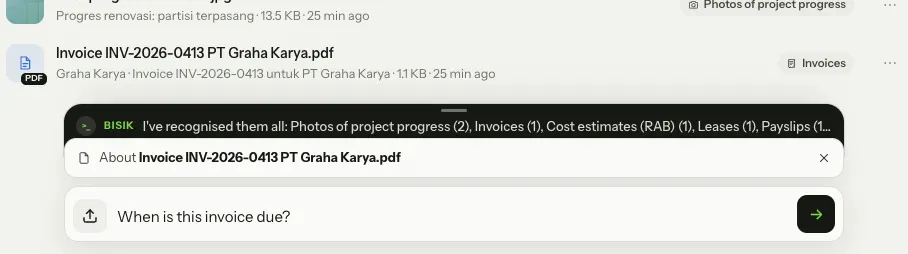
The chip stays for follow-up questions until you remove it with × or press Ask Bisik about this file on another file. Bisik still answers from that file's name, folder and classification, not its full contents, and only if you're allowed to see the file.
After an upload: "Hang on, I'm recognising…"
As soon as a batch of uploads finishes (one drop or one pick), Bisik writes in the conversation, whatever page you're on: "Hang on, I'm recognising the 3 files you just uploaded…", or the file's name when there's only one. The panel rises by itself, and the uploads tray closes because the file rows now live in that message.
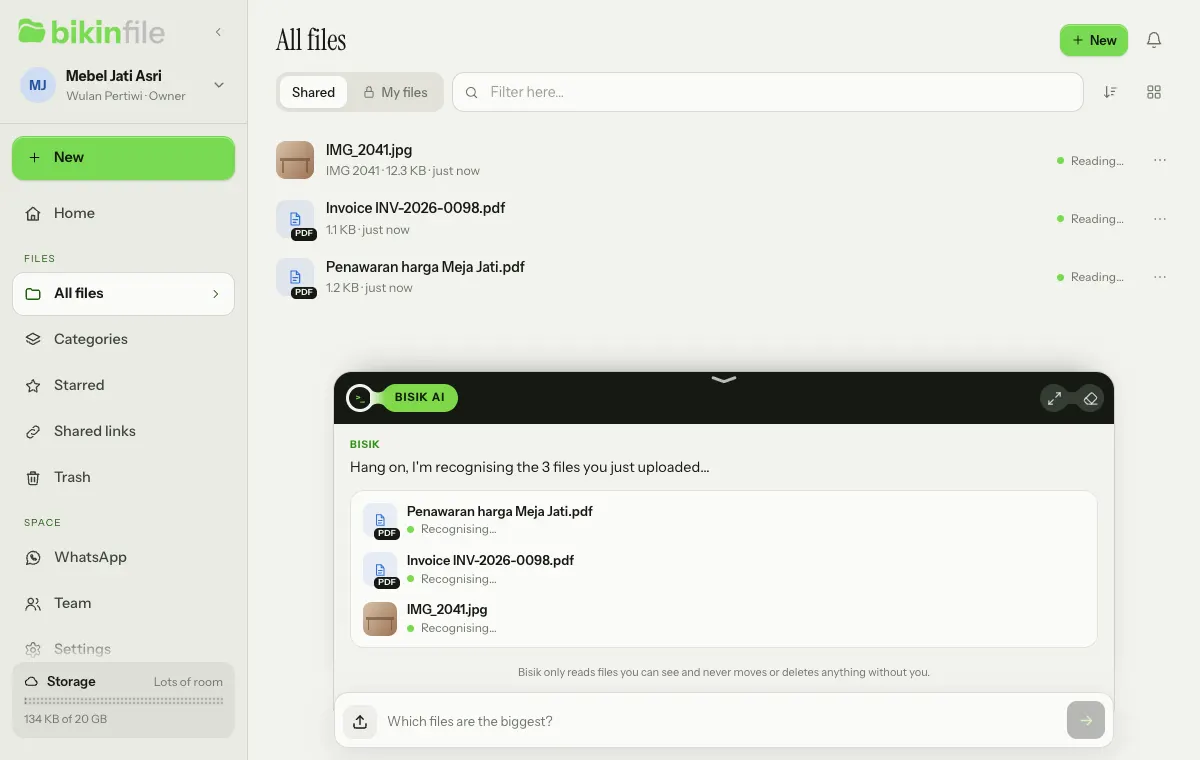
Every file gets one row, the first five straight away and the rest behind Show all … files:
- Recognising… while Bisik reads its contents.
- The last two levels of its path, with the deepest in bold: category › subcategory, such as Trade & transactions › Quotations or Photos & videos › Products, or subcategory › the more specific level when there is one, such as Logos & brand › Sumrize for a logo whose brand was recognised, Quotations › PT Graha Karya for the other party, or Products › Kursi for a photo detail. The recognised title shows underneath when it differs from the file name, and the full path shows when you point at the row.
- An archive reads Archive, … files inside, and a file that couldn't be recognised reads Not recognised yet.
- Tap a row to open the file's preview.
Once every file is recognised, or after about two minutes at most, the same message is rewritten with the results and its suggestion cards:
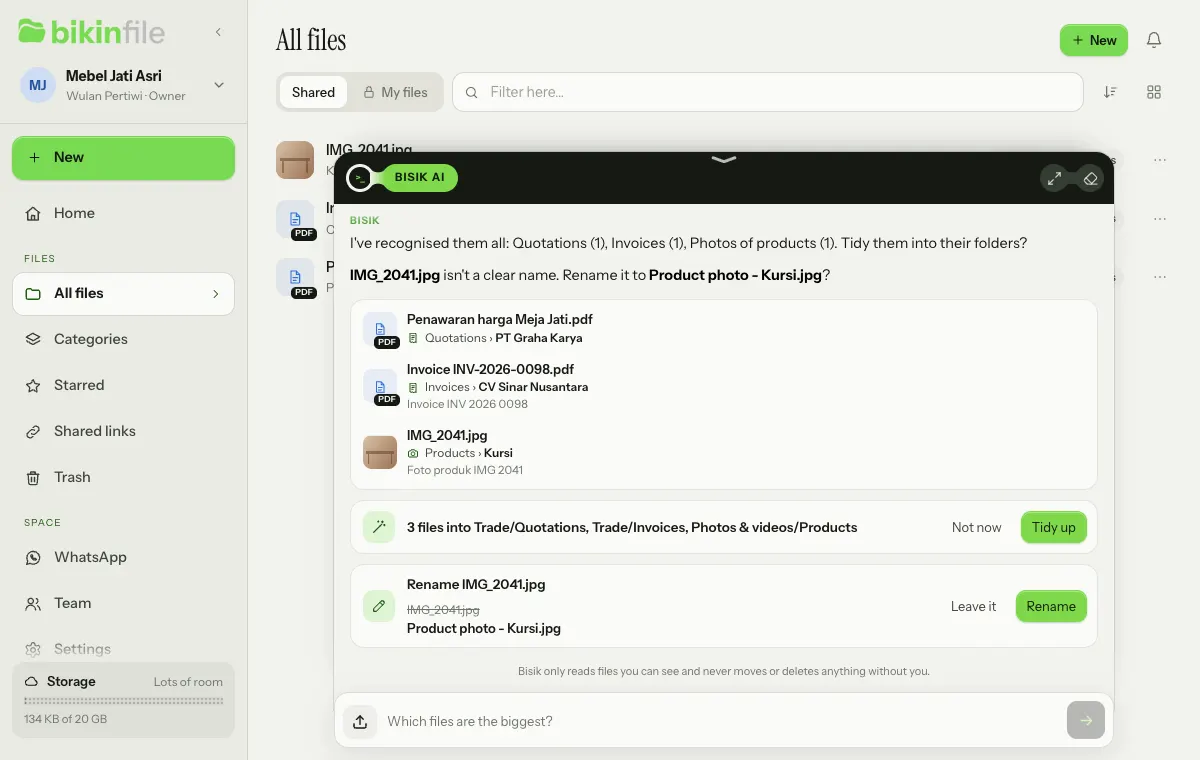
- One file: "This looks like Penawaran harga Meja Jati (Trade & transactions › Quotations). Save it to the Trade/Quotations folder?" Choose Save to Trade/Quotations, or Leave it here.
- Several files: Bisik counts them per kind and offers Tidy up, which moves each file into its folder; folders that don't exist yet are made along the way. Not now leaves the files where they are so you can check them yourself.
- The target folder: the folder where you already keep files of that kind, when its name mentions the kind or it already holds a few of them; otherwise an existing category folder with the subcategory as a subfolder; failing that, a new nested folder such as Trade/Quotations. The folder suggestions are listed in Categories, type & size.
- ID documents in Shared, in a space with more than one member: Bisik suggests Move to My files so only you can see them, or Leave them. For members, this is only suggested for documents they uploaded themselves.
- Groups of similar files: when the files you just uploaded form a new group or join an existing one, Bisik says so, such as "I grouped 2 logos that look alike: Logos & brand › Sumrize." or "Logo Sumrize v2.png joined the Sumrize group (3 files)." You can open and manage the group in Categories, type & size.
- Archives: see the next section.
- Contents not read: Bisik gives the reason in words, such as reading file contents being switched off, this month's allowance being used up, the file being too big, or its type not being readable yet. That file is recognised from its name. When reading fails, Bisik offers Read again.
Folder suggestions only cover files dropped straight into Shared or My files, not into a folder you picked, and only files you may change. The message after an upload is put together from the classifications, so it doesn't use your Bisik allowance.
Unclear names
When a file you just uploaded has an unclear name, such as one from a camera or scanner, Bisik offers a name put together from its contents: "IMG_2041.jpg isn't a clear name. Rename it to Product photo - Kursi.jpg?" Choose Rename, or Leave it. For several files: "2 files have unclear names. Make them clearer?" See list opens the old and new names with a tick per file, so you can skip one, then Make names clearer.
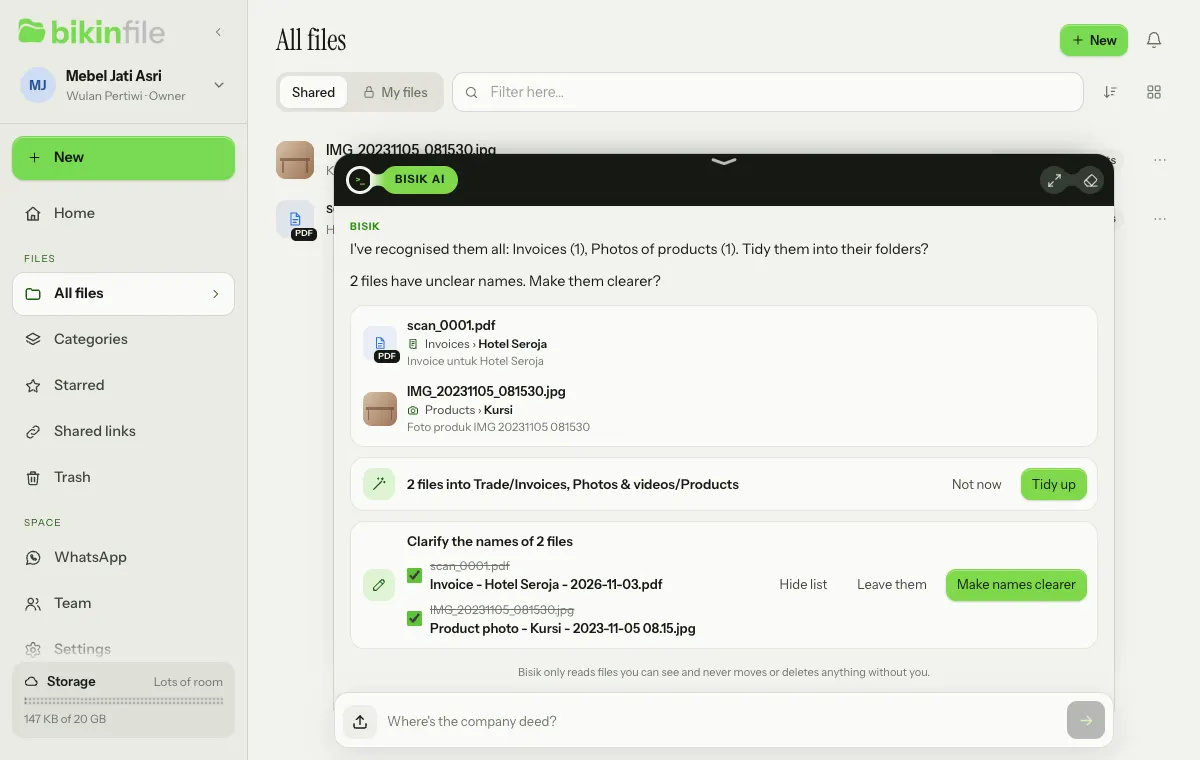
Afterwards the card says, for example, "2 file names made clearer." with Undo for 7 days. The file extension always stays, a name that's already used in that folder gets a number, and a file renamed or moved between Shared and My files since the card was made is skipped and named with the reason. If the card was already run from another tab or device, its button answers "This suggestion already ran" and the card shows the first result. How the new names are put together is in Name suggestions.
New groups and nearly identical names
A newly formed group of similar files gets a card: Show me opens its subcategory, Later leaves it, and Not one group takes the uploaded files out of the group, one level up. When a new subcategory is spelt almost like an existing one, Bisik asks: "Sumrise and Sumrize look like the same brand. Merge them into Sumrize?" with Merge and Leave it. Merging works like Merge into… on the subcategory page: files stay in their folders, and a pair you leave isn't offered again.
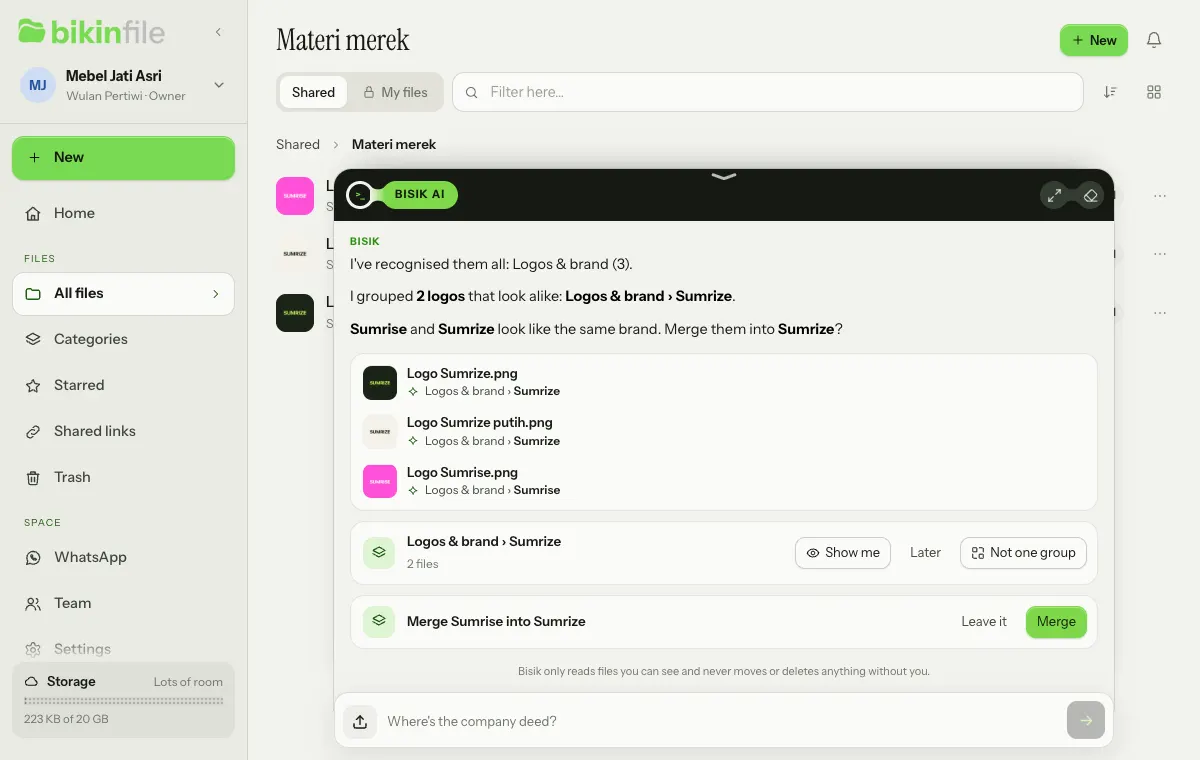
Both can be undone from their card for 24 hours. At most two suggestion cards show in one message, in this order: ID documents to My files, unpacking archives, save to a folder or Tidy up, Read again, names, then groups and merges. The rest show up once as a Bisik message the next time you open Home ("A few suggestions from your earlier upload are still waiting:"), as long as the files are still where they were.
Read again in the file menu uses the same message: Bisik writes "Okay, I'm reading … again", then updates it with the result.
ZIP, RAR and 7z archives
For an archive, Bisik says what's inside, for example "archive.zip holds 13 files (8 images, 3 documents, 2 spreadsheets). Unpack it now?" Choose Unpack, or Leave it.
- The contents go into a new folder named after the archive, next to it, with their folder structure. The archive itself stays.
- ZIP archives are unpacked on the server. Progress shows on the card, and the bell tells you when it's done or failed.
- RAR and 7z archives are unpacked in the browser on your device, then the files inside are uploaded like any other upload. Keep the page open until it's done. Very large archives are best unpacked on a computer, then uploaded as a folder.
- Password-protected archives can't be unpacked yet. Files too big for your plan, or that no longer fit in your storage, are skipped, and the card says how many.
- A ZIP can also be unpacked from its preview: open the archive, look at what's inside, then choose Unpack.
New groupings
Bisik also notes topics from what your files are about, such as a project, company or event. When at least three files are about the same topic but sit in different folders, Bisik tells you in the conversation when you open Home: "I found a new grouping: Renovasi Kantor Cabang. 6 files are about it but sit in different places …"
- Show me opens the list of that topic's files.
- Make a folder moves those files into one folder named after the topic. Files in My files never move into Shared, and the other way round. This button only shows for roles that may organise files.
- Later closes the suggestion. The same suggestion never shows twice.
News about edits, signatures and WhatsApp
Bisik also writes in the conversation about these:
- Image edits: an edit card you pressed is updated in place, from "Editing…" to its result, such as "Enhance photo: saved as Foto progres renovasi 1 (enhanced).jpg.", with small before and after images, Open and Discard result.
- Fully signed documents: once every signer is done, the requester gets the message "Perjanjian Sewa Ruko Bandung (signed).pdf is fully signed and saved." with its file card.
- New files from WhatsApp: the person who turned capture on gets one message at most once an hour, saying how many new files came from WhatsApp and what kinds they are, with their file cards and a Recognise card (or Leave it) for files whose contents haven't been read.
Bisik never acts on its own
Everything that changes files, such as Save to …, Tidy up, Unpack, Move to My files, Read again, Make a folder, Rename and Make names clearer, Merge, Not one group, Create link for a shared collection, Remind me for document expiry dates, Edit for image edits and Move to Trash, is a card you press yourself. Bisik never moves, unpacks, renames, merges, shares, edits or deletes anything on its own. The Open card for signatures only opens the signing page, and the Open WhatsApp settings card only opens Settings › WhatsApp: Bisik never signs, sends a signature request, links a WhatsApp number or turns capture on. When you press a card, the server checks your rights to every file again; files you may not change are left out. The Move to My files card only moves files you uploaded yourself (the space's owner and admins: all of them); the rest stay in Shared and are named in the result. The card then shows the result, and a save-to-folder card offers Open folder.
Files moved to the Trash through a card can still be restored for 30 days.
The owner or an admin can turn off the suggestion cards after uploads and on Home with Bisik suggestions in Settings › Space, name, group and merge suggestions included. The "Hang on, I'm recognising…" message with its results and questions to Bisik keep working.
Read in more detail (owners and admins, from the ⋯ menu of a folder or a Categories node) uses the conversation too: Bisik writes "Okay, I'm reading … files in … again", its card shows the progress and then the result, and a bell tells you when it finishes or stops. See Read in more detail.
Monthly allowances
- Questions to Bisik are counted per month according to your plan: Free is enough to try it, paid plans give more. The allowance is shared by every space in your group. When it's used up, Bisik replies "This month's Bisik allowance is used up." The owner is pointed to Settings › Plan to upgrade (or asked to contact BIKIN while plan sales aren't open); other roles are asked to contact the space owner.
- Files whose contents are read by AI also have a monthly allowance per plan. When it's used up, new files are still recognised from their name and type until the next month, Bisik says so in its message after the upload, and their preview says "Recognised from its name and file type." Choose Read again in the file menu when you'd like Bisik to read one later. Read in more detail uses the same allowance, but stops before the allowance for new files runs out.
- Image edits with Bisik have their own monthly allowance on paid plans, separate from questions to Bisik; see Image editing. The Edit with Bisik chips in the editor don't use your question allowance.
Besides the monthly allowance, there's a daily safety limit. If you ask a very large number of questions in one day, Bisik asks you to try again tomorrow.
Conversation and privacy
Your conversation with Bisik is kept per person in each space, up to the last 300 messages, and only you can see it. To clear it, raise the conversation panel, choose the eraser icon Clear conversation in its head, then confirm with Clear. The button spins until it's done. Your files stay as they are.
To answer, Bisik uses your question, your last few messages and the details of the files it looks up (names, folders, classifications and sizes), never the file contents, except an image you ask it to edit (see Image editing). See the Privacy Policy.
Last updated: