BIKIN FILEFeatures
Categories, type & size
Bisik recognises every file in levels, its category and then its subcategory, down to more specific subcategories such as a brand, the other party or what a photo shows, and gathers similar files into one group. Open each category and subcategory like a folder, manage its subcategories, use clearer name suggestions, ask Bisik to read older files in more detail, see files by file type and size, and find the files that take the most room.
Categories shows every file in your space in three ways, through the Categories, Type and Size tabs. Each category card shows how many files it holds, their total size and their share of all files, plus up to three chips for the top subcategories inside it. Tap the card to open the category like a folder, or tap a chip, such as Logos & brand, to open that subcategory straight away.
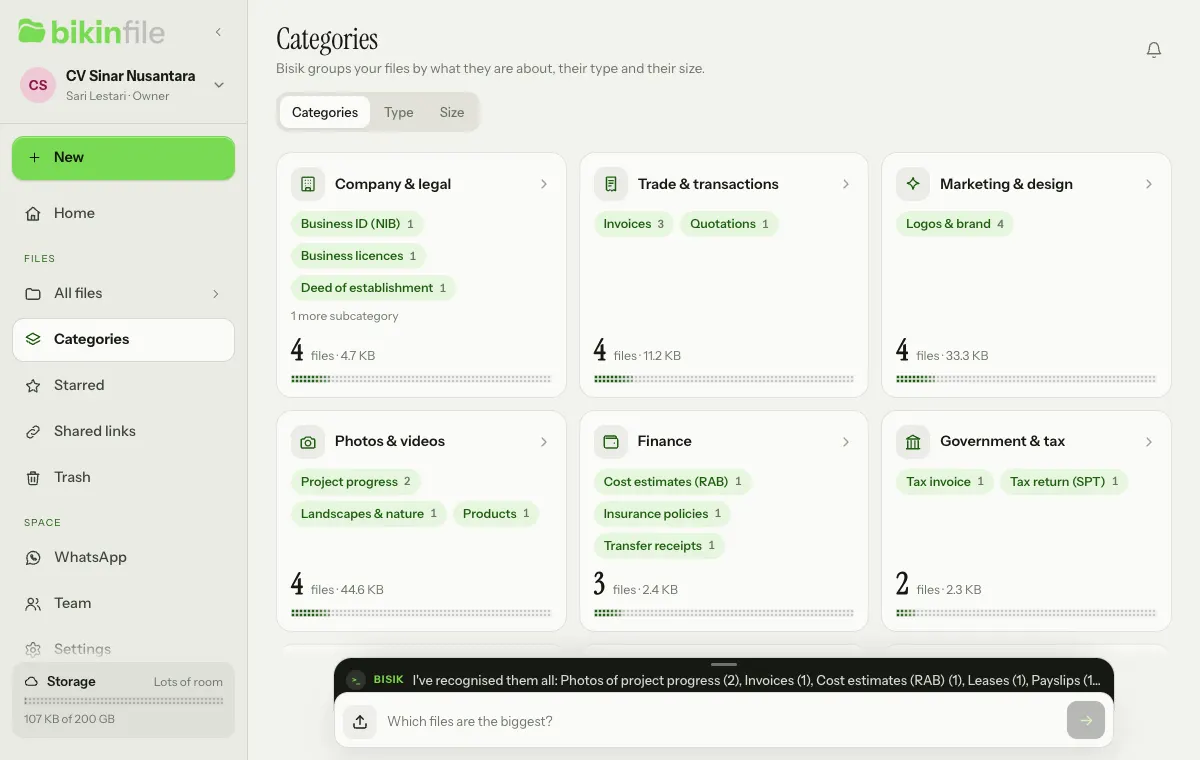
Categories also show on Home in the Recognised by Bisik row, and every file in a list carries its subcategory, such as Logos & brand · Sumrize, or its category when the subcategory isn't known yet.
In levels: category, subcategory, then more specific
Bisik recognises every file in levels. First its category, such as Trade & transactions. Then its subcategory: the kind of document, such as Quotations, Purchase orders or Delivery notes; for photos and videos, what they show, such as Products, Project progress or Landscapes & nature. When there's something more specific, Bisik adds one or two more levels:
- The brand, for logos and brand materials such as catalogues, packaging, menus, brochures and company profiles: Marketing & design › Logos & brand › Sumrize. The brand is read from what's written on the file, or from the file name when its contents aren't read.
- The other party, for trade documents and contracts: Trade & transactions › Invoices › Hotel Seroja. Quotations and invoices you send are grouped by who they're for, invoices and receipts you receive by who issued them. A party shows as its own subcategory from two files; until then its file sits right under the kind, with the party's name in its details line.
- A detail, then the subject, for photos and videos: Photos & videos › Landscapes & nature › Rumput, or Products › Sepatu › Nike.
The result reads Category › Subcategory, down to the deepest level. A file never lands in Other while its kind can be recognised. Labels below the kind are written as they appear in your files, often in Indonesian.
Some files are never split further than their kind: identity documents, health files, CVs, payslips, everything in People & HR, ID photos, selfies and portraits, photos of people and teams, event photos and screenshots. Bisik never guesses who is in a photo from their face, and your own space's name never becomes a subcategory, even when it's written with a salutation, an address or brackets (such as "Attn: Bright Path Ltd, 12 King Street") or only in part, so your own logo and company deed stay right under their kind. For an invoice addressed to your own space, the issuer becomes the subcategory, and the other way round.
Opening categories and subcategories
Tap a category card, a subcategory chip, a chip in the Recognised by Bisik row on Home, or the category and subcategory pills in a file's preview (one pill per level). The category or subcategory opens like a folder:
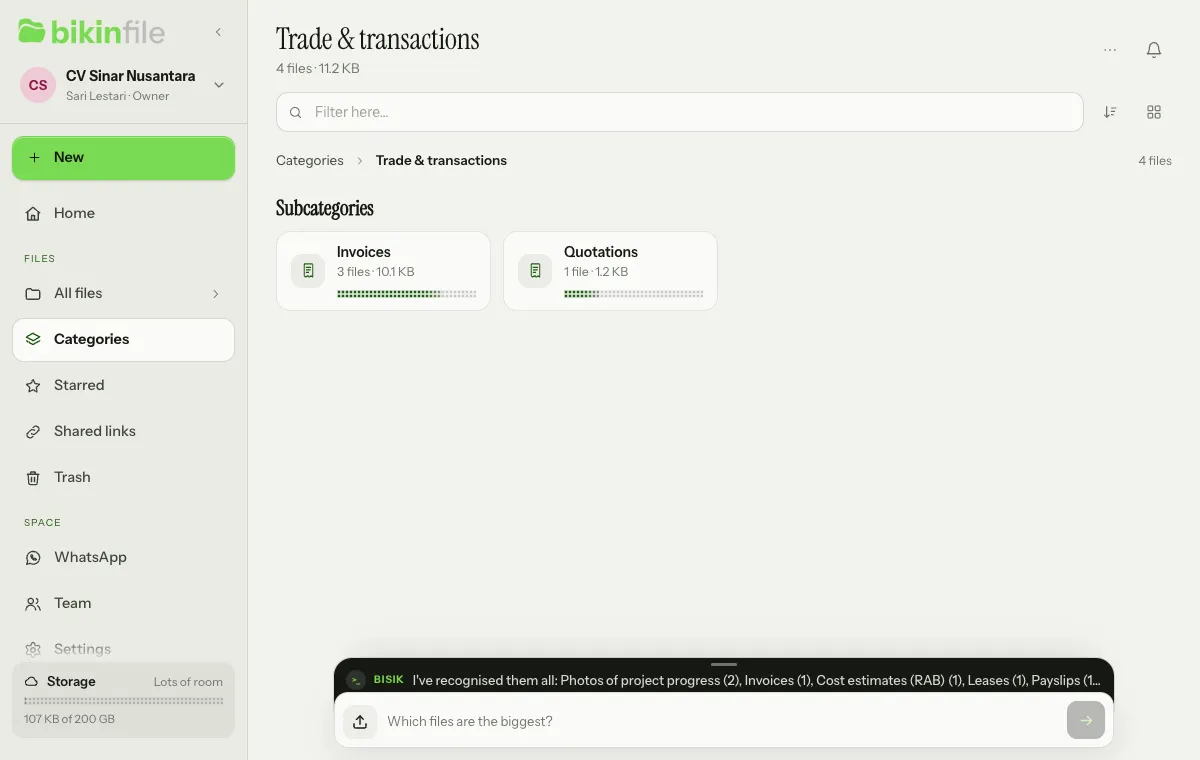
- The path above the list, such as Categories › Marketing & design › Logos & brand › Sumrize, takes you back. When the path is long, its middle folds into …; tap it to pick a level above.
- The filter, sort and list or grid row is the same as in All files.
- The Subcategories section has a card for each subcategory inside, with its number of files, its size and its share of the level above. A subcategory with a single child folds into one card, such as Landscapes & nature › Rumput. On phones the cards sit in two columns; the first six show, and Show all shows the rest.
- Below them are the files directly at that level.
- All of this is only a way of looking: the files stay in their own folders, and each row shows where.
Lists by file type, size group, extension and topic have the same path and filter row too, such as Type › Images, Size › Under 1 MB or Topics › PT Graha Karya.
This page's old address (/konteks) still opens and switches straight to the new one (/kategori), so saved links keep working.
Groups of similar files
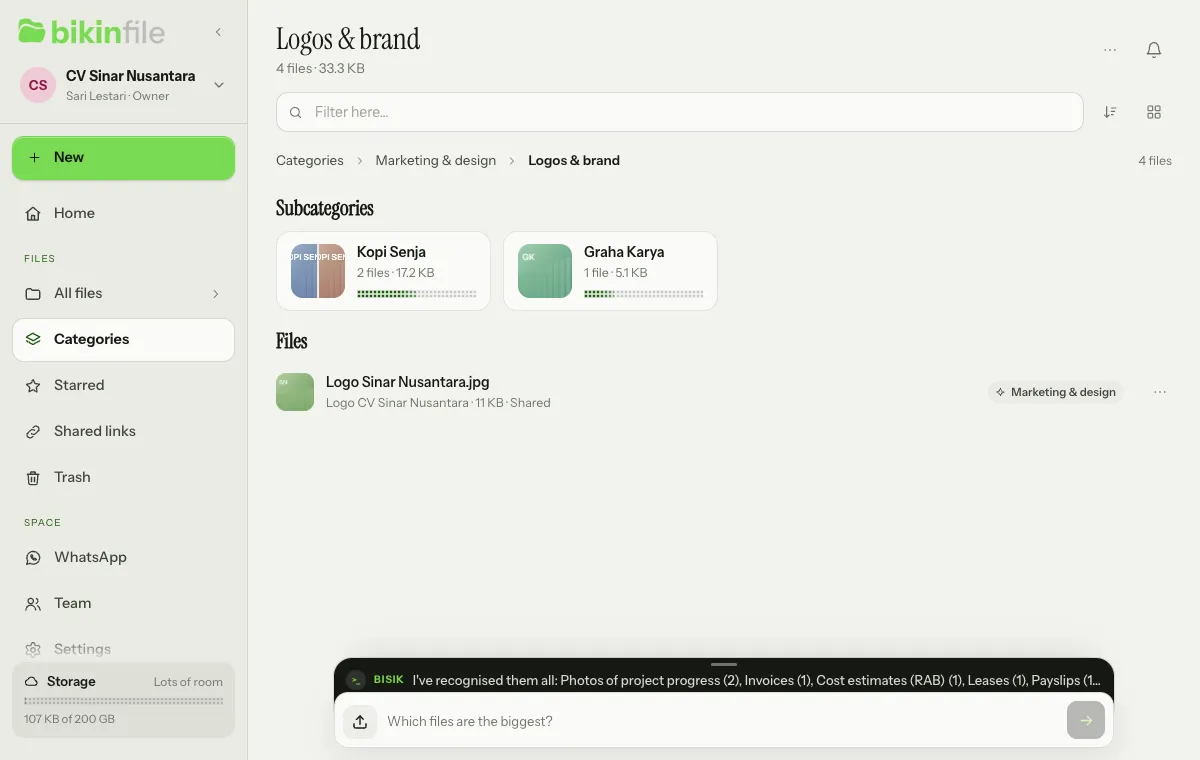
Similar files gather in one subcategory, such as two Sumrize logos in Logos & brand › Sumrize and the BIKIN logo in Logos & brand › BIKIN. Bisik matches the brand, party or photo subject with the subcategories already in the same place, so "SUMRIZE", "Sumrize" and "PT Sumrize Indonesia" become one Sumrize group, and a photo recognised as "grass" joins Rumput. Names that are only alike, such as "Sumrise" and "Sumrize", are never merged on their own: Bisik offers a Merge card after an upload ("Sumrise and Sumrize look like the same brand. Merge them into Sumrize?"), or merge them yourself with Merge into… when they're the same. You can also ask Bisik, for example "merge Sumrise into Sumrize".
The deepest subcategory that holds pictures shows as a mosaic of small thumbnails, so it reads as a group of similar files. Sensitive kinds and photos of people never get a mosaic.
Files in Shared are only grouped with files in Shared; files in My files with files in Shared and your own My files, never with someone else's My files.
After you upload, Bisik's message mentions new groups, such as "I grouped 2 logos that look alike: Logos & brand › Sumrize.", and files that joined an existing group. A newly formed group gets a card with Show me (opens its subcategory), Later and Not one group (the uploaded files leave the group, one level up, and you can undo it from the card), see Bisik in BIKIN FILE.
Managing subcategories
The ⋯ menu in the header of a subcategory below a kind has:
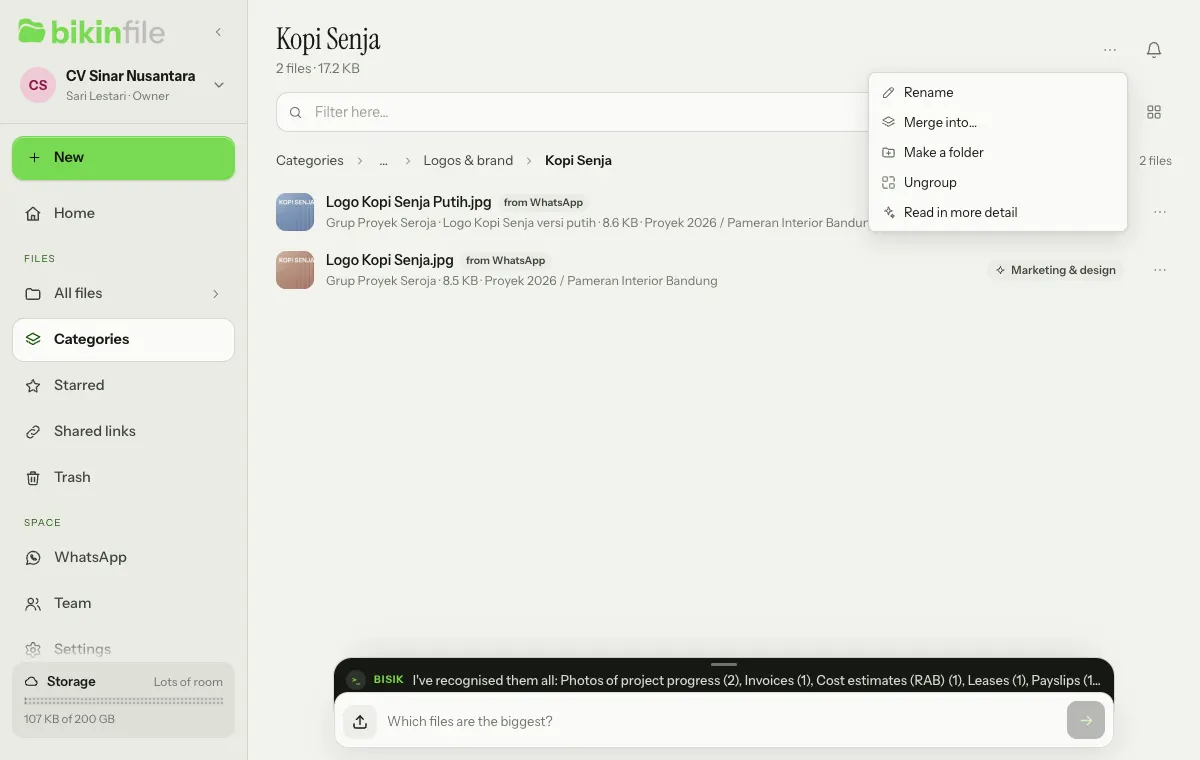
- Rename: the new name shows for everyone in the space (or only for you, for a subcategory in My files). Files don't change.
- Merge into…: pick another subcategory of the same kind. Its contents show as part of the target, and its old address opens the target straight away. For a Shared subcategory, the choices are Shared subcategories with their Shared names only, so the names you use in My files never show to anyone else.
- Make a folder: the files in that subcategory move into a folder with the same name, such as Marketing/Logos & brand/Sumrize, each in its own place. Shared files go to a Shared folder and files in My files to a folder in My files, never across. A very large subcategory moves in parts: the notice says how many files are left, and Make a folder again continues. If some files couldn't be moved, the notice names them with the reason.
- Ungroup: the files in that subcategory go back to the level above.
- Read in more detail (owners and admins): Bisik reads the older files in that subcategory again, see Read in more detail.
- Undo merging and Restore the name, when that subcategory was merged or renamed.
For particular files, select them and tap Subcategory… in the selection bar to Move to a subcategory: pick the category and a subcategory that already exists where the files are (with Shared files selected, Shared subcategories only), or type a new subcategory inside it. Files marked sensitive can't go into a subcategory below their kind. Bisik reading a file again never changes a subcategory you chose yourself, even if you move it while Bisik is still recognising it. Take out takes the selected files out of their group, one level up.
Every change, Make a folder, Undo merging and Restore the name included, can be undone with Undo on its notice for 24 hours: everything it changed goes back to how it was, and folders made by Make a folder are removed again once they're empty. Anything changed again since is left as it is, and the notice names it with the reason. A file's sensitive mark never goes down, not even through Undo. Renames and merges can also be undone from the ⋯ menu at any time. Shared subcategories are managed by owners, admins and members; viewers can only manage the subcategories in their own My files. Bisik never changes a subcategory by itself.
Name suggestions
Names from cameras, apps or scanners, such as IMG_2041.jpg, scan_0001.pdf or WhatsApp Image 2026-11-03 at 10.12.45.jpeg, don't say what's inside. Once Bisik has read the contents, BIKIN FILE puts together a clearer name from the facts it found, with the pattern Kind - Party - Date in the language of the person who uploaded the file (in Indonesian when someone else has it read again, for example with Read in more detail):
- trade documents and contracts: Invoice INV-2611-003 - Hotel Seroja - 2026-11-03.pdf (a document number only when it's already in the old name);
- company documents: Deed of establishment - CV Sinar Nusantara.pdf;
- periodic documents: Tax return - 2025.pdf, Bank statement - 2026-10.pdf;
- logos and brand materials: Logo - Kopi Senja.png;
- photos: Landscape photo - Rumput - 2026-11-03 10.12.jpg; the camera date and time from the old name keep a burst of photos in order;
- sensitive documents, everything about staff, and photos of people: without anyone's name, such as Payslip - 2026-10.pdf or Event photo - 2026-11-03 10.12.jpg.
A name never changes on its own. Suggestions show in three places: the Suggested name row in the preview of a file whose name isn't clear (Use this name, or × to leave it), a suggestion chip in Rename (also for names that are already clear; the chip only adds facts that are missing, such as the date or the kind, and never drops a word), and Bisik's cards after an upload (Rename for one file, Make names clearer with a list of old and new names for several files). The file extension always stays, every number in the new name comes from a date written in the file, from the old name, from an existing subcategory name (such as "Hotel 88") or from a name you typed to Bisik yourself, identity numbers are masked, and a name that's already used in that folder gets a number. Every rename from a suggestion can be undone: from the preview or Rename with Undo in the notice that appears right after, and from Bisik's card for 7 days. Undo only puts the name back; a file renamed again or moved between Shared and My files since is left as it is and named with the reason. A name suggestion is cleared when its file moves between Shared and My files, so names from your personal subcategories never reach Shared.
Name suggestions only show to people who may change that file, and they don't show when Bisik suggestions is off in Settings › Space. Recognition can be wrong, so check before you use one.
Read in more detail
Files uploaded before Bisik knew the more specific subcategories, or that were only recognised from their name back then, can be read again. Owners and admins choose Read in more detail in the ⋯ menu of a folder (also in the folder tree) or in the ⋯ menu in the header of a category or subcategory.
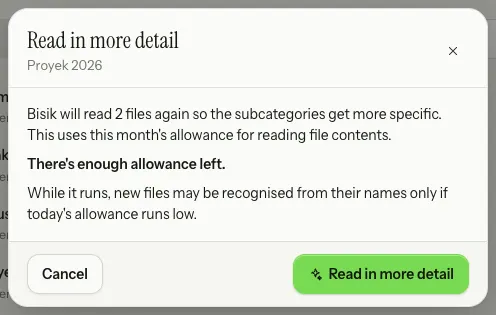
The sheet says how many files will be read and the state of the allowance in words: There's enough allowance left, or The allowance only covers part of it (Bisik stops before the allowance for new files runs out, and the rest can be continued afterwards). When this month's allowance is used up for Read in more detail, the sheet only says so, when the allowance comes back and how to upgrade your plan; when Bisik has already read a lot of files in your space today, it asks you to try again tomorrow. Only one Read in more detail runs in a space at a time. Only files not yet read by the latest recogniser whose contents can be read are read again; sensitive files, files that are never split below their kind, and files whose subcategory you chose yourself are skipped. Progress shows on Bisik's card, and a bell tells you when it finishes or stops. If not everything was read, the card says how many are left; run Read in more detail again to continue, and files already done are skipped. File names never change, only their subcategories and name suggestions.
The categories
| Category | Subcategories (kinds of documents or photo subjects), among others | Bisik's folder suggestion |
|---|---|---|
| Identity (sensitive) | ID card (KTP), Family card, Driving licence, Passport & visa, Personal tax ID, Birth certificate, Marriage certificate, Health insurance card, Stay permit, Police certificate, ID photo | Identity, best kept in My files |
| Company & legal | Deed of establishment, Deed of amendment, Ministry approval (AHU), Business ID (NIB), Company tax ID, Business licences, Domicile letter, Product permits, Trademarks & IP, Shareholder resolutions, VAT registration, Org chart, Legal notices | Company |
| Government & tax | Tax return (SPT), Withholding slip, Tax invoice, e-Faktur import file, Tax payment receipt, Tax office letters, Property tax bill, Social security reports, Government letters | Tax & government |
| Trade & transactions | Quotations, Purchase orders, Work orders (SPK), Proforma invoices, Invoices, Receipts (kwitansi), Sales notes, Till receipts, Delivery notes, Shipping receipts, Handover reports (BAST), Price lists, Orders, Returns & credit notes, Stock & inventory, Sales reports, Tender documents | Trade |
| Finance | Bank statements, Transfer receipts, Financial statements, Balance sheets, Profit & loss, Cash flow & cash books, Journals & ledgers, Budgets, Cost estimates (RAB), Utility bills, Insurance policies, Loans, Cheques | Finance |
| Contracts | Contracts, MoUs, NDAs, Leases, Amendments, Powers of attorney, Statements | Contracts |
| People & HR | CVs & applications, Employment contracts, Payslips, Attendance & overtime, HR letters, Leave requests, Performance reviews, Staff records | People |
| Property & vehicles | Land titles, Property sale deeds, Building permits, Floor plans & drawings, Vehicle registration, Vehicle ownership book, Vehicle inspection, Warranties, Manuals & specs, Asset registers | Property & assets |
| Education & certificates | Diplomas, Transcripts & report cards, Certificates, Training materials | Education |
| Health (sensitive) | Lab results, Prescriptions, Doctor's notes, Medical records, Medical check-ups, Vaccinations, Hospital bills | Health |
| Marketing & design | Logos & brand, Print designs, Social media posts, Product catalogues, Company profiles, Menus, Packaging & labels, Letterheads & business cards, Designs & mockups | Marketing |
| Photos & videos (photo subjects) | Products, Food & drinks, Events, Places & buildings, Project progress, People & teams, Selfies & portraits, Landscapes & nature, Vehicles, Goods & deliveries, Damage & evidence, Screenshots | Photos & videos |
| Work documents | Minutes, Reports, Proposals, Presentations, SOPs & guidelines, Terms of reference & briefs, Letters, Schedules & plans, Notes, Forms & templates, Attendance lists, Recordings | Work documents |
| Other | Not clear yet | No folder suggestion |
The subcategory becomes a subfolder of the suggestion, so Bisik offers, for example, Save to Trade/Quotations, or Tidy up into Trade/Invoices and Photos & videos/Products, see Bisik in BIKIN FILE. When you already keep files of that kind in a folder, or a category folder with that name exists, Bisik uses the folder you have.
Files marked sensitive, such as identity and health documents, CVs and payslips, are handled with extra care: their preview reminds you they hold personal data, and connected apps never read their titles, summaries or subcategories. More specific subcategories, such as a brand or the other party, are never made for identity, health, CV, payslip and HR files either.
How Bisik recognises files
Bisik recognises every file in two layers:
- From its name, as soon as the file is uploaded. Words such as "ktp", "akta", "invoice", "penawaran" or "SPH" in a file name, also when they're written together like "PenawaranHarga", its extension and the name of the folder it's saved in are enough to set its category and subcategory. This layer always runs, also when the allowance of files read by AI is used up.
- From its contents, when Bisik reads file contents is on in Settings › Space and there's monthly allowance left. Bisik only reads what it needs: a small preview image of photos and videos to recognise what they show, the first two pages of a PDF, the title and letterhead of Word documents, sheet names and the start of Excel files, the first few PowerPoint slides, the text of older Word, Excel and PowerPoint files and RTF, the start of text and CSV files, and the names inside an archive. Audio, design files and videos without a preview image are recognised from their name only.
When Bisik isn't sure about the contents, the result from the name stays. The final result: a category, a subcategory (kind of document or photo subject, then a brand, the other party or a photo detail where there is one), a clear title, a one-line summary and up to four topics. The subcategory names already in your space are matched on BIKIN's server and never sent to AI. Identity numbers such as ID card, tax ID and bank account numbers are masked before anything is saved, and the text read from the file isn't kept.
Is the result wrong, or was a file only recognised from its name? Choose Read again in the file menu; Bisik writes the new result in the conversation. The owner or an admin can turn off Bisik reads file contents; files are then recognised from their name and type only, and none of their contents are sent to AI.
Type
The Type tab groups files by file type, not by kind of document: Documents, Spreadsheets, Presentations, Images, Videos, Audio, Archives, Design files, Code & data and Other. Below them, Most common extensions lists the extensions used most in your space, such as .pdf or .jpg; tap one to see its files.
Size
The Size tab groups files into Under 1 MB, 1–10 MB, 10–100 MB, 100 MB–1 GB and Over 1 GB. Only groups that hold files are shown. Below them is Largest files, with each file's location and upload date.
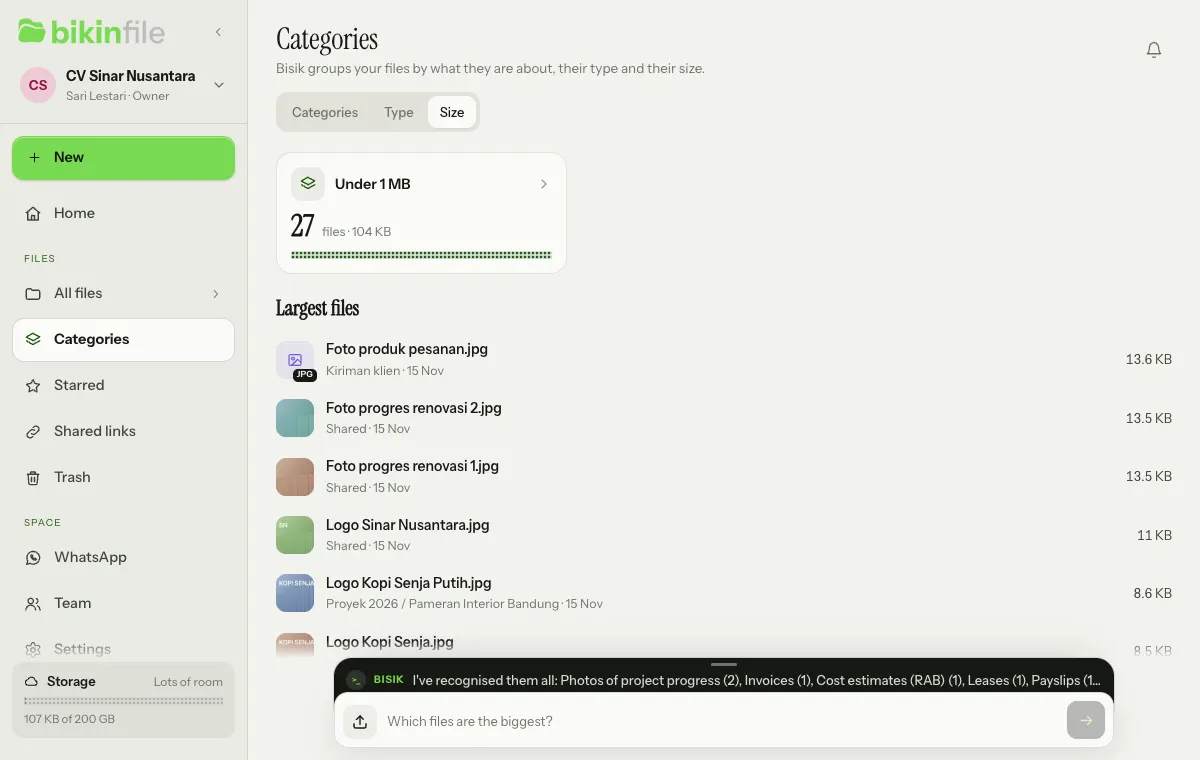
Storage filling up? Start here, because the largest files usually free the most room. Remember that files in the Trash still count until they're deleted for good.
Topics
Besides the category and subcategory, Bisik notes up to four topics for every file, such as a project, company, person or event. Tap a topic in a file's preview to see every file about it. When a topic comes up in several files spread over different folders, Bisik offers it as a new grouping, see Bisik in BIKIN FILE.
Last updated: