BIKIN FILEAccount & plan
Plan & account
BIKIN FILE plans with storage capacity in GB and the features on each plan, what happens when storage is full, how to choose and pay for a plan, coupons, renewals, what happens when a plan ends, referrals, security, and how to close the account.
Plans
One plan covers every space in a group, and the main space holds it. New spaces start on the free plan, with no end date.
Plans differ in storage (counted across all spaces), the size of one file, the number of spaces, team members per space, the monthly allowance of Bisik questions and files read by AI, the monthly allowance of image edits with Bisik, and emails per day, and in the features Share links with a password and an expiry date, Folder links that accept uploads, Share pages without the BIKIN FILE mark, the BIKIN AI and SIGHT connector, the Daily email summary of document expiry reminders and saving files from WhatsApp. Bisik, uploading files and folders, automatic classification, unpacking archives, the Trash, share links, shared collections, expiry reminders through the bell, push and Bisik, quick image edits, and signing yourself and asking space members to sign are on every plan.
Folder links that accept uploads (see Allow uploads) are only on paid plans that include them; on other plans, the Allow uploads switch in the Share window carries an Upgrade badge. The upload limit is set per link, and the limits of all upload links add up to at most half of the group's storage left.
The Daily email summary of document expiry reminders (see Document expiry dates) is also only on plans that include it: one email a day with new reminders, when you turn it on in Settings › Notifications. Reminders through the bell, push and Bisik are on every plan.
Edit with Bisik (see Image editing) is on paid plans, with a monthly allowance given in words: more on Starter, the most on Premium. Quick edits in the browser (crop, rotate, light, size and format) are on every plan.
Save files from WhatsApp (see Files from WhatsApp) is on the Starter and Premium plans. On other plans, the WhatsApp page says WhatsApp isn't part of your plan.
Signing yourself and asking space members to sign (see Signatures) are on every plan.
Storage capacity is written in GB (TB from 1,000 GB up). Right now the Free plan holds 20 GB, Starter 200 GB and Premium 1 TB. Your space's use shows as, for example, 1.2 GB of 20 GB on the Storage card at the bottom of the sidebar, on Home and in Settings › Plan, and every plan on the Choose a plan card gives its capacity, such as Storage: 200 GB or Storage: 1 TB. Its state is still said in words: Lots of room, Plenty left, Filling up, Almost full or Full.
Other limits are written in words, never numbers: features are marked Included or Not included, and on the plan cards limits read Standard, Roomier, The roomiest or Unlimited.
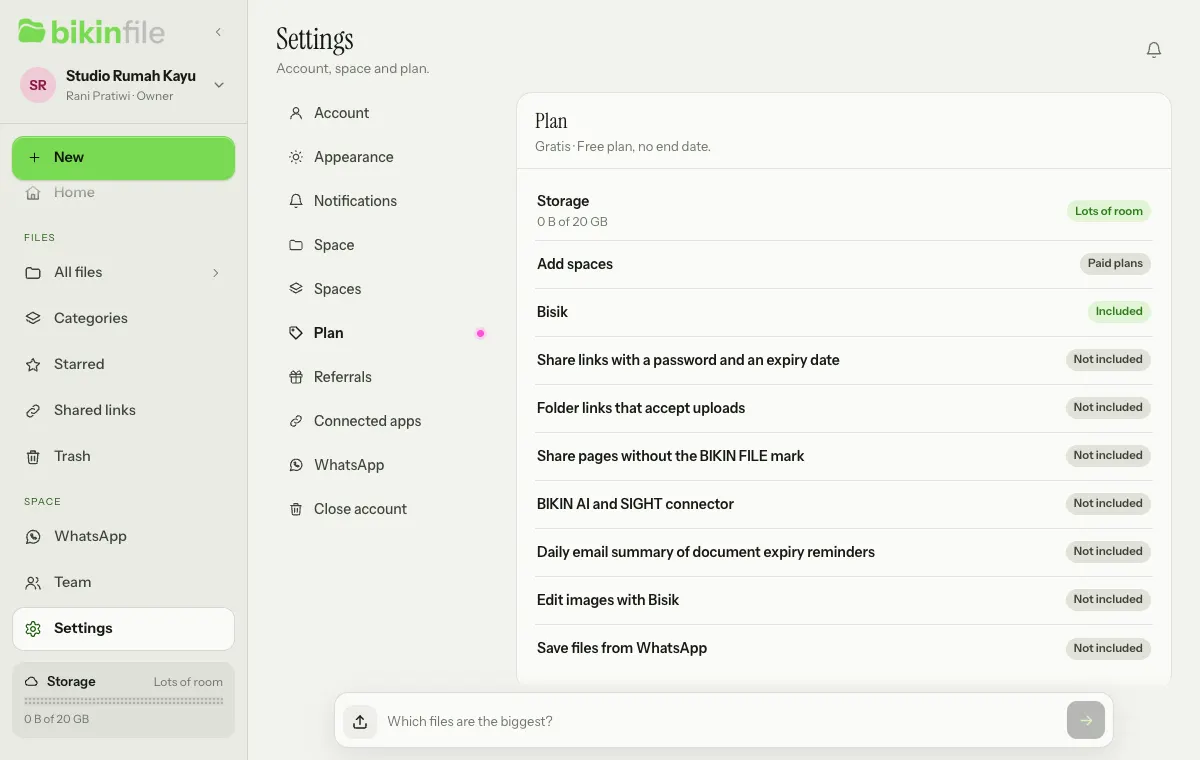
Seeing your plan
Open Settings › Plan, or tap the Storage card at the bottom of the sidebar.
- The owner of the main space sees the Plan card (the active plan and until when it runs, storage used against the plan's capacity, and features), the Choose a plan card and the list of Bills, also while viewing an added space.
- Owners of added spaces and other roles see storage used against the plan's capacity, and features in words. To upgrade, ask the space owner; in an added space, the owner of the main space.
Features your plan doesn't include still show, with a lock or a magenta Upgrade pill, such as Password and Valid until in the Share window and the collection sheet, and Add a space. The WhatsApp menu also stays in the sidebar for owners and admins: its page says WhatsApp isn't part of your plan, with a See plans button to Settings › Plan for the owner, while other roles are asked to contact the space owner to upgrade. While plans can't be bought in the app yet, the sentence asks you to contact BIKIN to upgrade.
When storage is full
Storage is counted across every space in the group, files in the Trash included. An upload that no longer fits is refused with a message that gives your plan's capacity, such as "Your space's storage (20 GB) is full. Empty the Trash or delete files you don't need." The same message shows when Use sample data no longer fits.
The owner and admins of the main space also get a notification when storage is almost full and when it's full, starting with how much is used, such as "16.4 GB of 20 GB used.", see Notifications. To make room, empty the Trash, delete files you don't need, or choose a roomier plan. A plan with unlimited storage never fills up.
Choosing and paying for a plan
The Choose a plan card shows while plan sales are open. Each plan gives its price for the chosen period, its storage in GB or TB, its other limits in words, and its features.
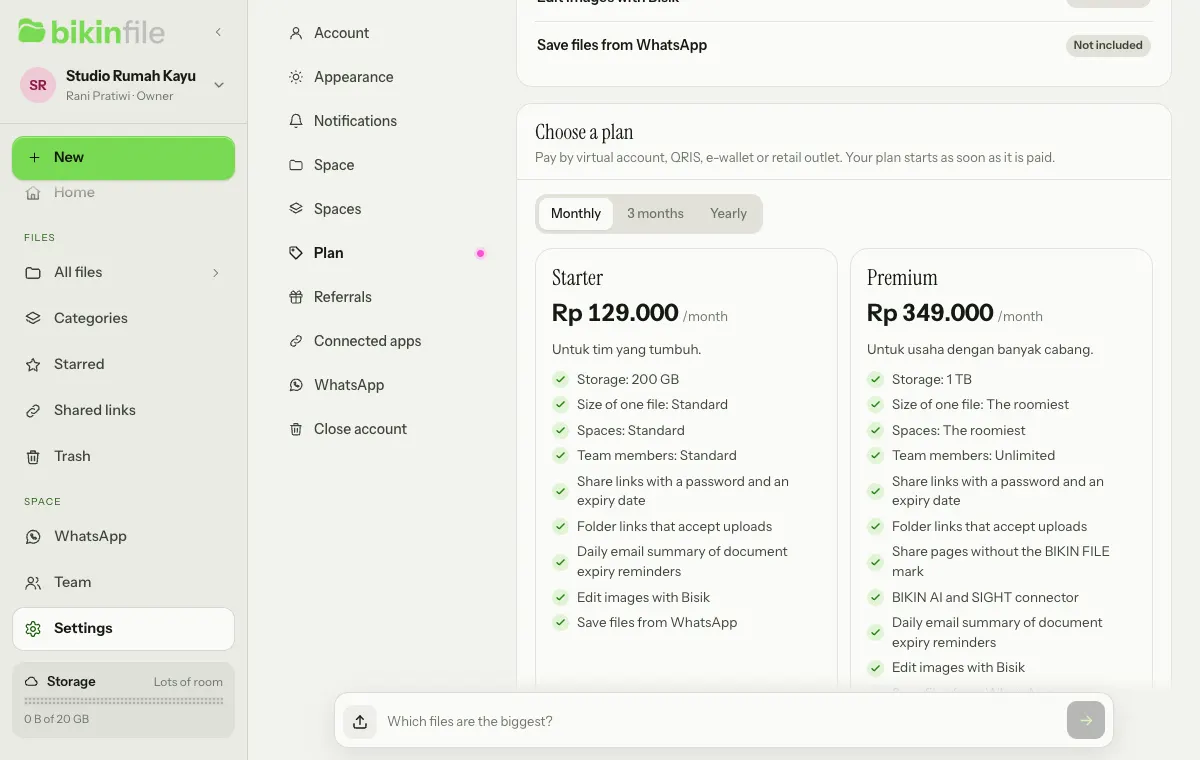
- Pick a period: Monthly, 3 months or Yearly.
- Choose Choose on the plan you want, or Renew for the same plan.
- In the plan sheet, enter a Coupon code if you have one, then Apply.
- Check the active dates and total, then choose Pay Rp ….
- You're taken to an online payment page. Pay with one of the methods offered there, such as virtual account, QRIS, e-wallet or a retail outlet.
- After paying you come back to BIKIN FILE. The plan starts as soon as the payment arrives.
If you switch plans before your current plan ends, the days left become extra days on the new plan. Days left on a free referral trial don't become extra days; after your first payment, the days left count as usual. Renewing the same plan continues after the last day of your current plan. Coupons aren't combined with a referral discount; the bigger one applies.
If plan sales aren't open, the Plan page invites you to contact BIKIN to upgrade, such as "Need more than 20 GB or other features? Contact BIKIN to upgrade: support@bikin.studio."
Bills and renewals
The Bills card lists every plan bill with its state: Waiting for payment, Paid, Expired or Cancelled. A bill that's waiting can be paid (Pay) or cancelled (Cancel) from there. On a paid plan, turn on Send a renewal bill before the plan ends in the Plan card so the owner gets a renewal bill by email before the plan runs out. Turning it off cancels a renewal bill that's still waiting for payment.
When a paid plan ends
If a paid plan ends and isn't renewed, the space goes back to the free plan:
- No files are deleted.
- If the storage in use is more than the free plan includes, new uploads pause until usage drops or the plan is renewed.
- Added spaces beyond the free plan's limit become read-only until the plan is renewed.
- Features outside the free plan stop; for example, the BIKIN FILE mark shows again on share pages, folder links stop accepting files (their pill reads Stopped: plan ended, and their settings are kept), connected apps stop reading, image edits with Bisik can't be used any more, and file capture from WhatsApp pauses (the number stays linked).
Referrals
When BIKIN has the referral program open, the owner of the main space sees Settings › Referrals, also while viewing an added space. When the program is closed, the page says so.
- Share your invite link from the Invite others card. Spaces that sign up through your link count as your invites and may get a free trial plan or a discount, as shown on the Referrals page.
- Each time an invited space pays for a plan, you may earn a commission to the Balance in the Commission card. New commission is held for a few days before it can be withdrawn.
- Once the balance is high enough, choose Withdraw, fill in the Amount and Bank account, then Send. The BIKIN team checks the request and transfers it by hand. Its state shows on the same page: processing, paid or rejected.
- The Your invites list shows each invited space by a short name and whether it subscribes, never its email.
Security
- Every sign-in uses your password and then a code from your email, unless you sign in with Google. The code works for 10 minutes.
- Important actions, such as deleting for good, emptying the Trash, changing roles, adding or removing spaces, linking or unlinking a WhatsApp number, turning on file capture, deleting a signature record and closing the account, ask for a code from your email. See Team & roles.
- Every signature uses an email code just for that document, valid for 10 minutes. See Signatures.
- Changing your password signs you out on other devices.
- The BIKIN team doesn't open the files in your space; our console only shows the space name, accounts, the number of files and storage use. For an upload link that's been reported, the BIKIN team can look the link up by its code, see what its send-files page shows, then stop its uploads or remove the link; both are recorded in the space's log.
Closing the account
The owner can close the account in Settings › Close account (in the main space) by typing the space name, choosing Close account, confirming, then entering an email code. While there's still referral commission that hasn't been withdrawn, or a payout is still being processed, the account can't be closed yet: withdraw the rest in Settings › Referrals first and wait for the payout to finish. If what's left can't be withdrawn yet (for example it's still on hold or below the minimum), contact BIKIN.
Every file with its contents, folder, share link and its short link, Bisik conversation, signature record (its Check a document page stops too), the linked WhatsApp number with its file capture settings, and team member is deleted right away, including the other spaces in the group, and connected apps stop. Backup copies in our storage are gone within 30 days. This can't be undone, so download the files you need first. Bills still waiting for payment are cancelled. Plan bills and referral commission records are kept as payment records.
Questions about privacy and data can go to contact@bikin.studio.
Last updated: