BIKIN FILEAccount & plan
Spaces & settings
The sections of BIKIN FILE Settings, the space name and how Bisik works, several spaces with Add a space, switching spaces, WhatsApp, your account, password, appearance and the profile menu.
Open Settings in the sidebar menu. The sections you see follow your role.
| Section | What's inside | Who |
|---|---|---|
| Account | Name, password, Google account and getting started | Everyone |
| Appearance | Theme, language and installing the app | Everyone |
| Notifications | Email and push per event, see Notifications | Everyone |
| Space | The space name and how Bisik works | Owner and admins |
| Spaces | Every space in the group and Add a space | Owner of the main space |
| Plan | The plan, storage use in GB and features, see Plan & account | Everyone; the owner also chooses the plan |
| Referrals | Invite link and commission | Owner |
| Connected apps | BIKIN AI and BIKIN SIGHT connections, see Connected apps | Owner and admins |
| The space's WhatsApp number and file capture, see Files from WhatsApp | Owner; admins can only look | |
| Close account | Deletes the space with all its files | Owner, in the main space |
Space
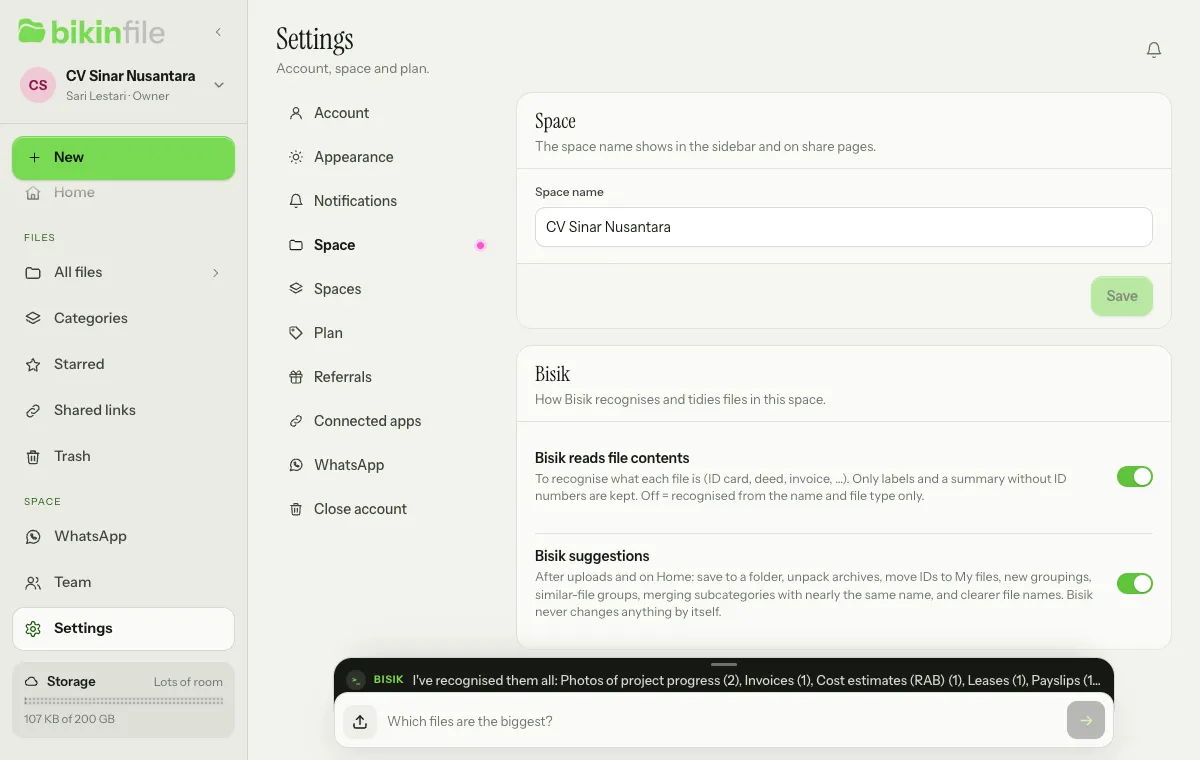
- Space name shows in the sidebar and on share pages. Change it, then choose Save.
- Bisik reads file contents: on = Bisik reads part of each file once to recognise what it is (ID card, deed, invoice and so on). Only labels and a summary without ID numbers are kept. Off = files are recognised from their name and type only, and none of their contents are sent to AI.
- Bisik suggestions: on = Bisik adds suggestion cards after uploads and on Home, such as saving to a folder, unpacking archives, moving IDs to My files, new groupings, groups of similar files, merging subcategories with nearly the same name, and clearer file names (also the Suggested name row in the preview and the suggestion chip in Rename). Bisik never changes anything by itself. Off = no suggestion cards and no name suggestions; the message after an upload still says what Bisik recognised, and questions to Bisik keep working.
Several spaces
On a paid plan, the owner can run several spaces on one plan, for example a business space, a branch space and a space just for themselves. Each space has its own files, folders and team; storage, plan limits and the Bisik allowance count across all of them.
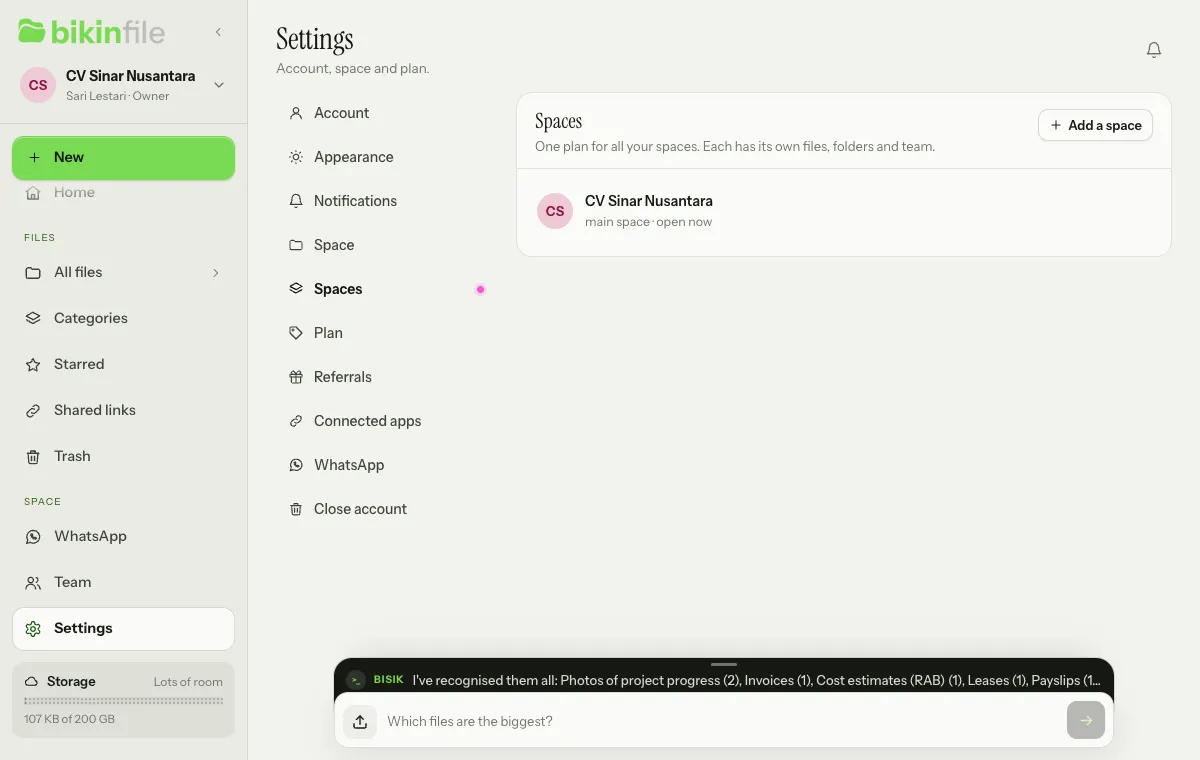
- Add a space. Tap the space card at the top of the sidebar, then Add a space, or open Settings › Spaces. Enter the Space name, choose Add space, then enter the email code. The new space opens right away. The Free plan has room for one space only, so the button carries an Upgrade badge.
- Switch space. The space card at the top of the sidebar lists every space; tap one. Each device remembers the space you opened last.
- Who can open them. The owner of the main space (the first one) opens every space. Team members only open the space they were invited to.
- Remove a space. In Settings › Spaces, choose the bin icon on an added space, type its name, choose Remove space, then enter the email code. All of that space's files, folders, share links and team are deleted for good; your plan and other spaces stay as they are. The main space can't be removed here; Close account in the main space closes every space.
If a paid plan ends, added spaces beyond the free plan's limit become read-only until the plan is renewed.
The WhatsApp section shows for the owner and admins. The owner links the space's WhatsApp number on the WhatsApp number card, then sets up the Save files from WhatsApp card: the Save files switch, the sources under From, Type, Save to and A subfolder per source. Linking the number and turning capture on ask for a code from your email. Admins see the number's state and the settings without being able to change them. File capture is on paid plans; how it works is in Files from WhatsApp.
Account
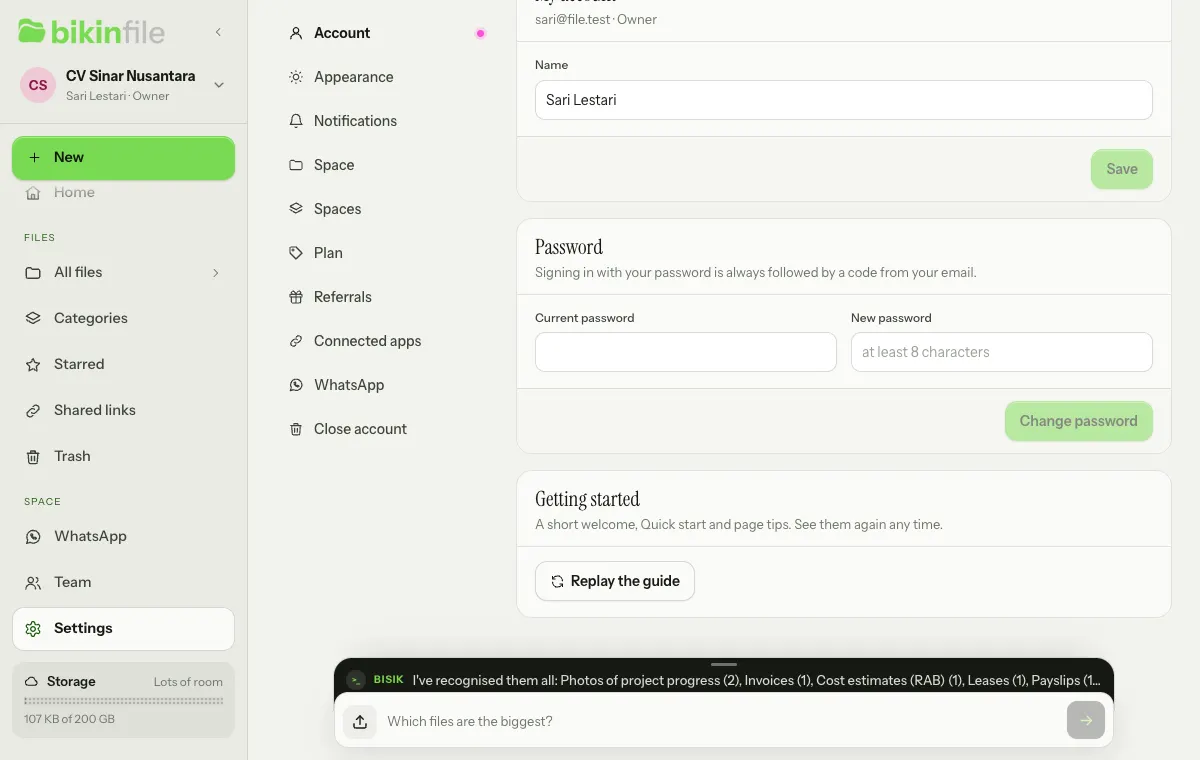
- My account: change your Name, then Save.
- Password: fill in Current password and New password (at least 8 characters), then Change password. Other devices are signed out right away. Accounts made with Google can use Set a password, with a code from your email.
- Google account: Link Google account for any Google account, even with a different email, then sign in without typing a password. Needs a code from your email. This card shows when Google sign-in is available.
- Getting started: Replay the guide, Show Quick start if you hid the list, and Remove sample data while there is some.
Profile photo
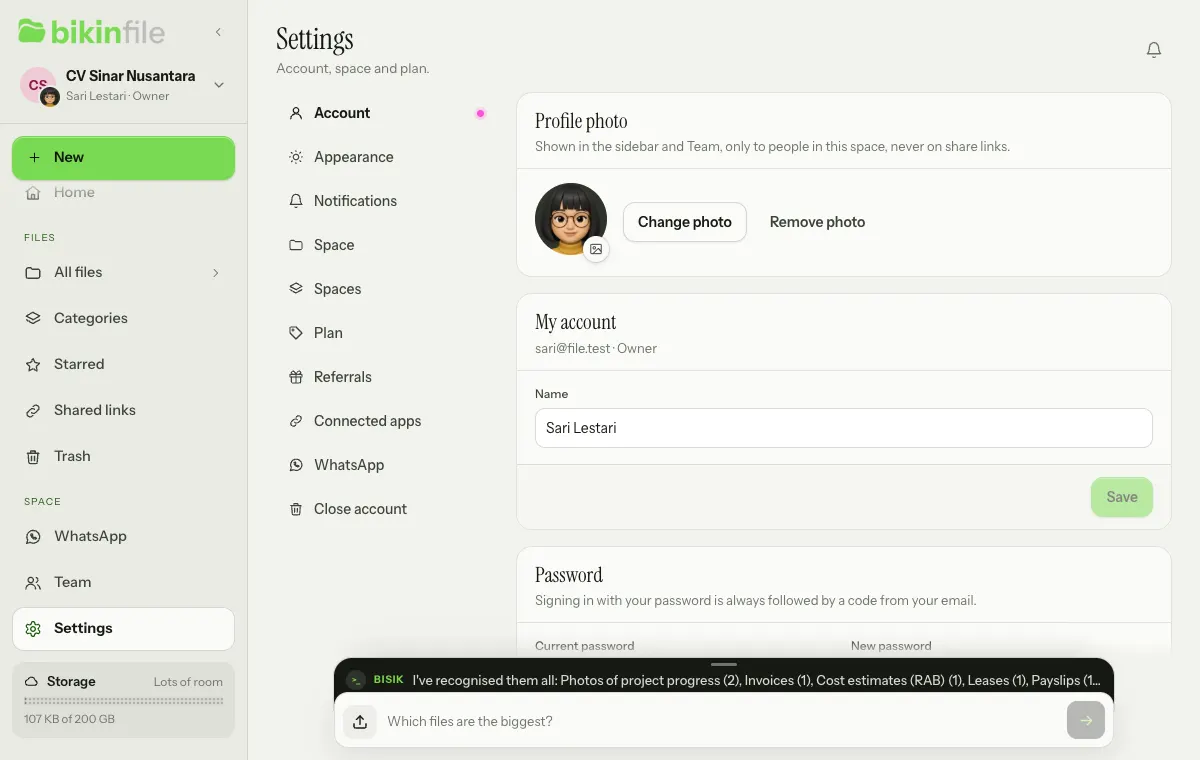
The Profile photo card in Settings › Account shows your photo as a small badge on the space avatar at the top of the sidebar and on the Team page. Choose Upload photo (or drag an image onto the card), then a JPG, PNG or WebP image; in Adjust your photo, drag the photo and use the slider to zoom, then choose Save photo. It's cropped square and shrunk on your device before upload. Change photo uses another image, and Remove photo goes back to your initials. An image dragged onto this card only becomes your profile photo; it isn't saved to the space's files. Only people in this space see your photo, it never appears on share links, and it's deleted when you're switched off or your account is deleted.
Appearance and the profile menu
In Settings › Appearance, pick the Light or Dark theme (it follows your device by default) and the language (Indonesian by default), or Install app to open BIKIN FILE from your home screen.
Tap the space card at the top of the sidebar to open the profile menu: your spaces and Add a space, My account, Help guide, Other apps, Theme, Language and Sign out.
Last updated: