BIKIN WARUNGFeatures
Send receipts and tab reminders on WhatsApp, straight from your business WhatsApp number or through WhatsApp on this device, only to saved customers.
BIKIN WARUNG can send receipts to customers and tab reminders on WhatsApp, in two ways:
- Straight from your business WhatsApp number. The owner connects the business number once, like WhatsApp Web. From then on receipts and reminders go out by themselves through a queue, without opening WhatsApp. This is on paid plans.
- Through WhatsApp on this device. Without a connected number, the same button opens WhatsApp on the phone or laptop you're using, with the message ready; you just press send. This is on every plan.
The WhatsApp menu in the sidebar is always there for owners, admins, managers and cashiers, even before the number is connected or before your plan includes it. It shows the state of your business number, how receipts and reminders work on WhatsApp, and the customers you can remind.
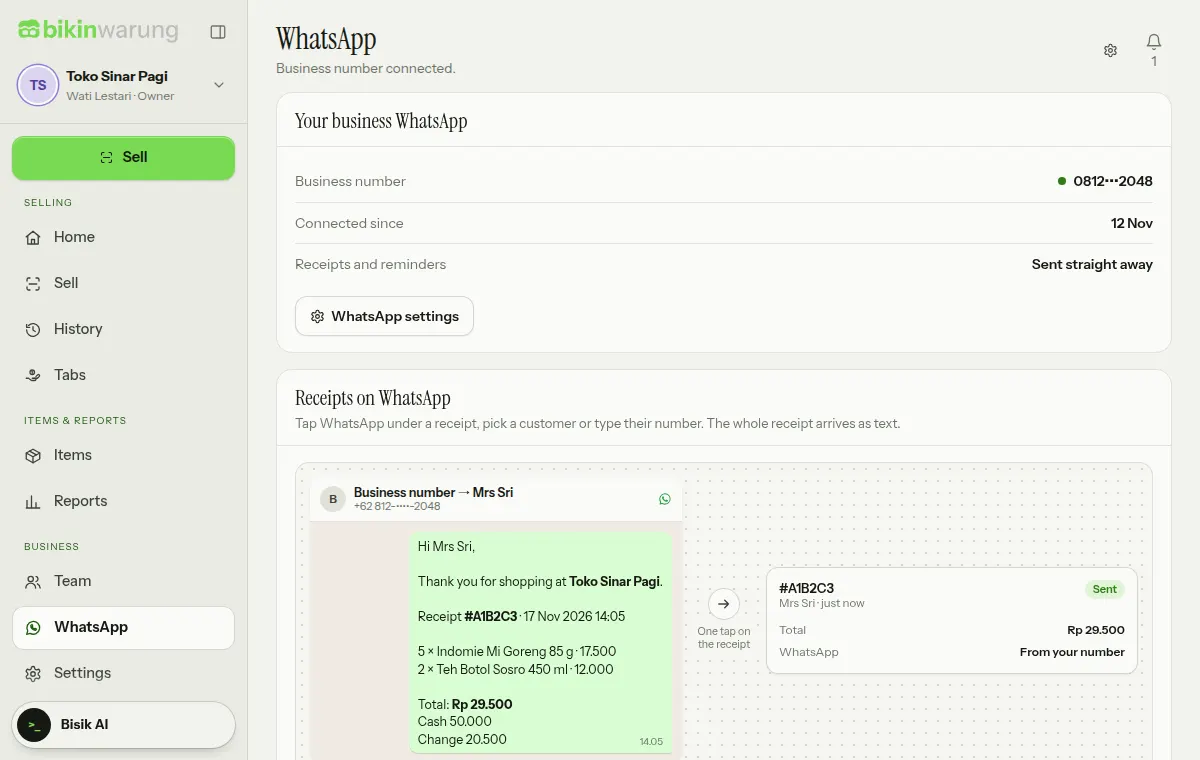
While the number isn't connected, the top card says WhatsApp isn't connected yet, and the owner sees a Connect WhatsApp button. If your plan doesn't include it yet, it says WhatsApp isn't part of your plan, and the owner sees See plans when plans can be bought in the app. Other roles see who can connect it or upgrade the plan.
Connecting your business number
Only the owner connects the number, with a code from their email:
- Open Settings › WhatsApp and choose Connect a number on the Your business WhatsApp card.
- Read Before you connect, then choose Show the QR.
- On the business phone, open WhatsApp › Linked devices › Link a device, then scan the QR. Without a camera, choose Use a code, enter the business WhatsApp number, choose Get a code, then type the code into the phone.
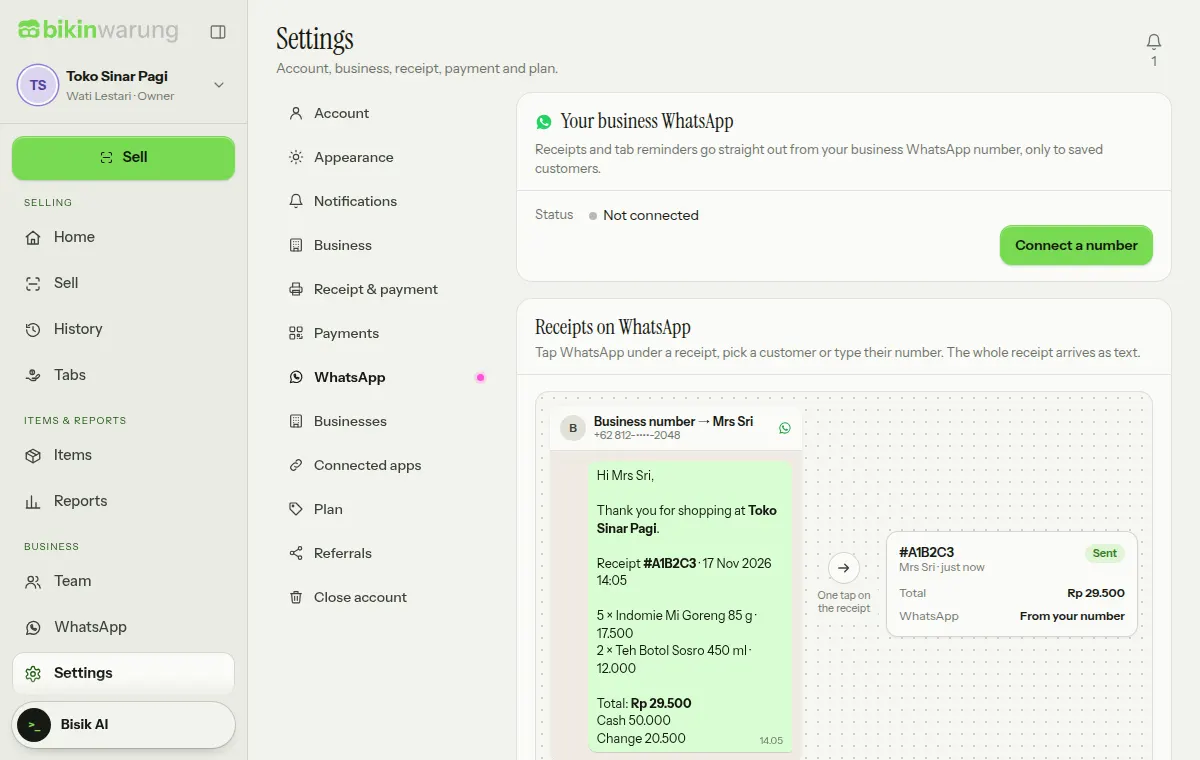
The Your business WhatsApp card then shows the status, the number and when it was connected. Use the business number, not a personal one, and keep the phone with that number switched on and online. The same number may also be connected in other BIKIN apps, but in BIKIN WARUNG one number belongs to one business. Admins see the state of the number, and the owner can choose Disconnect at any time.
Messages go out slowly and only to your customers, so your number isn't taken for spam. If WhatsApp restricts the number anyway, sending is put on hold for a while and the card says until when.
Sending a receipt
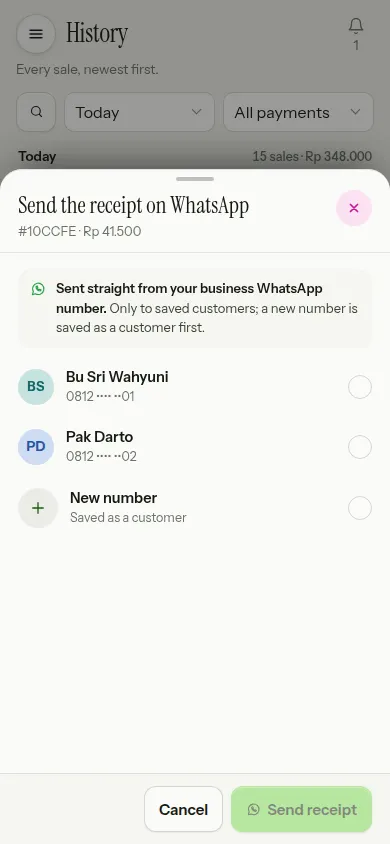
- After payment, or from a sale's details in History, choose WhatsApp under the receipt, next to Print and Share.
- On the Send the receipt on WhatsApp sheet, pick a customer whose number is saved. The customer on that sale's tab comes first, and a search box appears when there are many customers.
- Customer not there yet? Choose New number, then fill in WhatsApp number and Name (optional). The number is saved as a customer under Tabs first.
- Choose Send to …. Without a connected business number, the button is Open WhatsApp.
A direct send shows its little journey under the receipt: the receipt flows into a WhatsApp bubble, Receipt queued, then Receipt sent with a second tick. It usually goes out within a minute, and the cashier can serve the next customer straight away. If it fails, it says The receipt wasn't sent with an Open WhatsApp button to send the same message from this device.
A WhatsApp receipt is the full text with no link: a greeting, thanks with your business name, the receipt number and time, the items with their quantities and prices, discounts and the total, then the cash received and change, or for a tab the amount paid, what's left on the tab and the due date, closed with your receipt footer. Its language follows the app language of the person sending it.
The same receipt can be sent again or to another number. Tapping twice within a minute for the same number still counts as one send. A cancelled sale can't be sent.
Reminding about a tab
In Tabs, open the customer and choose Remind. The message is already written politely, with what's left on the tab and the nearest due date.
- With a connected business number, the Remind on WhatsApp sheet shows a preview of the message. Choose Send reminder; it goes out straight away, and the customer's details show when they were last reminded.
- Otherwise, Remind opens WhatsApp on this device with the same message.
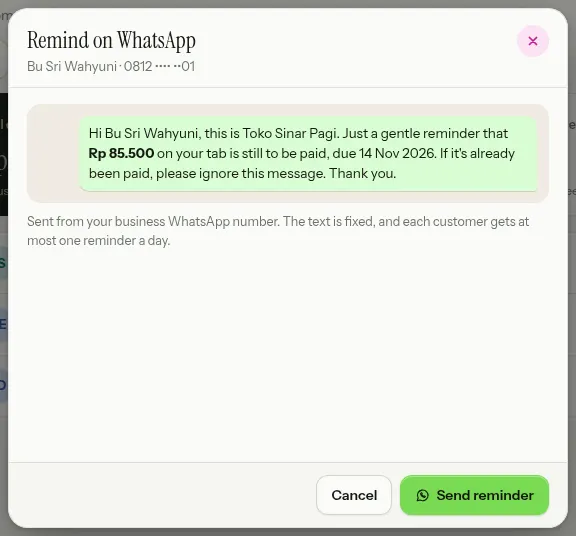
One message per tap, at most once a day per customer, and no bulk messages. Only customers whose WhatsApp number is saved under Tabs can be reminded. The Can be reminded card on the WhatsApp page lists them, past-due ones first; tap a name to open their tab. See Customer tabs.
When WhatsApp on this device is used
The WhatsApp button on a receipt and Remind on a tab keep working without a business number. Both open WhatsApp on this device with the same message when:
- the business number isn't connected yet or is disconnected,
- your plan doesn't include business WhatsApp,
- the device is offline, or
- the sale hasn't reached the server yet because it was made offline.
The send sheet says which, for example Opens WhatsApp on this device.
Incoming messages and privacy
- BIKIN WARUNG only sends. Messages that arrive at your business number are never read or stored; answer customers from WhatsApp on your phone.
- Messages only go to saved customers. A number typed at the till is saved as a customer first, so you always know who receipts went to.
- WhatsApp receipts carry no link and no cashier name.
- Demo accounts never connect a number or send messages.
Who can do what
| Role | |
|---|---|
| Owner | Connects and disconnects the business number, sends receipts and reminders |
| Admin | Sees the state of the number, sends receipts and reminders |
| Manager and cashier | Send receipts, also to new numbers, and tab reminders |
| Viewer | Doesn't see the WhatsApp menu |
Last updated: