BIKIN WARUNGFeatures
Items & stock
Your shop's items build up by themselves from sales. Tidy names and prices, make quick buttons, track stock, record stock in from suppliers by scanning or with an AI scan of the receipt, and import your item list from Excel.
The Items page holds your shop's items. You don't need to fill it in first: every item you sell is saved here by itself with the price you used. This is where you tidy names, change prices, make quick buttons and enter stock.
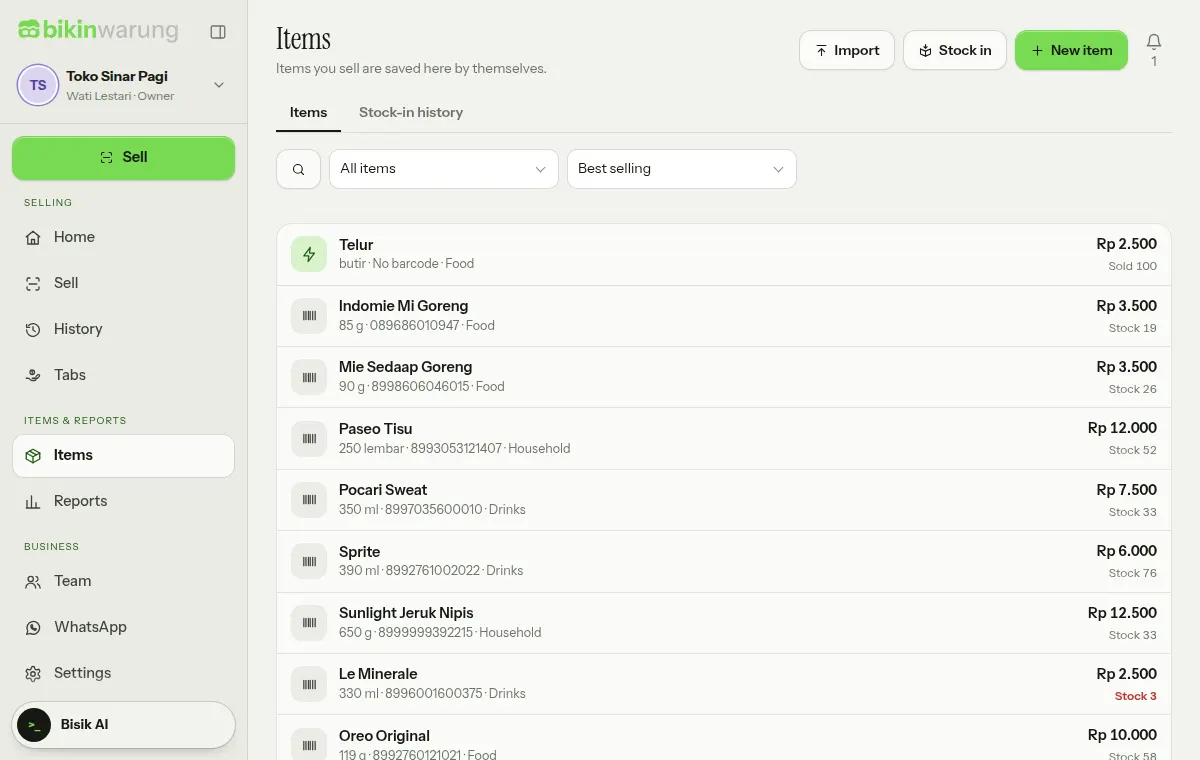
The item list
- Search: tap the search icon, then type a name or barcode.
- Show: All items, Quick buttons, No price yet, Low stock or Archived.
- Sort: Best selling, Name A–Z or Last sold.
Each line shows the size, the barcode (or No barcode), the category, the selling price, and the stock or how many have sold.
Adding items
Choose New item to add an item before it's sold, for example goods that just arrived.
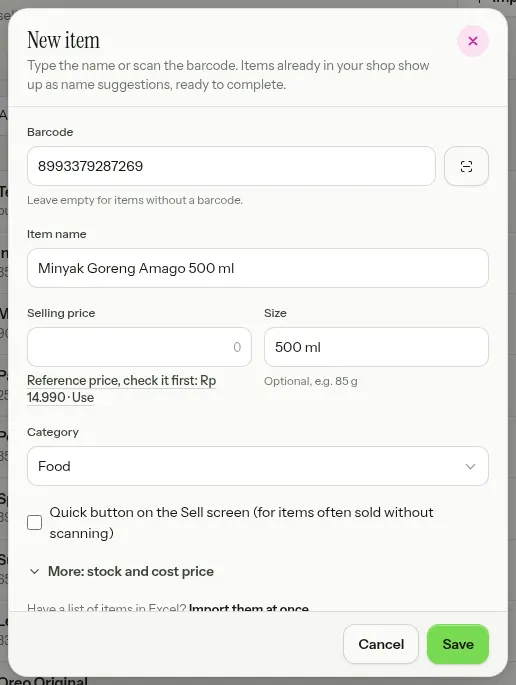
- Type or scan the Barcode, or type the Item name. Name suggestions appear as you type, just like Manual mode on the Sell screen: your own items first, then names from the shared database. If the shared database knows the barcode, or you pick a name from the database, Item name, Size and Category fill in by themselves. Leave the barcode empty for items without one.
- Fill in the Selling price. If there's a suggested price, it shows under the field with where it comes from; choose Use to take it.
- Tick Quick button on the Sell screen if the item often sells without scanning.
- Open More: stock and cost price to fill in Stock now, Minimum stock and Cost price, then choose Save.
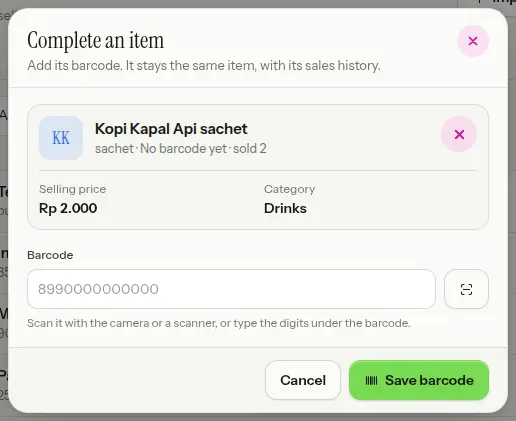
Completing an item sold by hand
Items you sold in Manual mode without a barcode are still saved as your items. Add their barcode any time, so next time a scan is enough:
- Choose New item, then type its name in Item name.
- In the name suggestions, your items without a barcode are marked No barcode yet. Pick the item: the sheet turns into Complete an item and shows its selling price, category and stock.
- Scan the barcode with the camera button, or type the digits under the barcode, then choose Save barcode.
It stays the same item: its name, price, stock and sales history don't change, and the next scan recognises it right away with your latest price. Not the item you meant? Tap the × on its card to go back to New item.
A barcode belongs to one item only. If the barcode is already used by another item, including an archived one, BIKIN WARUNG names that item and offers Open that item. A mistyped barcode (its check digit doesn't match) is pointed out too, so the saved barcode always matches what a scan reads.
Editing items
Tap an item to edit it. The selling price follows your latest selling price by itself, so the price here always matches the one used on the Sell screen. The Cost price is only for the profit estimate and is never shown to cashiers or customers.
Items that have been sold aren't deleted but archived: they disappear from scanning and quick buttons, but their sales history stays, and they can be restored from the Archived filter. Items that have never been sold can be deleted.
Quick buttons
Quick buttons suit items without a barcode that sell often, such as eggs, ice or gas. Starter quick buttons are made for your type of business when you sign up, with no price yet; set their price once, and the quick buttons then show in Recent mode on the Sell screen, ready to tap.
Your plan's item limit
How many items are remembered depends on your plan. When the limit is full, selling keeps working, but new items aren't remembered until the plan is upgraded or some items are archived. Plan limits never stop a sale.
Stock
Stock tracking is off by default to keep selling simple. The owner can switch it on in Settings › Business, on the Stock card: Track stock per item and tell me when it runs low. Per-item stock is on paid plans.
When it's on, the stock you enter goes down by itself with every sale and comes back when a sale is cancelled. Items below their Minimum stock show under the Low stock filter, in Needs attention on Home, and in the morning summary in the bell. Only items whose stock you enter are tracked, and running out of stock never blocks a sale.
Stock in
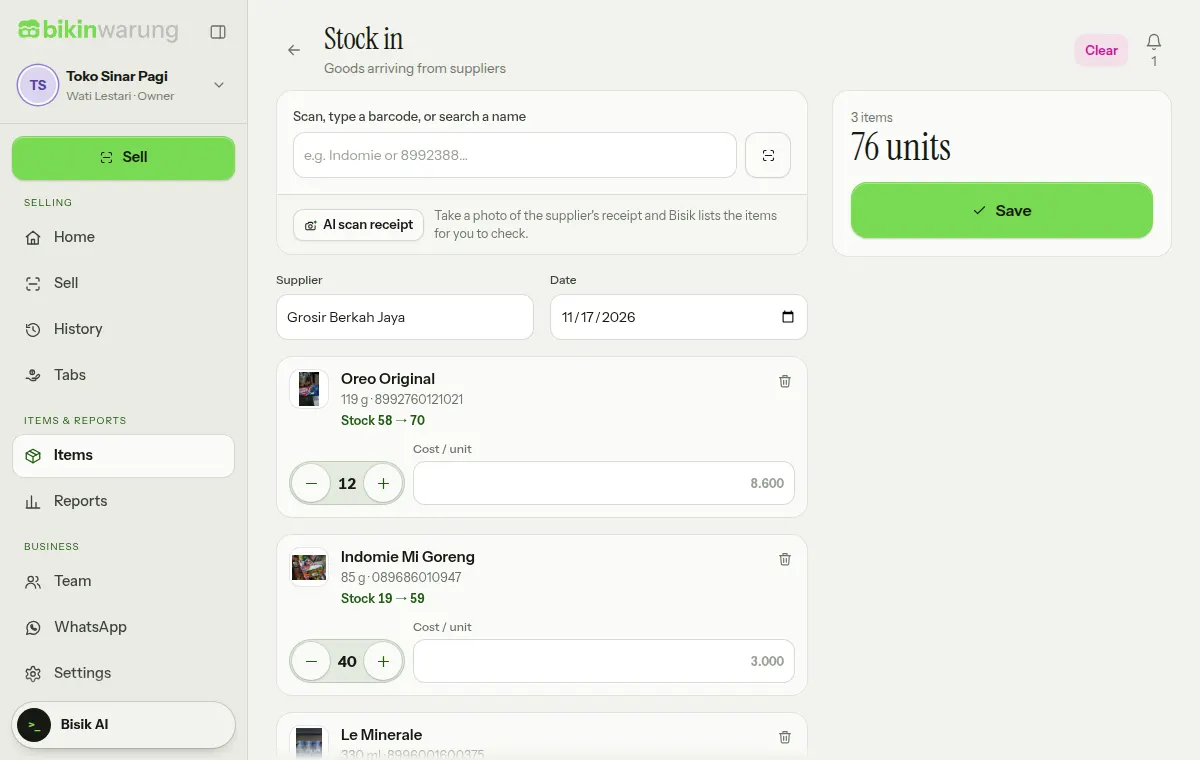
Goods arriving from suppliers are recorded once in Stock in, and their stock goes up by itself. Choose Stock in at the top of the Items page.
- Scan the barcode, type it, or search the name in Scan, type a barcode, or search a name. The same item again adds to that line's quantity.
- Set each line's quantity with − and +. Each line shows the stock now and afterwards, such as "Stock 3 → 27".
- Fill in Cost / unit if the cost price has changed.
- Fill in the Supplier and Date if needed, then choose Save.
- Items your shop doesn't have yet become new item lines: fill in their name and selling price, with a suggestion from the shared database.
- AI scan receipt: take a photo of the supplier's receipt, and Bisik lists the items as lines marked From receipt for you to check. The receipt isn't kept, and nothing is saved until you choose Save. AI receipt scans count towards your plan's monthly Scan AI allowance.
- The draft is kept on this device, so moving to another page doesn't lose it; Clear throws it away. Saving needs the internet.
- If stock tracking is off, stock in is still recorded and the cost price is still updated, but stock numbers don't change.
The Stock-in history tab lists every stock-in by date, with the supplier, number of items, who recorded it and the total cost. A wrong stock-in is cancelled with a reason, not deleted: the stock it added is taken off again.
Stock in is on paid plans and can be used by owners, admins and managers. Cost prices are for owners and admins only.
Import from Excel
Have a list of items in Excel? Import them at once, on every plan. Choose Import at the top of the Items page (on phones through the Import them at once link on the New item sheet).
- Choose a .xlsx or .csv file, up to 3,000 rows. The first row holds the column titles. Don't have a file yet? Choose Download a sample file (.xlsx).
- Match the columns: Item name, Barcode, Selling price, Size, Category, Cost price, Opening stock and Quick button. Only the name is required.
- Choose Check. BIKIN WARUNG checks every row and shows the new items, the ones that already exist, and the rows with errors.
- For items that already exist, choose Skip or Update prices and names, then Import N items.
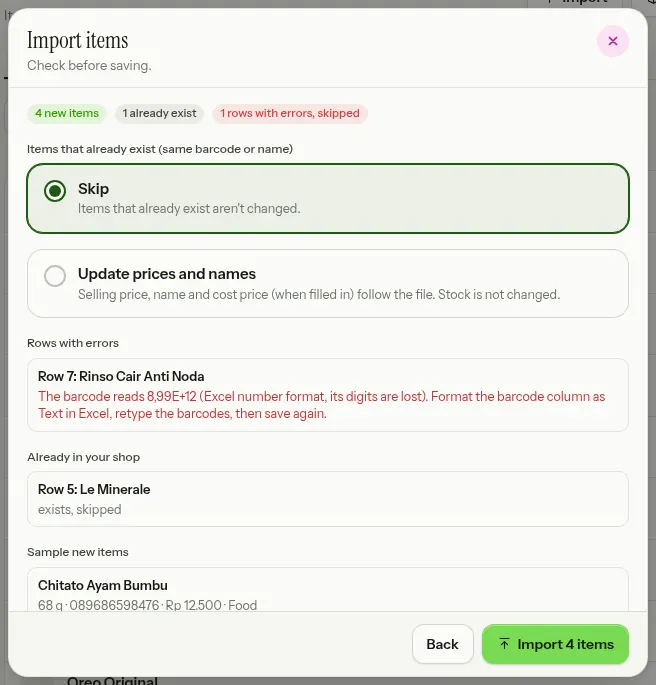
Type barcodes as text in Excel so their digits stay intact: a barcode written like 8,99E+12 is rejected with how to fix it. Barcodes with a wrong check digit, negative prices and items over the plan limit are listed one by one, never dropped silently. Importing doesn't change the stock of existing items; use Stock in for that.
A wrong import can be undone for 7 days with Undo this import: new items that haven't been touched are removed again, items that were changed are archived, and items that have sold stay.
Last updated: