BIKIN WARUNGAccount & plan
Settings
Account, appearance and scan sound, notifications, business, currency, open data sources, stock, what cashiers may do, the daily summary, receipts and printer, QRIS and transfer, automatic QRIS and the Balance, business WhatsApp, connected BIKIN apps and Send to BIKIN KAS.
The Settings menu is split into sections, and what you see depends on your role. Everyone sees Account, Appearance, Notifications and Plan. Owners and admins also see Business, Receipt & payment, Payments, WhatsApp and Connected apps. Plan, Businesses, Referrals and Close account are covered in Plan & account.
Account and appearance
- Account: Profile photo, My account (name), Password, your Google account if signing in with Google is available, and Getting started to replay the welcome, Quick start and tips, and to remove sample data. Changing your password signs you out on other devices.
- Appearance: the Light or Dark theme (it follows your device by default), Indonesian or English, A short sound when an item is read and a payment is done (this device), and Install the app so BIKIN WARUNG opens from your home screen like a normal app.
Business
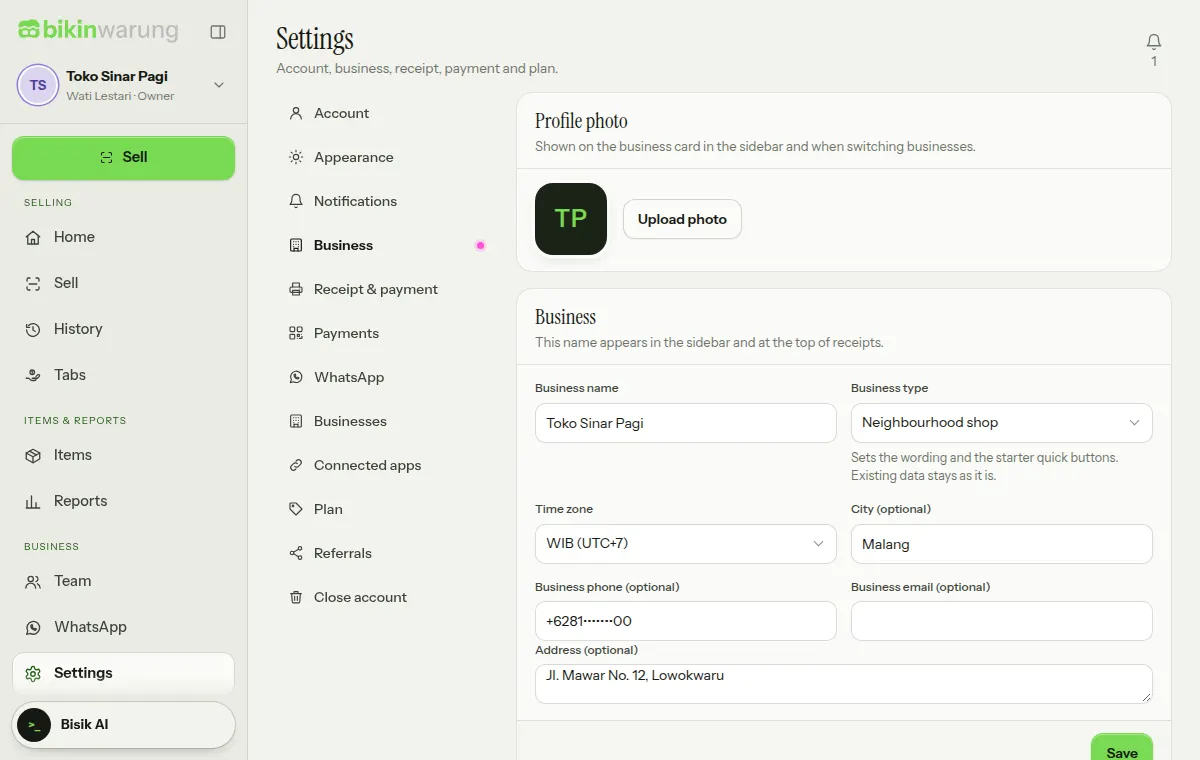
The Business section (owners and admins) opens with the business photo shown on the business card in the sidebar, then the Business card: Business name (shown in the sidebar and at the top of receipts), Business type (sets the wording and the starter quick buttons; existing data stays as it is), Time zone, and the business city, phone, email and address.
Currency
The Currency card sets the currency of every amount in this business, from item prices and sales to tabs and reports. Thousand and decimal separators follow that currency, and amount fields add thousand separators as you type. New businesses get the currency of the country you sign up from.
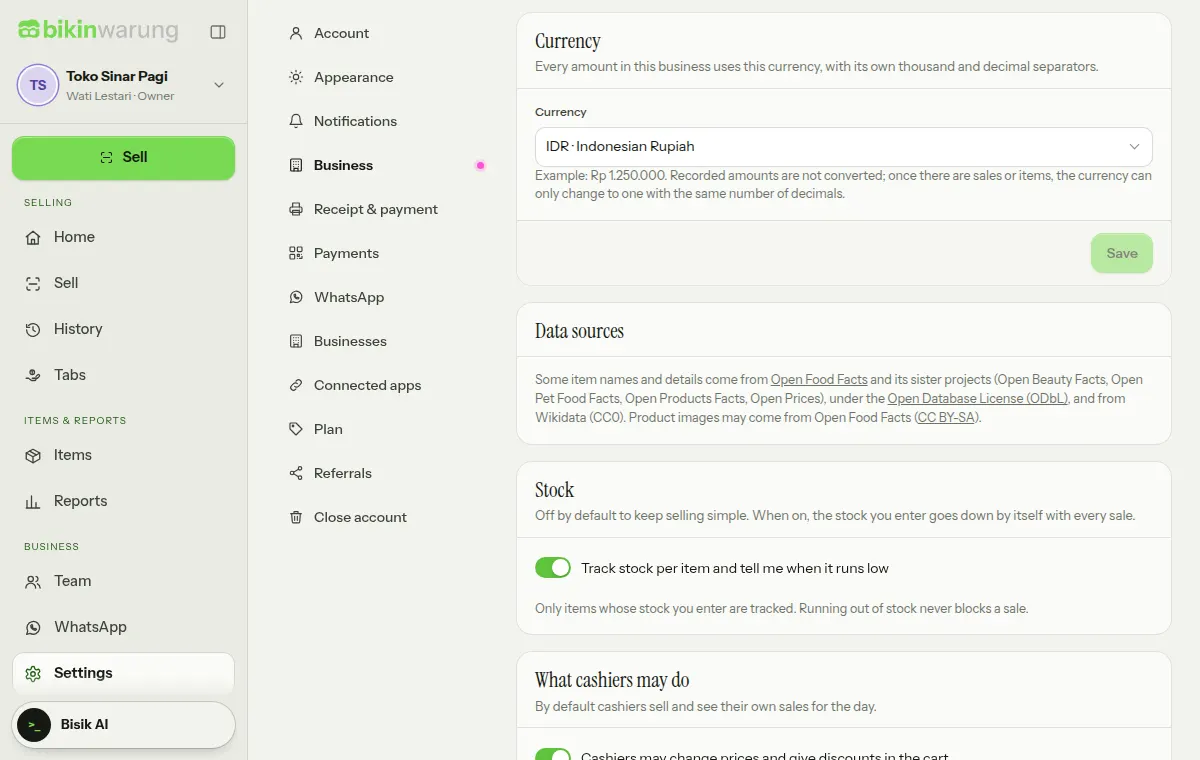
- Only the owner changes it: pick a currency from the list (type in the search box to find it), then Save.
- Until the business has sales or priced items, the currency can be changed freely. After that it can only change to a currency with the same number of decimals, because recorded amounts are never converted.
- Suggested prices from the shared database are for Rupiah businesses only; in other currencies, item names still show up when you scan.
- BIKIN WARUNG plan prices and bills stay in Rupiah.
Data sources
The Data sources card names where some item names, details and pictures in the shared database come from: Open Food Facts and its sister projects, under the Open Database License (ODbL), and Wikidata (CC0). Product pictures may come from Open Food Facts (CC BY-SA). Pictures always load through BIKIN, never straight from their source.
Stock, cashiers and the daily summary
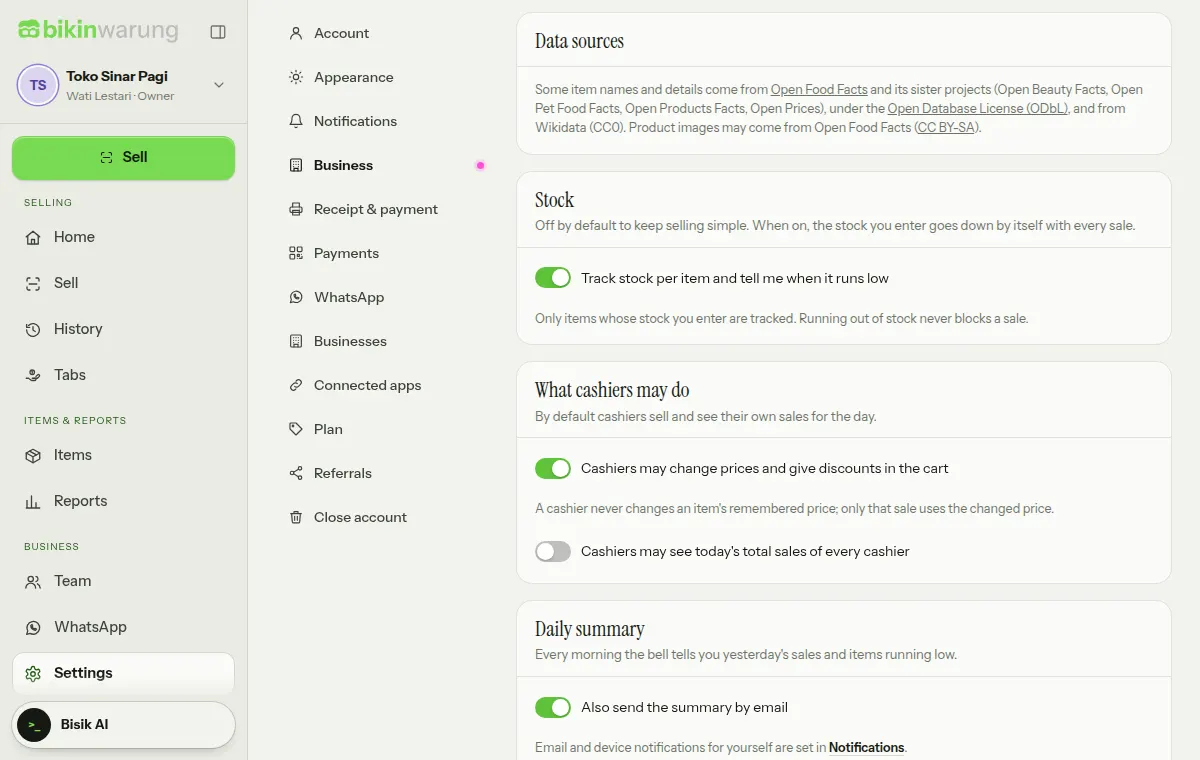
- Stock: Track stock per item and tell me when it runs low, off by default. Only items whose stock you enter are tracked, and running out of stock never blocks a sale. On paid plans. See Items & stock.
- What cashiers may do: Cashiers may change prices and give discounts in the cart and Cashiers may see today's total sales of every cashier. See Team & roles.
- Daily summary: every morning the bell tells you yesterday's sales and items running low. Switch on Also send the summary by email to get it by email too, on plans with the daily email summary.
Receipt & payment
The Receipt & payment section (owners and admins) has:
- Receipt contents: the text under the business name, the closing text, Paper width 58 mm or 80 mm, and Print the business address and phone on the receipt.
- Receipt printer: picking a Bluetooth printer for this device and Print the receipt automatically after payment (this device). See Payment & receipts.
- QRIS and Transfer: the payment methods offered on the Pay screen.
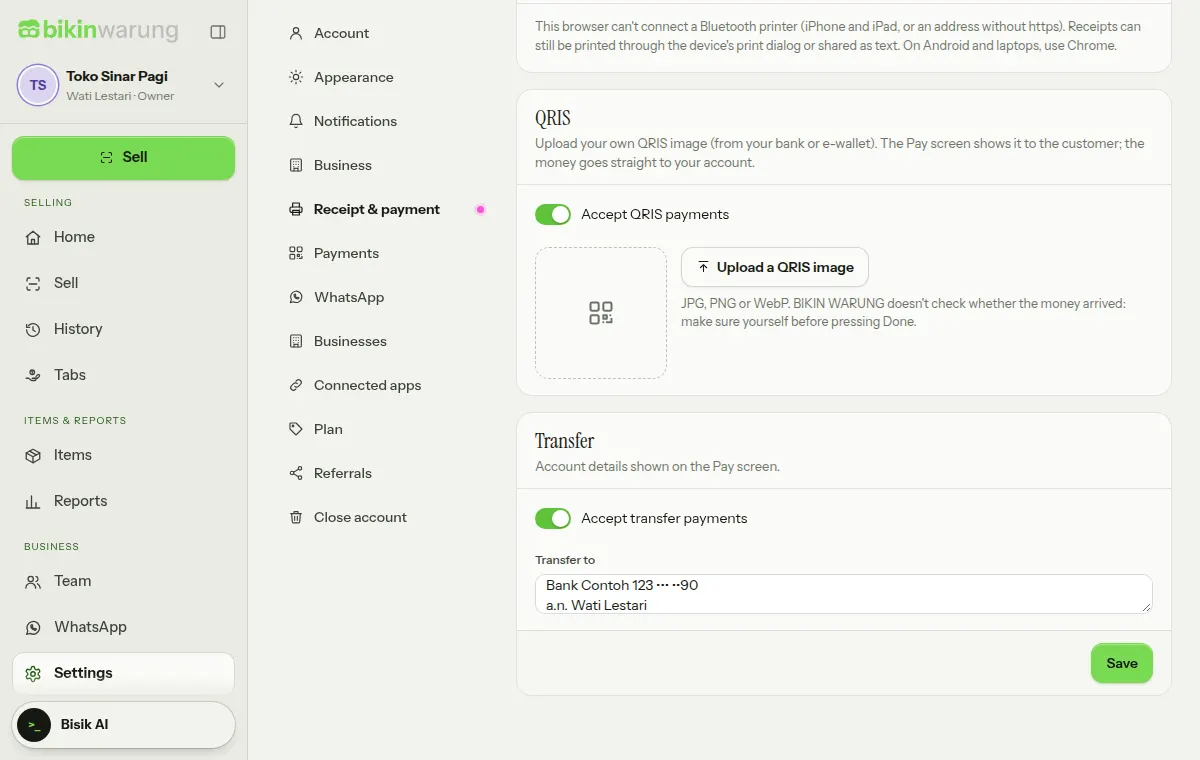
- Accept QRIS payments: upload your own QRIS image from your bank or e-wallet (JPG, PNG or WebP) with Upload a QRIS image. The Pay screen shows it to the customer, and the money goes straight to your account. Replace or remove the image any time.
- Accept transfer payments: write the Transfer to details, such as the bank name, account number and account holder. The Pay screen shows them when the customer pays by transfer.
BIKIN WARUNG doesn't check whether QRIS or transfer money has arrived; check it yourself before pressing Done. Cash and Tab are always available.
Payments
The Payments section holds the Automatic QRIS card: a fresh QR with the exact amount on the Pay screen for every sale, with payments that check themselves. Only the owner of the main business switches it on or off, after agreeing to its terms and entering an email code; admins see its state and who manages it. Below it, the owner of the main business sees the Balance card for automatic QRIS money and referral commission, with Withdraw and Balance history. See Automatic QRIS.
The WhatsApp section holds the Your business WhatsApp card. The owner connects the business WhatsApp number here so receipts and tab reminders go out by themselves; admins see its state. On plans without business WhatsApp, the card still shows with an invitation to upgrade, and the WhatsApp button on receipts still opens WhatsApp on the device. See WhatsApp.
Notifications
The bell at the top right of every page holds your notifications. In the Notifications section, everyone chooses how they're told about each event: A sale is cancelled, A withdrawal is processed by BIKIN, Sending to BIKIN KAS stopped or on hold, Yesterday's sales summary and Low stock. Email goes to your account's address. For notifications on your device, switch them on for this device and allow them in the browser; on iPhone this only works once BIKIN WARUNG is installed on the home screen.
Connected apps
For owners, the top card in Connected apps is Send to BIKIN KAS: daily sales flow into a cashbook in BIKIN KAS as money in. See Send to BIKIN KAS.
Below it, the BIKIN AI & BIKIN SIGHT card shows the BIKIN apps reading BIKIN WARUNG summaries, who connected them and when they were last used. These connections come with the plans that include them; on other plans the card still shows, locked with an invitation to upgrade. To connect, open BIKIN AI or BIKIN SIGHT, pick BIKIN WARUNG in its connections menu, then allow it once. Connected apps only read summaries within the role of the person who allowed them, without tab customers. Choose Disconnect to stop it. The How it works card below it sums up what's shared and what never leaves.
Last updated: