BIKIN WARUNGFeatures
Sales history
Every sale by day, with receipt number search, filters for period, payment method and cashier, the receipt to print again, share or send on WhatsApp, and cancelling with a reason.
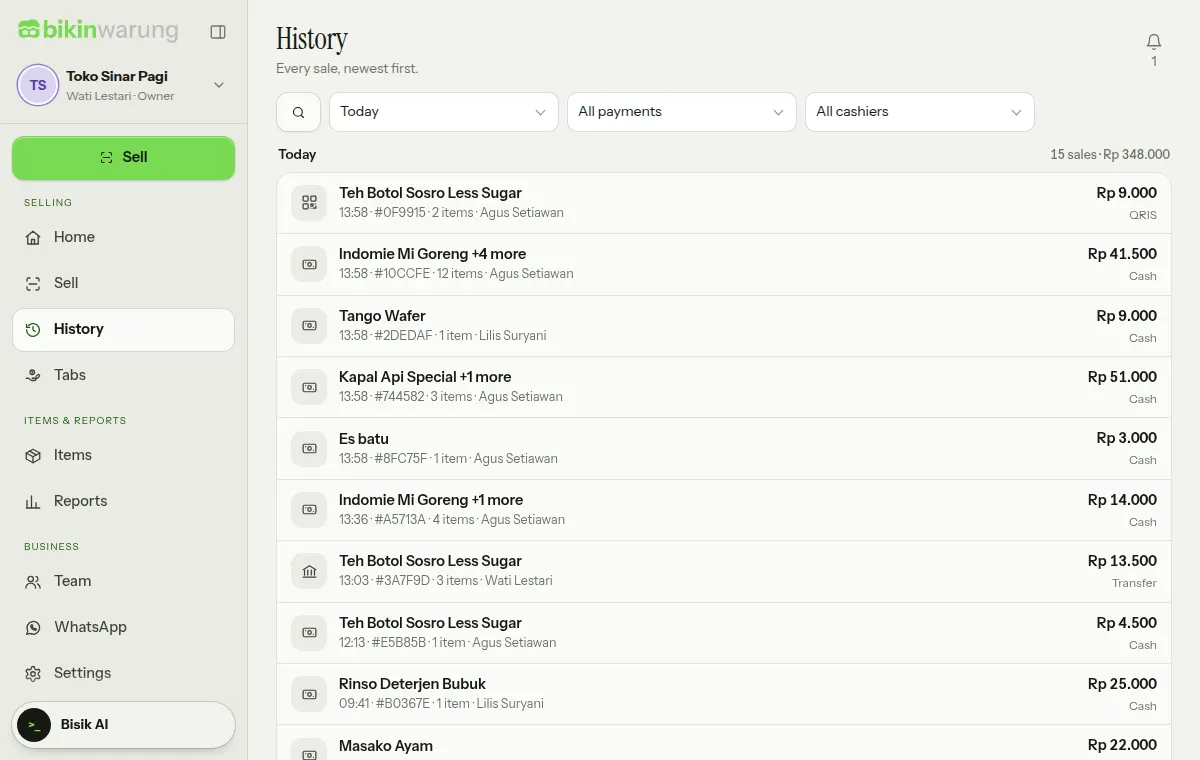
The History menu lists every sale, grouped by day with the newest first. Each day shows the number of sales and their total.
Searching and filtering
- Search: tap the search icon, then type a receipt number, such as AB12CD. The receipt number is printed on every receipt.
- Period: Today, Yesterday, 7 days, 30 days or All time.
- Show: All payments, or only Cash, QRIS, Transfer, Tab, or Cancelled sales.
- Cashier: every cashier or just one.
Each line shows its first item (with "+N more" when there are several), the time, the receipt number, the number of items, the cashier or the tab customer, the total and the payment method. Cancelled sales are marked cancelled.
Details and receipt
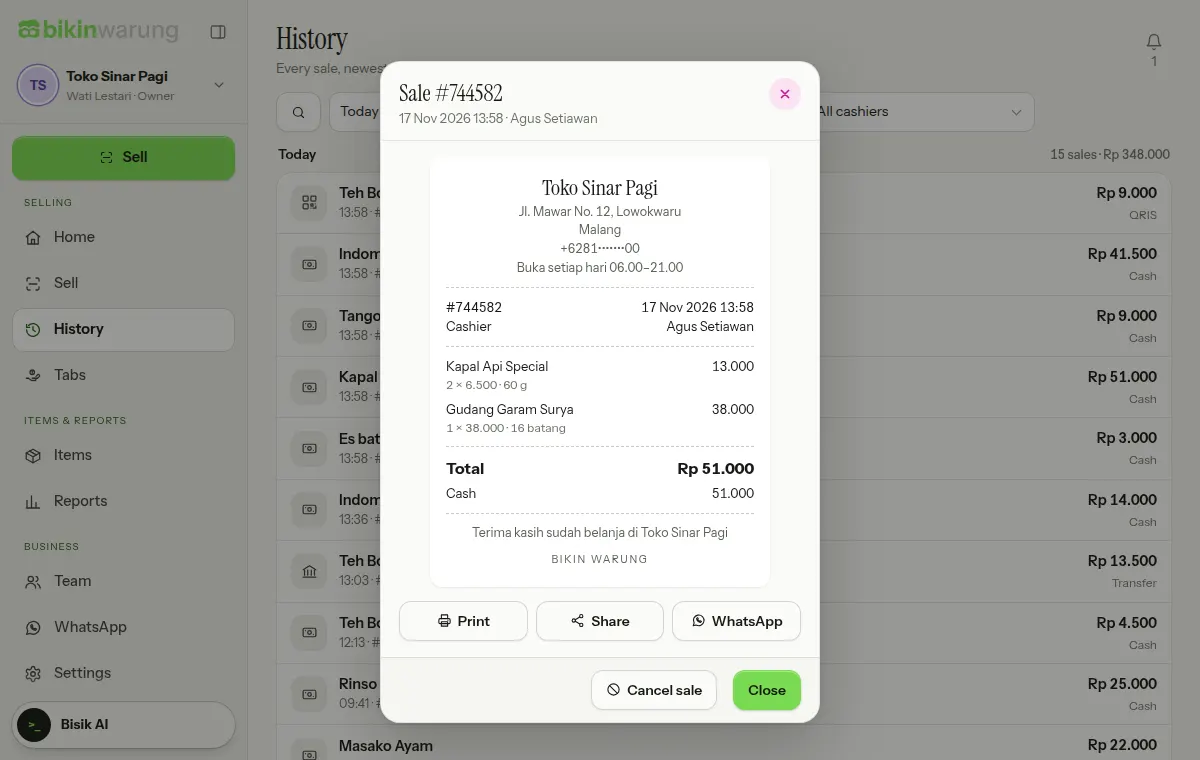
Tap a sale to open its details: the full receipt with the items, discounts, total and payment method, plus Print, Share and WhatsApp to print it again, share it as text or send it to the customer on WhatsApp. See WhatsApp.
Cancelling a sale
Wrong scan, or the customer changed their mind? Cancel the sale rather than leaving it.
- Open the sale, then choose Cancel sale.
- Write the Reason, for example "wrong scan, the customer changed their mind".
- Choose Cancel this sale.
The sale isn't deleted, only marked cancelled. The sold count and the stock are put back, the reports are worked out again, and the owner is told through the bell. Cancelling a tab sale takes it off the customer's tab automatically; payments already taken stay recorded.
- Cashiers only see and cancel their own sales for the day.
- Cancelling a sale from another day asks for the code from your email.
When you're offline
History needs the internet and shows again once you're back online. Sales made offline can be seen from the status at the bottom of the sidebar. See Working offline.
Last updated: