BIKIN WARUNGFeatures
Customer tabs
Record customers who take their goods now and pay later, see what's left on each customer's tab, take instalments, and remind them on WhatsApp.
A tab is shopping that's paid for later. Tabs are made on the Pay screen with the Tab payment method (see Payment & receipts) and followed up in the Tabs menu. Tabs are on every plan, with no limit.
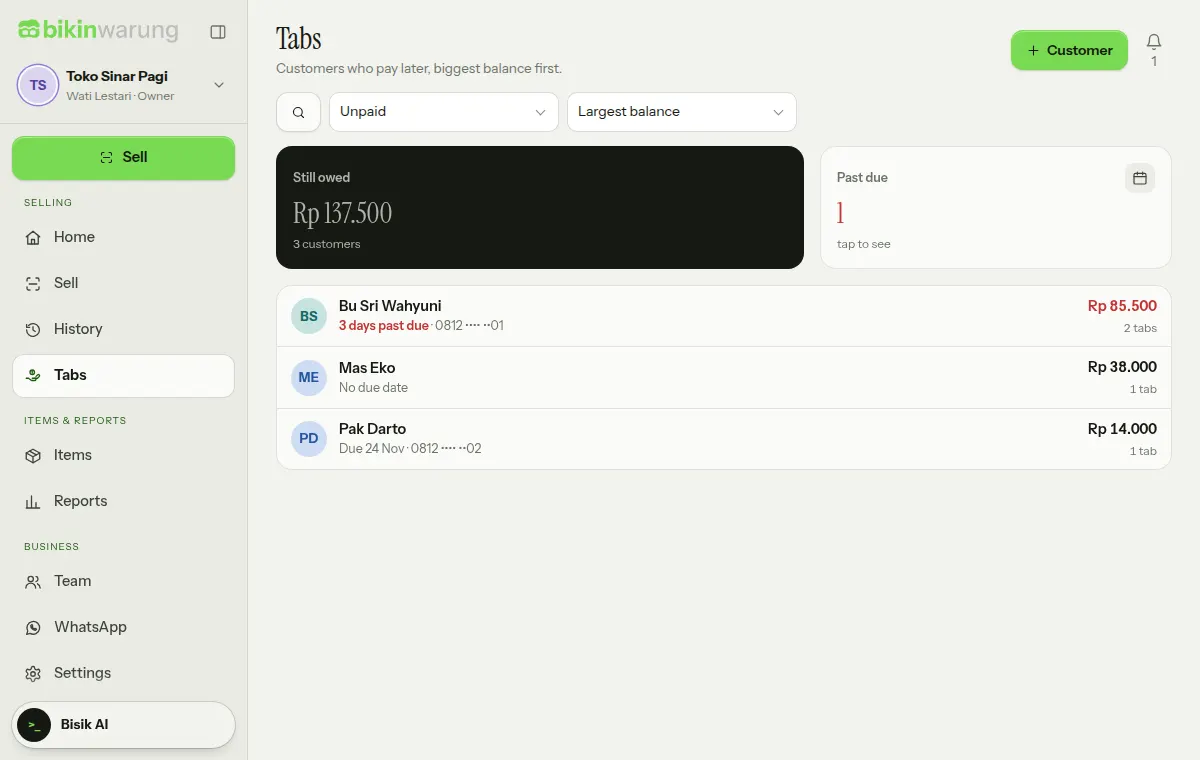
The customer list
- The Still owed card adds up what's left on every customer's tab, and Past due counts customers whose tab is still unpaid after the due date. Tap a card to filter.
- Show: Unpaid, Past due, Paid off, All customers or Archived.
- Sort: Largest balance, Due date, Latest tab or Name A–Z.
- Tap the search icon to look up a name or number.
Each customer shows what's left, the nearest due date and how many tabs are still open. Owners, admins and managers can add a customer with + Customer (on phones + New): fill in the Name, WhatsApp number (optional) and a note.
Customer details
Tap a customer to open their details: what's left on the tab (red when past due), how much has been paid, their list of tabs and their payments.
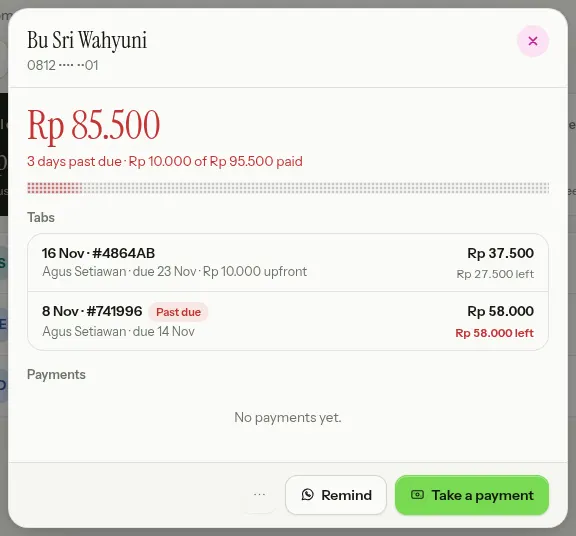
Each tab shows its date and receipt number, the cashier, the due date, the amount paid upfront, the total and what's left, or Paid. Tap a tab to see the receipt for that sale.
Taking a payment
- Open the customer, then choose Take a payment.
- Amount paid starts with everything that's left. Choose Half, or type another amount; it can't be more than what's left.
- Choose Paid with: Cash, QRIS or Transfer, and add a note if needed, such as "2nd instalment".
- Choose Save.
Payments pay off the oldest tab first. A wrong payment is cancelled with Cancel in the list of payments and a reason, not deleted; the customer's tab goes back up by that amount. Cancelling a payment from another day asks for the code from your email, and the owner is told.
Reminders
Remind sends a polite, ready-made reminder: the customer's name, the shop's name, what's left on the tab and the nearest due date. The button needs the customer's WhatsApp number; save it with Edit customer in the ⋯ menu.
- When your business WhatsApp number is connected and your plan includes it, Remind opens a preview of the message, and Send reminder sends it straight from the business number. Each customer gets at most one reminder a day, and their details show when they were last reminded.
- Otherwise, Remind opens WhatsApp on your device with the same message; you just send it.
How to connect the business number is in WhatsApp. The ⋯ menu also has Share a reminder (the same text through the device's share sheet) and Archive. Demo accounts don't open WhatsApp or send messages.
Archive
A customer whose tab is at zero can be archived to keep the list tidy. Archived customers disappear from the list and from the customer picker on the Pay screen, but their tab history stays; restore them from the Archived filter. An archived customer who starts a new tab becomes active again by themselves. Customers are never deleted one by one.
If a tab sale is cancelled after it was paid, what's left can go below zero (Overpaid). Refund the money by cancelling a payment, or leave it for the next tab.
Who can do what
- Every role sees the Tabs menu; viewers can only look.
- Cashiers sell on a tab, including for new customers, and take payments. The Still owed card only shows for roles allowed to see total sales.
- Adding, editing and archiving customers, and cancelling payments, is for owners, admins and managers only.
Customers past due also show under Needs attention on Home, and Reports list Tab as one of the payment methods. Tabs need the internet.
Last updated: