BIKIN WARUNGGet started
Get started with BIKIN WARUNG
Sign up or sign in to BIKIN WARUNG, pick your type of business so quick buttons and wording are ready, make your first sale, then finish Quick start.
This page takes you from signing up to your first sale. Most steps only need doing once, by the shop owner.
Create an account
- Open warung.bikin.studio/register, or choose Create one free on the sign-in page.
- Fill in Your name, Shop or store name, Type of business, Email and Password (at least 8 characters), then choose Create account.
- Enter the 6-digit code sent to your email.
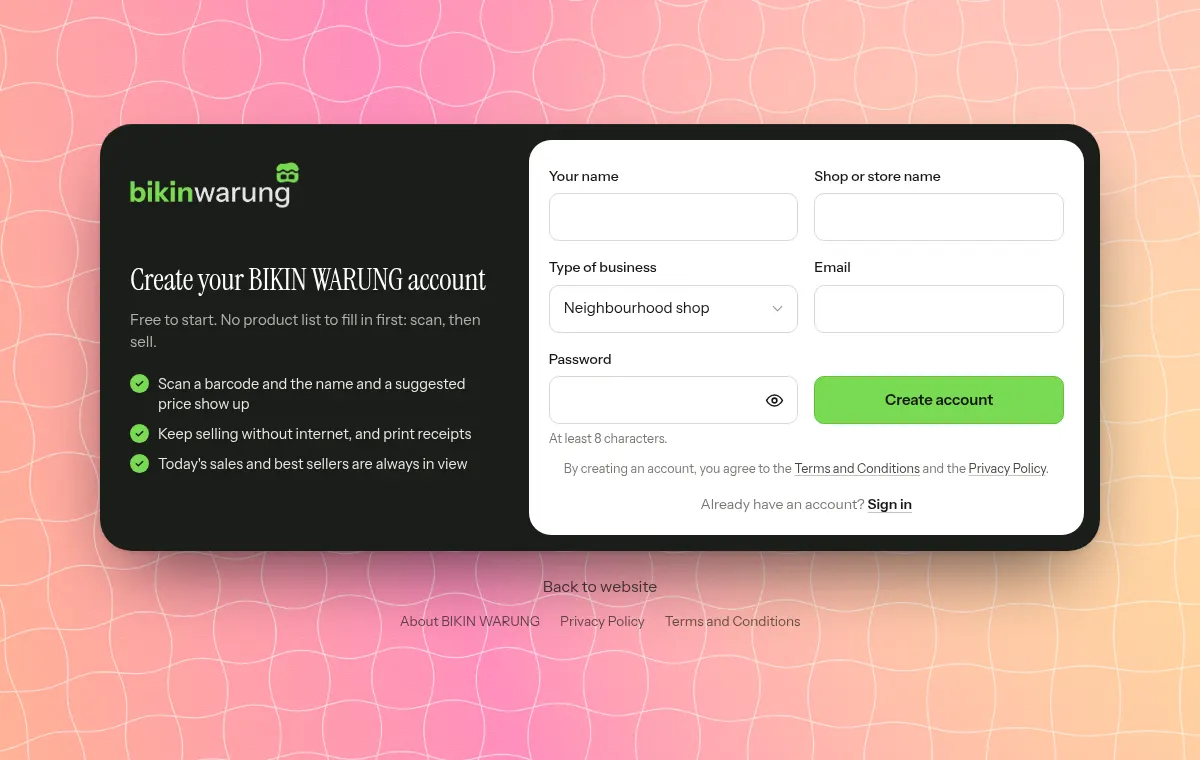
Type of business is grouped: Grocery & staples, Daily needs, Food & drink, Specialty stores and Community. If nothing fits, choose Other store in the Other group at the bottom. The type of business sets:
- The wording used, such as shop, store, kiosk, canteen or cooperative.
- The starter quick buttons: items without a barcode that are common for that type, with no price yet. A Neighbourhood shop gets Eggs, Ice, LPG 3 kg, Water refill, Loose rice, Loose cooking oil, Loose sugar and Crackers. A Water & gas depot gets Water refill, New gallon, LPG 3 kg, LPG 5.5 kg, LPG 12 kg and Delivery fee. Phone credit & accessories gets Phone credit, Data plan, Electricity token, Cash withdrawal and E-wallet top-up.
- The default closing text on receipts, such as "Thank you, see you again." for a neighbourhood shop.
You can change the type of business later in Settings › Business; only the wording and the starter quick buttons change, and your existing data stays as it is.
If the button is shown, you can also choose Sign up with Google. Whoever signs up becomes the Owner of that business, and new businesses start on the free plan.
If the Create one free link doesn't appear, sign-up is closed for now. Contact BIKIN at contact@bikin.studio to get an account.
Sign in
- Enter your email and password, then choose Sign in.
- Enter the code from your email.
After that you stay signed in on that device for 30 days. Choose Sign in with Google if your Google account uses the same email. Forgot your password? Choose Forgot password? on the sign-in page.
Cashiers who sign in go straight to the Sell screen, so they can serve customers right away.
Welcome and Quick start
The first time you sign in, BIKIN WARUNG shows a short welcome for your role: scanning, quantities and paying, suggested prices, and selling offline for owners and admins; scanning then paying for cashiers; keeping an eye on sales for viewers. Choose Skip to get straight to work.
Owners and admins also get a Quick start card in the sidebar, just above Bisik (on phones in the sidebar drawer). Tap the card to open the list of steps.
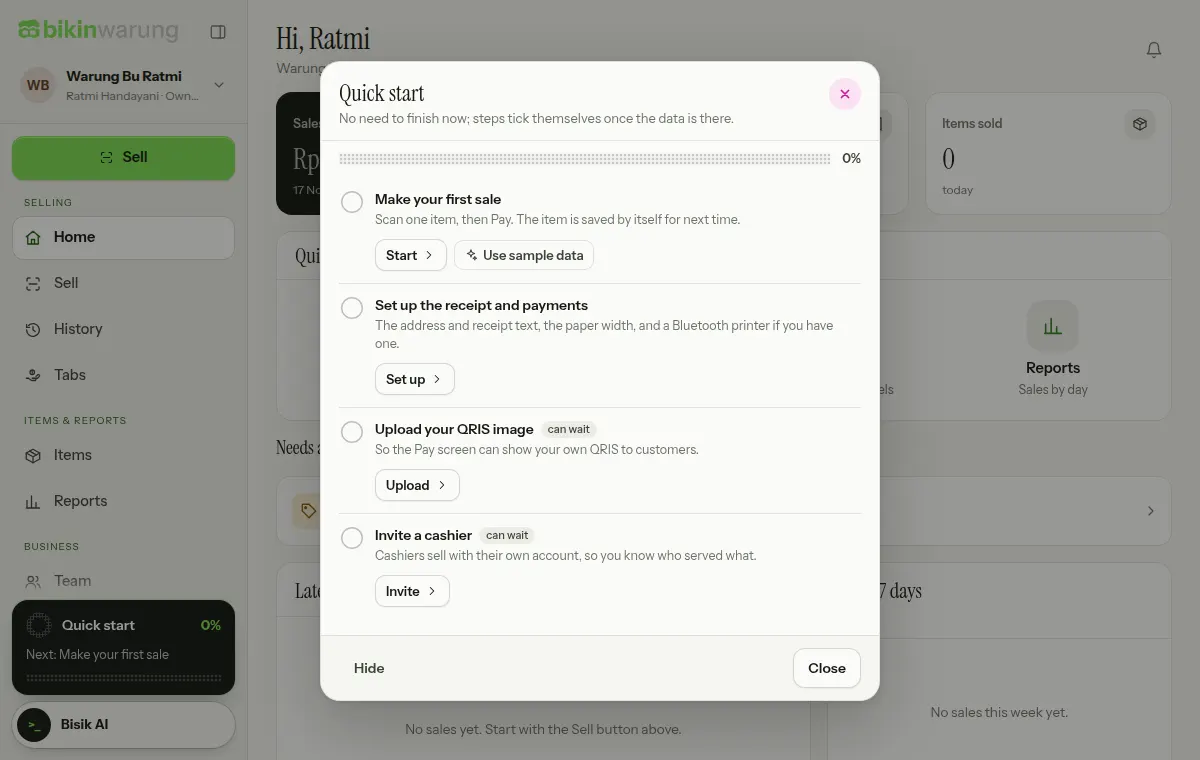
Each step explains why it matters and has a button that takes you straight there:
- Make your first sale: scan one item, then pay. The item is saved by itself for next time.
- Set up the receipt and payments: the address and receipt text, the paper width, and a Bluetooth printer if you have one.
- Upload your QRIS image and Invite a cashier, marked "can wait".
Once the required steps are done, BIKIN WARUNG says it's ready to use. If you'd rather not see the card yet, choose Hide. The welcome, Quick start and the tips on each page can be opened again from Settings › Account › Getting started.
Sample data
Want to see BIKIN WARUNG filled in first? In the Make your first sale step, choose Use sample data. BIKIN WARUNG adds a few sample items and the last seven days of sales, so Home, History and Reports fill up right away.
Everything is marked as a sample and can be removed any time from Settings › Account › Getting started, without touching your real data.
Next steps
- Home to get to know your workplace.
- Selling to start selling.
- Team & roles to invite a cashier.
Last updated: