BIKIN WARUNGAccount & plan
Team & roles
The five BIKIN WARUNG roles (owner, admin, manager, cashier, viewer), how to invite cashiers and teammates, what cashiers may do with prices and total sales, profile photos, and the log of important actions.
Every team member has one role. Roles are checked on the server for every request, so what isn't allowed can't be opened through a direct link either. Each cashier sells with their own account, so you know who served what.
Five roles
| Role | Can |
|---|---|
| Owner | Everything, including the plan, adding businesses, roles, the log and closing the account |
| Admin | Everything except the plan, adding businesses, changing roles, the log and closing the account. Fits a store manager |
| Manager | Sells, manages items, stock, stock in and imports, sees and cancels any cashier's sales, and sees reports without cost prices |
| Cashier | Sells, and sees and cancels their own sales for the day |
| Viewer | View only: History, Tabs and Reports, including estimated profit, plus exports. Fits a bookkeeper |
For tabs, every role sees who still owes; cashiers sell on a tab and take payments, while editing customers and cancelling payments is for owners, admins and managers only. Cost prices and estimated profit are for owners, admins and viewers only, and never appear on receipts.
For WhatsApp, only the owner connects the business number, while owners, admins, managers and cashiers send receipts and tab reminders; see WhatsApp. Automatic QRIS, the Balance and Send to BIKIN KAS are managed by the owner; see Automatic QRIS and Send to BIKIN KAS.
Inviting your team
Owners and admins invite teammates from the Team menu:
- Choose Invite.
- Fill in the Name and Email, then pick the Role. Each role explains what it can do.
- Leave Email an invitation (temporary password made for you) on. Your teammate gets an email with a temporary password. If you switch it off, fill in the Temporary password and share it yourself.
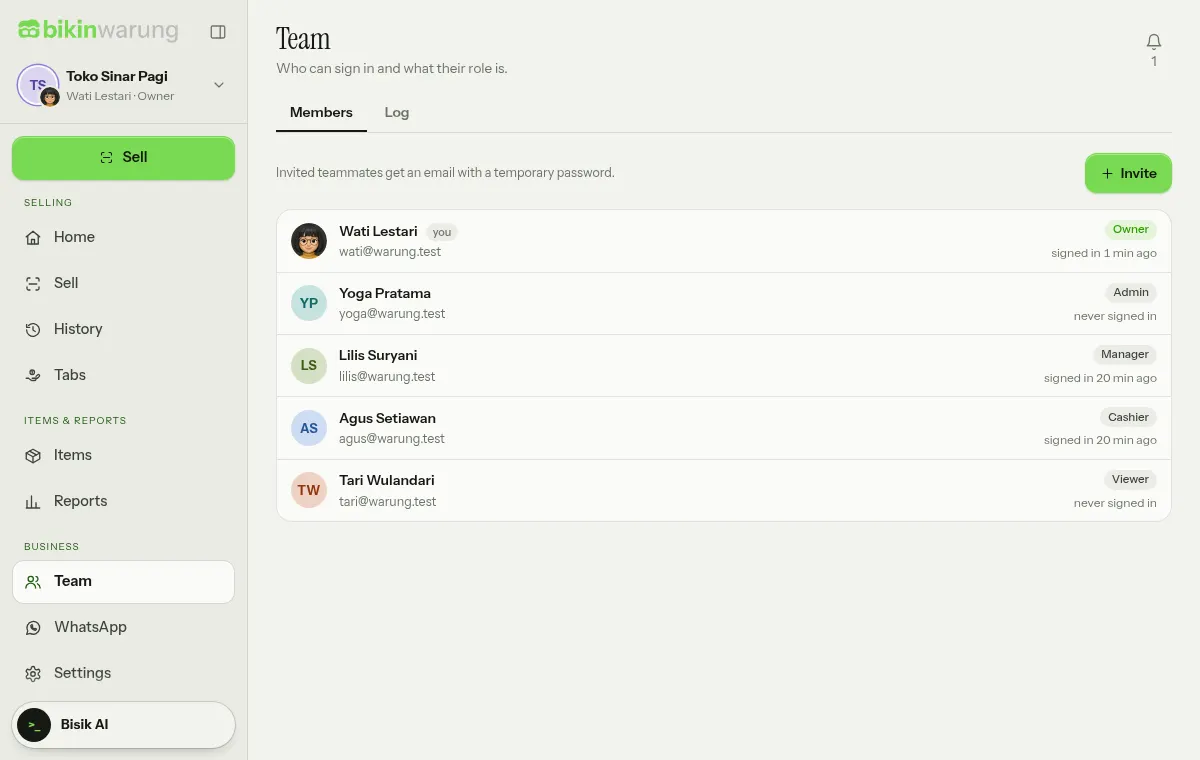
Only the owner gives the owner or admin role and changes someone's role; changing a role asks for a code from your email. Tap a member to change their name or deactivate them (Inactive (can't sign in)). How many team members you can have depends on your plan.
What cashiers may do
Owners and admins set what cashiers may do in Settings › Business, on the What cashiers may do card:
- Cashiers may change prices and give discounts in the cart (on by default). A cashier never changes an item's remembered price; only that sale uses the changed price.
- Cashiers may see today's total sales of every cashier (off by default). Without it, cashiers only see their own sales.
Profile photo
Everyone can upload their own profile photo in Settings › Account, on the Profile photo card: choose Upload photo, adjust it, then save. The photo shows in the sidebar and the Team list, only to people in this business, and is removed when the person is deactivated or their account is deleted.
Log
The Log tab in the Team menu (owner only) records cancelled sales, price and stock changes, role changes, exports and settings changes, with who and when. Important actions such as CSV export, deleting, changing roles and cancelling a sale from another day ask for a code from your email.
Last updated: