BIKIN WARUNGFeatures
Payment & receipts
Finish a sale with Cash, QRIS, Transfer or Tab, give a discount on the whole sale, then print the receipt on a Bluetooth printer, share it as text or send it on WhatsApp.
Choose Pay in the cart to open the Payment screen. At the top is the large TOTAL, the number of items and the cashier's name. Choose how the customer pays: Cash, QRIS, Transfer or Tab. Back returns you to the cart without changing anything.
Cash
Cash received is entered on a large keypad that never moves. The shortcuts above it show common amounts in thousands, such as Exact, 50K and 100K. Not typing anything means exact cash, so a cash sale takes two taps.
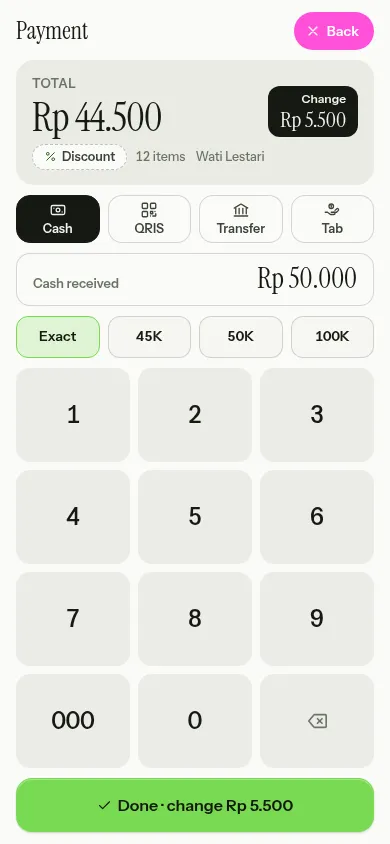
The green button shows the result: Done · exact cash, Done · change Rp …, or Rp … short when the money isn't enough yet.
QRIS and Transfer
- QRIS shows your shop's own QRIS image, from your bank or e-wallet, for the customer to scan. The money goes straight to your account. The owner uploads the image in Settings › Receipt & payment.
- Transfer shows the Transfer to details written in Settings › Receipt & payment.
BIKIN WARUNG doesn't check whether the money has arrived. Check it yourself in your bank or e-wallet app, then choose Paid · done.
When Automatic QRIS is on for your business, QRIS shows a fresh QR with the exact amount for that sale, and the payment is checked automatically: the button says Waiting for payment · checked automatically, and the sale finishes the moment the customer pays. See Automatic QRIS.
Tab
Choose Tab when the customer takes the goods now and pays later.
- Choose Choose a customer, then search by name or WhatsApp number. Customers who had a tab most recently come first. Not there yet? Choose New customer and fill in Name and WhatsApp number (optional).
- Fill in Paid now (optional) if the customer pays part of it now.
- Choose a Due date: None, 1 week, 2 weeks, 1 month, or another date.
- Choose Put Rp … on the tab.
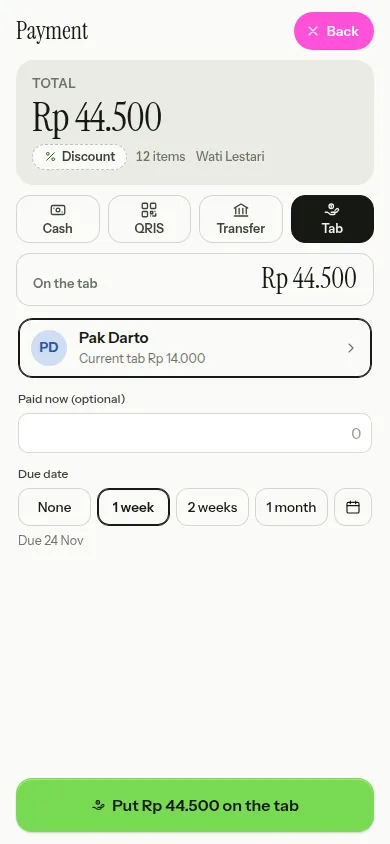
The next screen says Added to the tab, with the customer's name and what's left. Tabs need the internet, so without a signal the Tab option is locked; use another way to pay for now. Later payments are taken from the Tabs page. See Customer tabs.
A discount on the whole sale
Choose the Discount chip in the summary on the Payment screen to give a discount on the whole sale, in Rp or %. It's based on the total of every line after the per-item discounts. The subtotal before the discount is then struck through next to Total, and the chip shows the discount amount.
Exact cash, change, the cash shortcuts and tabs always use the total after the discount. Discounts on one item are given in the cart; see Selling.
Done
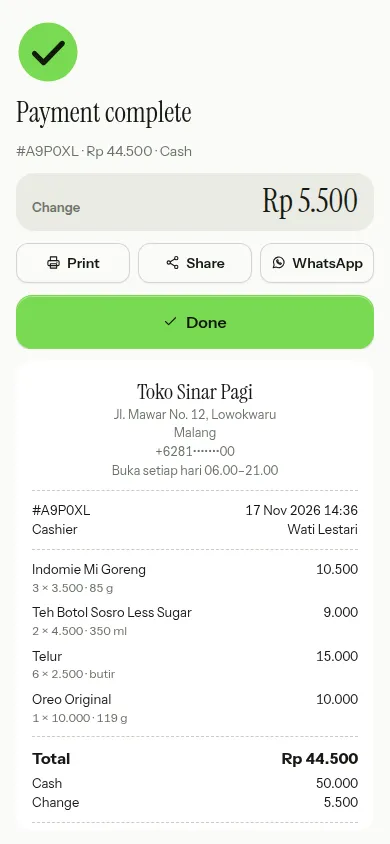
Once paid, the Payment complete screen shows the change in large type, Print, Share, WhatsApp and Done, with the receipt below. Choose Done, press Enter, or simply scan the next customer's item to close it.
Without internet, the screen says Saved on this device: the sale is sent by itself once you're back online, and the receipt can still be printed.
What's on the receipt
The receipt has the business name, the address and phone if switched on, the text under the business name, the receipt number and time, the cashier, the items (quantity × price), discounts, the total, the payment method, the change and the closing text. A tab receipt also shows Customer, Paid, Left on tab and Due. At the bottom is a small BIKIN WARUNG mark, which goes away on plans with receipts without the mark.
Printing and sharing receipts
- Print: if a Bluetooth thermal printer is set up on that device, the receipt prints straight away. If not, or on iPhone and iPad, BIKIN WARUNG opens the device's print dialog with a receipt layout.
- Share: opens the device's share sheet with the receipt as text, for example to send through a chat app. If the device can't share, the receipt is copied as text.
- WhatsApp: sends the receipt as text to a saved customer, or to a new number that's saved as a customer straight away. With a connected business WhatsApp number it goes out directly; without one, WhatsApp on this device opens with the same message. See WhatsApp.
The printer is set up in Settings › Receipt & payment, on the Receipt printer card:
- Switch the printer on, then choose Pick a printer and pick it in the browser window.
- Choose Test print to try it. The printer is remembered on that device and connects by itself next time.
- Switch on Print the receipt automatically after payment (this device) if every sale needs a paper receipt.
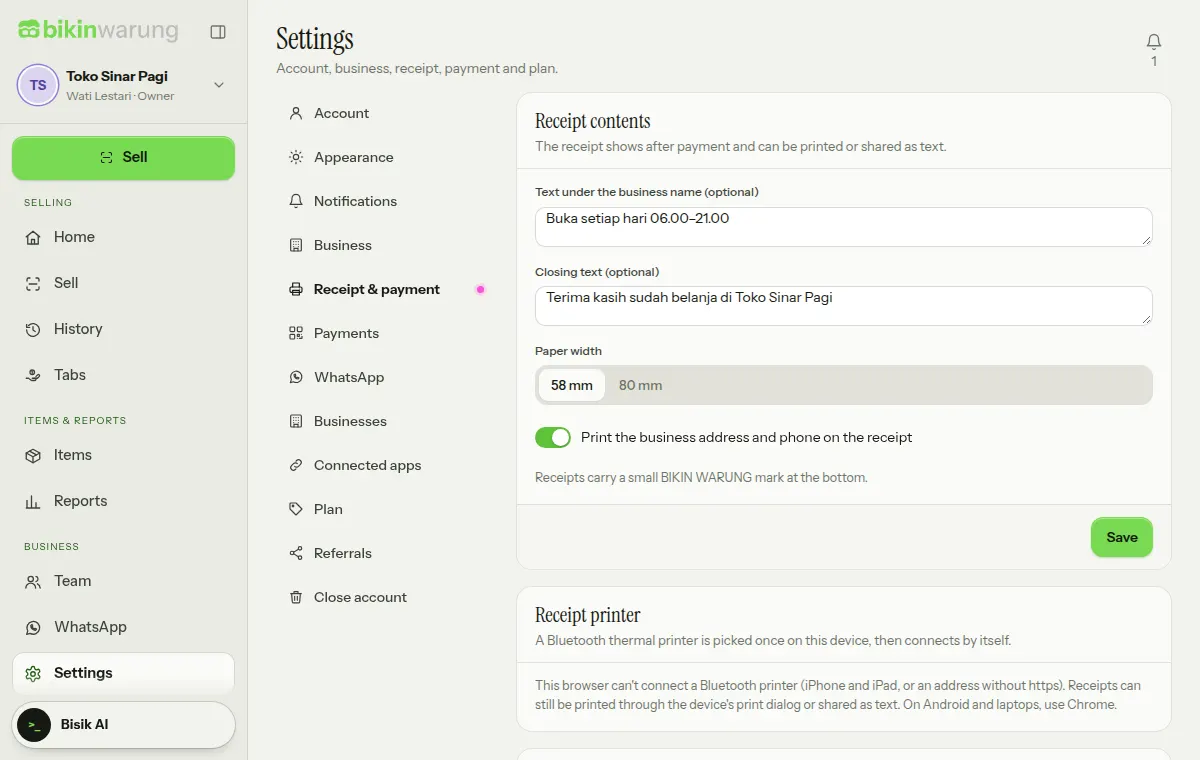
Bluetooth printers can be connected from Chrome on Android and laptops, for 58 mm or 80 mm paper (set it in Paper width). On iPhone and iPad, receipts print through the device's print dialog.
Last updated: