BIKIN WARUNGFeatures
Automatic QRIS
A fresh QR with the exact amount on the Pay screen for every sale, payments that check themselves, then a business Balance you withdraw to a bank or e-wallet account.
Automatic QRIS makes a fresh QR with the exact amount on the Pay screen for every QRIS sale. The customer scans it with any bank or e-wallet app, the payment is checked automatically, and the sale finishes the moment they pay. The money goes to your business Balance in BIKIN WARUNG, and you withdraw it to a bank or e-wallet account.
How it differs from your shop's own QRIS: the QRIS image from your bank or e-wallet puts money straight into your account, but the customer types the amount and the cashier makes sure the money arrived. Until automatic QRIS is on, the Pay screen uses that image. See Payment & receipts.
BIKIN opens automatic QRIS step by step. If the Automatic QRIS card in Settings › Payments says Not available for your business yet, use your shop's own QRIS for now, or contact BIKIN if you'd like to use it.
What it needs
Automatic QRIS can be switched on when:
- your plan includes automatic QRIS; if it doesn't, the card shows Upgrade,
- your business uses Indonesian rupiah (IDR),
- BIKIN has opened it for your business, and
- the owner switches it on after agreeing to its terms.
If you run several businesses (see Plan & account), automatic QRIS is managed by the owner of the main business, because money from every business in the group goes to the main business's Balance.
Switching it on
- Open Settings › Payments. The Automatic QRIS card lists what it does and the fee on each payment.
- Choose Turn on automatic QRIS.
- Read the Automatic QRIS terms, tick I've read and agree to these terms., then choose Agree & turn on.
- Enter the code from your email.
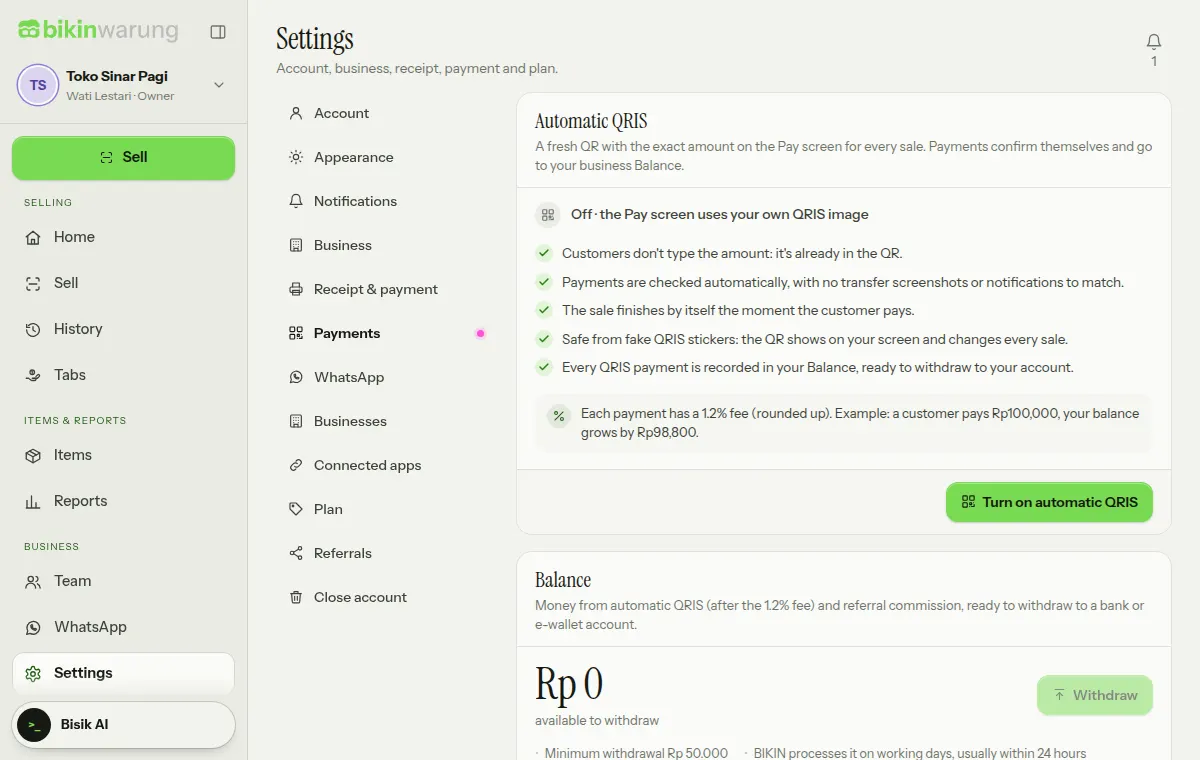
The card then shows On with since when and who agreed to the terms. See terms opens the agreed terms, and Turn off takes the Pay screen back to your own QRIS image; any Balance can still be withdrawn. Turning automatic QRIS on also switches on the QRIS payment method on the Pay screen.
If the terms change, the card shows Needs agreement. Until the owner chooses Read & agree to the new terms, the Pay screen goes back to your own QRIS image.
On the Pay screen
- On the Payment screen, choose QRIS. A QR with the exact amount appears where the keypad was, with how long it stays valid.
- The customer scans the QR with any bank or e-wallet app and pays.
- While it waits, the button says Waiting for payment · checked automatically. Once paid, the screen says QRIS payment received and the sale saves itself.
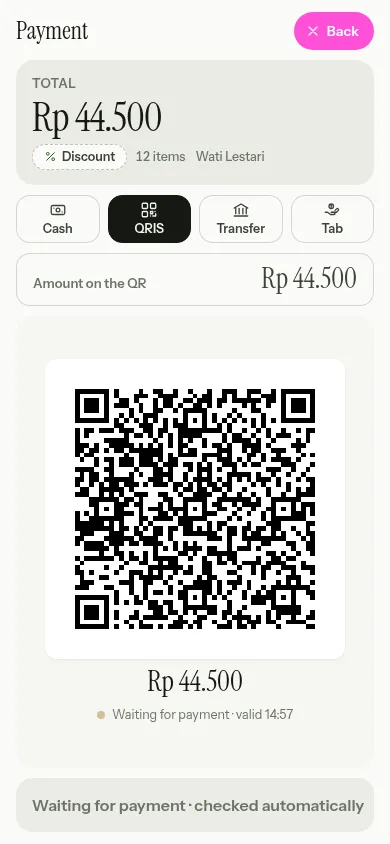
- A QR is only valid for a short while, and the time left is written under it. When time runs out, the screen says Checking for a last-minute payment… until it's sure the customer didn't pay at the last second. If it really wasn't paid, it changes to This QRIS is no longer valid. Choose New QRIS.
- Changing the payment method or closing the Pay screen cancels the QR. A payment that still comes in afterwards is recorded in your Balance, never lost.
- Changing the discount on the whole sale makes a new QR with the new amount. If the customer had already paid the old QR, the screen asks you to change the total back to the amount paid, or record the sale another way, because the money is already in your Balance.
- Automatic QRIS needs the internet. A QR already on screen stays there when the signal drops, and its payment is checked again once you're back online. With no QR and no internet, the Pay screen uses your own QRIS image.
Balance and withdrawals
The owner of the main business sees the Balance card in Settings › Payments. The Balance holds money from automatic QRIS after the fee, plus referral commission (see Plan & account). The Balance is always in rupiah.
- Choose Withdraw.
- Enter the Amount, or choose All.
- Choose the Bank or e-wallet, then fill in the Account or e-wallet number and the Account holder name exactly as on the account.
- Choose Withdraw Rp …, then enter the code from your email.
BIKIN processes withdrawals on working days, usually within 24 hours, one request at a time. The minimum withdrawal is written on the Balance card. A wrong account gets the withdrawal rejected and the balance returned.
The Balance history card has three tabs: Withdrawals with their state (Processing, Transferred or Rejected), QRIS in with the fee and the amount added to your Balance for each payment, and Moves. The bell tells you when BIKIN has processed a withdrawal.
Who can do what
| Role | Automatic QRIS |
|---|---|
| Owner of the main business | Switches it on and off, sees the Balance and withdraws |
| Admins and owners of added businesses | See the state of automatic QRIS and who manages it |
| Cashiers and managers | Use automatic QRIS on the Pay screen |
Demo accounts show a sample QR that can't be paid, so the flow can be shown. Switching automatic QRIS on and withdrawing aren't available in demo accounts.
Last updated: