BIKIN KASFeatures
Plans & shopping
Make a shared plan for a wedding, renovation, event or new business, shared savings for a home, a vehicle or a holiday, and shopping lists you tick off with whoever shops with you through a link.
The Plans & shopping menu holds three things you can work on with your partner, family or friends:
- Shared plan: a plan with a budget, such as a wedding, a home renovation, an event, a trip or a new business. Each line has an estimated cost, who handles it, and its payments.
- Shared savings: saving towards one goal, such as a house down payment, a vehicle or a pilgrimage, with a target, deposits by person and how much to put aside each month.
- Shopping list: your own shopping list shared with whoever shops with you, so nothing is bought twice or forgotten. It isn't an order page: nobody orders anything from you.
Choose New to make one; all three are also under Quick record › More on Home. The In progress and Finished tabs separate what's ongoing from what's done. The number of plans, savings and lists in progress follows your plan.
Shared plans
- Choose New › Shared plan.
- Pick the type: Wedding, Home renovation, Event & celebration, Trip together, Baby on the way, School year, Homecoming & Eid, New business, or an empty Something else. The usual lines are set up for you by section; a Wedding, for example, has Engagement, Ceremony, Reception and Afterwards.
- Fill in the Plan name, Budget (optional) and Event or target date, then choose Create plan.
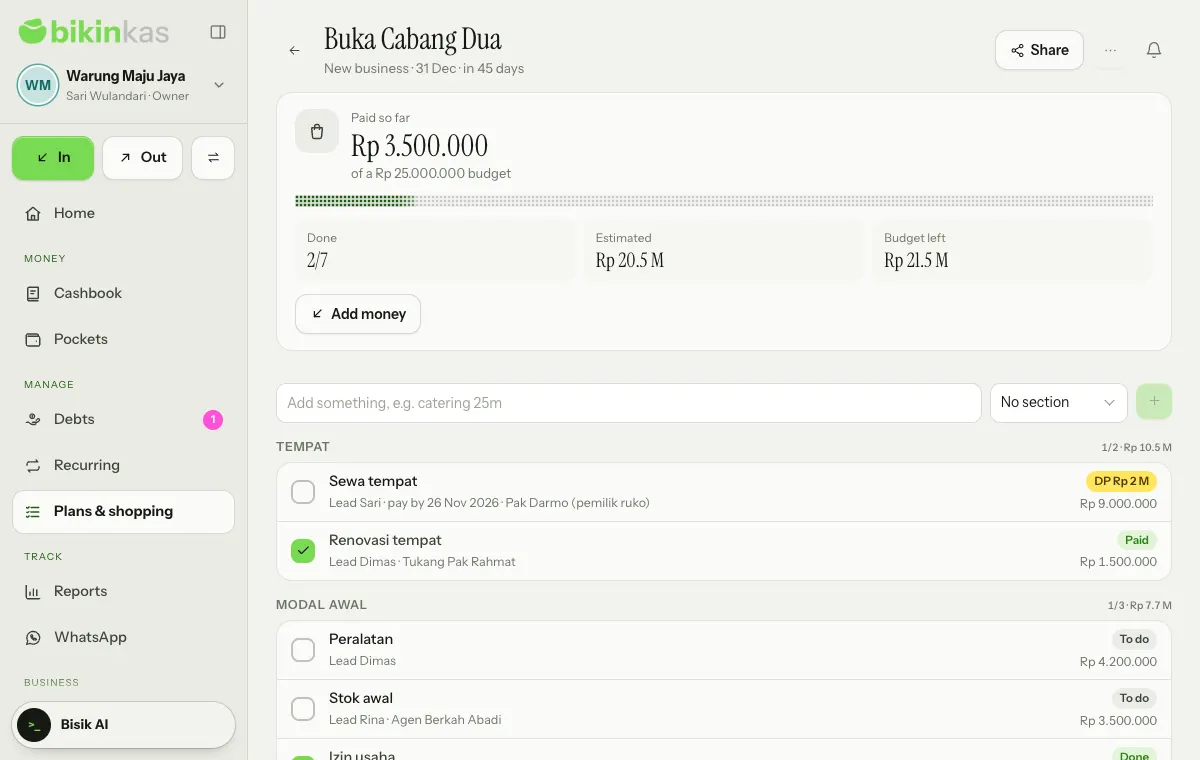
Each line has a status pill:
| Pill | Meaning |
|---|---|
| To do | Nothing paid yet |
| DP Rp … | Partly paid (a down payment) |
| Paid | Paid up to its estimate |
| Done | Ticked off, such as something that needs no payment |
Tap a line to fill in its Estimated cost, Who handles it, Pay by, Vendor or contact and Note, or move it to another Section. Pay in the line sheet opens a money-out record sheet already filled with what's left of the estimate and linked to that line; its payment history shows in the same sheet.
Add money records money in for the plan, such as money put aside together or gifts after the event, and the total shows as Saved. Payments and deposits are normal records, so pocket balances, the Cashbook and Reports follow.
Add a line in the Add something field, with its estimate if you like, such as "catering 25m", then pick its section or New section…. The ⋯ menu has Edit plan, Mark as finished and Delete; deleting a plan doesn't delete its money records.
Shared savings
- Choose New › Shared savings. The Start shared savings sheet opens.
- Pick the goal: House down payment, Vehicle, Wedding fund, Umrah & hajj, Children's education, Emergency fund, Holiday, Business capital or Other savings.
- Fill in the Savings name, Target and Reach it by (optional), then choose Start saving.
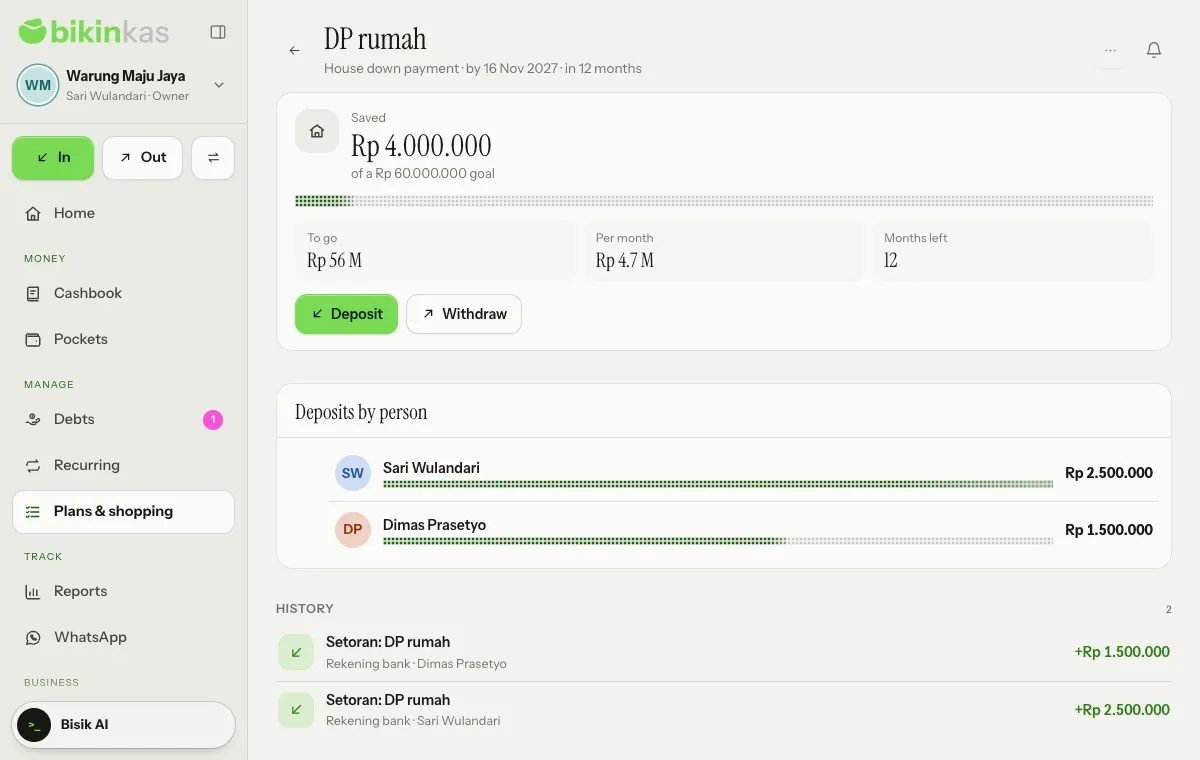
- Saved shows what's in the savings against the goal, with To go, Per month (how much to put aside each month until the target date) and Months left.
- Deposit opens a money-in record sheet linked to the savings; Withdraw records money taken out of it. Both are normal records, so pocket balances follow, and in the Cashbook their source reads From savings.
- Deposits by person groups deposits by who recorded them. Invite your partner or family to the team (see Team & roles) so they can deposit from their own account.
- History lists every deposit and withdrawal. The ⋯ menu has Edit savings, Mark as finished and Delete; deleting the savings doesn't delete its money records.
Shared savings have no share link; only the team of this business sees them.
Shopping lists
- Choose New › Shopping list.
- Fill in the List name and, if you like, What to buy (optional): one item per line, such as "sugar 2 kg 30rb". The name, quantity and estimated price are read by themselves.
- Choose Create list.
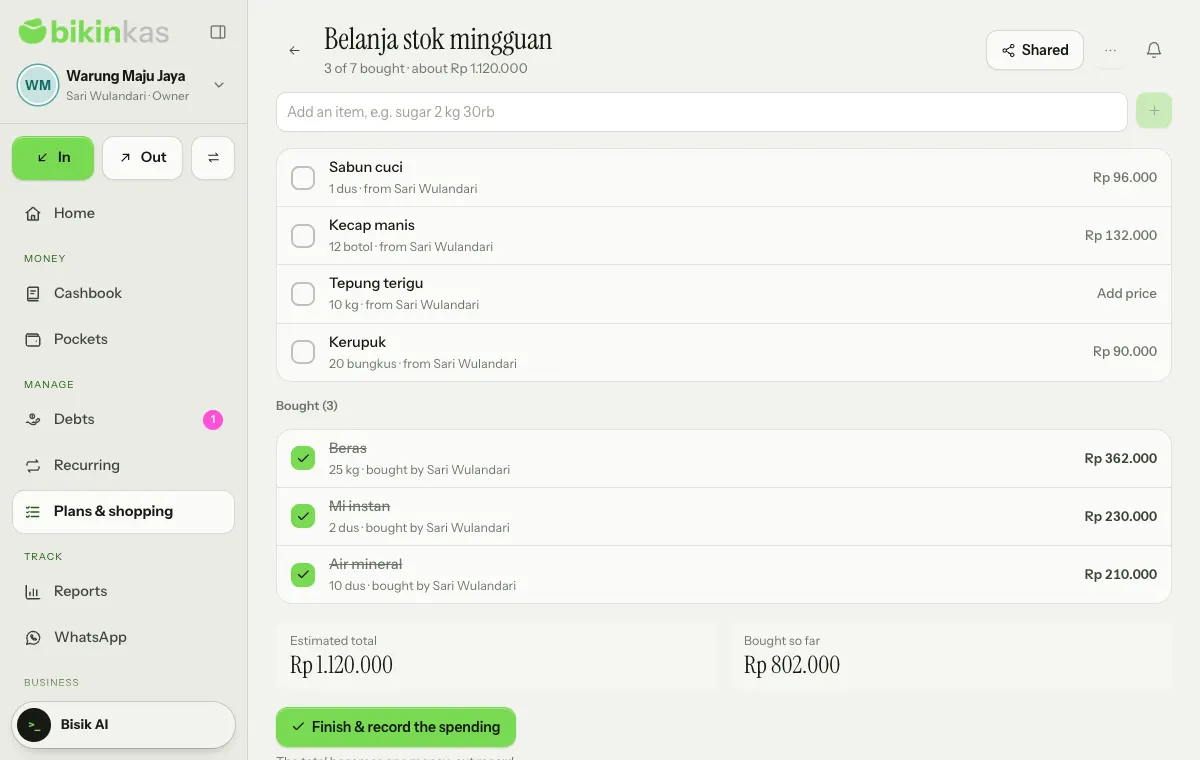
- Add items in the Add an item field. Tick items once bought; tap an item to change its Item, Quantity or Price, for example from an estimate to the real price.
- Finish & record the spending turns the total of the items bought into one money-out record. Once saved, the list moves to Finished.
- The ⋯ menu has Rename, Use again (copy) to copy the list without ticks, Finish without recording and Delete.
Sharing with a link
Choose Share in the plan's or list's header, then switch on Share with a link.
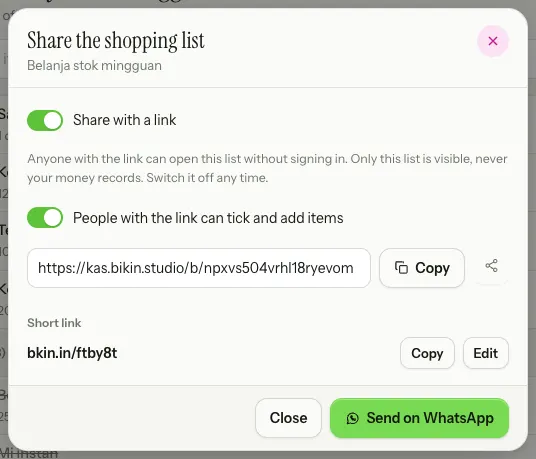
- People with the link can tick and add items (for plans: People with the link can tick what is done and add lines) lets people with the link tick and add. When it's off, the link is view-only.
- Use Copy, the bkin.in short link or Send on WhatsApp to share it.
- Switch Share with a link off any time; the link stops working straight away.
The link opens without signing in and without an account. Visitors enter their name once on their device, and the ticks and items they add are recorded with that name; your team gets a notification when a list is changed through its link. A plan's page shows its sections, lines, who handles what and what's done, but never the amounts paid, vendors, pockets or money records.
Who can do what
Owners, admins and bookkeepers make, share, finish and delete plans, savings and shopping lists, and record their deposits and payments. Cashiers can open lists, add items and tick them off. Viewers don't see this menu.
Last updated: