BIKIN KASFeatures
Recording money
Record money in, money out and transfers between pockets in a few taps: amount, pocket, then Save. Categories are suggested from your note, AI scan fills in the sheet from a receipt photo, and you can add a proof photo.
All money is recorded with one Record sheet. Open it from the In and Out buttons above the sidebar menu and the transfer icon next to them (on phones, in the sidebar drawer), the Quick record card on Home, the Record button in the Cashbook, or a draft card from Bisik.
Recording money in or out
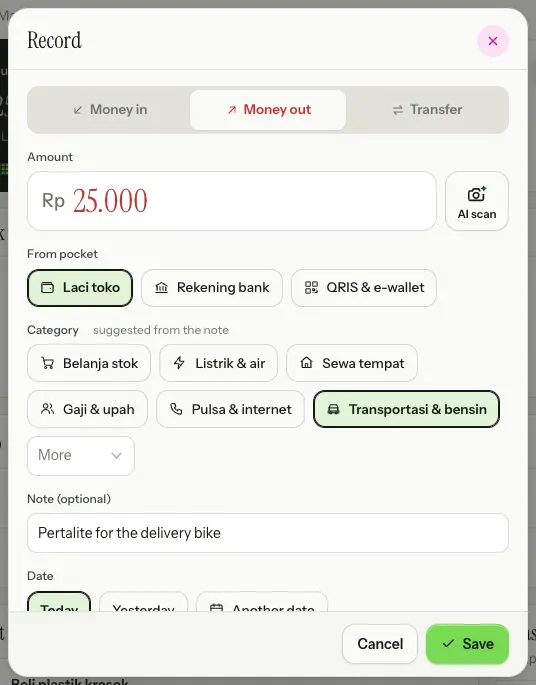
- Choose Money in or Money out at the top of the sheet.
- Enter the Amount. The field is large and ready to type.
- Pick the pocket: Into pocket for money in, From pocket for money out. The pocket you used last is already picked.
- If you like, pick a Category and write a Note (optional).
- Choose Save.
Once saved, a notice confirms the amount, with a Record another button for the next one. Pocket balances, Home and the Cashbook update straight away.
- Categories show as chips: the ones you use most come first, the rest are under More. As you type a note, BIKIN KAS picks the category whose keywords appear in it, such as "pertalite" or "bensin" for transport, and marks it suggested from the note. The built-in keywords are everyday Indonesian words; add your own, such as "fuel", in Settings › Categories.
- The Date is Today by default. Choose Yesterday or Another date for late records. Cashiers always record for today.
- More: contact, proof opens Contact (optional) and Proof (a receipt photo, optional). Choose Add a photo; the photo is shrunk on your device before it uploads.
The amount field only takes whole Rupiah, with no 000 button: just type the number.
AI scan: fill in from a receipt photo
The AI scan button (a camera with a sparkle) next to the amount opens your camera or gallery. Bisik reads the receipt photo and fills in the amount, date, note and a suggested category, and the photo becomes the proof. Check it, then tap Save yourself: Bisik never saves.
You can also start AI scan from Home with Quick record › More › AI receipt scan. How many photos can be read each month follows your plan. If Bisik can't read your receipt, fill in the sheet by hand; the photo still becomes the proof. AI scan needs the internet.
Transfers between pockets
Choose Transfer to move money between your own pockets, such as depositing the till cash at the bank or cashing out a QRIS balance to your account. Enter the amount, pick From pocket and To pocket, then Save. A transfer only moves money, so it doesn't count as money in or out on Home or in Reports.
If the bank or e-wallet charges a fee, open More: admin fee, proof and fill in Admin fee (optional). The fee is recorded as a separate money-out from the source pocket, in the Admin fees category. A transfer needs at least two pockets, and only owners, admins and bookkeepers can make transfers.
Changing or deleting a record
Tap a record in the Cashbook or on Home to open it, then choose Edit or Delete. See Cashbook.
Limits and locks
The number of records per month follows your plan. When it's full, the record sheet tells you and Save can't be tapped until next month or until the plan is upgraded. Records for a date that has been locked can't be added either; see Lock records in Settings.
Offline, the record sheet still works for money in, money out and transfers. See Working offline.
Last updated: