BIKIN KASGet started
Get started with BIKIN KAS
Sign up or sign in to BIKIN KAS, pick what the cashbook is used for so pockets and categories are ready, enter the money that's there now, record your first money, then finish Quick start.
This page takes you from signing up to your first record. Most steps only need doing once, by the owner.
Sign up
- Open kas.bikin.studio/register, or choose Create one free on the sign-in page.
- Fill in Your name, Business or cashbook name, Used for, Email and Password (at least 8 characters), then choose Create account.
- Enter the 6-digit code sent to your email.
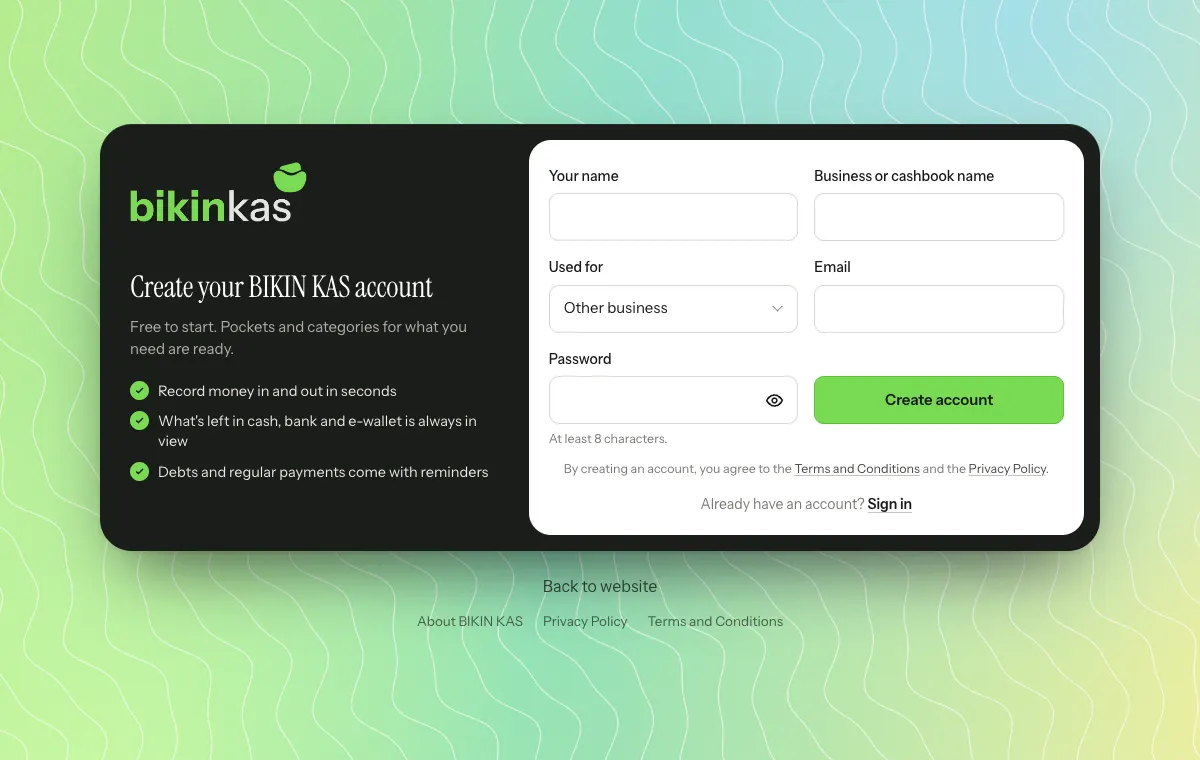
Used for decides your first pockets, categories and wording. The choices are grouped: Personal & family, Retail, Food & drink, Services, Production and Community & organisations. If nothing fits, pick Other business at the bottom. For example:
- Small shop & grocery gets the pockets Shop till, Bank account and QRIS & e-wallet, the money-in categories Sales and Consignment & commission, and money-out categories such as Stock purchases, Electricity & water, Rent and Wages. Its total card reads Total business money.
- Personal gets the pockets Wallet, Bank account and E-wallet, categories such as Salary, Food & drink and Bills & instalments, and the title My total money.
- Neighbourhood fund, Savings circle and the other community types get a treasurer's cash pocket and a bank account, categories such as Dues and Donations, and the title Total funds.
You can change this in Settings › Business (the Used for field); only the wording and category suggestions change, and your existing data stays as it is.
When the button is shown, you can also choose Sign up with Google. The person who signs up becomes the Owner of that cashbook, and new businesses start on the free plan.
If the Create one free link isn't shown, sign-up is closed for now. Contact BIKIN at contact@bikin.studio to get an account.
Sign in
- Enter your email and password, then choose Sign in.
- Enter the code from your email. It works for 10 minutes.
You then stay signed in on that device for 30 days. Choose Sign in with Google if your Google account uses the same email. Forgot your password? Choose Forgot password? on the sign-in page.
Welcome and Quick start
The first time you sign in, BIKIN KAS shows a short welcome for your role: how to record, Pockets, debts and Bisik for owners and admins; how to record and see your own records for cashiers. Choose Skip to get straight to work.
Owners and admins also get the Quick start card in the sidebar, right above Bisik (on phones, in the sidebar drawer). Tap the card to open the list of steps.
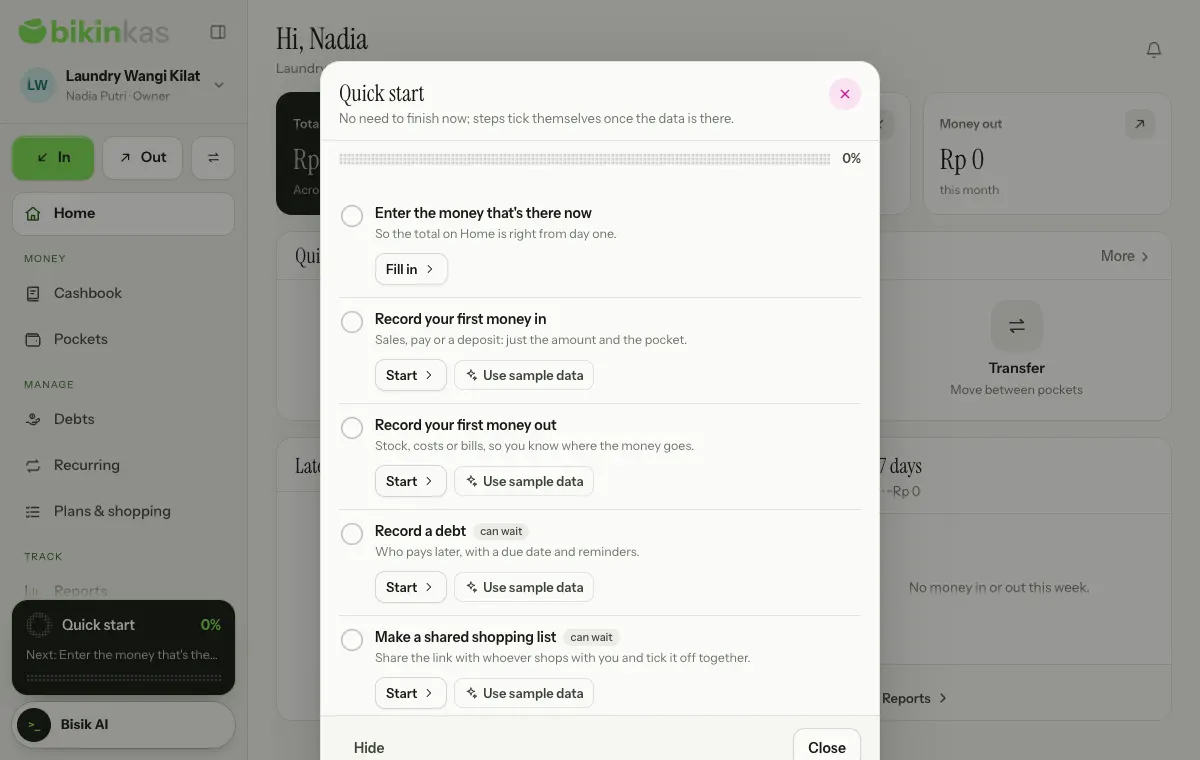
Each step says why it matters and has a button that takes you straight there:
- Enter the money that's there now, so the total on Home is right from day one. The Fill in button opens Pockets; choose Edit in each pocket's ⋯ menu and fill in the Opening balance.
- Record your first money in and Record your first money out: just the amount and the pocket.
- Record a debt, Make a shared shopping list and Invite teammates, marked "can wait".
Once the required steps are done, tap Finish. If you don't want to see it yet, choose Hide. The welcome, Quick start and page tips can be opened again from Settings › Account › Getting started (Replay the guide).
Sample data
Want to see BIKIN KAS filled in first? In the steps for recording money, a debt or a shopping list, choose Use sample data. BIKIN KAS adds sample records for your kind of business: two weeks of money in and out, one debt to receive and one to pay, one recurring record and one shopping list, so Home fills up right away.
Everything is marked as sample and can be removed in one tap with Remove sample data in Quick start or Settings › Account › Getting started, without touching your real data. Sample data counts towards your plan like regular data.
Next steps
- Home to get to know your workspace.
- Recording money to start recording.
- Team & roles to invite your team.
Last updated: