BIKIN KASAccount & plan
Plan & account
BIKIN KAS plans in words, how to choose and pay for a plan, coupons, bills, several businesses with Add a business, referrals, privacy, and how to close the account.
Plans
Each business has one plan. New businesses start on the free plan, with no end date.
Plans differ in the number of records per month, pockets, team members, businesses, unpaid debts, recurring records, plans and shopping lists in progress, proof photo storage, the monthly allowance of Bisik questions and AI scans, and emails per day. They also differ in the features Full reports (categories, pockets, debts), CSV export, Debt reminders from your business WhatsApp number, Lock records, Email reminder digest, Shopping list links without the BIKIN KAS mark and the BIKIN AI and SIGHT connector. The cashbook, pockets, categories, debts, recurring records, proof photos, balance checks, shared plans, savings and shopping lists, Bisik, the bell and profile photos are on every plan.
Limits are written in words, never numbers: your usage is Plenty left, Almost full or Full, features are marked Included or Not included, and on the plan cards limits read Standard, More, The most or Unlimited.
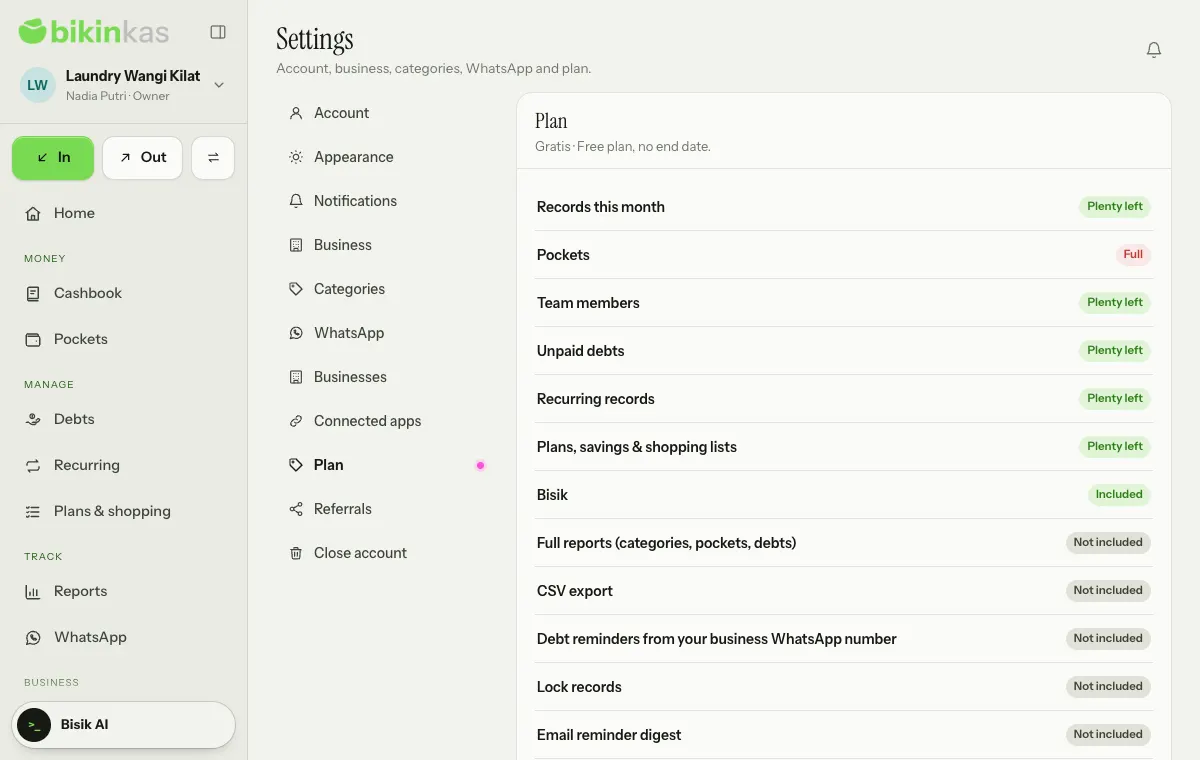
Features your plan doesn't include yet aren't hidden; they show locked. The Reports tabs other than Summary carry a lock, while Export CSV, Lock records, Record from WhatsApp and Add a business carry an Upgrade mark. The owner can upgrade in Settings › Plan, or contact BIKIN when plan sales aren't open yet; other roles ask the business owner.
Seeing your plan
Open Settings › Plan.
- The owner sees the Plan card (the active plan and until when it runs, usage and features), the Choose a plan card and the list of Bills.
- Other roles see usage and features in words. To upgrade, ask the owner of the business.
Choosing and paying for a plan
The Choose a plan card shows while plan sales are open.
- Pick the period: Monthly, 3 months or Yearly.
- Choose Choose on the plan you want, or Renew for the same plan.
- In the plan's sheet, enter a Coupon code if you have one, then Apply.
- Check the Active dates and the Total, then choose Pay Rp ….
- You're taken to the online payment page. Pay with any method offered there, such as a virtual account, QRIS, an e-wallet or a retail outlet.
- After paying, you come back to BIKIN KAS. The plan starts as soon as the payment is received.
If you switch plans before the current one ends, the days left become extra days on the new plan. Renewing the same plan continues after the last day of the current one.
When plan purchases aren't open yet, the Plan page asks you to contact BIKIN at support@bikin.studio to upgrade.
Bills and renewals
The Bills card lists every plan bill with its status: Waiting for payment, Paid, Expired or Cancelled. A waiting bill can be paid (Pay) or cancelled from there. On a paid plan, switch on Send a renewal bill before the plan ends on the Plan card so the owner gets a renewal bill by email before the plan runs out.
When a paid plan ends
If a paid plan ends and isn't renewed, the business goes back to the free plan. No data is deleted: records, pockets, debts, proof photos, plans, savings and shopping lists all stay. The free plan's limits apply again to anything new, and features outside the free plan stop. Added businesses beyond the plan's limit become read-only until the plan is renewed or upgraded.
Several businesses
On paid plans, the owner can hold several businesses or cashbooks on one plan, such as a shop and its second branch. Each business has its own pockets, categories, records and team; plan limits count across all of them together.
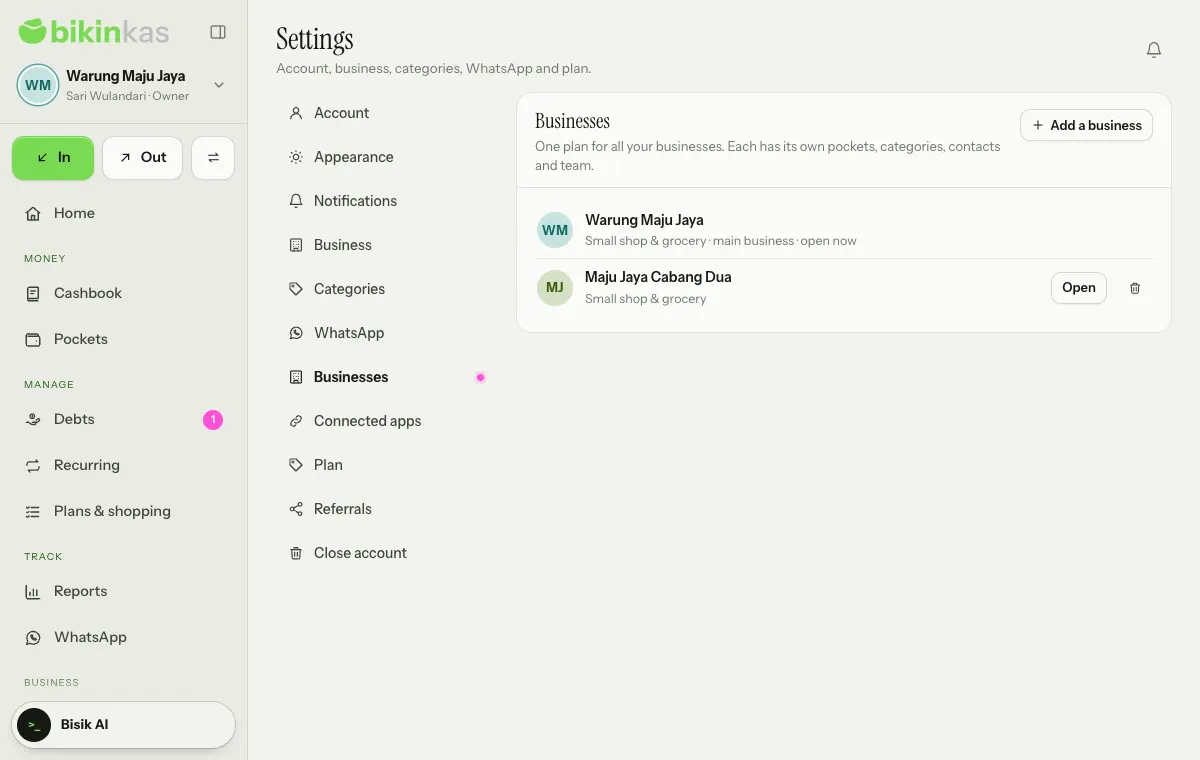
- Add a business: tap the business card at the top of the sidebar, then Add a business, or open Settings › Businesses. Fill in the Business name and Type of business; its default pockets and categories are set up like a new sign-up. It needs an email code. On the free plan the button carries an Upgrade mark.
- Switch business: the business card in the sidebar lists every business; tap one.
- Who can open them: the owner of the main business (the first one) opens every business. Team members only open the businesses they were invited to.
- The group's plan and referrals belong to the main business and only its owner manages them.
- Delete a business: in Settings › Businesses, choose the bin icon, type the business name, then enter the email code. All of that business's data is deleted. The main business can't be deleted here; Close account in the main business closes every business.
Referrals
When BIKIN has the referral program open, the owner of the main business sees Settings › Referrals with an invite link; choose Share to send it. Businesses that sign up through it count as your invites and may get a free trial or a discount. Each time one of them pays for a paid plan, you can earn commission into your Balance. Commission is held for a few days before you can withdraw it with Withdraw, and BIKIN then transfers it to the account you give.
Privacy and security
- The money records belong to your business. For personal data in them, such as the names and numbers of the people in your debts, your business is the data controller, and BIKIN processes it on your behalf only to run BIKIN KAS. The details are in the Privacy Policy.
- Every sign-in uses your password and then a code from your email, unless you sign in with Google. Important actions such as exports, deleting, locking records and changing roles also ask for a code from your email.
- Bisik chats aren't stored on our servers.
Closing the account
The owner can close the account in Settings › Close account by typing the business name, choosing Close account, then entering the email code. While referral commission hasn't been withdrawn or a payout is still being processed, the account can't be closed yet: withdraw what's left in Settings › Referrals first, or contact BIKIN if it can't be withdrawn yet.
Every record, pocket, category, debt, recurring record, plan, savings and shopping list, proof photo and team member is deleted for good, including the other businesses in the group. This can't be undone, so download the reports you need first. Plan bills are kept as payment records.
Questions about privacy and data can go to contact@bikin.studio.
Last updated: