Bikin HRAccount & plan
Roles & access
The five roles in Bikin HR (Owner, HR admin, Finance, Manager, Employee), extra access per person, how to invite users, and the access log.
In Bikin HR, each person only sees what their role needs. These rules are checked on the server, also when asking Bisik and when other BIKIN apps read summaries.
Five roles
| Role | What they can do |
|---|---|
| Owner | Everything, including roles, plan, payroll and deleting data |
| HR admin | Master data and employee documents, attendance, leave, contracts and warning letters. Pay only with pay access |
| Finance | What it takes to pay: bank, NPWP, PTKP, BPJS and pay; payroll, cash advances and reimbursements |
| Manager | Their own team: approve requests, see team attendance, write work notes. Without personal data, pay or ID documents |
| Employee | Their own data and documents, check-in, requests, payslips and leave balance |
A Manager's team is the employees whose manager they are, plus those people's direct reports one level further down. Set the manager on the Work tab of the employee profile.
Extra access
A role can be topped up with Extra access per person:
- Pay: see and set pay, for example HR admin + pay.
- Documents: see and manage employee documents.
- Access log: see the access log (normally the Owner only).
Invite users
Open Users & roles (left sidebar, ADMIN group; visible to the Owner and HR admins), then press + Invite at the top right of the list.
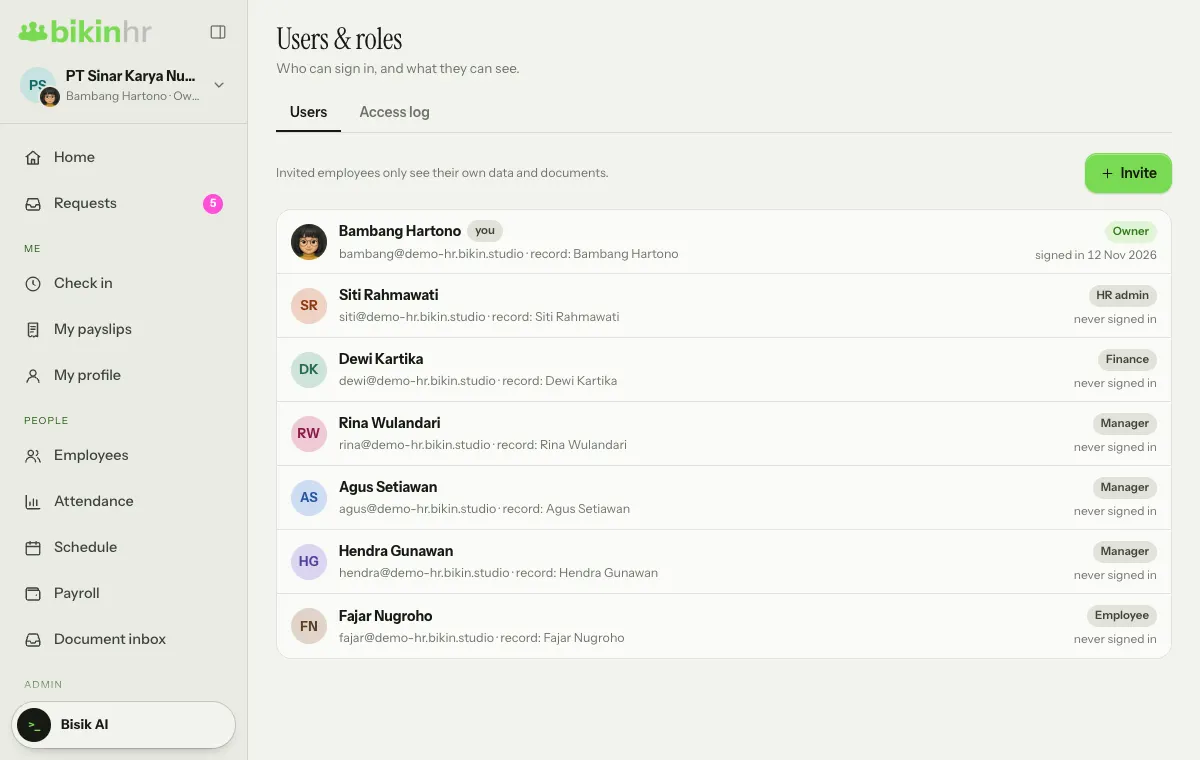
- In the Invite a user window, choose the Employee record to link the account to. A linked account sees My profile and My documents, and can check in.
- Fill in the Name and Email, then choose the Role and any Extra access. The line under the role choices explains what that role can see.
- If your group has several companies, the Owner also picks the Companies they can open for an HR admin, Finance or Manager. The same role applies in every company picked; employees only open their own company.
- Leave Email an invitation on. Bikin HR makes a temporary password and sends it. Or turn the switch off, type a Temporary password yourself (at least 8 characters) and hand it over in person.
- Save.
HR admins can invite Employees and Managers without extra access. Giving other roles or extra access, and changing roles, can only be done by the Owner and asks for an email code.
Tap a user in the list to open Edit user: change the role, access, Active or set a New temporary password, or delete the user. Deleting a user means they can't sign in any more, but their employee record stays. In the list, each user shows when they last signed in, or "never signed in".
Sample employees from the sample data can't get a sign-in account. Add a real employee first.
Email codes for important actions
Important actions ask for a 6-digit code from your email, for example:
- opening a full NIK, family card no., NPWP, bank account or pay;
- opening a document file;
- changing roles or extra access;
- deleting data, finalising or reopening a pay run, and downloading CSVs with full details.
Once the code is right, other important actions won't ask again for 10 minutes. Never share the code with anyone, including the BIKIN team.
Access log
The Owner (and anyone with Access log extra access) sees the Access log tab in Users & roles, next to the Users tab. Every time sensitive data or a document is opened, it is logged here: who, what and when. Examples: opening a file, viewing a NIK, NPWP, bank account or base pay, asking Bisik for a document, changing a role, deleting an employee or document, exporting a CSV, linking a Google account, and verifying or removing a WhatsApp number.
Password and sessions
Change your password in Settings › Account, on the Password card: enter your Current password and a New password, then press Change password. Afterwards, every other device is signed out automatically; the device you are using stays signed in. A session on one device lasts 30 days.
Last updated: