Bikin HRFeatures
Requests & leave
Request and approve leave, permission, sick days, overtime, cash advances and reimbursements in Bikin HR, with leave balances and company policies.
Every request lives in one Requests menu (left sidebar, just below Home): leave, permission, sick days, overtime, cash advances and reimbursements. Employees request from their phone, approvers decide with one tap, and the requester hears back right away.
Make a request
- Open Requests and press + New request at the top right.
- Choose the kind: Leave / sick, Overtime, Cash advance or Reimburse. Overtime, cash advances and reimbursements that your plan doesn't include still show with a small lock; choosing one shows an upgrade note.
- Fill in the form and press Send.
Your request appears on the Mine tab with its status.
Leave, permission, sick days
Choose the leave Type. Your balance shows right away ("days left", with entitlement, used and pending). Choose Full day, Half · morning or Half · afternoon if the type allows half days, then From and To. Holidays and days without a shift aren't counted. For sick leave over a certain number of days, upload a Doctor's note.
Overtime
Pick from From attendance (days you left after the shift), or enter the Date and Hours yourself. Equivalent hours follow PP 35/2021 for workdays, rest days or holidays. Overtime over 4 hours on a workday, or over 18 hours in a week, gets a warning based on the PP 35/2021 limits.
Cash advance
Enter the Amount and Instalments (months). Instalments are deducted from pay from the month after approval. Bikin HR checks a safe limit based on your base pay; if it is too high, the request is refused without showing any pay figure.
Reimburse
Choose a category (Meals, Health, Business trip, Other), enter the Amount and a Note, and upload a Receipt photo. Attachments are stored encrypted.
The requester can Cancel request while it isn't finished. Approved leave can only be cancelled before it starts.
Approve
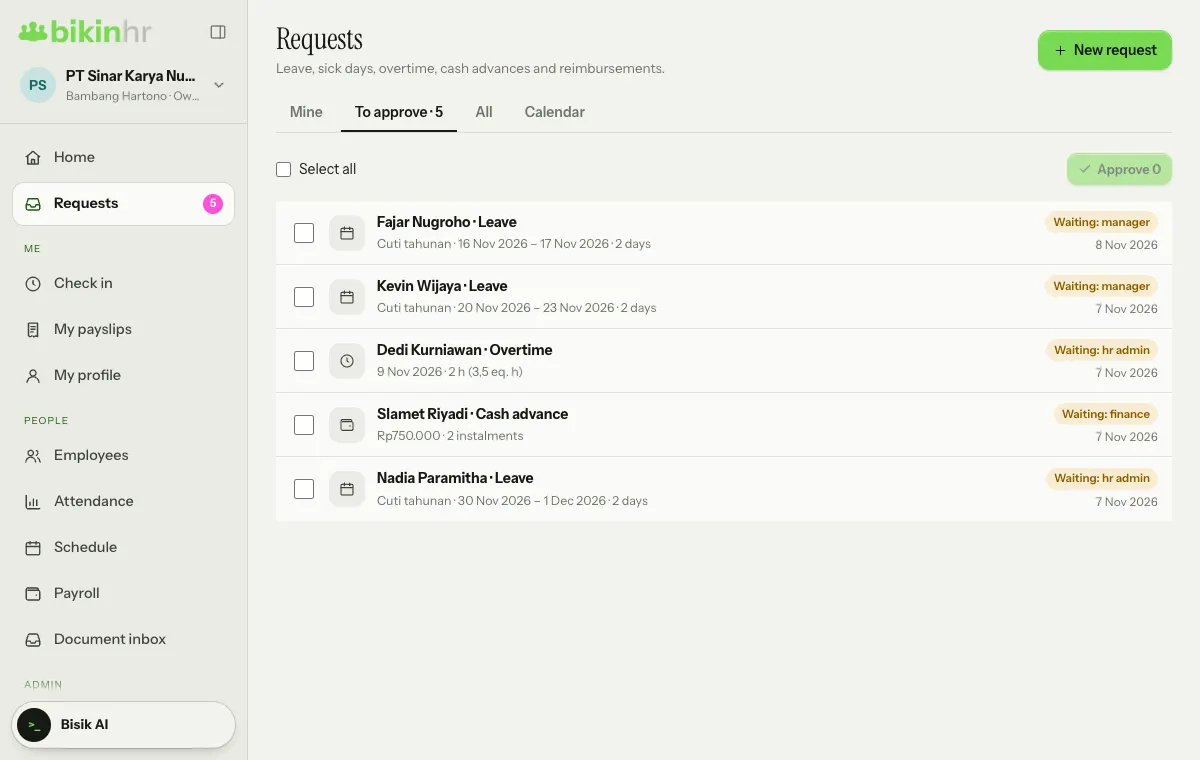
Requests waiting for you are on the To approve tab. The count also shows as a badge on the Requests menu and under Needs attention on Home.
- One at a time: tap the request to see its details, then press Approve or Decline. Fill in the Note first when declining; a note is required to decline.
- Several at once: tick the box on the left of several requests (or Select all), then press Approve above the list. The button shows how many are selected.
| Request | Approval path |
|---|---|
| Leave, permission, sick, overtime | Manager, then HR admin (or Manager only, per policy) |
| Reimburse | Manager, then Finance |
| Cash advance | Finance or the Owner decides; the Manager can only Recommend |
Employees without a manager go straight to the next step. Nobody can approve their own request, and the Owner can decide any step. Managers don't see cash advance amounts.
Finance marks reimbursements with Mark paid (with a transfer reference) and records early cash advance repayments with Record repayment.
Other tabs: Mine, All and Calendar (who is away, month by month; a dashed line means still waiting for approval).
Notifications
The next approver is told when a new request arrives, and the requester is told when it is decided. In Settings › Notifications you choose how you hear about things: by email, by push to your devices, or not at all, per event. If you had turned off notification emails before, Email stays off until you turn it on here.
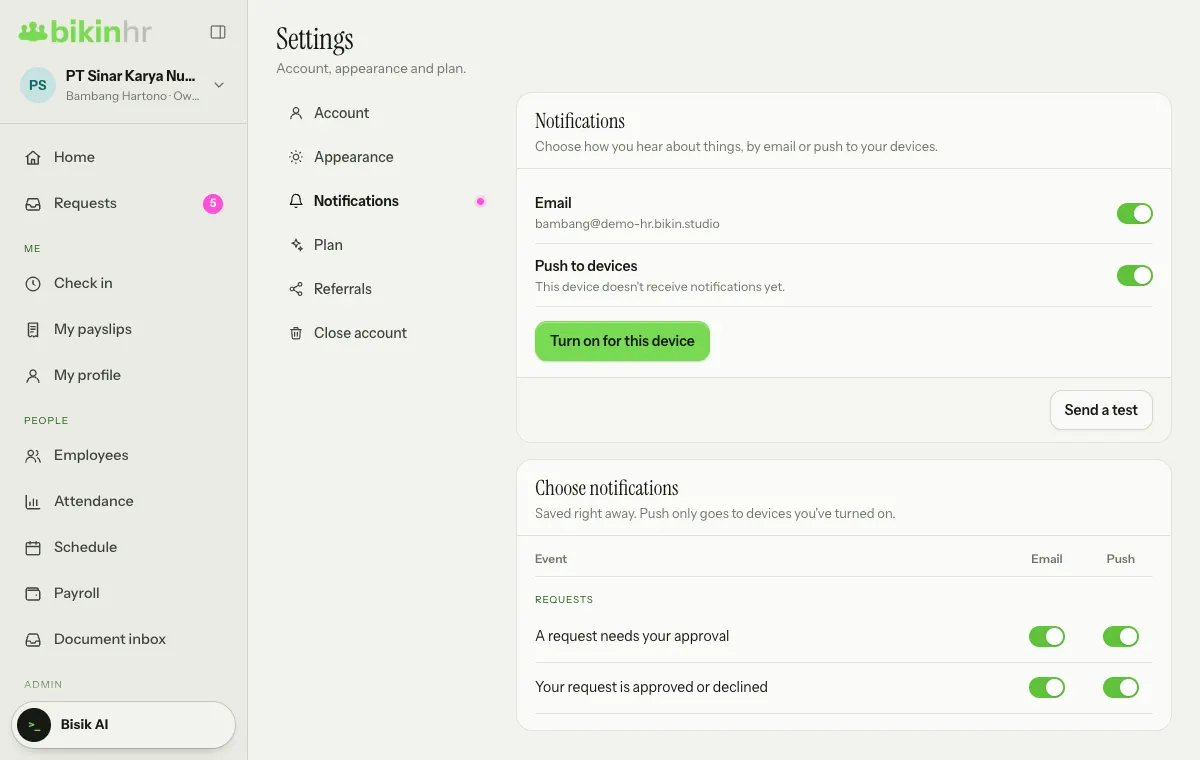
- Email goes to your account address. By default it's on for both events: requests waiting for your approval and decisions on your requests.
- Push to devices: tap Turn on for this device and allow it in your browser. Do it on every phone or computer that should get notifications; Turn off on this device stops it. On iPhone, push only works once the app is on your home screen (Share › Add to Home Screen).
- Send a test sends one test notification to your active devices and your email, so you know everything arrives.
- Demo accounts don't send emails or push notifications.
Company policies
Owners and HR admins set the rules in Company › Policies, on the Approvals and leave card, then press Save:
- Leave and overtime approval: Manager, then HR, or Manager only.
- Annual leave accrual: in full after 12 months, or monthly; with an option for pro-rata in the first eligible year.
- Collective leave uses annual leave.
- Carry-over (max days) and the month it is valid through.
- Workdays per week (5 or 6), for holiday overtime rates.
- Advance cap (% of base pay) and max instalments.
- Warning validity (months).
Leave types
The Leave types card holds the default leave types, which follow Indonesia's Manpower and Job Creation laws, for example annual leave, sick leave, maternity, marriage, bereavement and unpaid permission. Tap a type to change it, or press + Type to make a New type: days per year, max days per request, eligible after how many months, doctor's note over how many days, working or calendar days, paid or unpaid, and whether half days are allowed. Types you don't use can be switched off with Active.
Manual leave balance adjustments need a reason and are logged.
Approved overtime and cash advances are counted in pay runs. See Payroll.
Last updated: