Bikin HRAccount & plan
Plan & billing
How to see your Bikin HR plan limits, choose and pay for a plan, renewals, what happens when a plan ends, and the referral program.
Every company starts on the free plan. The plan decides how much you can use (active employees, work locations, kiosk tablets, companies in a group and document storage) and which features are on.
See your plan
Open Settings › Plan (the Settings menu at the bottom of the sidebar, then Plan in the list of sections on the left). The Owner sees the plan name and how long it is active under the title of the Plan card.
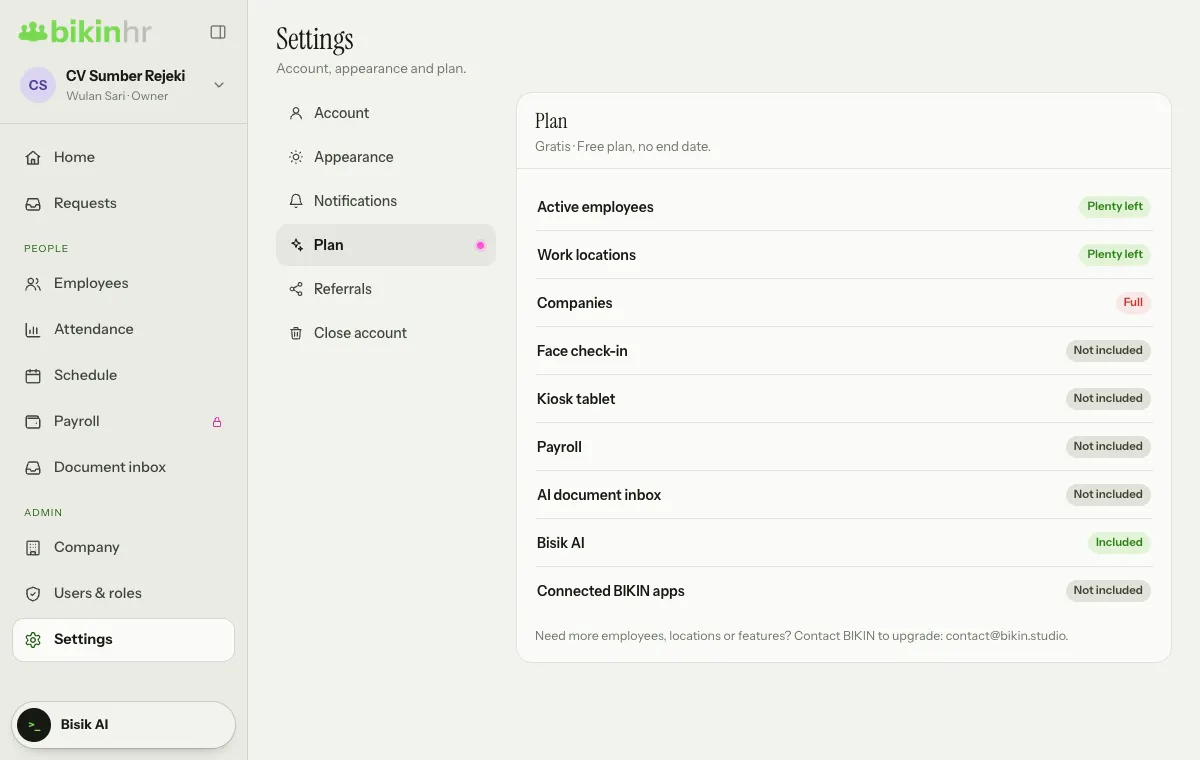
Plan limits are shown in words, such as Plenty left, Almost full or Full, not numbers. Features not in your plan are marked Not included. If your group has several companies, one plan covers them all and the limits count across the group.
Features that can differ between plans include face check-in, kiosk tablets, dynamic QR, field visits, payroll, overtime, cash advances, reimbursements, THR, work notes and warning letters, the AI document inbox, connected BIKIN apps and CSV export. Bisik is available on every plan. Higher plans give more capacity, and the top plan gives the most.
Features your plan doesn't include yet aren't hidden; they show locked. The My payslips and Payroll menus stay in the sidebar with a small magenta lock and open a page that explains what they do, such as Payroll is on paid plans. The THR tab in Payroll and the Face check-in card have a lock and an upgrade note, the CSV buttons in Employees and Attendance show a mini lock, and the Kiosk tablet (face, PIN, card), Dynamic QR on the kiosk screen and Field visits (outside the radius) check-in methods in a location's settings carry an Upgrade pill. The Owner sees See plans (or a note to contact BIKIN when plan sales aren't open yet); other users are asked to contact the Owner.
Apart from the Owner, users only see plan usage. To upgrade, ask the company Owner.
Choose and pay for a plan (Owner)
When plan sales are open for your company, the Owner sees the Choose a plan card in Settings › Plan.
- Choose a period: Monthly, 3 months or Yearly.
- Choose a plan. If you have a Coupon code, enter it and press Apply.
- Check the total, then press Pay.
- You go to the online payment page. Pay by virtual account, QRIS, e-wallet or retail outlet, then you come back to Bikin HR.
The plan starts as soon as it is paid. If the payment is still processing, the page updates on its own.
- Switching plans: the days left on your current plan become extra days on the new one. Days left on a free referral trial don't become extra days; after your first payment, the days left count as usual.
- Renewing the same plan: the new period continues after the last day of your current plan.
Bills and renewals
The Bills section lists every bill with its status: Waiting for payment, Paid, Expired or Cancelled. A bill that is still waiting can be paid or cancelled.
On a paid plan, turn on Send a renewal bill before the plan ends (below the feature list) so the Owner gets a renewal bill by email before the plan runs out. Turning it off cancels a renewal bill that's still waiting for payment.
If plan sales aren't open yet, Settings › Plan says how to contact BIKIN to upgrade.
When a paid plan ends
The free plan's limits apply again. Employees and locations over those limits are paused: paused employees can't sign in or check in (by phone or kiosk), and paused locations can't be used for check-in. Features outside the free plan turn off too.
Your data doesn't change. Everything opens again once your plan is active. The Owner can always sign in to renew.
Settings › Plan then shows a Some things are paused card listing what is paused. The Owner can decide what keeps working with Choose what stays: pick the employees and locations that stay usable on the free plan. If nothing is picked, what stays is the Owner's own employee record, then the oldest records.
Referrals (Owner)
When BIKIN has the referral program open, the Owner sees Settings › Referrals:
- Invite other companies: share your referral link. Companies that sign up through it count as your invites, and may get a trial or a discount depending on the current program.
- Commission: if the program pays commission, you earn it each time an invited company pays. Commission is held for some days after it arrives, then it can be withdrawn.
- Withdraw: write the bank account (bank, account number, account name). BIKIN transfers the payout to that account. Payouts are handled one at a time.
Invited companies' names are shown masked.
The current prices, discounts and commission are always shown in the app before you pay or share your link.
Last updated: