Bikin HRGet started
Getting started with Bikin HR
How to create a Bikin HR account, sign in with email and a code, fill in company details and finish the Quick start list.
This page takes you from a new account to a team that can check in and request leave. The same steps appear in the app as the Quick start list.
Create an account
- Open hr.bikin.studio and choose Create one free.
- Fill in Your name, Company name, Email and Password (at least 8 characters), then press Create account.
- Open your email and enter the 6-digit code Bikin HR sent. The code works for 10 minutes.
- Your account becomes the company's Owner account, and the company starts on the free plan.
If Sign up with Google is offered on that page, you can also sign up with a Google account and then just add your name and company name.
If the sign-up page says sign-up isn't open yet, contact BIKIN to get an account.
Sign in
- Open hr.bikin.studio, enter your email and password, then press Sign in.
- Enter the code sent to your email. Signing in with a password is always followed by a code from your email.
- That device stays signed in for 30 days.
If you have linked a Google account (see below), you can choose Sign in with Google without typing a password.
Sign in with WhatsApp
If the Sign in with WhatsApp button is on the sign-in page, you can sign in with a code sent by WhatsApp, without a password:
- Add and verify your WhatsApp number once in Settings › Account › WhatsApp number (see below).
- On the sign-in page, choose Sign in with WhatsApp and enter that number.
- Enter the 6-digit code from WhatsApp. The code works for 10 minutes. The Copy code button in the WhatsApp message copies it for you.
A WhatsApp code sent to a verified number replaces the password and email code, so you are signed in straight away and that device stays signed in for 30 days. If your account holds several companies, pick the company as usual after signing in.
Forgot your password? Choose Forgot password on the sign-in page, enter your email, then create a new password with the code from your email.
Invited by your company? You get a Your Bikin HR invitation email with a temporary password. Sign in with that email and the temporary password, enter the code from your email, then change the password right away in Settings › Account (the Settings menu sits at the bottom of the sidebar).
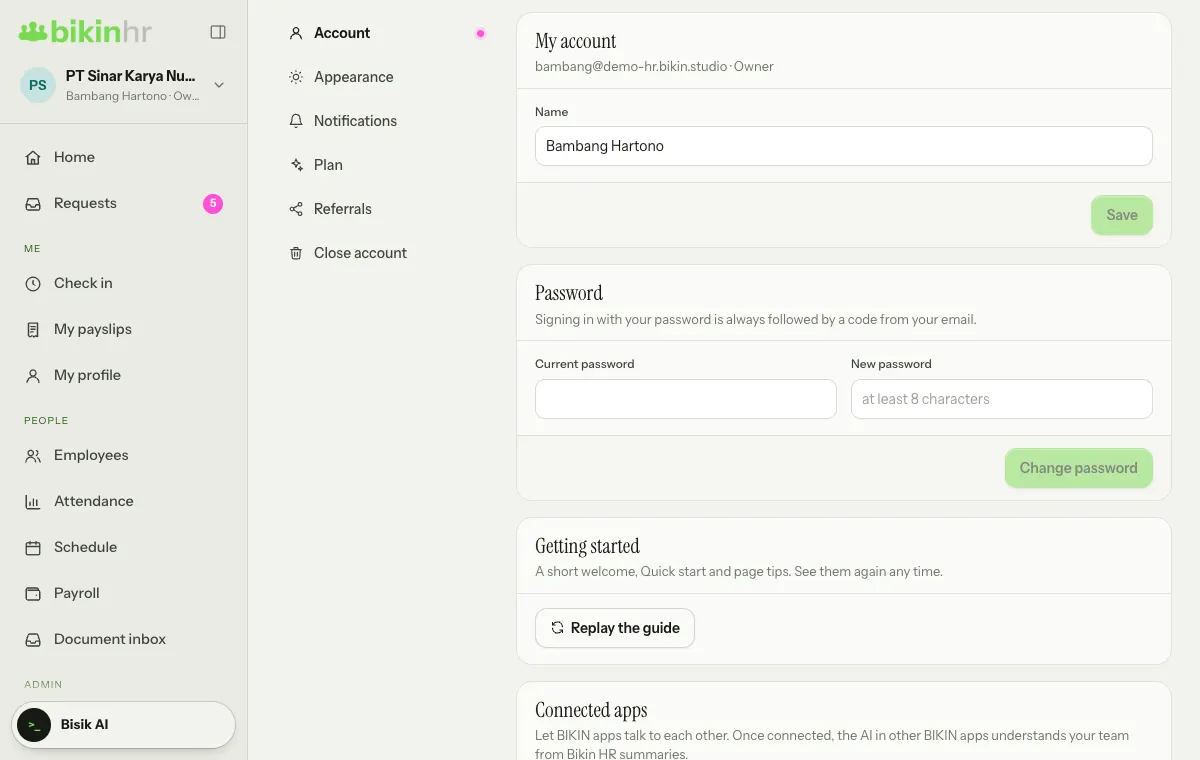
Link a Google account
In Settings › Account, the Google account card can link any Google account, even one with a different email. Linking asks for a code from your email. Once linked, choose Sign in with Google when signing in. You can unlink it any time; email and password sign-in keeps working. The card only shows when Sign in with Google is available for Bikin HR.
Add a WhatsApp number
- Open Settings › Account, the WhatsApp number card.
- Enter your number and choose Send code. Bikin HR asks for a code from your email first.
- Enter the 6-digit code that arrives by WhatsApp. The number is saved as Verified.
The phone number in your employee data is not used for signing in automatically: only a number you verified here receives codes. Choose Change to use another number, or Remove to stop signing in with WhatsApp. One number can only belong to one person in Bikin HR. The card doesn't show if WhatsApp isn't available for Bikin HR yet.
Welcome and Quick start
The first time you sign in, Bikin HR shows a few welcome cards for your role. Press Next for the next card, or Skip to go straight to the app.
Owners and HR admins also get the Quick start card at the foot of the sidebar, just above the Bisik AI button (in the sidebar drawer on a phone). The percentage shows how many steps are done.
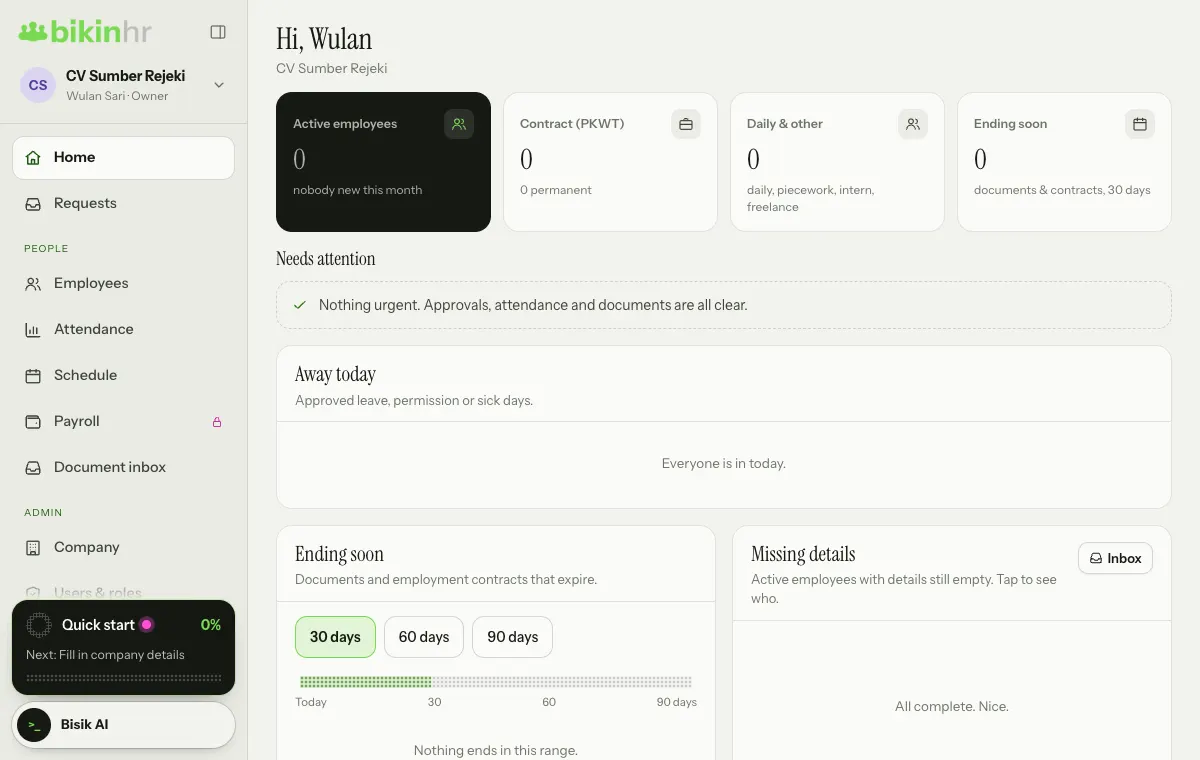
Tap the card to open the list of steps. Each step has a button that takes you straight to its page, and its tick fills in on its own once the data is there, so there's no need to finish now.
| Step | Why |
|---|---|
| Fill in company details | Legal name, address and tax number appear on payslips and tax slips |
| Add your first employees | Attendance, leave and pay all read employee data |
| Set work locations and check-in methods | Without a check-in location, employees can't check in by phone |
| Create schedules or shifts | Without schedules, workdays are taken as Monday–Friday and lateness isn't counted |
| Check the leave policy | The default leave types follow common rules; adjust them if needed |
| Add pay and bank details | Without bank accounts the transfer list is empty; without base pay, payslips can't be worked out |
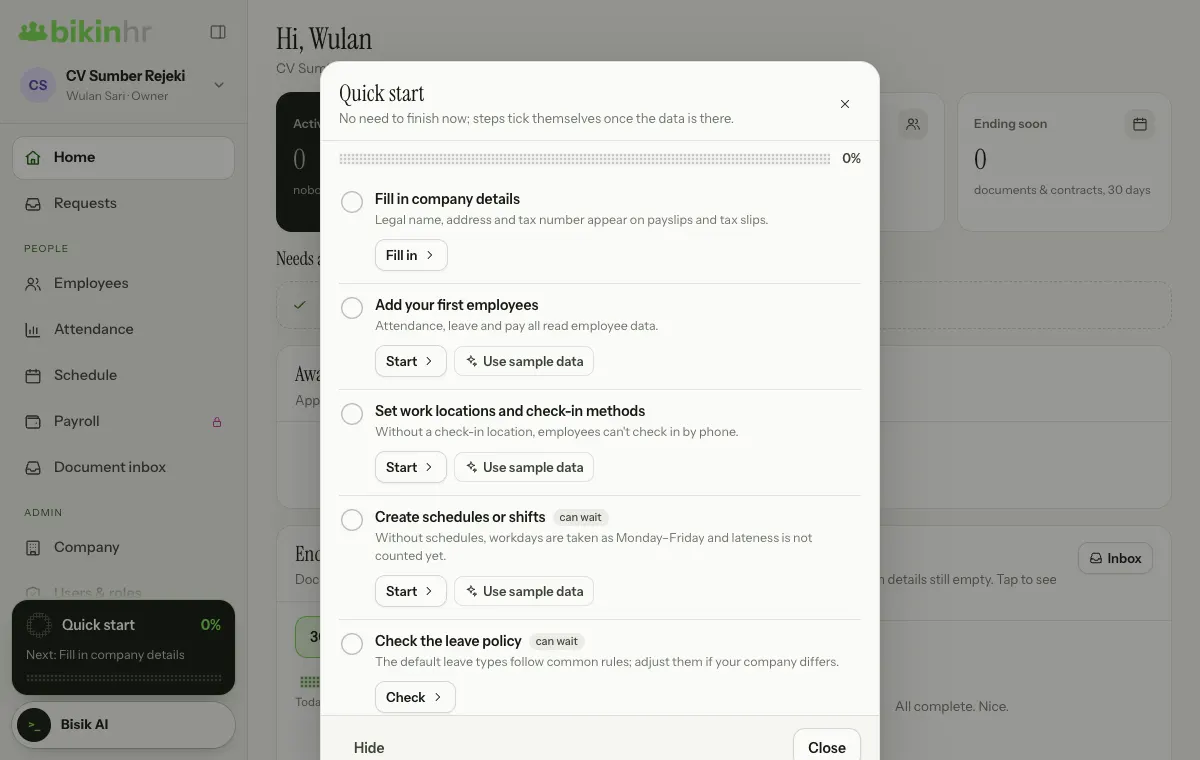
Once the required steps are done, press Finish to close the list. Not ready to use it? Press Hide under the list.
Sample data
Want to try it first? Choose Use sample data next to the employee, location or schedule step. Bikin HR adds 5 sample employees with departments and positions, one work location and one shift with a weekly schedule. Sample employees carry a Sample badge, get no sign-in account or email, and stay out of pay runs unless you fill in their pay yourself. Sample data counts towards your plan like regular data. Remove everything in one tap with Remove sample data; your own data isn't touched.
The welcome, Quick start and page tips can be opened again from Settings › Account › Getting started: press Replay the guide, or Show Quick start if you hid the list.
Install the app on your phone
Open Settings › Appearance › Install the app. In Safari (iPhone), tap Share, then Add to Home Screen. In other browsers, open the browser menu and choose Install app or Add to home screen. Bikin HR then opens like a normal app, including for check-in.
Appearance and language
Tap the company name at the top of the sidebar to open the profile menu:
- Company: switch to another company if your group has several; the Owner also sees Add a company (see Employees).
- My account: opens Settings › Account.
- Help guide and Other apps: open this guide and the list of BIKIN apps in a new tab.
- Theme: Light or Dark. Until you choose, it follows your device.
- Language: Indonesia or English.
- Sign out.
On a phone, open the sidebar with the round button at the top left or by swiping right.
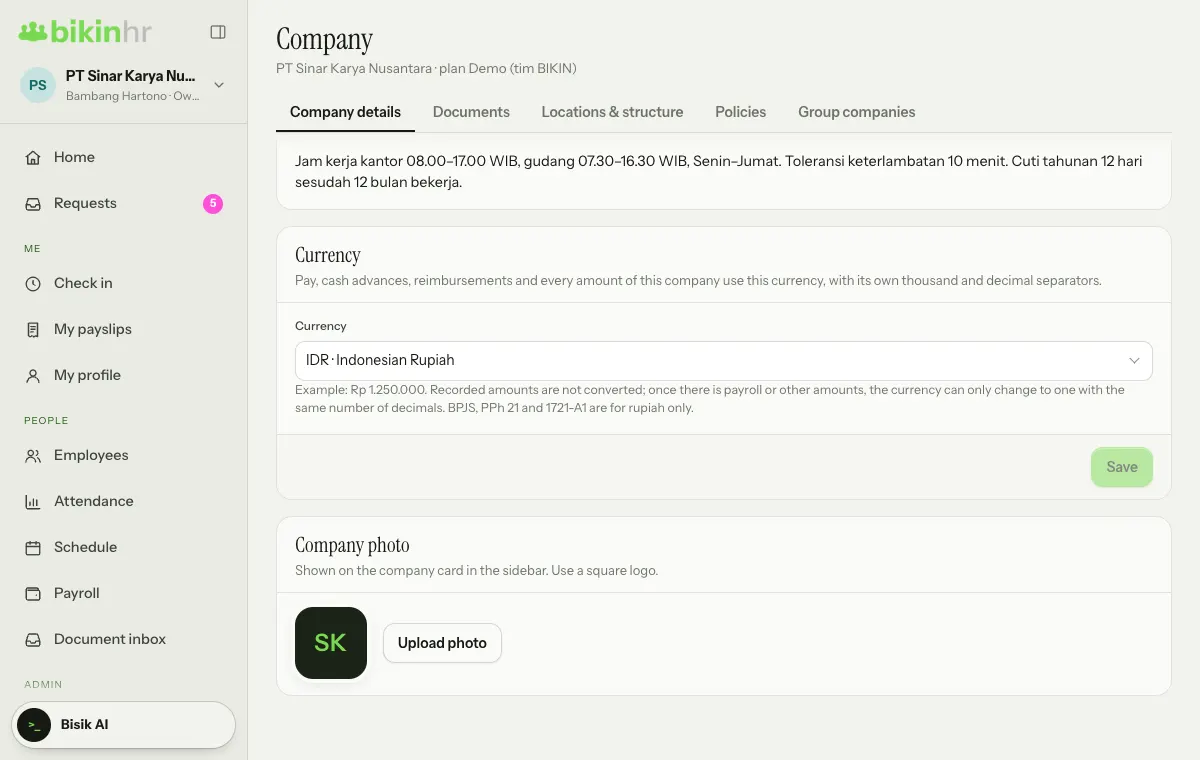
Company photo
Every company can have a photo that shows on the company card in the sidebar and in the company switcher. Set it in Company › Company details, card Company photo: Upload photo, Change photo or Remove photo. Use a square logo; the photo is cropped square and shrunk automatically.
Profile photo
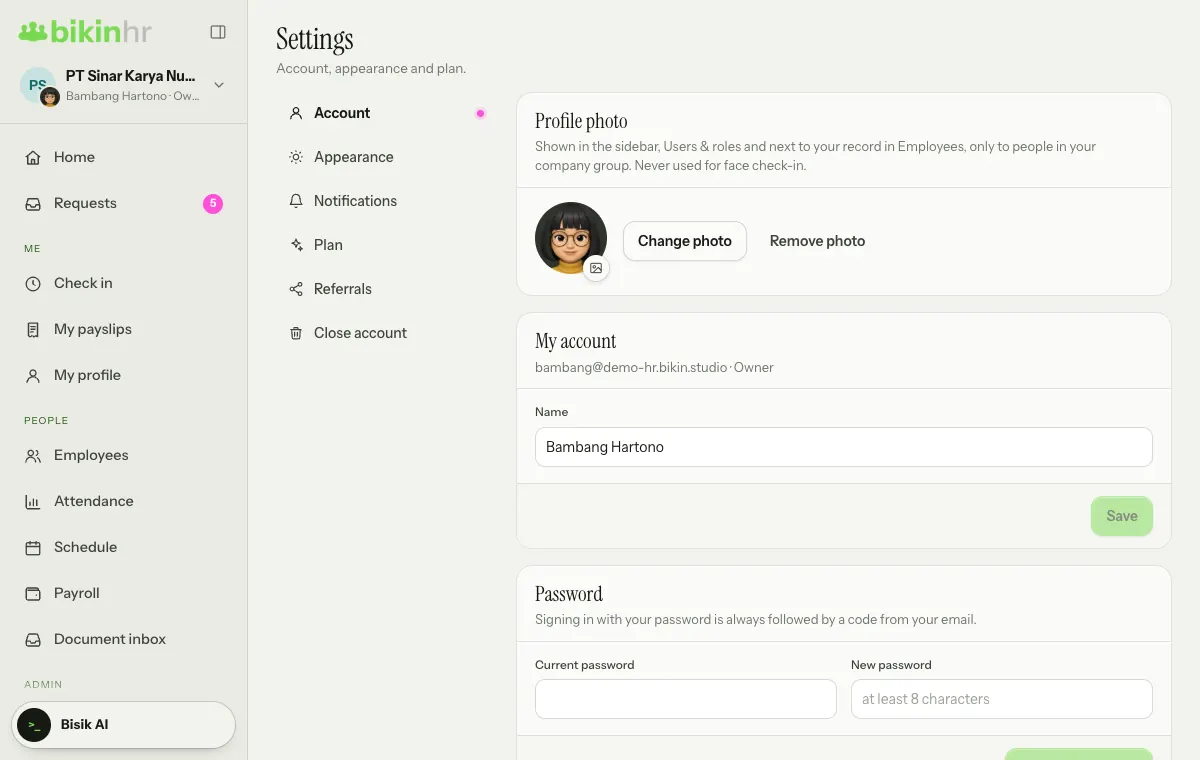
The Profile photo card in Settings › Account shows your photo as a small badge on the company avatar at the top of the sidebar, in Users & roles, and next to your record in the Employees list. Choose Upload photo (or drag an image onto the card), then a JPG, PNG or WebP image; in Adjust your photo, drag the photo and use the slider to zoom, then choose Save photo. It's cropped square and shrunk on your device before upload. Change photo uses another image, and Remove photo goes back to your initials. Only people in your company group see your photo, it never appears on public links, it's never used for face check-in, and it's deleted when you're switched off or your account is deleted. The company photo is set separately in Company › Company details, card Company photo.
Next: Employees.
Last updated: